The Direct Answer: Why Your Wired Speakers Aren’t Making Sound
If you are wondering why are my wired speakers not working, the most common causes are loose physical connections, incorrect audio output settings on your source device, or a lack of power to your amplifier or active speaker system. To fix this immediately, ensure the speaker wires are securely seated in their terminals, the volume is turned up on both the source and the speaker, and the correct input channel is selected.
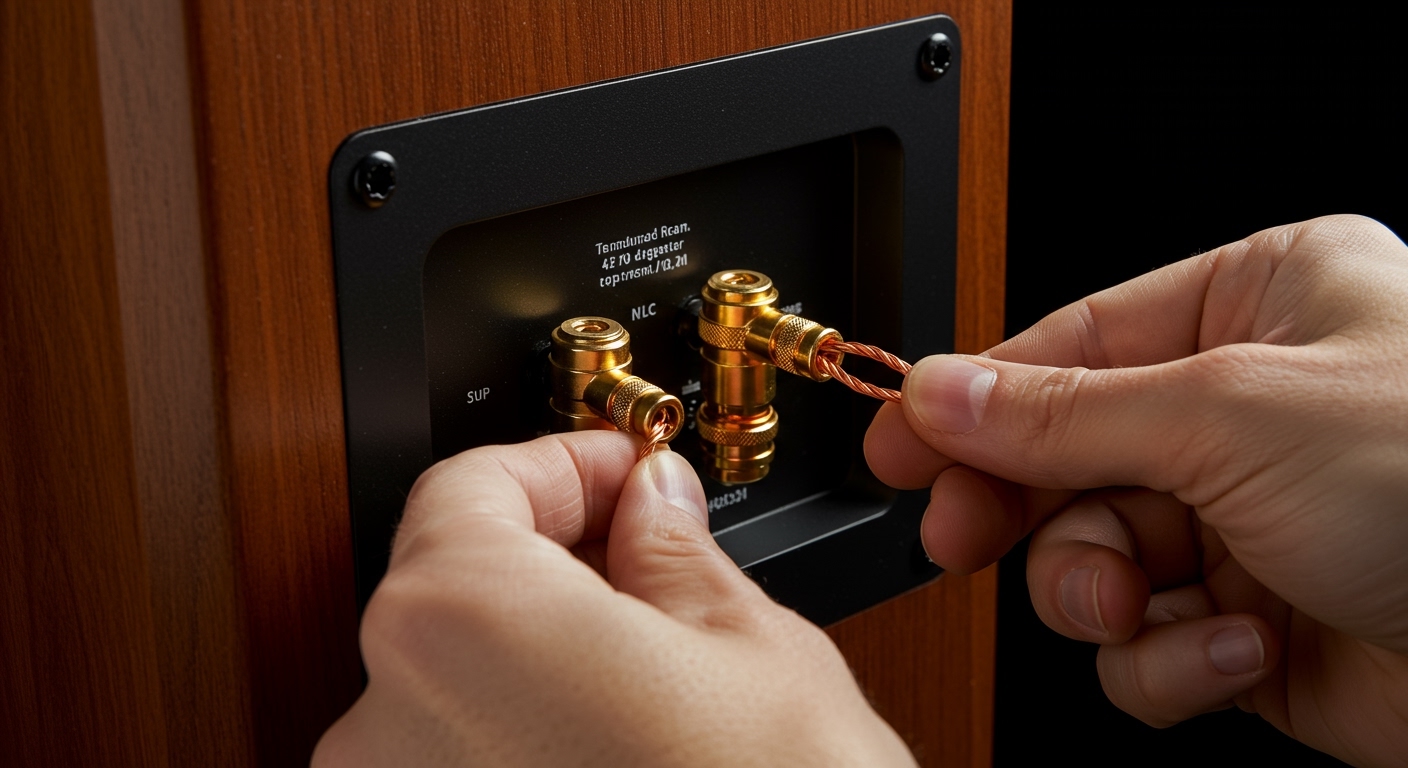
Most wired audio failures are mechanical or configuration-based rather than permanent hardware damage. By following a systematic signal-path check, you can usually restore high-fidelity sound in under five minutes.
⚡ Quick Troubleshooting Checklist (TL;DR)
- Physical Connections: Inspect both ends of the speaker wire, RCA cables, or 3.5mm jacks for loose seating.
- Power Status: Verify that your amplifier, receiver, or active speakers are plugged in and the power LED is illuminated.
- Source Output: Ensure your PC, TV, or Phone is outputting audio to the “Line Out” or “Speakers” option, not a Bluetooth headset or internal monitor speakers.
- Mute & Volume: Check for hidden Mute toggles on the remote, the software mixer, and the physical volume knob.
- Wire Integrity: Look for frayed copper, pinched insulation, or oxidized connectors that might be breaking the circuit.
Common Physical Reasons Why Your Wired Speakers Are Not Working
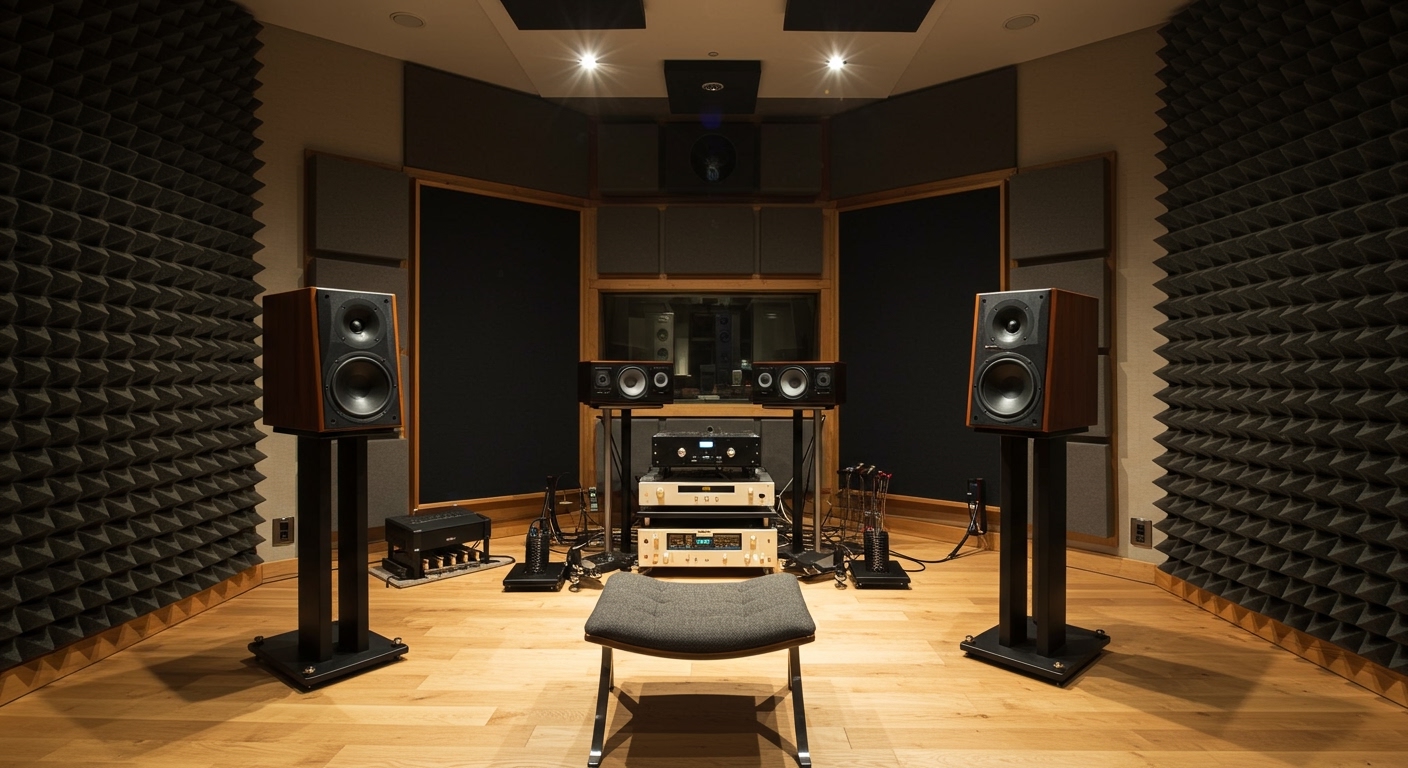
When I manage professional audio setups, the first thing I check is the physical “handshake” between the devices. Even a high-end SVS or Klipsch system will fail if the electrons can’t travel the path.
Loose or Improperly Stripped Speaker Wire
If you are using passive speakers (those requiring an external amplifier), the speaker wire is the most likely culprit. If the wire isn’t stripped back far enough, you might be clamping down on the plastic insulation rather than the copper conductor.
- The Fix: Unscrew the binding posts or press the spring clips. Ensure at least 1/2 inch of bare copper is touching the metal terminal.
- Expert Tip: Use Banana Plugs for a more secure, “click-in” connection that prevents wires from slipping out over time.
Faulty Audio Jacks and RCA Cables
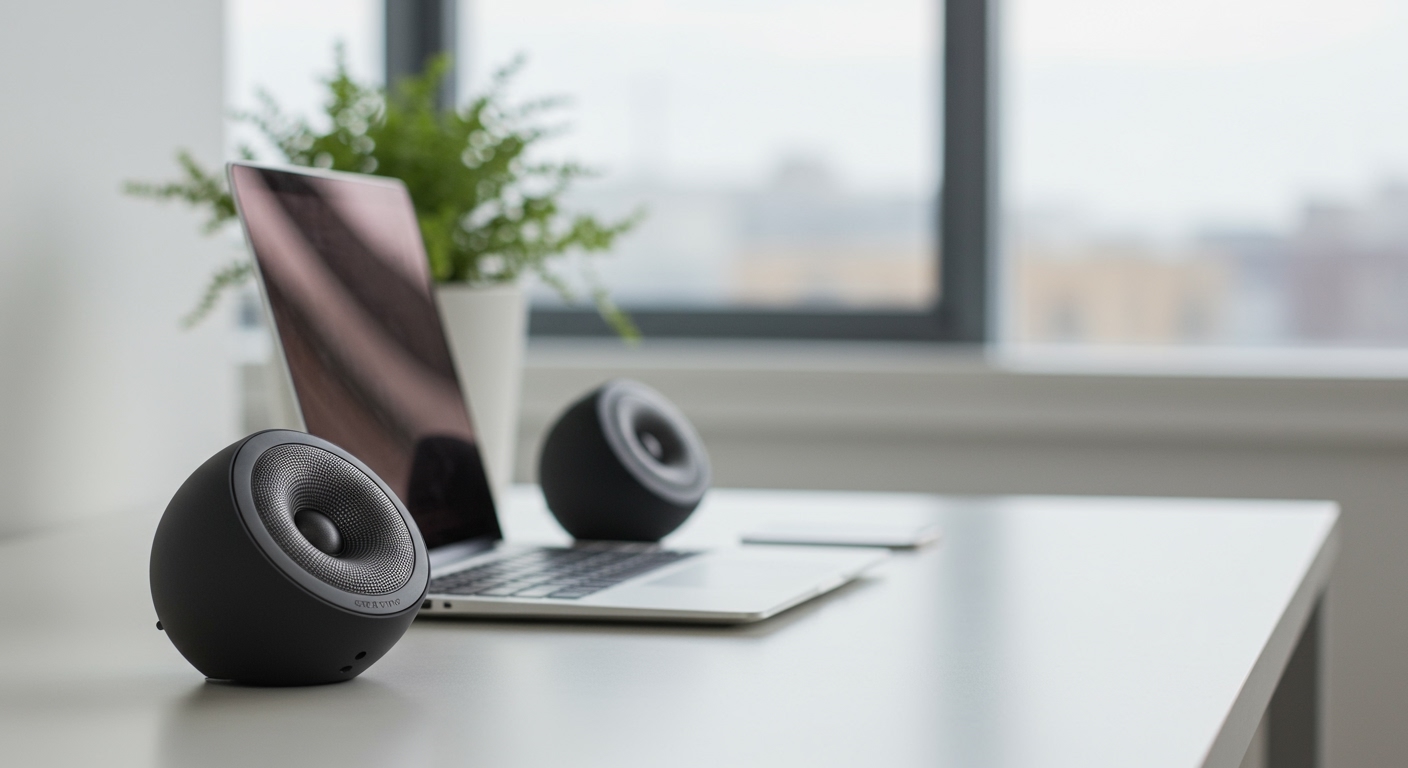
For active speakers (powered speakers like Audioengine or Logitech), the issue often lies in the 3.5mm auxiliary cable or RCA interconnects. These cables are prone to internal “breaks” if they are bent at sharp angles behind a desk or TV stand.
- Test: Swap the cable with one you know works. If the sound returns, your old cable has an internal short.
- Entity Check: Look for gold-plated connectors, which resist corrosion and provide a cleaner signal path.
Blown Fuses in Amplifiers
Many high-performance Integrated Amplifiers and AV Receivers have internal or external fuses to protect against power surges. If your speakers stopped working after a loud “pop” or a power flicker, the fuse likely sacrificed itself to save your hardware.
- Action: Unplug the unit and check the back panel for a small screw-cap labeled “Fuse.” Replace it only with a fuse of the exact same amperage and voltage rating.
Diagnosing Source and Software Issues
Often, the speakers are perfectly healthy, but the “brain” sending the signal is confused. This is the primary reason why are my wired speakers not working on modern Windows and Mac systems.
Windows Sound Settings and Drivers
In Windows 11, the system often defaults to the wrong output device—especially if you have a monitor with built-in speakers or a USB headset plugged in.
- Right-click the Speaker Icon in the taskbar.
- Select Sound Settings.
- Under Output, manually select your Realtek High Definition Audio or your external DAC (Digital-to-Analog Converter).
- Check the Volume Mixer to ensure the specific application (Chrome, Spotify, etc.) isn’t individually muted.
The “Phantom” Headset Jack
I’ve seen many cases where a broken 3.5mm headphone jack on a laptop or phone thinks a pair of headphones is plugged in, even when it’s empty. This mutes the external wired speakers.
- The Fix: Gently clean the jack with compressed air or a non-conductive toothpick. A small piece of lint can trigger the “inserted” sensor.
Outdated Audio Drivers
If you just performed a Windows update and your speakers went silent, your audio drivers might be corrupted.
- Open Device Manager.
- Expand Sound, video and game controllers.
- Right-click your audio device and select Update Driver, or “Uninstall” and restart the PC to force a clean re-installation.
Comparative Guide: Passive vs. Active Speaker Issues
Understanding which type of speaker you own is crucial for troubleshooting.
| Feature | Passive Speakers | Active (Powered) Speakers |
|---|---|---|
| Power Source | External Amplifier / Receiver | Built-in internal amplifier |
| Typical Connection | Speaker Wire (Bare, Banana, Spade) | 3.5mm Aux, RCA, or XLR |
| Common Failure | Impedance mismatch or blown amp | Blown internal capacitor or fuse |
| Troubleshooting Step | Check “Speaker A/B” switch on amp | Ensure “Auto-Standby” mode is off |
| Signal Path | Source -> Amp -> Speaker | Source -> Speaker |
Advanced Hardware Troubleshooting: Going Deeper
If the basics didn’t work, we need to look at signal integrity and component health.
Impedance Mismatch and Protection Mode
Modern AV Receivers (like those from Denon or Yamaha) have a “Protection Mode.” If your speakers have an impedance (ohms) lower than what the amp can handle (e.g., 4-ohm speakers on an 8-ohm rated amp), the receiver will shut down to prevent overheating.
- Observation: Check the receiver display for words like “PROTECT” or “CHECK SP WIRES.”
- Expert Advice: This usually happens when a single strand of copper wire from the positive terminal touches the negative terminal, creating a short circuit.
Testing for “Dead” Drivers
To determine if the speaker itself is dead, you can perform the 9V Battery Test (use only on passive speakers).
- Disconnect the speaker wires from the amp.
- Touch the positive wire to the positive terminal of a 9V battery and the negative wire to the negative.
- If you hear a “crackle” or “pop,” the speaker driver and voice coil are still functioning. If there is total silence, the speaker’s internal crossover or driver is likely blown.
Ground Loops and Hum
Sometimes the speakers “work” but produce a loud, annoying hum that masks the music. This is a Ground Loop.
- The Fix: Plug your amplifier and your source (PC/TV) into the same power strip or surge protector. This ensures they share a common ground reference.
Expert Tips for Audio Maintenance
In my 15 years of handling high-end audio, I’ve learned that preventative maintenance saves hundreds of dollars in repair costs.
- DeoxIT is Your Friend: Use a contact cleaner like Hosa DeoxIT on RCA plugs and binding posts once a year to remove oxidation.
- Manage Your Heat: Never stack your amplifier inside a closed cabinet without ventilation. Heat is the #1 killer of the capacitors that power your wired speakers.
- Cable Management: Avoid running your speaker wires parallel to high-voltage power cables. This causes Electromagnetic Interference (EMI), which can lead to signal loss or noise.
- Check Your Polarity: Always ensure “Red to Red” and “Black to Black.” Running speakers out of phase won’t stop them from working, but it will cancel out the bass frequencies, making them sound thin and “broken.”
Frequently Asked Questions
Why are my wired speakers making a static noise but no music?
Static usually indicates a poor connection or interference. Check for loose wires or move your router away from the speakers. If the static persists across all sources, your amplifier’s output stage may be failing.
Can a software update break my wired speakers?
Yes. Operating system updates often reset default audio devices or disable audio services. Always check your “Sound Control Panel” after an update to ensure your wired output is still the primary device.
How do I know if my speaker wire is too thin?
If you are running wires longer than 50 feet, you should use 14-gauge (AWG) or 12-gauge wire. Using thin 22-gauge wire for long runs increases resistance, which can cause the speakers to sound quiet or cause the amp to overheat.
My speakers work with one device but not another. Why?
This points to a source-specific issue. It could be a dead 3.5mm port on your laptop, a faulty DAC, or an incorrect sample rate setting in the device’s software that the speakers cannot decode.
Is it worth repairing old wired speakers?
If the speakers are high-quality brands like Bowers & Wilkins or Vintage JBL, they are absolutely worth repairing. Often, the issue is just “rotted” foam surrounds on the woofers, which can be replaced for under $30 with a DIY kit.