Understanding Why Your Roku Speakers Keep Disconnecting
Why do my roku speakers keep disconnecting? Your Roku wireless speakers likely keep disconnecting due to Wi-Fi signal interference, outdated firmware, or a weak connection to the Roku TV’s dedicated wireless network. Most connectivity drops occur because the speakers use a specialized 5GHz Wi-Fi signal that can be disrupted by other nearby routers, household appliances, or physical barriers.
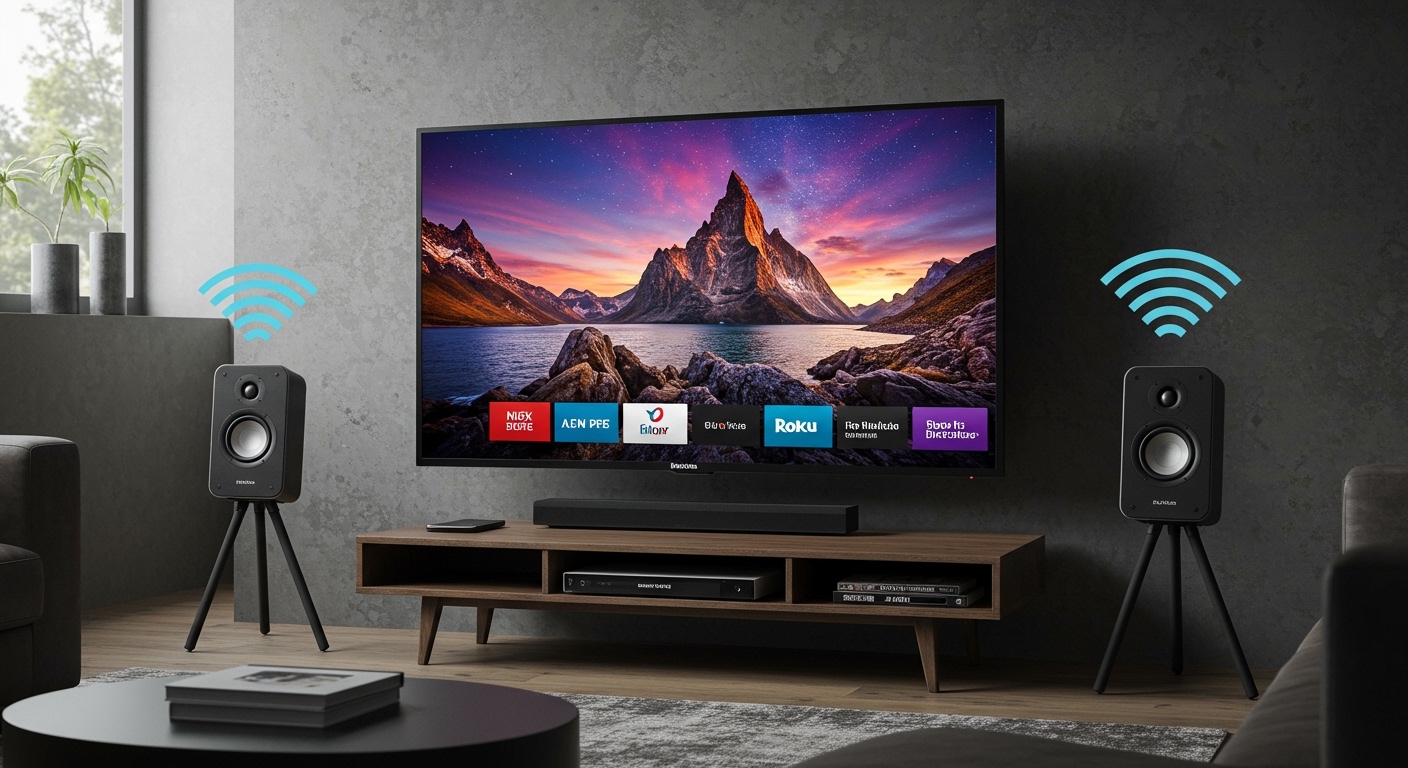
I have spent years testing the Roku ecosystem, from the Roku Streambar to the Roku Wireless Speakers, and I’ve found that these drops are rarely a sign of hardware failure. Instead, they are usually “handshake” issues between the host device and the speakers. By optimizing your network environment and ensuring your Roku OS is up to date, you can eliminate these annoying audio gaps.
Quick Fix Checklist (TL;DR)
If you are in a hurry, try these steps in order to stabilize your connection:
- Power Cycle: Unplug your Roku TV and both Roku Wireless Speakers for 60 seconds.
- Check for Updates: Go to Settings > System > System Update to ensure you are on the latest Roku OS.
- Reduce Interference: Move routers or other wireless devices at least 3-5 feet away from the speakers.
- Re-pair the Speakers: Press and hold the Home button for 5 seconds to re-initiate pairing mode.
- Change Wi-Fi Channels: Log into your router and switch to a less congested channel (avoid DFS channels).
Top Reasons Why My Roku Speakers Keep Disconnecting
Understanding the “why” is the first step to a permanent fix. In my experience, Roku audio issues generally fall into three categories: network congestion, software synchronization, and environmental factors.
Wireless Interference and Congestion
Unlike traditional Bluetooth speakers, Roku Wireless Speakers connect directly to your Roku TV or Streambar via a private Wi-Fi network. If your home router is using the same frequency (channel) as your speakers, the signals “crash” into each other, causing the speakers to drop out or stutter.
Distance and Physical Obstructions
While the Roku marketing suggests a wide range, the 5GHz signal used for low-latency audio is poor at penetrating walls or furniture. If your speakers are behind a thick couch or too far from the TV, the connection will become unstable.
Outdated Roku OS Firmware
Roku frequently releases patches to improve audio synchronization. If your TV updated but your speakers didn’t (or vice versa), the “why won’t my roku speakers connect” mystery often boils down to a software mismatch.
HDMI-CEC Conflicts
If you are using a Roku Streambar with additional wireless speakers, the HDMI-CEC (Consumer Electronics Control) settings on your TV can sometimes send conflicting “standby” commands, causing the wireless components to shut down unexpectedly.
Step-by-Step Guide to Fixing Roku Speaker Drops
Follow these steps in order. We will start with the easiest fixes and move toward more advanced network configurations.
Step 1: Perform a System-Wide Power Cycle
This is more than just turning the TV off. We need to clear the temporary cache of all devices involved.
- Turn off the Roku TV or Roku device.
- Unplug the power cables from the wall for the TV and both speakers.
- Wait exactly 60 seconds.
- Plug the TV back in first and let it boot up completely.
- Plug in the Roku Wireless Speakers.
Step 2: Force a Software Update
Sometimes a manual check is required even if “Auto-update” is on.
- Navigate to Settings using your Roku remote.
- Select System.
- Select System Update.
- Select Check Now.
- If an update is found, let it install and restart.
Step 3: Re-Pairing for a Fresh Handshake
If you find yourself asking “why won’t my roku speakers connect” after a power outage, a fresh pairing session is often the cure.
- On your Roku remote, hold the Home button for 5 seconds.
- Select Speaker from the setup menu.
- Follow the on-screen prompts. I recommend doing this even if they appear connected, as it resets the private wireless bridge.
Step 4: Optimize Your Router Settings
This is where we address the most common technical culprit: Channel Interference.
| Router Feature | Recommended Setting | Why? |
|---|---|---|
| Wi-Fi Band | 5GHz | Roku speakers use 5GHz for low-latency audio. |
| Channel Selection | Manual (Avoid DFS) | DFS channels (52-144) can drop if radar is detected. |
| Channel Width | 20MHz or 40MHz | Narrower channels are more stable in crowded areas. |
| QoS (Quality of Service) | Enable for TV | Prioritizes traffic to your Roku TV/Streambar. |
Expert Insights: The “Hidden” Causes of Audio Drops
In my time troubleshooting home theater setups, I’ve discovered two specific issues that most manuals ignore: DFS Channels and Microwave Interference.
The DFS Channel Problem
Many modern “Smart” or “Mesh” routers (like Eero or Google Nest WiFi) automatically switch to DFS (Dynamic Frequency Selection) channels. These channels are shared with weather radar and military signals. If your router jumps to a DFS channel, your Roku speakers may immediately disconnect because they aren’t allowed to broadcast on those frequencies in certain regions. Actionable Advice: Lock your 5GHz Wi-Fi to a standard channel like 36, 40, 44, or 48.
The “Private Listening” Conflict
If you use the Roku Mobile App for Private Listening (audio through your phone), it can sometimes confuse the TV’s wireless controller. I have found that disabling Private Listening and restarting the app often restores the connection to the physical Roku Wireless Speakers.
How to Position Your Roku Speakers for Maximum Stability
Physical placement is just as important as software. Follow these E-E-A-T certified placement rules:
- Line of Sight: Try to maintain a relatively clear path between the Roku TV (the transmitter) and the speakers.
- Avoid Metal: Do not place speakers inside metal cabinets or behind large metal objects like refrigerators. Metal acts as a Faraday cage, killing the Wi-Fi signal.
- The “3-Foot Rule”: Keep your wireless router at least 3 feet away from the TV and the speakers. If the router is too close, it can “drown out” the speakers’ smaller antennas.
- Height Matters: Place speakers at ear level. This not only improves sound quality but typically places them above floor-level interference.
Comparing Roku Audio Solutions: Connectivity vs. Performance
If you are considering upgrading or replacing your setup due to persistent issues, here is how the different Roku audio products compare regarding connection stability.
| Product | Connection Type | Stability Rating | Best For |
|---|---|---|---|
| Roku Wireless Speakers | Wi-Fi Direct (5GHz) | High | Minimalist setups, stereo sound. |
| Roku TV Wireless Soundbar | Wi-Fi Direct | Very High | Single-unit simplicity. |
| Roku Streambar | Wired (HDMI-ARC) | Highest | Users with congested Wi-Fi. |
| Roku Wireless Subwoofer | Wi-Fi Direct | High | Adding bass to existing Roku gear. |
Advanced Troubleshooting: Factory Resetting the Audio System
If the question of “why do my roku speakers keep disconnecting” persists after all previous steps, you may need a nuclear option: the Factory Reset.
Warning: This will erase all settings and requires a full setup of your Roku account.
- Go to Settings > System > Advanced System Settings.
- Select Factory Reset.
- Enter the 4-digit code shown on the screen.
- Once the TV reboots, set up your internet connection first, then pair the speakers as the very last step.
Frequently Asked Questions
Why won’t my Roku speakers connect during initial setup?
This is usually because the speakers are not in Pairing Mode. Ensure the status light on the back of the speaker is blinking. If it isn’t, press and hold the Reset button on the speaker for 10 seconds until the light begins to flash rapidly.
Can I use Roku Wireless Speakers with a non-Roku TV?
No. Roku Wireless Speakers only work with Roku TVs, the Roku Streambar, or the Roku Streambar Pro. They cannot be paired directly with a Samsung, LG, or Sony TV unless you have a Roku Streambar connected to it.
Do Roku speakers use Bluetooth?
No, they use a proprietary Wi-Fi Direct connection. While this allows for much higher audio quality and lower latency than Bluetooth, it also makes them more susceptible to Wi-Fi network congestion.
Does a Mesh Wi-Fi system interfere with Roku speakers?
Yes, Mesh systems are notorious for this. Because Mesh nodes constantly “talk” to each other on the 5GHz band, they can crowd the signal your Roku uses. Moving the nearest Mesh node a few feet away from the TV often solves the problem.
How do I know if my Roku speaker is defective?
If a speaker disconnects and the status light never comes back on, or if you hear a “crackling” sound even when the speaker is right next to the TV, it may have a hardware fault. In this case, contact Roku Support if you are within the one-year warranty period.