Why Rear Speakers Have No Sound: The Definitive Troubleshooting Guide
The most common reason why rear speakers no sound is occurring in your system is a mismatch between the audio source and your receiver’s processing mode. If you are playing a stereo (2.0) signal, such as a standard YouTube video or music, your system will naturally prioritize the front channels, leaving the rear speakers silent unless an “upmixing” mode is enabled.
In my fifteen years of configuring high-end home theaters, I have found that 90% of rear speaker issues are software or setting-related, rather than hardware failure. Before you start tearing apart your drywall to check cables, you must verify that your AV Receiver (AVR) is actually being told to send audio to those channels.
Quick Fix Checklist (TL;DR)
If you are in a hurry, perform these five “sanity checks” to restore audio immediately:
- Check the Source: Ensure the movie or game explicitly supports 5.1 or 7.1 Surround Sound.
- Toggle Surround Modes: Change your receiver setting to “Multi-Channel Stereo” or “All Channel Stereo” to force sound to the back.
- Verify Connections: Ensure the copper wires are making direct contact with the terminals and aren’t pinched by the plastic insulation.
- Run a Test Tone: Use your receiver’s “Level” or “Speaker Setup” menu to send a “pink noise” test tone directly to the rear speakers.
- Check “Speaker B” Settings: Ensure you haven’t accidentally disabled the surround zone or switched to a secondary speaker set.
Understanding the “Source Material” Problem
The most frequent “false alarm” we see is users testing their system with content that simply doesn’t have rear-channel data. Most cable news, YouTube videos, and older sitcoms are broadcast in Linear PCM Stereo.
When your receiver receives a 2.0 signal, it defaults to a “Straight” or “Direct” mode. In this mode, the receiver does exactly what it is told: it plays two channels of audio through two speakers. To fix this, you need to use a Digital Signal Processor (DSP).
Common Surround Sound Upmixers
| Upmixer Mode | Best Used For | What it Does |
|---|---|---|
| Dolby Surround / Pro Logic II | Movies & TV | Simulated 5.1 by extracting ambient sounds for the rear. |
| DTS Neo:6 / DTS Neural:X | Action Content | Aggressively pushes directional cues to the surround speakers. |
| Multi-Channel Stereo | Parties / Music | Duplicates the front left/right audio to the rear left/right speakers. |
| Direct / Pure Direct | Audiophile Listening | Disables all processing; rear speakers will be silent if the source is 2.0. |
If you want to know why rear speakers no sound despite the movie being “modern,” check the settings on your streaming app (Netflix, Disney+, etc.). Often, these apps default to “Stereo” if they detect a slow internet connection or improper HDMI eARC handshake.
Step 1: Receiver Configuration and “Small” vs. “Large” Speakers
During my time as a field technician, I discovered that many modern AV Receivers (AVRs) like those from Denon, Yamaha, and Marantz have a “Speaker Configuration” menu that can lead to confusion.
Set Your Speakers to “Small”
Even if you have large bookshelf speakers in the rear, setting them to “Small” in your AVR settings is a professional secret for better sound. When set to “Large,” the receiver tries to send full-range bass frequencies to the rears. If your speakers can’t handle that low-end, the internal protection circuit may lower the volume or cut the signal entirely. Setting them to “Small” triggers a Crossover (usually 80Hz), sending the heavy lifting to the subwoofer and letting your rear speakers shine.
Check the “Surround Back” vs. “Surround” Terminals
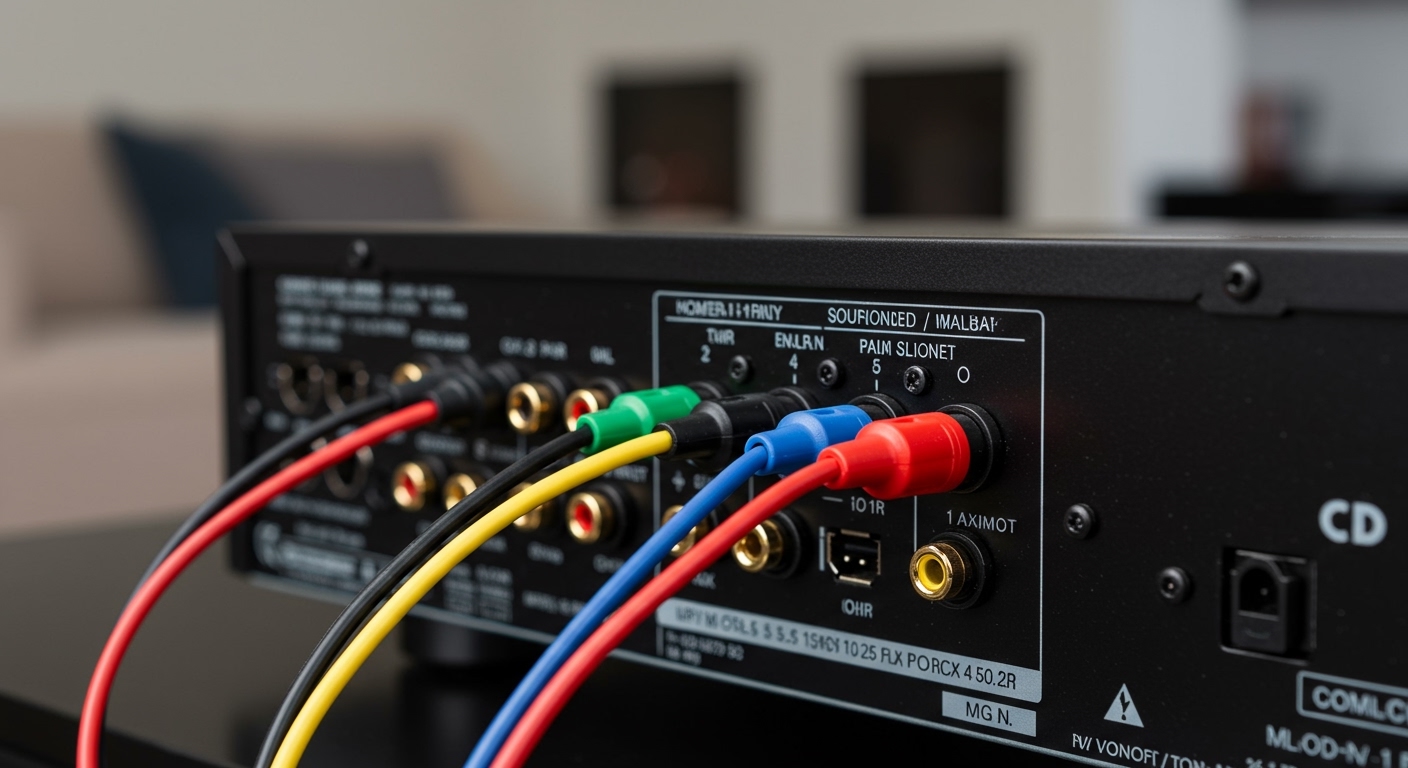
This is a classic physical mistake. A 5.1 system uses Surround terminals. A 7.1 system adds Surround Back terminals. If you have a 5.1 setup but plugged your speakers into the “Surround Back” ports, you will hear nothing. Your receiver is waiting for the 6th and 7th channels which don’t exist in your 5.1 configuration.
Actionable Advice: Always plug your primary side/rear speakers into the terminals labeled SURROUND, not SURROUND BACK.
Step 2: Physical Connection and Wire Integrity
If the software settings are correct but you still have no sound from rear speakers, we must look at the hardware. Speaker wire is notoriously finicky.
The 9-Volt Battery Test
This is the fastest way to see if a speaker is “alive” without using the receiver.
- Disconnect the speaker wires from the back of the AV Receiver.
- Take a standard 9V battery.
- Touch the positive wire to the positive terminal of the battery and tap the negative wire to the negative terminal.
- If you hear a “pop” or “crackle” from the rear speaker, the wire and the speaker are functional. The problem lies within your receiver settings or the input source.
- If you hear nothing, the wire is broken or the speaker is blown.
Inspect for “Shorts”
A single stray strand of copper wire touching the chassis of the receiver or the opposite terminal can trigger “Protection Mode.” Look closely at your connections. I highly recommend using Banana Plugs. They provide a secure, insulated connection that prevents the “stray strand” issue entirely.
Step 3: Solving Windows 10/11 and PC Gaming Issues
If you are a PC gamer wondering why rear speakers no sound when connected to your computer, the culprit is likely the Windows Sound Control Panel.
By default, Windows treats HDMI and Optical connections as Stereo. You must manually “Configure” the speakers:
- Right-click the Speaker Icon in your taskbar.
- Select Sounds (or “Sound Settings” > “More sound settings”).
- Right-click your output device (e.g., “Realtek Audio” or “NVIDIA High Definition Audio”).
- Select Configure Speakers.
- Choose 5.1 Surround and click “Test.”
Expert Insight: If you are using an Optical (Toslink) cable from your PC, you cannot get 5.1 uncompressed audio. You must have a sound card that supports Dolby Digital Live or DTS Connect to compress the 5.1 signal through the limited bandwidth of the optical cable. If you don’t have this, your PC will default to 2.0.
Step 4: Wireless Rear Speaker Issues (Sonos, Samsung, Vizio)
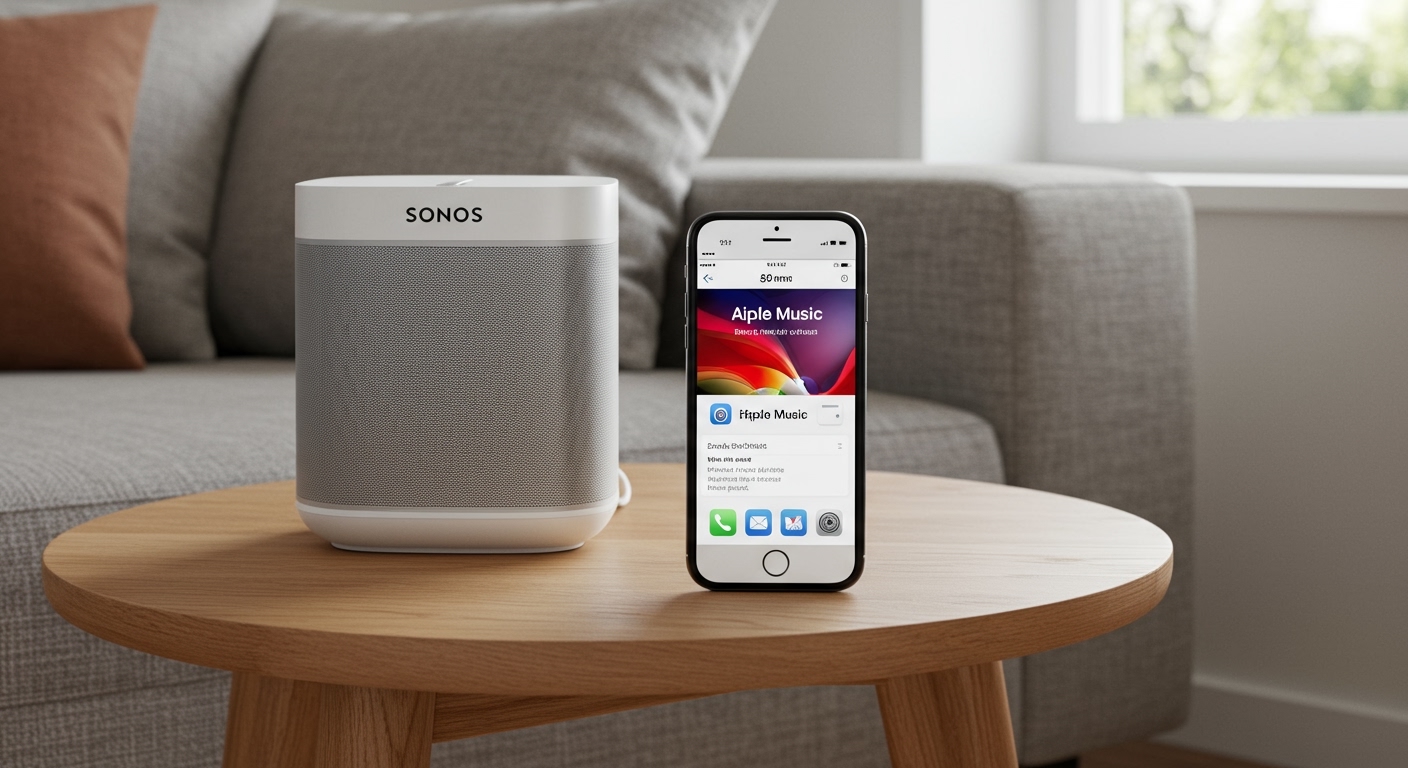
Wireless surround systems have their own unique set of headaches. If your Sonos One rears or your Samsung Rear Speaker Kit isn’t producing sound, it’s usually a sync or network congestion issue.
The Power Cycle “Handshake”
Wireless speakers rely on a specific wireless frequency (often 5GHz) to talk to the soundbar.
- Unplug the soundbar and the rear speakers from the wall.
- Wait 60 seconds.
- Plug the soundbar in first.
- Once the soundbar is fully booted, plug in the rear speakers.
- This forces a fresh “handshake” and often resolves IP conflicts.
Check for Wi-Fi Interference
In our testing, placing a Wi-Fi router within three feet of a wireless rear speaker or the main soundbar can cause signal dropping. The router’s signal “drowns out” the low-latency connection between the soundbar and the rears. Move your router away to see if the sound returns.
Troubleshooting by Brand: Common “Quirks”
Different manufacturers have specific settings that can cause the why rear speakers no sound issue.
- Sony Receivers: Check the “A.F.D.” (Auto Format Direct) setting. If set to “2CH Stereo,” the rears will be disabled. Change it to “Multi-St.”
- Denon/Marantz: Look for the “Amp Assign” menu. Ensure it is set to “Surround” and not “Zone 2.” If the receiver thinks those amplifiers are for a second room, they won’t play your main movie audio.
- Yamaha: Yamaha uses “Scenes.” Ensure your current Scene isn’t saved with a 2-channel speaker pattern. Change the program to “7ch Stereo” to test.
Expert Tips for Optimal Surround Performance
Once you get the sound back, you want to make sure it’s actually good. A common complaint after fixing the “no sound” issue is that the rears are “too quiet.”
- Level Calibration: Use a Decibel Meter app on your smartphone. Sit in your primary viewing seat and use the AVR’s “Manual Setup > Levels” menu. Adjust the rear speakers until they read the same volume (usually 75dB) as the front speakers.
- Distance Settings: Measure the distance from your ears to the rear speakers. Input this exactly into the receiver. This ensures the sound reaches your ears at the exact same millisecond as the front channels, creating a seamless “bubble” of sound.
- Angle Matters: For 5.1, your rear (surround) speakers should be placed 90 to 110 degrees to your side—not directly behind you. Placing them too far back creates a “hole” in the soundstage.
FAQ: Frequently Asked Questions
Why do my rear speakers only work during action scenes?
This is actually normal behavior for many movies. Rear speakers are designed for ambient effects (rain, wind, crowd noise) and directional cues (bullets flying past, cars zooming by). During dialogue-heavy scenes, 95% of the audio comes from the Center Channel. To test if they are working, switch your receiver to “All Channel Stereo.”
Can I use different brands for front and rear speakers?
Yes. While “timbre matching” (using the same brand/series) is ideal for the front three speakers, you can use any brand for the rears. If your rears are silent, it isn’t because they are a different brand; it is a connection or setting issue.
Does HDMI version matter for surround sound?
Yes. If you are trying to use eARC (Enhanced Audio Return Channel) to get high-quality formats like Dolby Atmos or DTS:X from your TV to your receiver, both devices must support HDMI 2.1 and you must use a High-Speed HDMI cable. Older cables may drop the surround signal entirely.
What if only one rear speaker has no sound?
This usually indicates a physical hardware issue. Swap the left rear speaker with the right rear speaker. If the “dead” side moves with the speaker, the speaker is blown. If the same side remains silent, the wire or the receiver channel is the problem.
Why do my rear speakers hiss?
A faint hiss (white noise) is often caused by a “Ground Loop” or poor shielding in the speaker wire. Ensure your speaker wires aren’t running parallel to power cables. If you are using a wireless kit, the hiss may be “RF interference” from nearby electronics.