Understanding Your Wireless Microphone System: The Key Players
Before you can connect anything, it’s crucial to understand the three main components you’re working with. Getting this right is 90% of the battle. Think of it as a relay race: the sound is the baton, and each component passes it to the next.
The Wireless Microphone (The Transmitter)
This is the part you hold or wear. Its only job is to capture your voice and convert it into a radio signal. Inside the microphone is a transmitter that sends this signal through the air.
- Handheld Mics: The most common type, with the transmitter built into the handle.
- Lavalier (Lapel) Mics: A small clip-on mic connected by a thin wire to a bodypack transmitter, which you clip to a belt or put in a pocket.
- Headset Mics: Worn over the head, also connected to a bodypack transmitter.
From my years of experience setting up live sound, the most common point of failure is a simple one: dead batteries. Always start with a fresh pair in your transmitter before any important event.
The Wireless Receiver (The Catcher)
The wireless receiver is the “brain” of the system. Its sole purpose is to “catch” the radio signal sent by the microphone’s transmitter. Once it catches the signal, it converts it back into an electrical audio signal that can be sent through a cable.
The receiver is the critical link between the wireless world and the wired world. It will have one or more antennas to pick up the signal and, most importantly, an audio output jack on the back. This output is where you will plug in the cable that goes to your speakers.
The Audio Destination (Speakers, Mixer, or Amplifier)
This is where your sound will ultimately be heard. The key thing to understand is that your wireless receiver cannot connect directly to just any speaker. You need to connect it to a device with a compatible input and, in most cases, some form of amplification.
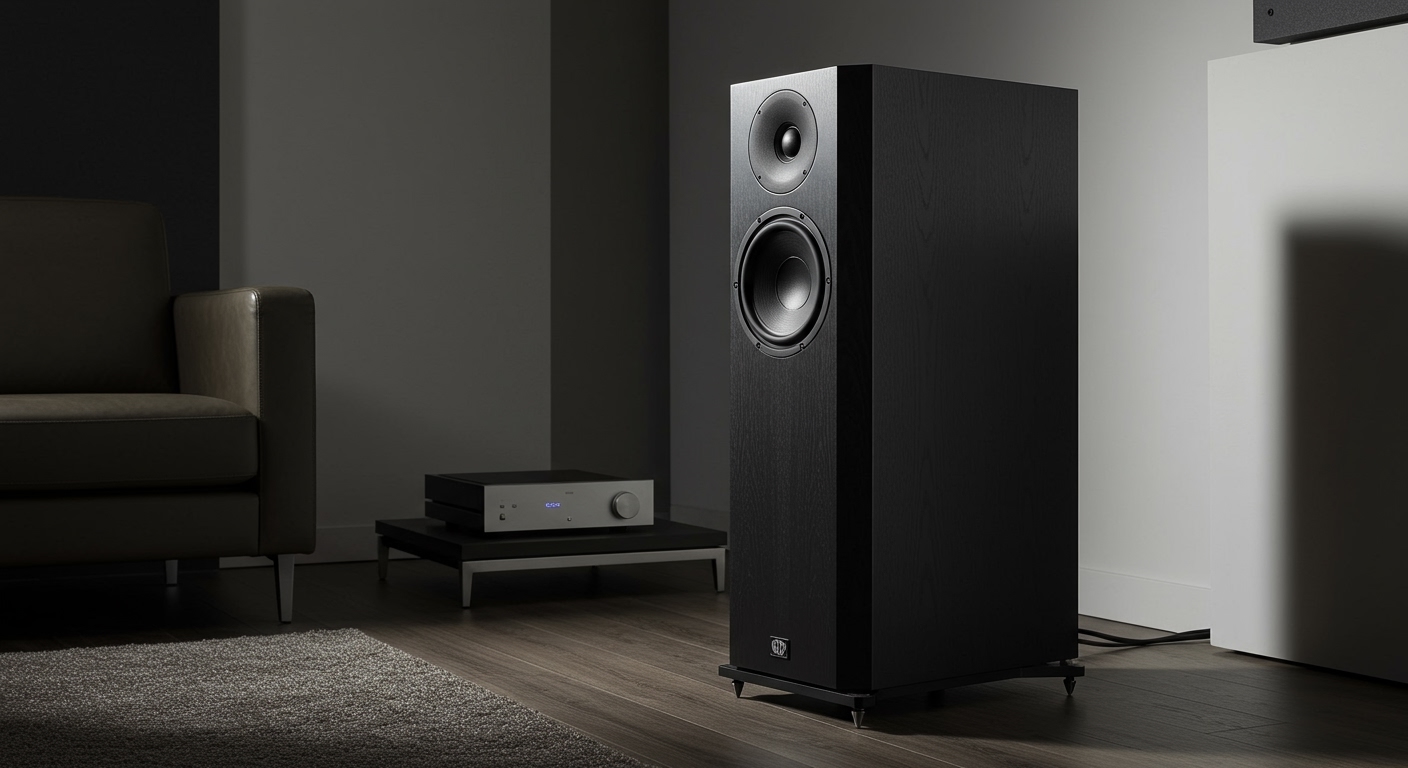
- Powered (Active) Speakers: These are the simplest to connect to. They have a built-in amplifier, meaning you can often plug the receiver directly into the back of the speaker.
- Passive Speakers: These speakers have no built-in amplifier. They are just a speaker cone in a box. You cannot plug a receiver directly into them. They need a separate power amplifier or a powered mixer to work.
- Mixer (Mixing Console): A mixer allows you to combine and control multiple audio sources (like several microphones, instruments, and music players). The receiver plugs into the mixer, and the mixer then sends the combined signal to the amplifiers and speakers.
How Do I Connect My Wireless Microphone to My Speakers? The Step-by-Step Guide
Connecting your wireless microphone system might seem daunting, but it’s a logical process. I’ll walk you through the exact steps I use when setting up for an event, ensuring a clean and reliable connection every time.
Step 1: Identify Your Components and Ports
First, lay everything out. You should have your microphone (transmitter), your receiver, a power cable for the receiver, and an audio cable.
Now, look at the back of your receiver and the input section of your speaker or mixer. You need to identify the types of ports you have. This will determine the cable you need.
| Connector Type | Common Name | Best Use Case & Notes |
|---|---|---|
| XLR | “Mic Cable” | Professional Standard. This is a 3-pin, balanced connector that rejects noise over long cable runs. Always use this if your receiver and speaker/mixer have XLR ports. |
| 1/4″ TS | “Guitar Cable” | Unbalanced. This is a common connector but is more susceptible to noise. Best for short cable runs (under 15 feet). |
| 1/4″ TRS | “Balanced 1/4″” | Balanced. Looks like a headphone jack with an extra ring. It offers the same noise-rejection benefits as XLR. Use this if available. |
| 3.5mm | “Mini-Jack” | Consumer Grade. Found on laptops and some small speakers. Generally not recommended for professional wireless systems due to poor quality and durability. |
Pro Tip: Most professional wireless receivers, like the popular Shure BLX or Sennheiser EW series, come with both an XLR and a 1/4″ output. Whenever possible, I strongly recommend using the XLR output for the most secure and noise-free connection.
Step 2: Power Up and Pair Your System
Before connecting to the speakers, let’s get the wireless part working.
- Power the Receiver: Plug the receiver’s power adapter into the wall and connect it to the receiver. Turn it on. The power light should illuminate.
- Power the Microphone: Insert fresh batteries into your microphone or bodypack transmitter and turn it on.
- Pair the Devices: Most modern systems pair automatically. Look for a “Ready” or “RF” light on the receiver to turn solid green. If they don’t pair, consult your manual for the “Sync” or “Scan” function. The receiver will find a clear channel, and you’ll sync the microphone to it, often by pointing the mic’s IR sensor at the receiver.
Step 3: Make the Physical Audio Connection (All Volumes Down!)
This is the most critical rule in audio: Always make connections with the volume levels turned all the way down. This prevents loud, damaging pops and bangs from hitting your speakers.
- Turn the volume/level knob on your receiver, mixer, and powered speakers completely to zero.
- Plug one end of your chosen audio cable (preferably XLR) into the “Audio Output” jack on the back of your wireless receiver.
- Plug the other end of the cable into a “Mic” or “Line” input on your powered speaker, mixer, or amplifier.
Step 4: The Sound Check Protocol
Now it’s time to bring up the volume safely.
- Set Receiver Output: On the receiver, ensure the output level (sometimes called “Volume” or “Level”) is set to a starting point, usually 12 o’clock or 75%.
- Set Gain/Trim: If you’re using a mixer or a high-end powered speaker, find the “Gain” or “Trim” knob for the channel you plugged into. While speaking into the mic at a normal performance volume, slowly turn up the Gain until you see the signal/clip light just barely flash green or yellow on the loudest peaks. Then, back it off slightly. This process, called gain staging, is vital for a clear, distortion-free sound.
- Bring Up the Volume: Slowly raise the channel fader (on a mixer) or the main volume knob (on a speaker) until the microphone is at the desired loudness.
- Test and Adjust: Walk around the performance area while speaking to check for any dead spots or interference.
Connecting to Different Speaker Setups: Common Scenarios
The exact connection method depends entirely on the type of speakers you have. Here’s how to hook up your wireless microphone to the most common setups I encounter in the field.
Scenario 1: Connecting to a Powered Speaker
This is the most straightforward setup, perfect for small events, presentations, or solo performers. A powered speaker (like a QSC K12.2 or JBL EON) has an amplifier built-in.
Connection Path: Mic -> (Wireless) -> Receiver -> (Cable) -> Powered Speaker
- Identify the Input: Look at the back of your powered speaker. You will see an input section, often labeled “Input 1” or “Mic/Line.” It will likely have a “Combi-Jack” that can accept either an XLR or a 1/4″ cable.
- Set the Switch: Many powered speakers have a small button to switch the input between “Mic” and “Line” level. A wireless receiver outputs a mic-level signal, so ensure this switch is set to “Mic”.
- Connect the Cable: Run an XLR cable from the XLR Output of your receiver to the XLR Input on the speaker.
- Power On and Test: Turn the speaker’s volume knob all the way down. Power on the receiver, then the mic, then the speaker. Follow the “Sound Check Protocol” above to slowly bring the volume up.
Scenario 2: Connecting to Passive Speakers via an Amplifier
If you have passive speakers (like the classic Yamaha CBR Series), they have no power of their own. You must have a separate