How to Get Sound From Xbox to Speakers: A Step-by-Step Guide
You’ve got the stunning visuals from your Xbox Series X or Series S, but the tiny, tinny sound from your TV or monitor speakers just isn’t cutting it. That immersion-breaking audio is a common frustration, but the fix is easier than you think. Getting rich, powerful sound from your Xbox to a dedicated set of speakers, a soundbar, or a full home theater system is the single best upgrade you can make to your gaming experience.
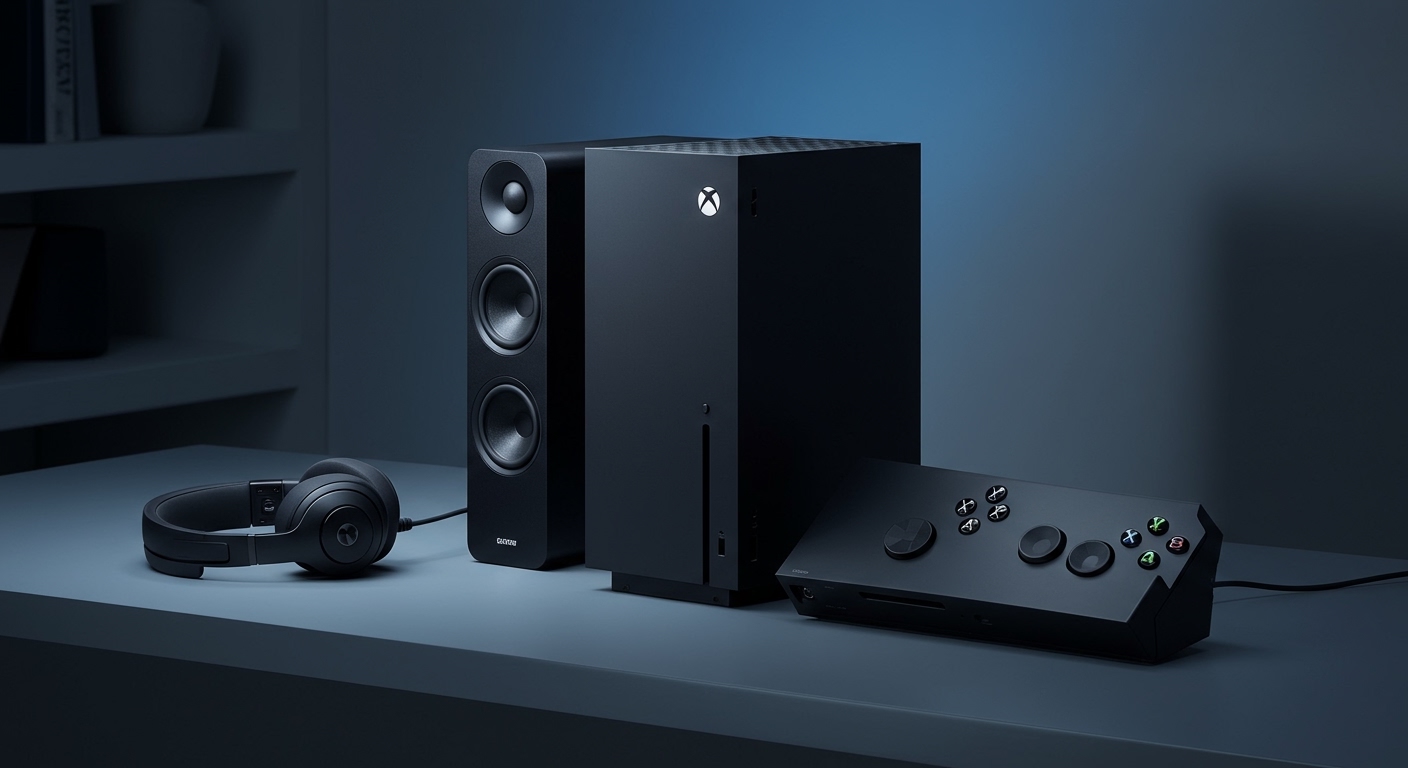
This guide will walk you through every possible method, from the simplest HDMI connection to more complex setups for monitors without speakers. We’ll break down the exact settings you need to change on your console to unlock formats like Dolby Atmos and get the competitive edge you’ve been missing.
Key Takeaways: Quick Xbox Audio Solutions
- Easiest Method (HDMI ARC/eARC): The best and simplest option. Connect your Xbox to your TV’s HDMI input, then connect your soundbar or AV receiver to the TV’s HDMI ARC/eARC port. The TV will automatically pass the Xbox audio to your speakers.
- High-Quality Alternative (Optical Audio): If your TV lacks ARC or your sound system is older, use an S/PDIF Optical cable. Connect it directly from the back of your Xbox to your speakers or receiver for excellent digital sound.
- For PC Speakers (3.5mm Jack): The most common way how to get sound from an Xbox with a monitor without speakers is to plug your PC speakers directly into the 3.5mm headphone jack on the bottom of your Xbox controller.
- Advanced Solution (HDMI Audio Extractor): For monitors with no speakers and no audio output, an HDMI Audio Extractor is a lifesaver. This small device sits between your Xbox and monitor, splitting the audio signal out to optical or analog connections for your speakers.
Comparing Xbox Audio Connection Methods
Before we dive into the step-by-step instructions, it’s crucial to understand your options. I’ve set up dozens of home theater and gaming stations, and the right choice always depends on the gear you have. Here’s a breakdown of the most common ways how to play Xbox audio through speakers.
| Connection Method | Best For | Max Audio Quality | Ease of Setup | Pro-Tip |
|---|---|---|---|---|
| HDMI ARC/eARC | Modern TVs, Soundbars, AV Receivers | Best (Dolby Atmos, DTS:X) | Easiest | Use an “Ultra High Speed” HDMI 2.1 cable for the best results with an Xbox Series X. |
| Optical Audio (S/PDIF) | Older AV Receivers, High-End Soundbars | Excellent (Dolby Digital 5.1, DTS) | Easy | The Xbox Series S does not have an optical port; you’ll need an HDMI extractor. |
| 3.5mm Controller Jack | PC Speakers, Headphones, Monitors w/o speakers | Good (Stereo) | Easiest | A simple and effective workaround, but the controller must be on. |
| HDMI Audio Extractor | Monitors w/o any audio output | Varies (Up to 7.1 surround) | Moderate | This is the ultimate problem-solver for tricky monitor-only setups. |
Method 1: The Easiest Way to Get Sound From Xbox to Speakers (HDMI ARC)
This is the gold standard for modern setups and the one I recommend for 90% of users. ARC stands for Audio Return Channel, and it allows your TV to act as a hub, passing audio from your Xbox (and other devices) down the same HDMI cable to your soundbar or receiver.
Step-by-Step Guide:
- Identify the Correct Ports:
- Connect the Cables:
- Enable TV Settings:
Sound > Sound Out > Use Wired Speaker > HDMI(ARC) Device. The exact wording varies by brand.
- Configure Xbox Audio Settings:
This setup is ideal because it’s simple, reduces cable clutter, and supports the highest-quality audio formats.
Method 2: Using an Optical Audio Cable for High-Quality Sound
If your TV doesn’t have an HDMI ARC port or you have an older (but still excellent) AV receiver, the Optical (S/PDIF) connection is your best friend. It uses a fiber optic cable to transmit a pure digital audio signal.
Note: The Xbox Series S does not have an optical audio port. This method only works for the Xbox Series X and older Xbox One models.
Step-by-Step Guide:
- Locate the Ports:
- Connect the Cable:
- Configure Xbox Audio Settings:
Method 3: Solving the ‘Monitor Without Speakers’ Problem
This is one of the most common questions I see online: how to get sound from xbox with monitor without speakers. Many high-refresh-rate gaming monitors sacrifice built-in speakers. Don’t worry, you have two excellent options.
### Solution A: The Controller’s 3.5mm Headphone Jack
This is the simplest, most direct workaround.
- Find the Jack: Locate the 3.5mm audio jack on the bottom of your Xbox controller.
- Connect Your Speakers: Plug your powered PC speakers (the kind with a standard headphone-style plug) directly into the controller.
- Adjust Volume: You can control the volume through your speaker’s physical knob and fine-tune it in the Xbox guide menu.
- My Experience: I’ve used this method countless times for a quick desk setup. It works perfectly for stereo sound. The only downside is that your controller must be on and connected for the audio to work, which can drain the battery faster.
### Solution B: The HDMI Audio Extractor
This is the more robust and higher-quality solution for monitor-only setups. An HDMI Audio Extractor is a small box that intercepts the HDMI signal from your Xbox. It passes the video signal through to your monitor and “extracts” the audio, sending it to separate outputs like Optical or RCA.
- Purchase an Extractor: Look for a model that supports 4K@120Hz and VRR if you have an Xbox Series X/S to ensure you don’t lose any video features. Brands like J-Tech Digital and OREI are reliable.
- Connect the Devices:
- Power the Extractor: Most extractors require USB power.
- Configure Xbox Settings: Follow the steps in Method 1 or Method 2 depending on which audio output you use from the extractor.
This is the definitive way how to play xbox sound through speakers when your display has no audio capabilities.
Optimizing Your Xbox Audio Settings for the Best Sound
Once you’re connected, diving into the Xbox settings menu can transform your audio from “good” to “mind-blowing.”
Navigate to Settings > General > Volume & audio output.
- Speaker Audio: This is your main output.
- Bitstream Format: This option appears when you select “Bitstream out.”
My personal recommendation is to test both Dolby Atmos and DTS:X if your system supports them. The difference in games that use spatial audio is a true game-changer.
Frequently Asked Questions (FAQ)
Q1: Can I connect Bluetooth speakers directly to my Xbox?
No, you cannot connect Bluetooth speakers or headphones directly to an Xbox Series X/S or Xbox One. The console’s wireless hardware is proprietary. The only workaround is to connect your Bluetooth speakers to your TV (if it supports Bluetooth output) and then route the Xbox audio through the TV.
Q2: Why is there a delay or lag in my audio?
Audio lag