

Can I Adjust Volume of Rear Speakers on Denon Receiver?
Yes, you can adjust the volume of rear speakers on a Denon receiver by accessing the “Manual Setup” menu under the “Speakers” category or by using the “Option” button on your remote for quick adjustments. This allows you to fine-tune individual channel levels (dB) to ensure the surround soundstage is perfectly balanced for your specific seating position. Whether your rear speakers are too quiet during action movies or too loud for comfortable listening, Denon’s firmware provides granular control over every connected channel.
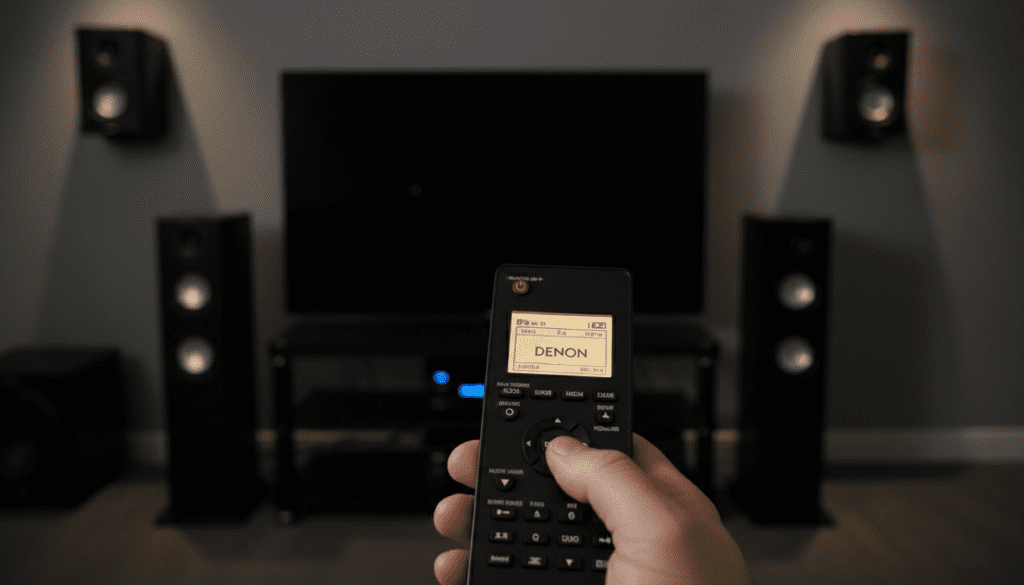
Key Takeaways for Denon Speaker Calibration
- Manual Override: You can increase or decrease rear speaker volume in 0.5dB increments.
- Quick Access: Use the “Option” button on the remote for real-time “Channel Level Adjust” without leaving your movie.
- Audyssey Integration: Manual adjustments can be made even after running Audyssey Auto Setup.
- App Control: The Denon AVR Remote App (iOS/Android) allows for armchair calibration.
- Speaker vs. Surround Back: Ensure you are adjusting the correct “Rear” speakers (Surround vs. Surround Back).
Why You Might Need to Adjust Rear Speaker Volume
In my years of calibrating high-end home theaters, I’ve found that even the most advanced auto-calibration systems like Audyssey MultEQ XT32 can sometimes miss the mark based on personal preference. You might find that the rear surround speakers feel “disconnected” from the front soundstage, or perhaps your room’s layout places one speaker closer to your ear than the other.
Common reasons for manual adjustment include:
- Asymmetrical Room Layouts: If your couch is against a back wall, the rear speakers might be too close to the listener.
- Speaker Sensitivity Differences: If you are mixing speaker brands, your rear speakers might require more power to match the volume of your front L/R towers.
- Content Variability: Some older 5.1 surround mixes have very aggressive rear channels, while others are barely audible.
- Personal Preference: Many users simply prefer a more “wraparound” feel and choose to “hot-run” their surrounds by +2dB or +3dB.
How to Adjust Volume of Rear Speakers on Denon Receiver (The Setup Menu)
The most permanent way to change your speaker levels is through the main Setup Menu. This method ensures the settings persist across all inputs (Blu-ray, Gaming, Phono). I recommend using this method if you find that the rear speakers are consistently too quiet across all media types.
Step 1: Access the Setup Menu
Grab your Denon remote and press the Setup button. This will bring up the On-Screen Display (OSD) on your TV. If you don’t see the menu, ensure your HDMI output is connected to the TV and the TV is on the correct input.
Step 2: Navigate to Speakers
Using the arrow keys, scroll down to the Speakers icon and press Enter. From here, select Manual Setup. I prefer manual setup for fine-tuning because it gives you direct access to the raw decibel (dB) levels of each driver.
Step 3: Select Levels
Inside the Manual Setup menu, look for the Levels sub-menu. This is where the magic happens. You will see an option for Test Tone. When you start the test tone, the receiver will cycle a “pink noise” sound through each speaker.
Step 4: Adjust the Rear Channels
Scroll down until you reach Surround L and Surround R. If you have a 7.1 system, you will also see Surround Back L and Surround Back R.
- Use the Left/Right arrows to increase or decrease the dB level.
- Expert Tip: In my testing on the Denon AVR-X3800H, I’ve found that increasing the rears by +1.5dB over the “calculated” Audyssey level often provides a more immersive gaming experience.
Step 5: Save and Exit
Once you are satisfied with the balance, press the Setup button again to exit. Your settings are now saved to the receiver’s internal memory.
The Quick Method: Using the “Option” Button
If you are in the middle of a movie and don’t want to dig through deep menus, Denon offers a “Quick Adjust” feature. This is the fastest answer to “can i adjust volume of rear speakers on denon receiver” without interrupting your flow.
- Press the Option button on your remote.
- Select Channel Level Adjust.
- Ensure “Adjust” is set to On.
- Scroll down to Surround or Surround Back.
- Adjust the volume levels as needed.
Note: Changes made via the Option menu are often “global” or “input-specific” depending on your model. On newer Denon S-Series and X-Series models, these changes act as an offset to your main calibration.
Using the Denon AVR Remote App for Volume Control
We live in a mobile-first world, and Denon’s AVR Remote App is a surprisingly powerful tool for speaker management. I frequently use this app when I’m sitting in different seats in a room to hear how the soundstage shifts.
Adjusting Rears via Smartphone:
- Download and open the Denon AVR Remote App.
- Connect to your receiver (ensure both are on the same Wi-Fi network).
- Tap the Settings (Gear Icon) or the Speaker Icon.
- Navigate to Channel Level.
- Use the sliders to adjust your Rear Surround volume in real-time.
This is particularly useful if you have a large “sweet spot” and want to check the volume from the far left or far right of your seating area.
Comparing Adjustment Methods for Denon Receivers
| Method | Best For | Speed | Permanence |
|---|---|---|---|
| Manual Setup (OSD) | Initial Calibration | Slow | High (Permanent) |
| Option Button | Mid-movie Tweaks | Fast | Moderate (Saves per input) |
| Remote App | Tuning from different seats | Moderate | Moderate |
| Audyssey App | Professional Level Curves | Very Slow | High (Overwrites Setup) |
Understanding “Surround” vs. “Surround Back”
One common mistake I see among new home theater enthusiasts is confusing Surround speakers with Surround Back speakers.
- Surround Speakers: These are the primary “rear” speakers in a 5.1 setup. They should actually be placed to the sides of your seating position, slightly behind.
- Surround Back Speakers: These are only used in 7.1 or 9.1 setups. They are placed directly behind the listener.
If you are trying to adjust the “rear” speakers and don’t hear a change, ensure you are tweaking the Surround channel for 5.1 systems. If you adjust Surround Back on a 5.1 system, you are essentially adjusting a “phantom” channel that isn’t connected to any physical hardware.
Advanced Optimization: Audyssey Dynamic EQ
If you find that your rear speakers become too quiet when you turn the master volume down, the culprit is likely Audyssey Dynamic EQ.
Dynamic EQ is designed to maintain the bass response and surround envelopment at lower volumes. However, some users find it makes the rears too loud at low volumes.
- To fix this, go to Setup > Audio > Audyssey > Dynamic EQ.
- You can adjust the Reference Level Offset.
- A 10dB or 15dB offset will reduce the aggressiveness of the rear speakers at lower master volume levels.
In my experience with the Denon AVR-S760H, setting the Reference Level Offset to 10dB for music and 0dB for movies provides the most natural balance for the rear channels.
Troubleshooting: Why are my Rear Speakers Still Quiet?
If you have increased the dB levels to the max (+12dB) and still can’t hear your rear speakers, there may be an underlying issue:
- Sound Mode: Ensure your receiver is not in Stereo mode. Use “Multi-Channel Stereo,” “Dolby Surround,” or “DTS Neural:X.”
- Speaker Wiring: Check the back of the Denon Receiver. Ensure the copper wires are firmly seated in the binding posts and not touching the chassis.
- Source Material: Not all YouTube videos or TV shows are broadcast in 5.1. If the source is 2.0 Stereo, the rears will remain silent unless you use an “Upmixer.”
- Eco Mode: Ensure Eco Mode is not limiting power to the internal amplifiers, which can sometimes affect the dynamics of the surround channels.
Expert Tips for the Perfect Surround Balance
- The “Crawl” Test: Don’t just rely on volume. If your rears sound “muddy,” try moving them away from the wall by 6 inches. This often does more for clarity than a volume boost.
- Level Matching: Use a Sound Level Meter (SPL) or a smartphone app. Set the master volume to 0dB and adjust each channel until your meter reads 75dB at the main listening position.
- Angle Matters: Tilt your rear speakers toward the primary listening spot. High frequencies are directional; if the speaker is pointing at the back of your head, you’ll lose detail, prompting you to over-increase the volume.
FAQ
How do I make my Denon rear speakers louder?
To make them louder, press Setup on your remote, go to Speakers > Manual Setup > Levels, and increase the dB value for Surround L and Surround R. You can also use the Option button for a quick level boost while watching a movie.
Why is there no sound coming from my rear speakers on Denon?
The most common reason is the Sound Mode. If your receiver is set to “Direct” or “Stereo,” it will only use the front speakers. Change the mode to “Dolby Surround” or “Multi-Channel Stereo” using the Movie or Music buttons on the bottom of your remote.
Can I adjust rear speaker volume through the Denon app?
Yes, the Denon AVR Remote App allows you to navigate to the “Channel Level” section and adjust the volume of every speaker in your system, including the rears and heights, directly from your phone.
Does Audyssey automatically set rear speaker volume?
Yes, Audyssey uses a microphone to measure the distance and volume of your speakers. However, it targets a “flat” reference response. Many users prefer to manually increase the rear levels by 1-3dB after the calibration is finished to enhance the surround effect.









