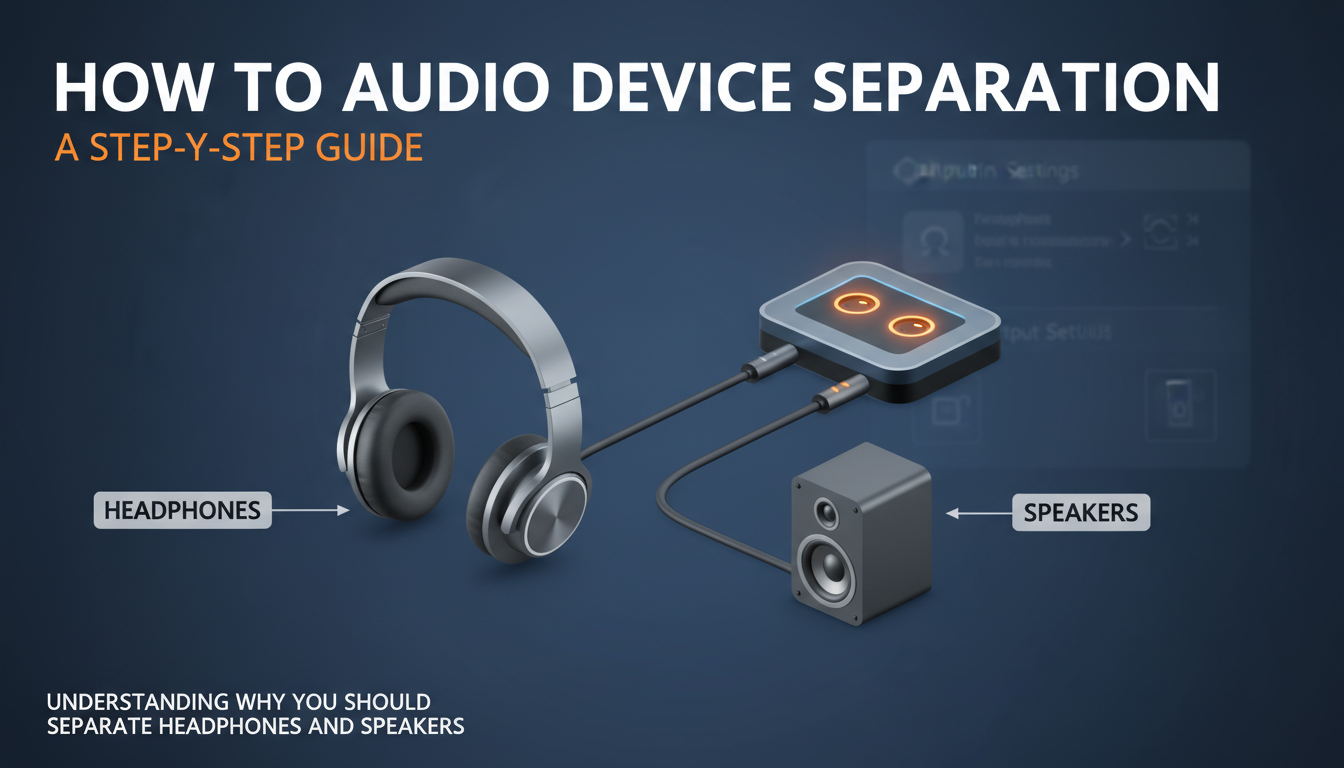
Understanding Why You Should Separate Headphones and Speakers
Before we dive into the “how,” let’s quickly cover the “why.” The ability to separate headphones and speakers isn’t just a neat trick; it’s a productivity and entertainment game-changer. By directing different audio streams to different devices, you unlock a new level of control over your digital environment.
From my own experience as a content creator and avid gamer, this is essential. I often need to monitor video editing audio through my Sennheiser HD 660S headphones for clarity while system notifications or background music play quietly on my PreSonus Eris desktop speakers. This keeps me focused without being completely isolated.
Common use-cases include:
- Gaming: Keep immersive game audio and team chat in your headset while your significant other or roommate listens to music on the speakers.
- Streaming: Send your game audio to your stream (and headphones for monitoring) while playing non-copyrighted music for your live audience through speakers.
- Multitasking: Listen to a private Zoom call or online course on your headphones while a family member watches a YouTube video on the main speakers.
- Content Creation: Isolate your project audio in your headphones for precise editing while keeping other computer sounds on your speakers.
How to Separate Headphones and Speakers in Windows 10 & 11
The easiest method to separate speakers and headphones is built directly into modern versions of Windows. This feature, called “App volume and device preferences,” lets you assign specific applications to specific audio outputs without any third-party software.
Here is the step-by-step process I use daily for simple audio routing.
- Ensure Both Devices are Connected: First, make sure both your headphones and speakers are plugged in and recognized by your computer. You can have one connected via USB and another via the 3.5mm jack, or any combination.
- Access Sound Settings: Right-click the speaker icon in your Windows taskbar (usually in the bottom-right corner) and select “Open Sound settings”.
- Find Advanced Sound Options: In the Sound settings window, scroll down until you find a link for “App volume and device preferences”. Click on it.
- Assign Your Apps: You’ll now see a list of all open applications that can produce sound. Next to each app, you’ll find two dropdown menus: “Output” and “Input”.
- Route the Audio: Simply click the “Output” dropdown for the app you want to control and select your desired device. For example, you can set Spotify to output to your headphones and Google Chrome to your speakers.
The changes take effect immediately. This is the most direct way to solve the how to separate headphones and speakers windows 10 problem for most users.
Using Virtual Audio Mixers for Advanced Control
While the built-in Windows tool is great for basic tasks, sometimes you need more power and flexibility, especially for streaming or recording. This is where virtual audio mixers like Voicemeeter Banana come in. Think of it as a digital mixing board for your PC.
I rely on Voicemeeter Banana for my streaming setup because it gives me granular control over multiple audio sources and destinations simultaneously.
A Quick Guide to Voicemeeter Banana Setup
Getting started with Voicemeeter can seem intimidating, but the basic setup for separating devices is straightforward.
- Download and Install: Go to the VB-Audio website and download Voicemeeter Banana. Install it and—this is a critical step—reboot your computer.
- Set Default Device: After rebooting, go back to your Windows Sound settings. Under “Output,” set your default device to “Voicemeeter Input (VB-Audio Voicemeeter VAIO)”. This makes all system sound go through Voicemeeter first.
- Assign Hardware Outputs: Open Voicemeeter Banana. In the top-right corner, you’ll see the “Hardware Out” section. Click on A1 and select your primary speakers. Then, click on A2 and select your headphones.
- Route Your Audio:
This method provides incredible flexibility, allowing you to create complex audio setups that the standard Windows tools can’t handle.
Comparing Audio Separation Methods: Which is Right for You?
To help you decide on the best approach, here’s a table summarizing the different methods to separate speakers from headphones.
| Method | Best For | Complexity | Cost |
|---|---|---|---|
| Windows App Volume | Everyday multitasking, gaming, simple app separation. | Low | Free |
| Voicemeeter Banana | Streaming, content creation, complex audio routing. | Medium | Donationware |
| Dedicated Sound Card | Audiophiles, musicians, users needing multiple physical I/O. | High | $50 – $300+ |
| Hardware Y-Splitter | (Not for separation) Duplicating one audio source to two devices. | Very Low | $5 – $10 |
As you can see, a simple hardware Y-splitter is not the solution for separating audio sources. It merely duplicates a single signal.
Hardware Solutions: Sound Cards vs. Splitters
It’s a common point of confusion: can a simple piece of hardware solve this problem? The answer is yes, but it has to be the right hardware.
The Misconception of Audio Y-Splitters
A standard 3.5mm Y-splitter takes one stereo output and splits it into two identical stereo outputs. It cannot differentiate between audio from Spotify and audio from your game.
I learned this the hard way years ago, buying a cheap splitter and expecting it to magically separate my audio. All it did was play the same sound, often at a lower volume, through both my headphones and speakers. A splitter duplicates; it does not separate.
The Power of a Dedicated Sound Card
The ultimate hardware solution is a dedicated internal or external sound card, also known as an audio interface. Devices like the Focusrite Scarlett 2i2 or Creative Sound BlasterX AE-5 are designed with multiple, independent output channels.
When you install one of these, Windows recognizes each output as a separate playback device. For instance, “Speakers (Sound Blaster)” and “Headphones (Sound Blaster)” might appear in your sound settings. This makes routing audio using the built-in Windows “App volume” tool incredibly simple and reliable. This is the professional-grade solution for those who need pristine audio quality and zero-fuss separation.
Troubleshooting Common Audio Separation Problems
Even with the right tools, you can run into hiccups. Here are some common issues I’ve encountered and how to fix them.
- An app isn’t showing up in the “App volume” list.
- My settings reset every time I restart my computer.