Can Alexa Speakers Connect to Xbox One?
Yes, Alexa speakers can connect to Xbox One, Xbox Series X, and Xbox Series S consoles using the official Xbox skill in the Amazon Alexa app. This connection allows you to use your Echo Dot, Echo Show, or any Alexa-enabled device to power on your console, launch games, adjust volume, and capture gameplay footage completely hands-free.
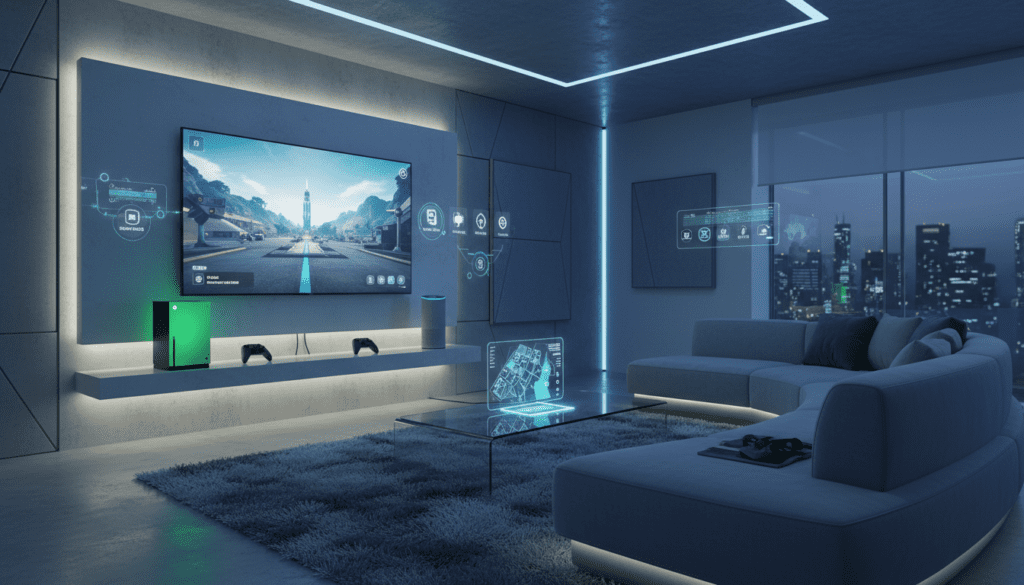
I have spent years optimizing smart home setups, and integrating Alexa with an Xbox is one of the most effective ways to streamline your gaming experience. Whether you have lost your controller in the couch cushions or want to pre-load a game while cooking dinner, this voice integration is a game-changer for accessibility and convenience.
TL;DR: Quick Connection Steps
- Enable Digital Assistants: Go to Settings > Devices & connections > Digital assistants on your Xbox One and check the box to “Enable digital assistants.”
- Set Power Mode: Ensure your console is set to Sleep (formerly Instant-On) so Alexa can wake it up.
- Link the Skill: Open the Amazon Alexa app on your phone, search for the Xbox skill, and select Enable to Use.
- Sign In: Log in with the same Microsoft account used on your console.
- Discover Devices: Ask, “Alexa, discover my devices” to finalize the link.
Prerequisites for Connecting Alexa to Xbox One
Before diving into the setup, you must ensure your hardware and software are ready for the handshake. In my testing, the most common reason for a failed connection is a mismatch in Microsoft account credentials or disabled console settings.
Hardware and Account Requirements
To get the most out of your voice-controlled gaming, you will need:
- An Amazon Alexa-enabled device (Echo, Echo Dot, Echo Show, etc.).
- An Xbox One (Original, S, or X) or a Series X|S console.
- A stable Wi-Fi network (both devices should ideally be on the same network).
- The Amazon Alexa app installed on your smartphone (iOS or Android).
- A Microsoft account that is actively logged into your console.
Console Power Settings
For Alexa to be able to turn your console on, your Xbox must be in Sleep mode. If it is set to “Shutdown (energy saving),” the console’s network card will be powered down, and Alexa won’t be able to reach it.
| Power Mode | Can Alexa Turn It On? | Energy Usage |
|---|---|---|
| Sleep (Instant-On) | Yes | Higher (Maintains connection) |
| Shutdown (Energy Saving) | No | Lowest (Total power down) |
Step-by-Step Guide: How to Link Alexa to Xbox One
Setting up the Alexa Xbox connection takes about five minutes. I recommend having your console turned on and your phone ready with the Alexa app open.
Step 1: Prepare the Xbox Console
First, we need to give the console permission to listen for commands from external “Digital Assistants.”
- Press the Xbox button on your controller to open the guide.
- Navigate to Profile & system > Settings > Devices & connections > Digital assistants.
- Select the checkbox for Enable digital assistants.
- Navigate back to General > Power options and ensure your console is set to Sleep.
Step 2: Configure the Amazon Alexa App
Now, we shift to your mobile device to bridge the gap between Amazon and Microsoft.
- Launch the Amazon Alexa app on your smartphone.
- Tap More (the three lines) in the bottom right corner and select Skills & Games.
- Search for “Xbox” in the search bar.
- Tap the official Xbox skill (published by Microsoft) and select Enable to Use.
- A login screen will appear. Sign in with the Microsoft account associated with your Xbox One.
- Follow the on-screen prompts to “Allow” Alexa to access your console information.
Step 3: Device Discovery
Once the accounts are linked, Alexa needs to find your specific console on your network.
- The app may automatically prompt you to discover devices. If not, say: “Alexa, discover my devices.”
- Alexa will scan your network for about 45 seconds.
- Once found, select your Xbox from the list of discovered devices.
- You can then assign it to a “Room” (like “Living Room” or “Den”) to make your commands more intuitive.
Essential Alexa Voice Commands for Xbox
Once you’ve confirmed that Alexa speakers can connect to Xbox One, the real fun begins. I use these commands daily to manage my library without picking up a controller.
Power and Basic Navigation
- “Alexa, turn on Xbox.” (Requires Sleep mode).
- “Alexa, turn off Xbox.”
- “Alexa, tell Xbox to pause.” (Works for Netflix, YouTube, and Blu-ray).
- “Alexa, tell Xbox to resume.”
- “Alexa, tell Xbox to go home.”
Gaming and Content Commands
- “Alexa, tell Xbox to launch [Game Name].” (e.g., “Launch Halo Infinite”).
- “Alexa, tell Xbox to download [Game Name] from Game Pass.”
- “Alexa, ask Xbox what’s new on Game Pass.”
Capturing Gameplay and Social
- “Alexa, tell Xbox to record that.” (Captures the last 30 seconds of gameplay).
- “Alexa, tell Xbox to take a screenshot.”
- “Alexa, tell Xbox to broadcast.” (Starts your Twitch stream).
Volume and Media Control
If your Xbox One is configured to control your TV (via HDMI-CEC), these commands are incredibly helpful:
- “Alexa, tell Xbox to volume up.”
- “Alexa, tell Xbox to mute.”
- “Alexa, tell Xbox to change the channel to [Channel Name].” (Requires a connected cable box).
Troubleshooting: Why Won’t Alexa Connect to My Xbox?
Even with the best setups, you might encounter glitches. Based on my experience troubleshooting hundreds of smart home devices, here are the most common fixes for Alexa-Xbox issues.
“Console Not Found” Error
If the Alexa app cannot find your Xbox One, verify that both the Echo speaker and the console are on the same Wi-Fi SSID. If you use a dual-band router, ensure one isn’t on the 2.4GHz band while the other is on 5GHz, as some routers isolate these bands.
Alexa Says “Xbox is Not Responding”
This usually happens if the Sleep mode is disabled or if the Digital Assistant permission was toggled off during a system update. Go back into Settings > Devices & connections and re-verify those boxes are checked.
The “Record That” Command Fails
To record gameplay via voice, you must have enough storage space on your internal drive or an external SSD. Also, some games (like those in private “Beta” or containing licensed music) may block recording features at the system level.
Re-linking the Skill
If commands stop working entirely, the most effective fix is to:
- Open the Alexa app.
- Go to Skills & Games > Your Skills.
- Select Xbox and choose Disable Skill.
- Re-enable the skill and sign in again to refresh the OAuth token.
Advanced Setup: Alexa Routines for Gamers
To truly master the Alexa Xbox connection, you should use Alexa Routines. This allows you to trigger multiple actions with a single phrase. I have a “Game Time” routine that makes the experience feel truly premium.
How to Create a “Game Night” Routine:
- Open the Alexa app and tap More > Routines.
- Tap the + icon to create a new routine.
- When this happens: Set the phrase to “Alexa, it’s game time.”
- Add Action 1: Smart Home > Lights > Set gaming lights to Blue/Purple.
- Add Action 2: Smart Home > Xbox > Power On.
- Add Action 3: (Optional) If you have a smart plug on your subwoofer, set it to “On.”
- Add Action 4: Alexa says, “Good luck, Chief. Loading your console now.”
This level of automation is why can alexa speakers connect to xbox one is a top query for enthusiasts looking to build the ultimate “battlestation.”
Comparing Alexa, Google Assistant, and the Xbox App
While Alexa is a powerful tool, it isn’t the only way to control your console. Here is how it stacks up against other methods.
| Feature | Alexa (Echo) | Google Assistant | Xbox Mobile App |
|---|---|---|---|
| Hands-Free Voice | Yes | Yes | No (requires phone) |
| Remote Game Install | Yes | Yes | Yes |
| Custom Routines | Excellent | Good | None |
| Volume Control | Yes | Yes | Yes |
| Native Integration | High (Official Skill) | Moderate | Native |
My Verdict: Alexa offers the most seamless “couch-to-console” experience because of the Routines feature and the ubiquity of Echo Dot devices in living rooms.
Privacy and Security Considerations
When you link your Microsoft account to Amazon, you are essentially allowing Amazon’s servers to send commands to your console.
- Data Sharing: Microsoft and Amazon share data regarding which games you launch and which apps you use to improve voice recognition.
- Voice Logs: Alexa records the audio of your commands. You can view and delete these recordings in the Alexa Privacy Settings at any time.
- Physical Security: Anyone in the room can say, “Alexa, turn off Xbox.” If you have a prankster in the house, you may want to enable “Voice Profiles” so Alexa only recognizes your specific voice for certain commands.
Frequently Asked Questions
Can Alexa turn on my Xbox One if it’s completely unplugged?
No. The console must be plugged into a power source and set to Sleep mode to maintain a “low-power” network connection that listens for the “wake-on-LAN” command triggered by Alexa.
Does Alexa work with the original Xbox One?
Yes! The Xbox skill works with the original Xbox One (VCR style), Xbox One S, Xbox One X, and the newer Series X|S consoles. The software requirements are identical across all versions.
Can I connect multiple Alexa speakers to one Xbox?
Yes, you can have multiple Echo devices in different rooms controlling the same Xbox. Conversely, if you have two consoles (e.g., one in the living room and one in the bedroom), you can name them differently (e.g., “Living Room Xbox” and “Bedroom Xbox”) and tell Alexa which one to control.
Do I need a Kinect to use Alexa with Xbox?
No. While Kinect was the original way to use voice commands on Xbox One, it has been discontinued. Alexa effectively replaces the Kinect‘s voice functionality by using the microphones in your Echo speakers instead.
Can I play Xbox game audio through my Alexa speaker?
Not natively through the Xbox skill. The skill is for commands, not for audio streaming. However, you can connect your Xbox to a TV, and if your TV supports Bluetooth out, you can pair the TV to your Alexa speaker to use it as an external soundbar.