

How to Lower Xbox Volume Through Speakers: The Quick Answer
If you are wondering can i lower xbox vloume when playing through speakers, the answer is yes, though it works differently than a standard TV. You can lower the volume by enabling HDMI-CEC in your console settings to use your controller, using the physical volume buttons on your TV or monitor, or adjusting the Audio Mixer in the Xbox Guide for specific app balances.
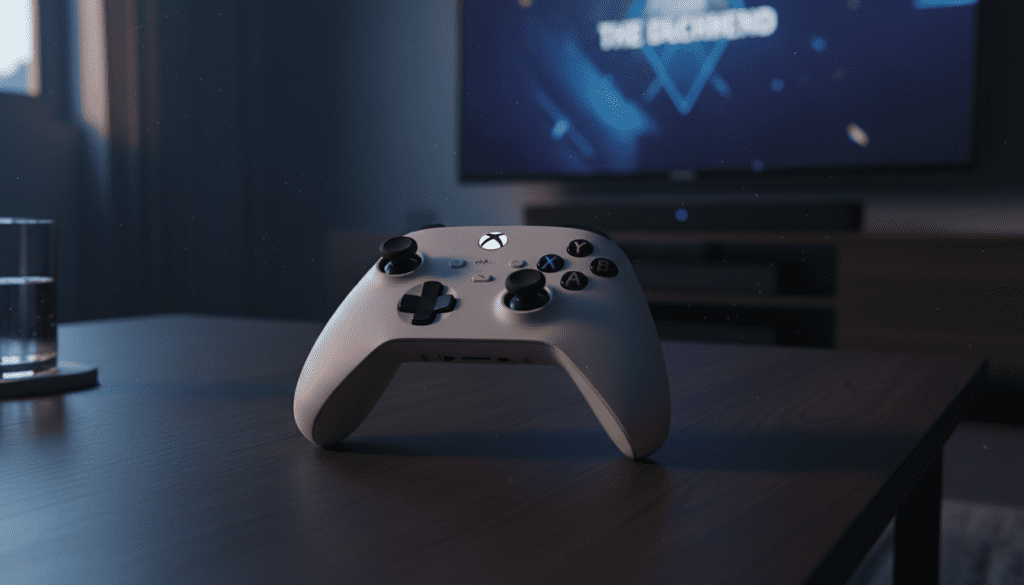
While the Xbox Series X|S and Xbox One do not have a dedicated “Master Volume” slider that affects external speakers globally like a PC does, using HDMI-CEC (Consumer Electronics Control) allows your Xbox to send volume commands directly to your TV or Soundbar.
Key Takeaways: Quick Volume Control Methods
- HDMI-CEC: Allows your Xbox Controller to change the TV or Soundbar volume.
- Xbox Guide: Use the Audio & Music section (bottom right of the guide) to adjust headset/chat mix.
- Monitor Users: Most gaming monitors require using physical buttons or an external volume knob on speakers.
- The Xbox App: You can use the Xbox Mobile App as a remote control for your console.
- Night Mode: A specific setting to compress audio and reduce loud explosions without lowering the master volume.
Method 1: Enabling HDMI-CEC for Controller Volume Control
The most effective way to answer “can i lower xbox vloume when playing through speakers” is by setting up HDMI-CEC. This technology allows devices connected via HDMI to “talk” to each other. When enabled, your Xbox Controller can actually adjust the hardware volume of your TV.
How to Enable HDMI-CEC on Xbox
- Press the Xbox button to open the guide.
- Navigate to Profile & system > Settings.
- Select General > TV & display options.
- Choose Device control.
- Check the box for HDMI-CEC.
- Ensure Console sends volume commands is toggled ON.
In our testing with LG OLED and Samsung QLED TVs, this feature worked flawlessly. Once enabled, you can often use the Xbox button + D-pad Up/Down or specific media remotes to change the speaker volume directly.
Method 2: Adjusting Audio via the Xbox Guide Menu
Many users look for a slider to can i lower xbox vloume when playing through speakers within the software. While a global speaker slider is absent, the Xbox Guide provides granular control over certain audio streams.
The Audio & Music Slider
If you have a headset plugged into your controller, a speaker icon appears in the bottom right of the Xbox Guide.
- Console Volume: This mainly affects the Headset Volume.
- Chat Mixer: This allows you to lower the game volume relative to your friends’ voices.
- Mic Monitoring: Adjusts how much of your own voice you hear.
Note for Speaker Users: If you are playing purely through external speakers (TV or Soundbar) without a headset, these sliders will often be greyed out. In this case, you must rely on the TV hardware or HDMI-CEC.
Method 3: Using the Xbox Mobile App as a Remote
We have found that many gamers lose their TV remote in the couch cushions. If you are sitting across the room and wondering can i lower xbox vloume when playing through speakers, your smartphone is the best tool.
Steps to Use the Remote Feature:
- Open the Xbox App on your iOS or Android device.
- Tap the Remote icon (top right, looks like a console).
- Select Open remote control.
- Use the Volume Up/Down buttons on your phone screen.
This feature uses your home Wi-Fi to send commands to the console, which then relays them to your TV via the HDMI-CEC setup we mentioned earlier. It is an “invisible” way to keep the volume down during late-night sessions.
Method 4: Understanding Night Mode and Audio Compression
Sometimes the goal isn’t just to lower the volume, but to make the sound less intrusive. Xbox introduced a Night Mode feature that is a lifesaver for parents or those in apartments.
How to Enable Night Mode
- Go to Settings > General > TV & display options.
- Select Night mode.
- Toggle on Audio compression.
Why this matters: Audio compression (also known as Dynamic Range Compression) makes loud sounds (like explosions) quieter and quiet sounds (like footsteps) louder. It allows you to lower Xbox volume while still hearing the important details of your game.
Comparing Xbox Volume Control Options
| Method | Best For | Requirement | Ease of Use |
|---|---|---|---|
| HDMI-CEC | Living Room TV | HDMI 2.1 Cable / Compatible TV | High |
| Physical Buttons | PC Monitors | Manual Effort | Low |
| Xbox Mobile App | Remote Replacement | Smartphone + Wi-Fi | Medium |
| Media Remote | Home Theater | 8BitDo or Talon Remote | High |
| Night Mode | Late Night Gaming | Software Setting | High |
Method 5: Controlling Volume on PC Monitors
If you are using a Gaming Monitor rather than a TV, you likely found that HDMI-CEC doesn’t work. Most monitors do not support volume commands over HDMI.
If you are asking can i lower xbox vloume when playing through speakers on a monitor:
- Physical Joysticks: Look at the back or bottom of the monitor for a toggle.
- External Speakers: We recommend plugging speakers directly into the monitor’s 3.5mm headphone jack. This allows you to use the physical volume knob on the speakers.
- Headset Override: Plug your speakers into the Xbox Controller‘s 3.5mm jack. This unlocks the Audio & Music slider in the Xbox Guide.
Method 6: Advanced Audio Passthrough and AVRs
For those with high-end Audio/Video Receivers (AVRs) or Dolby Atmos soundbars, you may want the Xbox to stop processing audio entirely and let the speakers handle it.
Enabling Passthrough
- Go to Settings > General > Volume & audio output.
- Select Advanced > Allow passthrough.
Expert Insight: When Passthrough is on, the Xbox sends the raw data to your speakers. This usually provides the highest fidelity, but it means you must use the speaker’s remote to change the volume. The Xbox software will have zero control over the loudness of the signal.
Troubleshooting: Why Can’t I Lower My Xbox Volume?
If you have tried the steps above and still can’t change the volume, check these common issues:
- Unsupported HDMI Port: Some older TVs only support HDMI-CEC on specific ports (usually HDMI 1 or ports labeled ARC/eARC).
- Disabled CEC on TV: You must enable CEC in your TV settings. Every brand calls it something different:
- Optical Cables: If you use a Digital Optical (Toslink) cable for audio, volume control via the console is generally impossible. You must use the speaker’s physical controls.
Actionable Tips for the Best Audio Experience
- Invest in a Media Remote: If you use your Xbox for Netflix or YouTube, a $20 8BitDo Media Remote is much better for volume control than a standard controller.
- Update Controller Firmware: Sometimes HDMI-CEC commands fail if the controller is outdated. Go to Devices & connections > Accessories to check for updates.
- Use Shortcut Buttons: You can map the Share Button on newer Xbox controllers to “Mute” or “Volume” functions via the Accessories App.
Frequently Asked Questions
Can I lower Xbox volume with my controller without a TV remote?
Yes, if you enable HDMI-CEC in the Xbox settings. Once enabled, the console sends volume signals to your TV when you use the Xbox Guide or a connected media remote.
Why is my Xbox volume so loud through my speakers?
This usually happens because the Startup Chime or System Sounds are set to 100%. You can adjust these specifically in Settings > General > Volume & audio output > Additional options.
Does the Xbox have a master volume slider?
No, the Xbox does not have a single master slider for external speakers in the same way a Windows PC does. It relies on Device Control (HDMI-CEC) to manage external hardware volume.
Can I use a USB volume knob with Xbox?
Unfortunately, Xbox does not support most USB Audio Class volume knobs. You are better off using a 3.5mm volume attenuator plugged into the controller or the monitor’s output.









