

Can I Make Party Chat Go Through Speakers?
Yes, you can absolutely make party chat go through speakers on Xbox, PlayStation, and PC by adjusting your console or system audio output settings. Most modern gaming systems allow you to choose between “Headset Only,” “Speakers Only,” or a “Headset and Speakers” hybrid mode. This is particularly useful if you find headsets uncomfortable for long sessions or if you want people in the same room to hear your teammates.
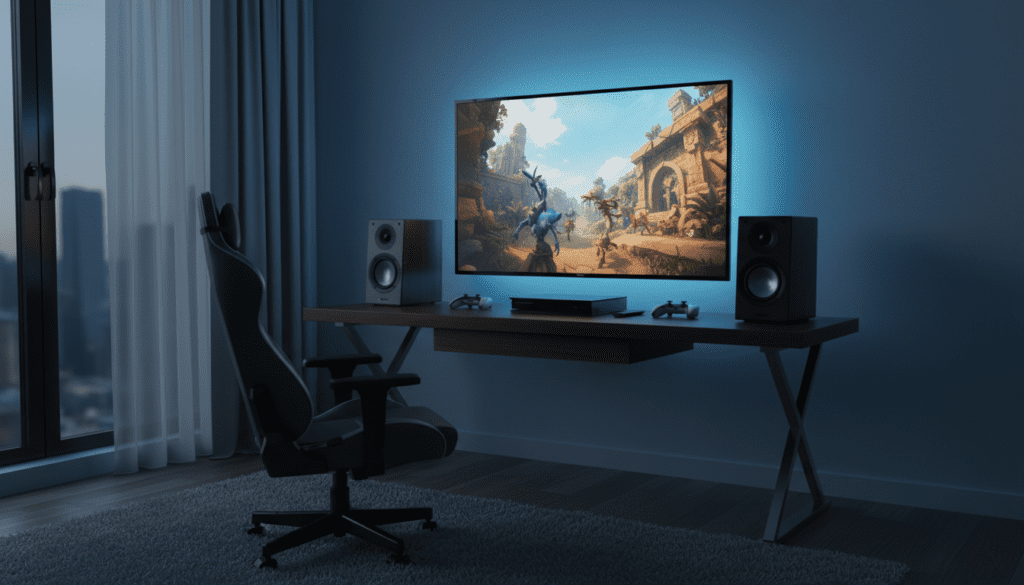
I’ve spent hundreds of hours testing various home theater setups and streaming rigs, and I’ve found that routing audio to speakers requires a careful balance to avoid the dreaded microphone echo. Whether you are on an Xbox Series X, PS5, or a Windows PC, the process involves navigating to the sound sub-menus and overriding the default “Headset” priority.
Quick Setup Guide: Key Takeaways
- Xbox: Navigate to Settings > General > Volume & Audio Output > Additional Options and set Party Chat Output to “Headset & Speakers.”
- PlayStation: Go to Settings > Sound > Audio Output and switch the Output Device to your HDMI device (TV/AV Receiver).
- PC: Open Xbox Game Bar or Discord settings and manually set the Output Device to your desktop speakers.
- Pro Tip: Use a directional microphone or a noise-gate filter to prevent your speakers from feeding back into your party chat.
- Hardware: Some users prefer using an Audio Extractor or a Mixamp for more granular control over the mix.
Routing Party Chat Through Speakers on Xbox Series X|S and Xbox One
If you are asking, “can i make partychat go through speakers” on an Xbox, you are in luck. Microsoft offers the most flexible “dual-output” mode of all current consoles. This allows you to hear your friends through your high-end soundbar or surround sound system while still using your headset mic.
Step-by-Step Xbox Configuration
- Press the Xbox button on your controller to open the Guide.
- Navigate to the right-most tab and select Settings.
- Go to General and then select Volume & audio output.
- Select Additional options on the right side of the screen.
- Find the dropdown menu labeled Party chat output.
- Change this setting from Headset to Headset & speakers.
By selecting “Headset & speakers,” the Xbox duplicates the voice signal. I prefer this setup when I’m playing casual games like Sea of Thieves, where I don’t need the extreme spatial awareness of a headset but still want to communicate with my crew.
Comparison of Xbox Audio Modes
| Mode | Audio Location | Best For |
|---|---|---|
| Headset Only | Headset Earcups | Competitive play, late-night gaming. |
| Speakers Only | TV / Sound System | Solo play, immersive cinematic games. |
| Headset & Speakers | Both simultaneously | Local co-op, content creation, comfort. |
How to Change PlayStation 5 and PS4 Chat Output
Sony handles chat audio slightly differently than Microsoft. On the PS5, the system often defaults to the DualSense controller speaker or a connected headset. To make party chat go through speakers, you need to manually reassign the output priority.
PS5 Settings Adjustment
- Open the Settings menu from the top-right of the home screen.
- Scroll down and select Sound.
- Select Audio Output.
- Under the Output Device section, ensure your HDMI Device (TV) is selected if you want it through your main speakers.
- Scroll down to the “Switch Output Device Automatically” toggle. If you have a headset plugged in, you may need to turn this OFF to force the audio to the TV.
- Find the Voice Chat section and ensure the output is directed to your primary HDMI source.
The Controller Speaker Factor
On the PlayStation 4 and PlayStation 5, if you don’t have a headset plugged in, the console often defaults chat to the tiny speaker on the controller. To fix this, press and hold the PS button, go to Sound/Devices, and turn the Controller Speaker volume all the way down. This forces the system to look for the next available output: your speakers.
Configuring PC Party Chat (Discord & Xbox Game Bar)
On a PC, the question of “can i make partychat go through speakers” is usually a matter of software-specific settings rather than a global system toggle. Because Windows treats headsets and speakers as separate “Playback Devices,” you can route them independently.
Using Xbox Game Bar on Windows 10/11
Most PC players use the Xbox Game Bar (Win + G) to chat with friends on console.
- Press Windows Key + G to open the overlay.
- Click the Audio widget (the speaker icon).
- Under the Mix tab, find the Windows Default Output. Set this to your Speakers (Realtek Audio, etc.).
- Go to the Voice tab.
- Change the Windows Default Output specifically for voice to your speakers.
Discord Speaker Routing
If you use Discord, you must change the settings within the app:
- Click the User Settings (gear icon).
- Go to Voice & Video.
- In the Output Device dropdown, select your Speakers instead of “Default.”
Why You Might Want Chat Through Speakers
From my experience as a long-term gamer, there are three primary reasons to move away from headset-only audio.
Physical Comfort and Ear Fatigue
“Headset fatigue” is a real issue. Even high-end Open-Back Headsets can feel heavy after four hours. Routing the audio to speakers allows you to wear a lightweight lavalier mic or use a standalone USB microphone (like a Blue Yeti) without anything touching your ears.
Social Gaming (Local Spectators)
If you are playing a horror game or a story-driven RPG while friends are on the couch with you, they’ll want to hear the “banter” from the online party. Using the “Headset & Speakers” setting on Xbox is the gold standard for this scenario.
Content Creation and Streaming
If you are using a Capture Card (like an Elgato HD60 X), you often need the audio to go through the HDMI cable so your PC can record the party chat. If the audio stays in your headset, your stream won’t hear your friends.
The Feedback Loop Challenge: Preventing Echo
The biggest obstacle when you make party chat go through speakers is the feedback loop. Your microphone “hears” your friends’ voices coming out of your speakers and sends that audio back to them. This creates a painful echo for everyone else in the party.
Expert Tips to Eliminate Echo
- Lower the Volume: You don’t need your speakers at 100%. Keep the chat volume at a level just high enough to hear clearly.
- Microphone Placement: Move your microphone as far away from the speakers as possible. If you use a boom arm, position the mic directly in front of your mouth, facing away from the TV.
- Adjust Mic Sensitivity: On Xbox and PlayStation, go to Mic Level settings and lower the gain. You want the mic to trigger only when you speak, not when the speakers are playing.
- Use Noise Suppression: On PC, enable Krisp Noise Suppression in Discord. On consoles, many modern headsets have built-in Noise Gate features that effectively filter out background speaker noise.
Hardware Solutions for Advanced Audio Routing
Sometimes, software settings aren’t enough. If you have a complex setup (like a dedicated GoXLR or an Astro MixAmp), you have more control.
Audio Extractors
If you are using a monitor that doesn’t have built-in speakers, you can use an HDMI Audio Extractor. This device sits between your console and your screen, “stripping” the audio signal and sending it to an external speaker via an Optical (Toslink) or 3.5mm jack.
Mixer Comparison for Chat Routing
| Device | Connection Type | Best Feature |
|---|---|---|
| Astro MixAmp Pro TR | USB/Optical | Dedicated physical knob for Game/Chat balance. |
| SteelSeries GameDAC | USB | Hi-Res audio support with OLED menu. |
| Creative Sound Blaster GC7 | USB/Optical | Programmable buttons for instant chat muting. |
Troubleshooting Common Chat Issues
“I changed the setting, but I still can’t hear them.”
- Check Party Volume: Sometimes the Chat Mixer is accidentally slid all the way to the “Game” side. On Xbox, go to the Guide > Audio & Music and check the slider.
- Privacy Settings: Ensure your Communication & Multiplayer settings are set to “Allow” for everyone.
- Firmware Updates: Ensure your controller and headset are updated. An outdated controller can sometimes fail to trigger the “Headset & Speakers” handshake correctly.
“My friends say they hear themselves.”
This is the feedback loop mentioned earlier. If lowering the volume doesn’t work, you may need to switch to a Directional Cardioid Microphone. These mics are designed to ignore sound coming from the sides and back (where your speakers are).
Frequently Asked Questions
Can I make party chat go through speakers while using a headset mic?
Yes. On Xbox, select “Headset & Speakers” in the Volume & Audio Output menu. On PS5, set the Output Device to HDMI (TV) while keeping your headset connected as the Input Device (Microphone).
Does using speakers for chat affect game sound quality?
It can. Most party chat is mono or low-bitrate stereo. When you mix this with high-fidelity game audio (like Dolby Atmos), it can sometimes sound cluttered. I recommend using the Audio Ducking feature (found in most console settings) which slightly lowers the game volume whenever someone in the party speaks.
Will my friends hear my game audio if I use speakers?
If your microphone is sensitive or too close to the speakers, yes. To prevent this, use a Noise Gate setting or a dynamic microphone, which is less sensitive to ambient room noise than a condenser microphone.
Can I route chat to speakers on Nintendo Switch?
The Switch is more limited. For games like Fortnite or Apex Legends that use native voice chat, you can usually route audio to speakers by simply unplugging the headset. However, if you are using the Nintendo Switch Online app on your phone, the audio is restricted to the phone’s hardware.









