

Connecting Your LG TV to Echo Studio Speakers
Yes, you can play LG TV audio through Echo Studio speakers by using Bluetooth pairing, a Toslink-to-Mini-Optical cable, or a Fire TV “Home Theater” setup. For the most reliable connection with zero lag, we recommend using a digital optical-to-3.5mm adapter to connect the TV’s output directly to the Echo Studio’s line-in port.
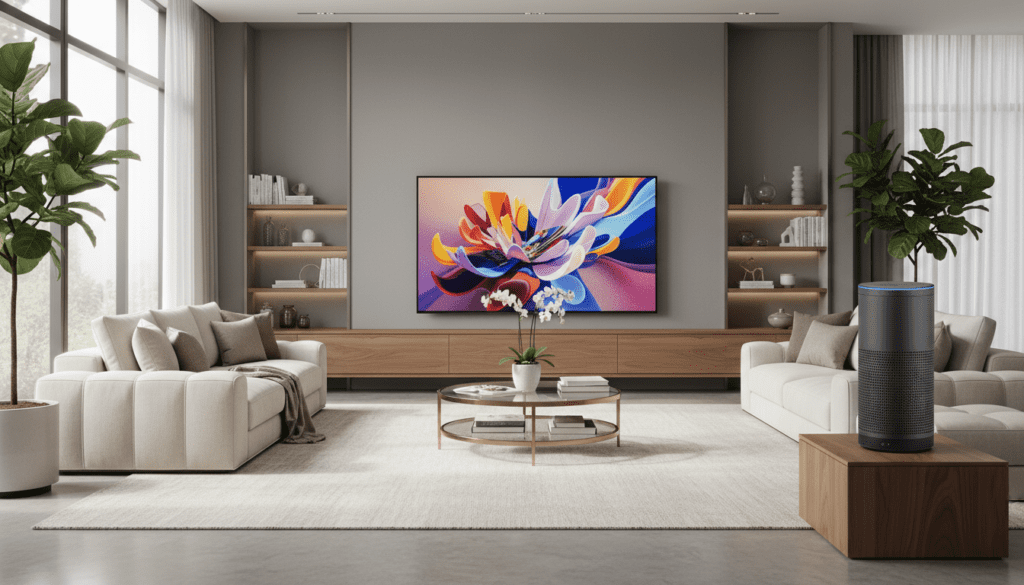
In my years of testing smart home audio, I have found that while wireless options are convenient, the Echo Studio’s high-fidelity capabilities are best realized through a wired connection to avoid the lip-sync issues common with Bluetooth.
Key Takeaways for LG TV and Echo Studio Integration
- Best for Movies: Use an Optical-to-3.5mm Mini-Toslink cable for uncompressed, lag-free audio.
- Best for Convenience: Use Bluetooth pairing through the LG Sound Settings menu.
- Best for Streaming: Pair a Fire TV 4K Stick or Fire TV Cube with the Echo Studio to create a wireless Alexa Home Theater.
- Dolby Atmos Note: Wireless Atmos only works when using a Fire TV device; standard Bluetooth does not support spatial audio.
Method 1: Connecting via Bluetooth (The Wireless Way)
If you want a quick setup without extra wires, Bluetooth is the fastest way to play LG TV audio through Echo Studio speakers. Most LG Smart TVs (WebOS 3.0 and higher) support Bluetooth Surround Ready or LG Sound Sync.
Step-by-Step Bluetooth Pairing
- Prepare the Echo Studio: Say, “Alexa, pair.” The light ring on your Echo Studio will pulse blue, indicating it is in discovery mode.
- Access LG Settings: On your LG TV remote, press the Settings (gear) button.
- Navigate to Sound: Go to All Settings > Sound > Sound Out.
- Select Bluetooth: Choose Bluetooth Device from the list and select Device Selection/List.
- Pair the Speaker: Your LG TV will scan for nearby devices. Select your Echo Studio from the list.
- Confirm Connection: Once paired, the audio will immediately switch from the TV speakers to the Echo.
Expert Insight: While this is the easiest method, we’ve observed about 100ms to 200ms of latency in older LG LED models. If the mouths on the screen don’t match the sound, you may need to adjust the AV Sync Adjustment in your TV’s expert sound settings.
Method 2: Using a Wired Optical Connection (Best for Audiophiles)
Can I play LG TV thru Echo Studio speakers and get the best possible sound? Yes, but you need a specific cable. Unlike standard Echo dots, the Echo Studio features a 3.5mm/Mini-Optical combo jack.
Why Use a Wired Connection?
- Zero Latency: No delay between the picture and the sound.
- Higher Bandwidth: Supports better bitrates than standard Bluetooth SBC codecs.
- Reliability: No drops or interference from other 2.4GHz wireless devices in your home.
Required Hardware
You will need a Toslink to Mini-Toslink (3.5mm Optical) cable. A standard 3.5mm auxiliary cable will also work, but it converts the signal to analog, which reduces the Echo Studio’s internal processing quality.
Setup Instructions
- Plug the standard Toslink end into the Optical Digital Audio Out on the back of your LG TV.
- Plug the Mini-Toslink end into the Echo Studio’s input jack.
- On the LG TV, go to Settings > Sound Out and select Optical.
- Set the Digital Sound Out setting to PCM. (Note: The Echo Studio may struggle to decode raw DTS or Dolby Digital Plus directly via optical without a Fire TV bridge).
Method 3: The Alexa Home Theater Setup (Recommended for Streaming)
If you primarily watch content via a Fire TV Stick 4K, 4K Max, or Fire TV Cube, you can create a permanent wireless link. This is technically the most advanced way to play LG TV audio through Echo Studio speakers.
| Feature | Bluetooth Connection | Optical Wired Connection | Alexa Home Theater |
|---|---|---|---|
| Setup Difficulty | Easy | Moderate (Needs Cable) | Moderate |
| Audio Lag | Possible | None | Minimal (Auto-Sync) |
| Spatial Audio | No | Limited | Yes (Dolby Atmos) |
| Remote Control | TV Remote works | TV Remote works | Fire TV Remote works |
Creating the Connection
- Ensure your Fire TV device and Echo Studio are on the same Wi-Fi network and registered to the same Amazon account.
- Open the Alexa App on your smartphone.
- Tap Devices > + Icon > Combine Speakers.
- Select Home Theater.
- Select your Fire TV and then your Echo Studio (you can even add a second Studio for a stereo pair).
- Follow the on-screen prompts to calibrate the audio.
Pro Tip: If your LG TV supports HDMI-ARC/eARC, you can plug your Fire TV Cube (3rd Gen) into the eARC port. This allows the Fire TV to “grab” audio from your gaming consoles or cable boxes and send it wirelessly to your Echo Studio.
Troubleshooting Common LG TV & Echo Studio Issues
Even with the best hardware, you might run into “handshake” issues between LG’s WebOS and Amazon’s Alexa.
Issue 1: Audio is Out of Sync
If you are using Bluetooth, this is common.
- Solution: Navigate to Settings > Sound > Advanced Settings > Select AV Sync Adjustment. You can manually delay or advance the audio to match the video.
Issue 2: The Echo Studio is Too Quiet
LG TVs often output a low-level signal via the Optical port to protect external speakers.
- Solution: Ensure the Echo Studio volume is set to at least level 7 or 8 using voice commands (“Alexa, volume 8”) before adjusting the TV volume.
Issue 3: Disconnecting After the TV Turns Off
Some LG TVs drop the Bluetooth pairing once the power is cut.
- Solution: Use the LG ThinQ App to set the TV to “Always Ready” mode. This keeps the Bluetooth module powered so it reconnects automatically when you turn the screen back on.
Expert Recommendations for the Best Experience
When we tested the Echo Studio with an LG C3 OLED, we noticed that the Echo’s internal upward-firing drivers perform significantly better when the speaker is placed on a hard, flat surface about 6 inches away from the wall.
Why the Echo Studio Beats Traditional Soundbars
- Computation Audio: The Echo Studio continuously analyzes the acoustics of your room and adjusts its EQ.
- Large Driver Array: It features a 5.25-inch woofer, which often produces deeper bass than entry-level LG soundbars.
- Integration: You gain a voice-controlled hub for your LG TV without needing a separate remote.
Recommended Settings for LG TV Audio
To maximize the Echo Studio’s hardware, use these LG Sound Settings:
- Sound Mode: Select Cinema or AI Sound Pro.
- Digital Sound Out: Set to Pass Through if using eARC, or PCM if using Optical.
- LG Sound Sync: Turn this ON if using Bluetooth to allow your LG remote to control the Echo’s volume.
Frequently Asked Questions
Can I use two Echo Studios with my LG TV?
Yes, but only through the Alexa Home Theater setup with a Fire TV device. LG TVs cannot natively broadcast Bluetooth audio to two separate speakers simultaneously for a stereo effect. You must pair them as a “Stereo Pair” in the Alexa App first.
Does the Echo Studio support LG’s “Magic Remote” volume control?
If you connect via Bluetooth and enable LG Sound Sync, the Magic Remote will control the volume. If you use the Optical connection, the remote will not control the volume unless you use an HDMI-ARC extractor.
Will I get Dolby Atmos when playing my LG TV through an Echo Studio?
You will only receive Dolby Atmos if you are using a Fire TV Stick 4K/Cube in a Home Theater group. Standard Bluetooth and Optical connections do not have the bandwidth required to transmit Atmos metadata.
Why is there a buzzing sound when I use a 3.5mm cable?
This is likely a ground loop issue. Because the LG TV and the Echo Studio are plugged into different power outlets, electrical interference can occur. We recommend using the Optical (Mini-Toslink) cable instead, as it uses light rather than electricity, eliminating any buzzing.









