

The Reality of PS3 USB Audio Compatibility
Can PS3 use USB speakers? The short answer is that the PlayStation 3 supports USB audio devices, but functionality depends heavily on the device’s driver architecture. While the PS3 can output game audio to standard USB headsets or USB sound cards, it does not natively support all plug-and-play USB computer speakers. Most USB speakers designed for PCs require proprietary drivers that the PS3 operating system cannot install. To get the best sound, you often need to bypass the USB port and use the MultiAV port or Optical Out instead.
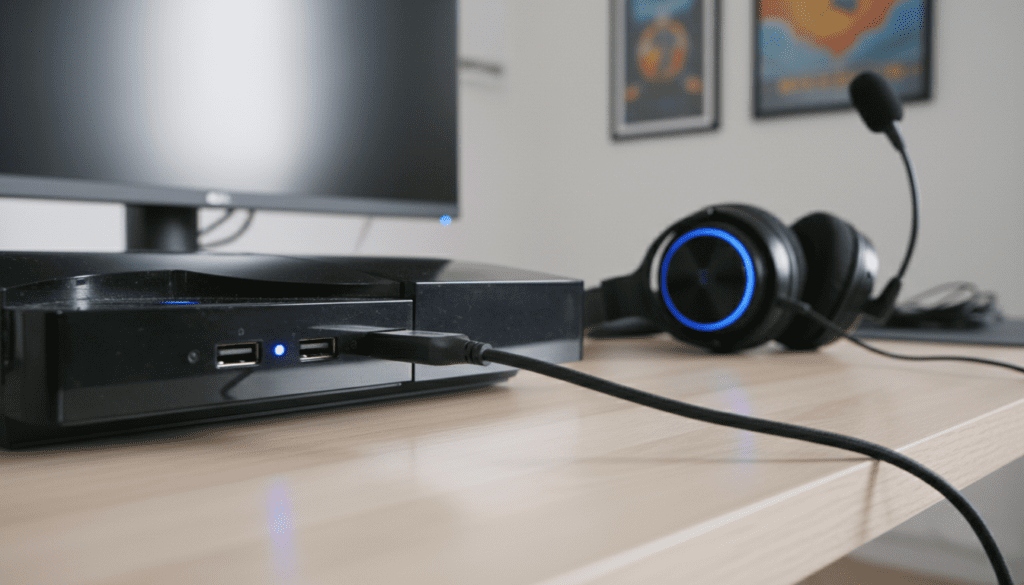
Key Takeaways for PS3 Audio
- USB Limitations: The PS3 only recognizes standard USB Audio Class (UAC) devices.
- Best Alternative: Use the TOSLINK (Optical) cable for the highest quality digital surround sound.
- Headset vs. Speakers: PS3 is much more compatible with USB headsets than external stereo PC speakers.
- Audio Settings: You must manually configure the Sound Settings in the XMB menu to route audio through the USB device.
How to Test if Your USB Speakers Will Work
Before buying new equipment, you can quickly test if your current USB speakers are compatible with your PS3. I have tested several models over the years, and usually, if the speakers have a “driverless” plug-and-play design, they have a 50/50 chance of being recognized by the console.
- Connect your USB speakers to one of the front-facing USB ports on your PS3.
- Turn on the console and navigate to the Settings menu.
- Select Sound Settings.
- Go to Audio Output Settings.
- Check if your USB device appears in the list of available output devices.
If the device is not listed, the PS3 cannot communicate with the hardware’s internal DAC (Digital-to-Analog Converter). This is a common issue with high-end PC gaming speakers that require specific software to function.
Comparing PS3 Audio Connection Methods
When trying to achieve better sound than your TV speakers, you have several options. This table compares the reliability and quality of different connection types.
| Connection Method | Audio Quality | Compatibility | Ease of Use |
|---|---|---|---|
| USB Audio | Variable | Low (Driver Dependent) | Easy |
| Optical (TOSLINK) | Excellent (5.1) | Very High | Medium |
| RCA (Red/White) | Standard Stereo | Universal | Easy |
| HDMI | Best (LPCM) | High (TV/Receiver) | Easiest |
Configuring Audio Output on PS3
Once you have verified that your device is detected, you must ensure the PS3 sends the audio signal to the right place. Improper configuration is the #1 reason users think their equipment is broken when it is actually just a settings conflict.
Step-by-Step Configuration:
- Navigate to Settings > Accessory Settings.
- Select Audio Device Settings.
- Ensure your Input and Output devices are set to the name of your USB hardware.
- Go back to Sound Settings > Audio Output Settings.
- Select USB Device as the primary output.
- Adjust the volume levels within the accessory menu to avoid audio clipping or distortion.
Pro-tip: If you are using a USB sound card or DAC, ensure the PS3 output is set to Linear PCM for the cleanest signal path.
Why USB Speakers Often Fail on PS3
The PlayStation 3 runs on a modified version of the FreeBSD kernel, which has limited support for modern PC peripherals. USB speakers that require Windows or macOS drivers will never function on the console.
Furthermore, many USB speakers draw more than the 500mA of power provided by the PS3 USB 2.0 ports. If your speakers have an external power brick, they have a higher chance of working because the PS3 only needs to handle the data stream, not power the internal amplifier.
Frequently Asked Questions (FAQ)
Can I use Bluetooth speakers with the PS3?
No. While the PS3 has built-in Bluetooth for controllers and headsets, it does not support the A2DP profile required for wireless music streaming to Bluetooth speakers. You would need a Bluetooth transmitter plugged into the headphone jack or RCA outputs.
Will a USB-to-3.5mm adapter work for my speakers?
Often, yes. Using a simple USB Sound Adapter (the small dongles that turn a USB port into a mic/headphone jack) is a reliable workaround. The PS3 treats these as a standard “USB Audio Device,” allowing you to plug regular analog speakers into the adapter.
Why is the sound through my USB device quiet?
This is usually a gain-staging issue. Check the Audio Device Settings on the PS3 and increase the microphone/output sensitivity. Also, ensure the physical volume knob on your speakers (if applicable) is turned up.
Does the PS3 support 7.1 surround sound via USB?
No, the PS3 is limited to stereo (2.0) audio via USB. For true 5.1 or 7.1 surround sound, you must use the Optical (TOSLINK) cable connected to a compatible AV receiver.









