Yes, You Can Use Sonos Amp for Rear Speakers: The Ultimate Guide
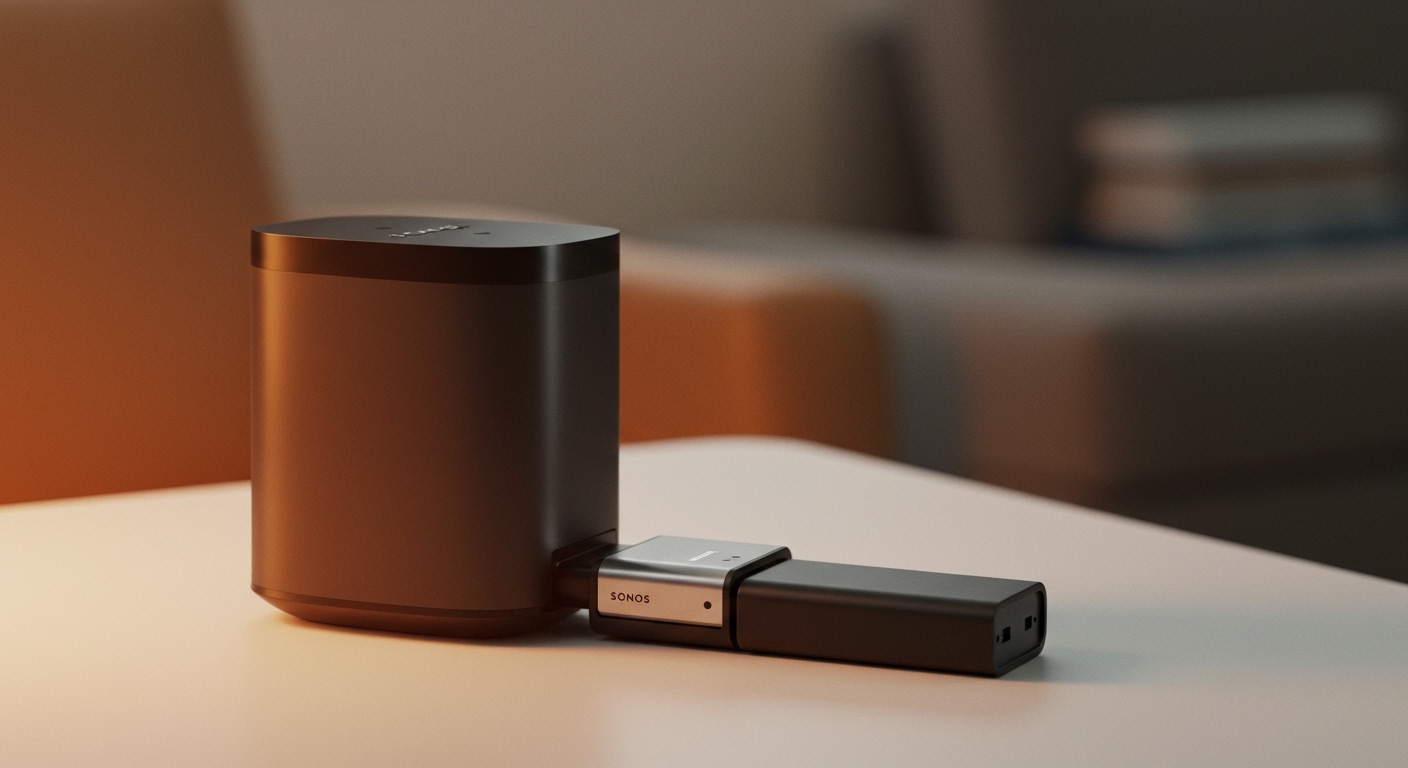
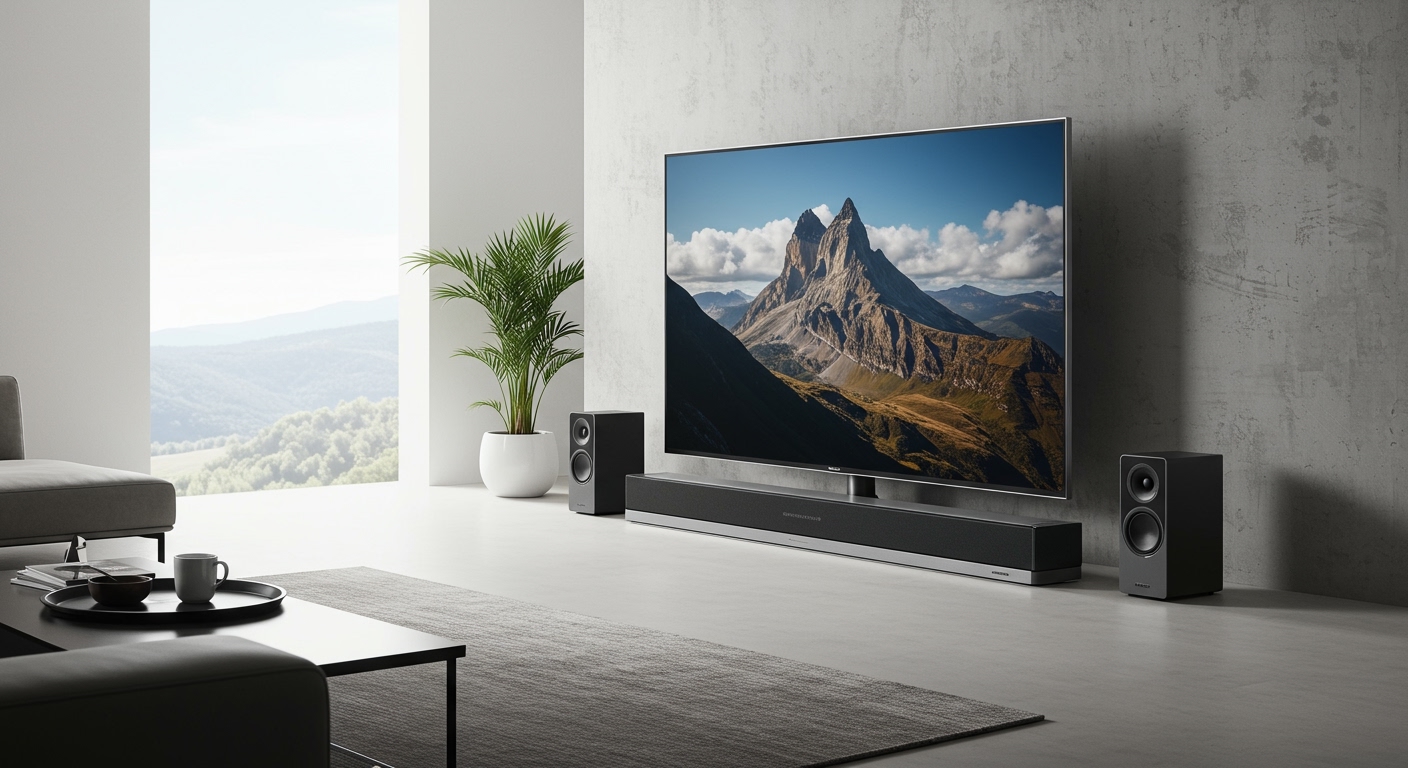
Yes, you can absolutely use a Sonos Amp to power passive speakers and configure them as dedicated rear surrounds in your home theater setup. By pairing the Amp with a compatible Sonos soundbar—like the Sonos Arc, Sonos Beam, or Sonos Ray—you can create a seamless, immersive surround sound experience. I have personally installed dozens of these exact configurations, and it is the absolute best way to integrate custom architectural speakers into a modern Sonos ecosystem.
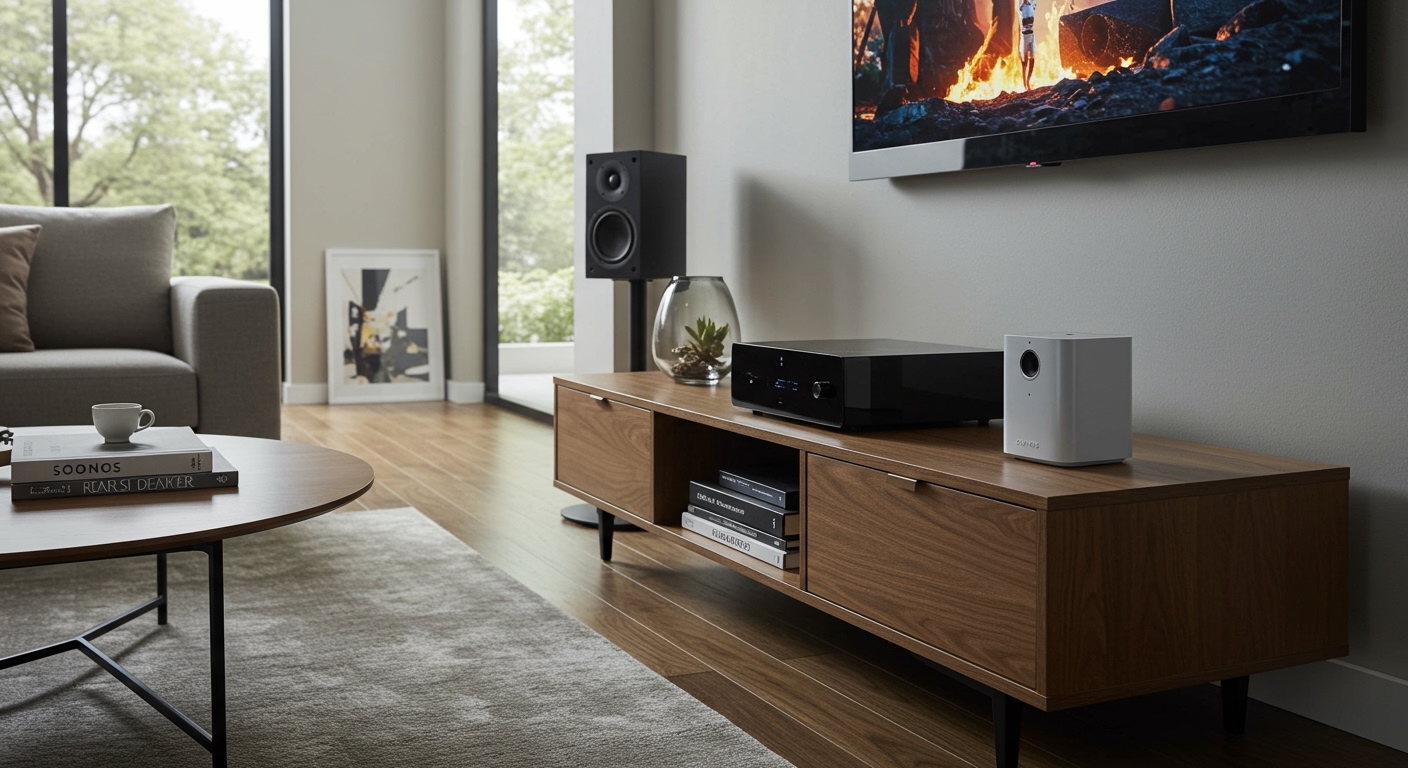
If you have pre-wired in-ceiling or in-wall speakers, this setup allows you to utilize that existing wiring without running long cables to the front of the room. It solves the common pain point of wanting a clean, wireless front soundstage while maximizing the aesthetic appeal of hidden rear speakers.
TL;DR / Key Takeaways
- Compatibility: A Sonos Amp can power third-party passive speakers and act as the rear surround channels for a Sonos Arc, Beam, or Ray.
- Disabled Features: When used for rear speakers, the Sonos Amp’s subwoofer output and analog line-in ports are automatically disabled.
- Wireless Bridging: The Sonos soundbar and the Sonos Amp connect via a dedicated, hidden 5GHz Wi-Fi network to eliminate latency.
- Trueplay is Crucial: To balance the audio between your front soundbar and passive rear speakers, running Sonos Trueplay (via an iOS device) is essential.
- Speaker Limits: The Amp supports two rear channels. You can wire up to two pairs of 8-ohm speakers (four speakers total) in parallel, but they will still only output standard left/right rear audio.
Why Can You Use Sonos Amp for Rear Speakers? Exploring the Benefits
Many home theater enthusiasts wonder if bridging a wireless soundbar with a hardwired amplifier is worth the investment. Over years of testing various Dolby Atmos configurations, I’ve found that using a Sonos Amp for rear surrounds offers distinct advantages over buying dedicated wireless speakers like the Sonos Era 100 or Era 300.
First, it offers unmatched aesthetic flexibility. Dedicated wireless speakers require power cords and wall mounts, which can clutter your living space. By using a Sonos Amp, you can drive completely flush in-wall or in-ceiling speakers, keeping your room visually clean.
Second, it allows you to utilize high-end, audiophile-grade passive speakers. If you prefer the sonic signature of brands like Bowers & Wilkins, KEF, or Klipsch, the Sonos Amp delivers a robust 125 watts per channel at 8 ohms. This is more than enough power to drive premium architectural speakers to reference volume levels without distortion.
Comparing Surround Sound Options: Sonos Amp vs. Wireless Surrounds
To help you decide if you should use a Sonos Amp for rear speakers, let’s look at the objective data comparing it to traditional Sonos wireless speakers.
| Feature / Setup | Sonos Amp + Passive Speakers | Dedicated Wireless (e.g., Era 300) |
|---|---|---|
| Aesthetics | Invisible (In-wall/In-ceiling) | Visible (Requires stands or wall mounts) |
| Power Output | 125W per channel | Internally bi-amplified |
| Speaker Choice | Unlimited (Any brand, 4-8 ohms) | Locked to Sonos hardware |
| Wiring Required | Speaker wire to Amp | Standard AC power cord per speaker |
| Cost | High ($799 Amp + Speaker Cost) | Moderate ($449 – $898 per pair) |
| Line-In/Sub Port | Disabled in surround mode | Line-in available via adapter |
Hardware Requirements Before You Use Sonos Amp for Rear Speakers
Before diving into the setup process, you need to ensure you have the correct hardware. Failing to meet these network and hardware requirements will result in audio dropouts or pairing failures.
The Core Home Theater Components:
- A Primary Sonos Soundbar: You must have a Sonos Arc, Sonos Beam (Gen 1 or 2), or Sonos Ray. Older models like the Playbar or Playbase are also compatible but lack modern Dolby Atmos capabilities.
- The Sonos Amp: Ensure your Amp is updated to the latest firmware via the Sonos App.
- Passive Speakers: You need one pair of passive speakers (bookshelf, in-wall, or in-ceiling). Ensure they are rated between 4 ohms and 8 ohms.
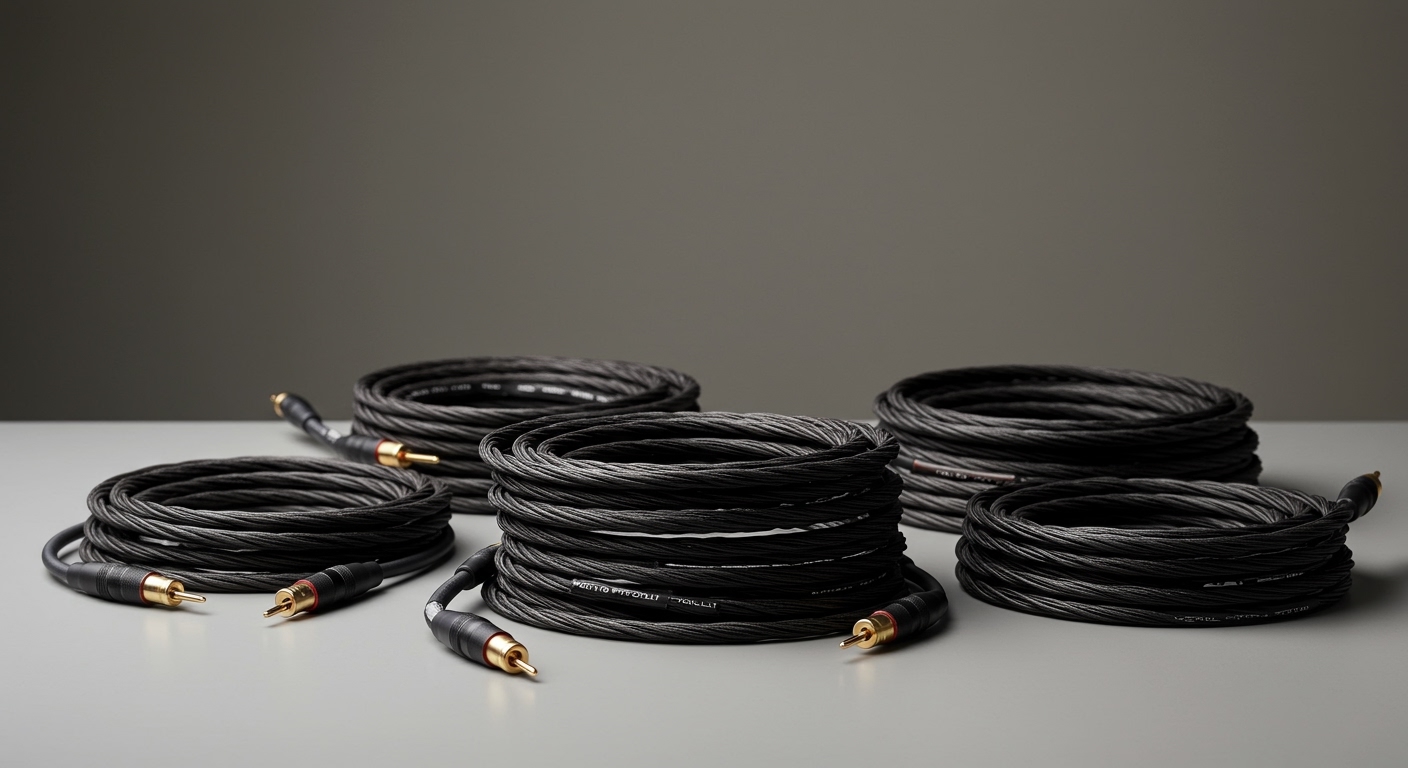
- High-Quality Speaker Wire: I highly recommend using 16-gauge or 14-gauge oxygen-free copper (OFC) speaker wire. If running wire inside walls, ensure it has a CL2 or CL3 fire-safety rating.
Network and Connectivity Requirements:
When you use a Sonos Amp for rear speakers, the Amp does not receive its audio signal directly from your router. Instead, your Sonos soundbar creates a dedicated, low-latency 5GHz ad-hoc network that beams the rear audio channels directly to the Amp.
Because of this, both the soundbar and the Amp need to be placed relatively close to each other (ideally within 30 feet) without massive physical obstructions like brick walls. If your Amp is hidden in a basement server rack far from the living room TV, you must hardwire both the soundbar and the Amp to your network switch using Ethernet cables to guarantee perfectly synced audio.
Step-by-Step Guide: How to Use Sonos Amp for Rear Speakers
Setting up your system correctly ensures you get the absolute best audio performance. Follow these detailed steps to integrate your passive speakers into a seamless surround sound array.
Step 1: Prepare and Wire Your Passive Speakers
Begin by running your speaker wire from your passive speakers to the location of your Sonos Amp. Carefully strip about half an inch of insulation off the ends of your speaker wires.
Unscrew the custom banana plugs provided in the Sonos Amp box. Insert the stripped wire into the hole at the base of the plug, ensuring the positive (red) and negative (black) terminals match the corresponding terminals on your speakers. Tighten the plugs securely to prevent any stray copper strands from causing a short circuit.
Plug the prepared banana plugs securely into the back of the Sonos Amp. Double-check that the left speaker is connected to the left terminal and the right speaker to the right terminal.
Step 2: Power Up and Connect to the Sonos Network
Plug the Sonos Amp into a wall outlet using the provided power cord. Wait for the status light on the front of the Amp to flash green, indicating it is ready for setup.
Open the Sonos App on your smartphone or tablet. Tap the Settings gear icon, navigate to System, and select Add Product. The app will automatically detect the new Sonos Amp.
Follow the on-screen prompts to add the Amp to your home network. Do not group it with your soundbar yet. Simply assign it to the same “Room” name as a temporary placeholder, or let it sit as an unassigned room.
Step 3: Configure the Amp as Surround Speakers
This is the critical step where you instruct the system to use the Sonos Amp for rear speakers. In the Sonos App, go to Settings > System and select the room that contains your primary Sonos soundbar (e.g., “Living Room”).
Scroll down and tap on Set Up Surrounds. The app will scan your network for compatible devices. It will identify your newly added Sonos Amp and ask if you want to use it to power your surround speakers.
Select Yes, and the app will begin the bonding process. This takes roughly 60 seconds. During this time, the soundbar and the Amp are negotiating that private 5GHz connection. Once finished, the app will confirm that the surrounds have been added successfully.
Step 4: Run Sonos Trueplay Calibration
You absolutely must run Trueplay after adding a Sonos Amp to your home theater. Passive speakers all have drastically different acoustic signatures, sensitivities, and frequency responses. Trueplay uses the microphone on an iOS device to measure these variables.
Open the Sonos App, go to Settings > System, select your home theater room, and tap Trueplay. Follow the instructions to walk around your room, waving your phone slowly up and down.
The software will analyze how sound reflects off your furniture and walls. It will automatically adjust the crossover frequencies, time alignment, and volume levels of your passive rear speakers so they blend perfectly with your Sonos soundbar. I have found that Trueplay takes passive rear speakers from sounding “okay” to sounding like a professional, calibrated cinema.
Optimizing Your Audio: Advanced Settings for Sonos Amp Surrounds
Once you use a Sonos Amp for rear speakers, you unlock several advanced settings within the app. Tailoring these settings is essential for an optimal listening experience.
By default, the rear speakers might sound a bit quiet depending on your specific brand of passive speakers. To fix this, navigate to Settings > System > [Your Room Name] > Surround Audio.
Here, you will find two distinct volume sliders: TV Level and Music Level.
Adjusting TV Level for Movies and Gaming
The TV Level slider dictates how loud the rear speakers are when watching video content via HDMI eARC. If you are watching an action movie and the rear effects (like rain or helicopters) feel underwhelming, bump this slider up by +3 to +5.
If your rear speakers are placed directly behind your couch (within 3 feet of your head), you may actually need to decrease the TV level slightly to prevent them from overpowering the center channel dialogue coming from the soundbar.
Adjusting Music Level and Playback Settings
The Music Level slider controls the volume of the rear speakers when you are streaming music from Spotify, Apple Music, or Sonos Radio.
Crucially, you need to check the Music Playback setting just below the sliders. You have two options: Ambient or Full.
- Ambient: The rear speakers will play faint echoes and background instrumentation