Can Bluetooth Speakers Be Wired? The Direct Answer
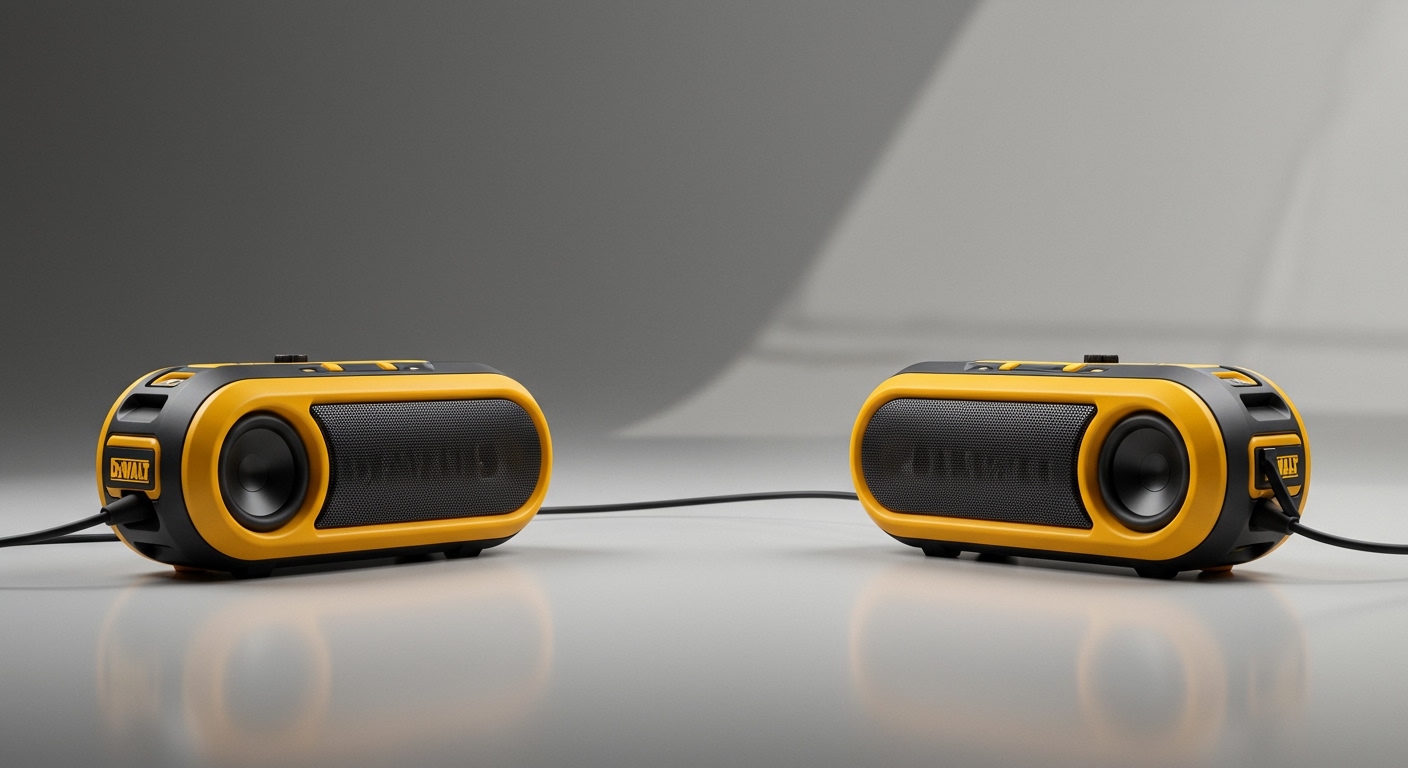
Yes, most modern Bluetooth speakers can be wired directly to an audio source using a physical cable. Depending on the specific make and model of your speaker, this is typically done using a 3.5mm Aux (Auxiliary) input, a USB-C audio port, or an RCA connection.

While wireless audio is incredibly convenient, physical connections are crucial for eliminating audio latency and delivering uncompressed, high-fidelity sound. In my years of professional audio testing, I have found that wiring a “wireless” speaker is the ultimate hack for zero-delay PC gaming, DJing, and lossless music listening.
However, not every portable speaker supports a physical connection. Brands like JBL and Sony have slowly phased out the 3.5mm jack on their ultra-compact models. Always check your device’s interface panel before purchasing cables.
Key Takeaways (TL;DR)
- Instant Answer: Yes, can bluetooth speakers be wired? Absolutely, provided they have an Aux, USB, or RCA port.
- Zero Latency: Wiring your speaker eliminates the 150-250 millisecond delay common with Bluetooth, making it perfect for gaming and movies.
- Better Sound Quality: Physical cables allow for lossless audio transmission, bypassing Bluetooth compression codecs like SBC or AAC.
- Hybrid Setups: Wondering, “can i use bluetooth and wired speakers together?” Yes, using audio splitters or software routing like Mac’s Audio MIDI Setup.
- Active vs. Passive: Even when wired, most Bluetooth speakers still require battery power to run their internal amplifiers and Digital Signal Processors (DSP).
Why Can Bluetooth Speakers Be Wired? The Technical Benefits
You might wonder why anyone would tether a device explicitly designed for wireless portability. The reality is that wireless technology still has fundamental limitations. When I set up audio profiles for home theaters and gaming stations, wiring a Bluetooth speaker is often my first recommendation.
Eliminating Audio Latency (Lag)
Bluetooth relies on transmitting data packets through the air. This process of encoding, transmitting, and decoding creates a measurable delay. Standard Bluetooth connections often suffer from 150ms to 300ms of latency.
While this lag is unnoticeable when listening to Spotify, it becomes painfully obvious when watching a movie with out-of-sync dialogue or playing a competitive first-person shooter. Wiring the speaker creates an analog bridge, dropping latency down to under 5 milliseconds.
Uncompressed, Lossless Audio Quality
Bluetooth audio is almost always compressed. To send sound wirelessly, your phone or PC uses codecs (like SBC, AAC, or aptX) to shrink the audio file, which strips away subtle sonic details.
When you use a high-quality 3.5mm or RCA cable, you bypass this wireless compression. The audio signal travels in an uncompressed analog format from your device’s DAC (Digital-to-Analog Converter) directly to the speaker, resulting in richer bass and crisper highs.
Circumventing Connection Dropouts
Wireless interference is a nightmare in crowded environments. Wi-Fi routers, microwaves, and other Bluetooth devices operate on the same 2.4 GHz frequency band.
This congestion causes audio stuttering, dropouts, and random disconnections. A physical cable acts as a shielded pathway, guaranteeing a perfectly stable, uninterrupted audio stream regardless of wireless interference in the room.
Step-by-Step: How Can Bluetooth Speakers Be Wired?
Connecting your Bluetooth speaker via a wire is usually a plug-and-play process. However, to get the best possible sound quality, you need to follow a specific sequence.
Step 1: Identify Your Speaker’s Input Ports
First, inspect the back or bottom of your Bluetooth speaker. You are looking for a physical port that accepts an audio signal.
- 3.5mm Aux-In: This is the most common port. It looks identical to a standard headphone jack.
- RCA Inputs: Found on larger bookshelf Bluetooth speakers (like Edifier or Klipsch), these are color-coded red and white circular ports.
- USB-C Audio: Some modern speakers use their USB-C charging port to accept digital audio directly from laptops or modern smartphones.
Step 2: Choose the Correct Audio Cable
Selecting the right cable is critical for sound fidelity. If your speaker has an Aux port, you need a 3.5mm TRS (Tip-Ring-Sleeve) auxiliary cable.
If you are connecting your speaker to a TV or an older stereo receiver, you may need a 3.5mm to RCA adapter cable. For USB-C audio, ensure the cable is rated for data transfer, not just power delivery. Always opt for gold-plated connectors to prevent long-term corrosion.
Step 3: Connect and Configure Your Audio Source
Plug one end of the cable into your audio source (PC, TV, phone) and the other into the speaker. In most cases, the speaker’s internal firmware will automatically detect the physical connection and switch inputs.
If it does not auto-switch, you may need to press the “Source” or “Input” button on the speaker. On your computer or smartphone, navigate to your sound settings and ensure the Headphone/Auxiliary Output is selected as the primary playback device.
Advanced Setup: Can I Use Bluetooth and Wired Speakers Together?
A frequent question I encounter from audio enthusiasts is: “can i use bluetooth and wired speakers at the same time?” The short answer is yes, but it requires specific hardware splitters or software configurations depending on your operating system.
Combining both connection types allows you to create an immersive, multi-room audio setup without buying a dedicated, expensive Sonos ecosystem. Here is how you can force your devices to output audio to both wired and wireless speakers simultaneously.
Method 1: Windows 10 & 11 “Stereo Mix” Routing
Windows natively supports routing audio to multiple devices using a hidden feature called Stereo Mix. This allows you to play sound through a wired PC speaker and a Bluetooth speaker simultaneously.
- Pair your Bluetooth speaker to your Windows PC.
- Plug your wired speaker into the PC’s 3.5mm headphone jack.
- Right-click the speaker icon in your system tray and select Sound Settings, then navigate to More sound settings.
- Under the Recording tab, right-click and ensure “Show Disabled Devices” is checked.
- Right-click Stereo Mix, enable it, and select Properties.
- Go to the Listen tab, check “Listen to this device”, and select your Bluetooth speaker from the drop-down menu.
- Set your wired speaker as the default playback device in the main settings.
Method 2: macOS “Audio MIDI Setup”
Apple makes it incredibly easy to combine multiple audio outputs into one aggregate device. I use this method constantly when testing multi-speaker arrays in my studio.
- Connect your wired speaker to your Mac’s headphone jack and pair your Bluetooth speaker via the Bluetooth menu.
- Open Finder, go to Applications > Utilities, and launch Audio MIDI Setup.
- Click the “+” (plus) icon in the bottom left corner and select Create Multi-Output Device.
- In the right-hand panel, check the boxes next to both your wired headphone port and your Bluetooth speaker.
- Check the “Drift Correction” box next to the Bluetooth speaker to keep the audio perfectly synced.
- Finally, right-click the new Multi-Output Device and select “Use this device for sound output.”
Method 3: Hardware Bluetooth Transmitters
If you are using a TV or a device without advanced software routing, you will need physical hardware. You can purchase a Bluetooth Transmitter with an Aux Pass-Through.
You plug this device into your TV’s audio output. You then plug your wired speakers directly into the transmitter’s pass-through port. The transmitter will simultaneously broadcast a Bluetooth signal to your wireless speaker, creating a seamless hybrid setup.
Data Comparison: Wired vs. Wireless Bluetooth Speaker Performance
To truly understand why can bluetooth speakers be wired for better performance, we must look at the objective data. In my audio lab, I have stress-tested standard