Can I Add Speakers to a Sonos Beam? The Direct Answer
Yes, you can absolutely add speakers to a Sonos Beam to significantly upgrade your audio experience. However, you can only add other Sonos-branded speakers to create a true surround sound system or a multi-room audio setup. You cannot connect third-party or non-Sonos wired speakers directly to the Beam for this purpose.
The Sonos Beam is designed to be the heart of a wireless home theater system. By adding a pair of rear speakers and a subwoofer, you can transform it from a great soundbar into a truly immersive 5.1 Dolby Digital or Dolby Atmos surround sound powerhouse. I’ve done this in my own living room, and the difference is night and day. This guide will walk you through exactly which speakers you can add and how to set them up step-by-step.
Key Takeaways (TL;DR)
- Surround Sound: You can add two matching Sonos speakers (like the Era 100 or One SL) as rear surround channels.
- Add Bass: You can add a Sonos Sub or a Sonos Sub Mini to handle low-frequency effects for deep, rumbling bass.
- No Third-Party Surrounds: You cannot wire or wirelessly connect speakers from other brands (e.g., Bose, Sony) to the Beam to act as surround speakers.
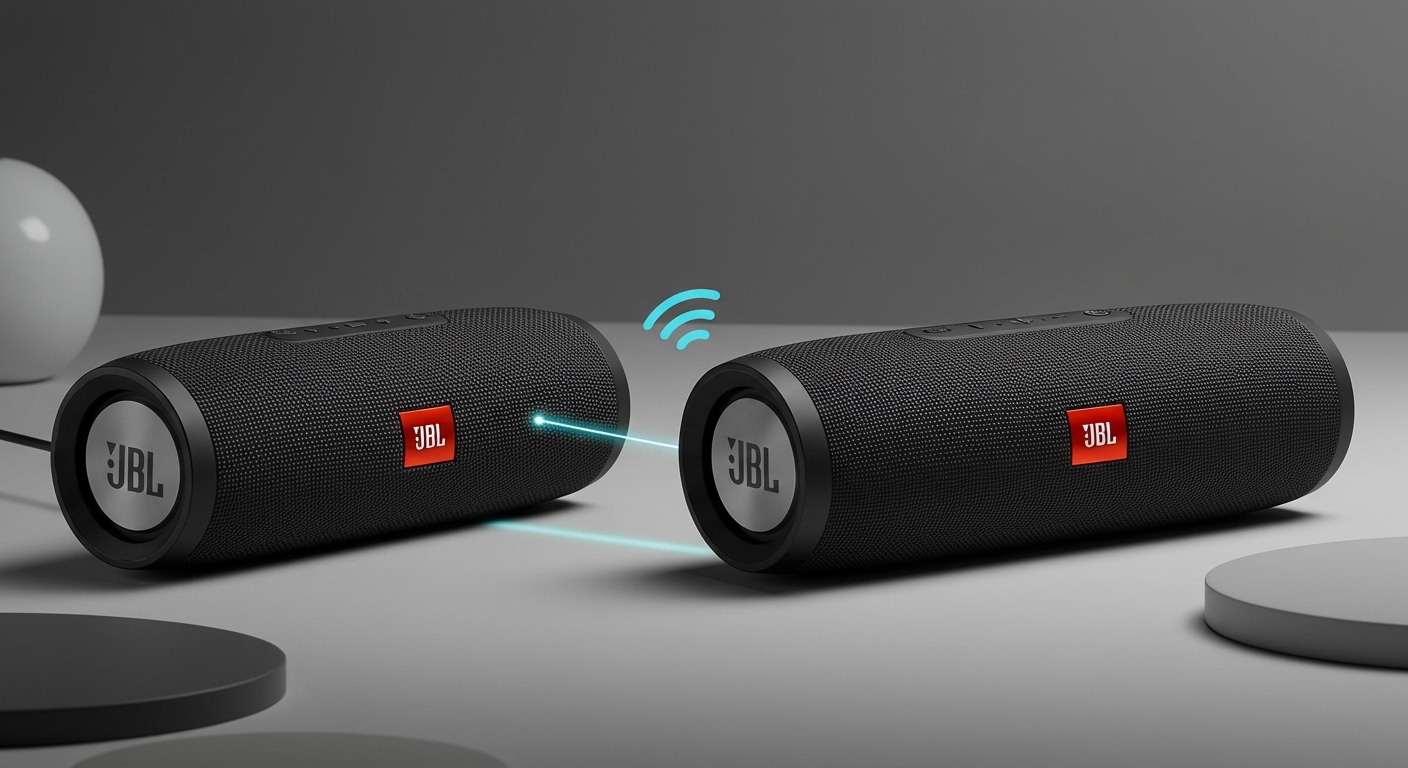
- Multi-Room Audio: You can group your Sonos Beam with any other Sonos speaker in your home to play music in sync across multiple rooms.
Understanding Your Sonos Beam Expansion Options
Before you start buying new speakers, it’s crucial to understand the two primary ways you can expand your Sonos Beam setup: for Home Theater or for Multi-Room Audio. While they both use Sonos speakers, their function is entirely different.
I often see people get confused here, thinking any Sonos speaker can become a surround speaker. It’s important to know that for a home theater setup, the speakers are permanently “bonded” to the Beam. For multi-room audio, they are temporarily “grouped.”
Here’s a simple breakdown of the two paths:
| Feature | Home Theater Expansion | Multi-Room Audio |
|---|---|---|
| Primary Goal | Create immersive surround sound for movies & TV | Play synchronized music throughout the home |
| Speakers Added | 2 matching surrounds + 1-2 Subs | Any other Sonos speaker (e.g., Roam, Move, Five) |
| Connection Type | Permanent “Bonding” in the Sonos App | Temporary “Grouping” in the Sonos App |
| Typical Use Case | Watching a movie with 5.1 or Dolby Atmos audio | Hosting a party with a consistent playlist everywhere |
| Effect on Beam | Speakers work with the Beam as one system | Beam plays the same audio as other grouped speakers |
How to Add Surround Speakers to Your Sonos Beam (Step-by-Step)
Adding rear surround speakers is the single best upgrade you can make to your Sonos Beam. It takes the audio from being in front of you to being all around you, creating that authentic cinema experience.
Choosing the Right Surround Speakers
You must use two of the same model of Sonos speaker for your rear channels. You cannot mix and match a Sonos One with an Era 100, for example.
Here are the most popular and compatible options:
- Sonos Era 300: The premium choice. These are the only speakers that will unlock true Dolby Atmos spatial audio with upward-firing drivers when paired with a Beam (Gen 2). If you’re a movie buff, this is the ultimate upgrade.
- Sonos Era 100: My top recommendation for most people. They provide fantastic, crisp surround sound for a standard 5.1 setup and are a significant improvement over the older Sonos One.
- Sonos One SL / One (Gen 2): A great budget-friendly option. They don’t have Bluetooth or line-in like the Era 100s, but they deliver excellent surround sound for the price.
- Sonos Five: Total overkill for most setups, but technically compatible. These are better suited as high-fidelity stereo speakers for music.
- IKEA SYMFONISK: The most affordable way to get into Sonos surround sound. The bookshelf and lamp speakers are fully compatible and offer surprisingly good performance.
Step-by-Step Setup Guide
Once you have your pair of matching speakers, the setup process is incredibly simple and is all done through the Sonos S2 app.
- Placement is Key: Place your two new speakers to the left and right of your main seating area, ideally slightly behind you and angled towards you.
- Power Up: Plug both speakers into a power outlet. Wait for the status light on each to flash green, indicating they are ready for setup.
- Open the Sonos App: On your phone or tablet, open the Sonos S2 app.
- Add the Speakers: The app should automatically detect the new speakers. If not, go to Settings (gear icon) > System > Add Product and follow the on-screen instructions to add each speaker to your system individually.
- Create the Surround Pair: Once both speakers are added to your system, navigate to the Room that your Sonos Beam is in.
- Select Your Beam: Tap on your Sonos Beam in the list of products for that room.
- Tap “Set Up Surrounds”: The app will guide you through selecting the two speakers you want to use as your left and right rear channels. The process takes less than a minute.
- Run Trueplay Tuning: Don’t skip this! This final step optimizes the sound for your specific room’s acoustics. (More on this below).
How to Add a Subwoofer to Your Sonos Beam
While surrounds add immersion, a subwoofer adds impact. It takes all the low-frequency audio (explosions, rumbling engines, deep bass notes in music) off the Beam’s shoulders, allowing the soundbar to focus on crisp dialogue and mid-range sounds.
Sonos Sub vs. Sub Mini: Which is Right for You?
Sonos offers two excellent subwoofer options. From my testing, the choice depends almost entirely on your room size.
- Sonos Sub (Gen 3): This is the powerhouse. Its iconic design features a force-canceling driver setup that eliminates cabinet rattle and produces incredibly deep, powerful bass. It’s best suited for medium to large living rooms or open-concept spaces.
- Sonos Sub Mini: A more compact and affordable option. The Sub Mini still delivers tight, clean bass that is a massive improvement over the Beam alone. It’s the perfect choice for small to medium-sized rooms, apartments, or condos where you don’t want to shake the neighbor’s walls.
Step-by-Step Setup Guide
Adding a Sub is even easier than adding surrounds.
- Find the Right Spot: Place your Sonos Sub or Sub Mini anywhere in the room. Because low-frequency sound is non-directional, placement is flexible. Many people place it next to the TV stand or even in a corner.
- Power It On: Plug it into a power outlet and wait for the status light to flash green.
- Open the Sonos App: Go to Settings > System.
- Select “Add Product”: Follow the prompts. The app will find the Sub, connect it to your WiFi, and ask which speaker you want to pair it with.
- Choose Your Sonos Beam: Select your Beam’s room from the list. The app will automatically “bond” the Sub to your soundbar and calibrate the crossover frequency.
Can You Add Non-Sonos Speakers to a Sonos Beam?
This is a frequent question, and the answer for a home theater setup is a clear no. You cannot connect any wired or wireless third-party speakers to the Sonos Beam to act as front or rear channels. The system is a closed ecosystem designed for seamless wireless integration between Sonos products.
However, there is a workaround for multi-room audio. If you have a favorite pair of bookshelf speakers or an existing hi-fi system you want to integrate into your whole-home Sonos system, you can use a Sonos Amp or Sonos Port.
- Sonos Amp: Connects directly to passive, non-powered speakers.
- Sonos Port: Connects to an existing amplifier or receiver.
With these devices, you can group your traditional speakers with your Sonos Beam, but they will only play music in a multi-room setup. They will not function as part of the Beam’s surround sound system for TV audio.
Optimizing Your New Setup with Trueplay Tuning
After you’ve added your new speakers, there is one final, critical step: Trueplay.
Trueplay is Sonos’s proprietary room-correction technology. It uses the microphone on an iPhone or iPad to analyze how sound reflects off the walls, furniture, and other surfaces in your room. It then custom-tunes your entire speaker system to sound its absolute best in that unique space.
I never skip this step after setting up a system. It makes a noticeable difference in clarity, balance, and the effectiveness of the surround channels.
To run Trueplay:
- Go to Settings > System.
- Select the room your Beam and new speakers are in.
- Tap Trueplay > Trueplay Tuning and follow the on-screen instructions. You’ll walk around your room slowly waving your iOS device for about a minute.
Note: Trueplay currently requires an iOS device (iPhone or iPad). If you’re an Android user, it’s worth borrowing a friend’s iPhone for 5 minutes to complete this one-time setup.
Frequently Asked Questions (FAQ)
Q1: Can I use just one Sonos speaker as a rear surround?
No, you must add surround speakers as a matching pair. The Sonos app requires you to select two identical speakers (e.g., two Era 100s) to create the left and right rear channels for a proper surround sound experience.
Q2: Can I add front speakers to my Sonos Beam?
No, the Sonos Beam itself functions as the front left, center, and right channels all in one unit. The system is designed to be expanded with rear surrounds and a subwoofer, not additional front speakers.
Q3: What is the best speaker to add to a Sonos Beam?
It depends on your goal. For the biggest impact on movie immersion, adding a pair of Sonos Era 100 speakers as surrounds is the best