The Short Answer: Can Two Google Speakers Be Used at Once?
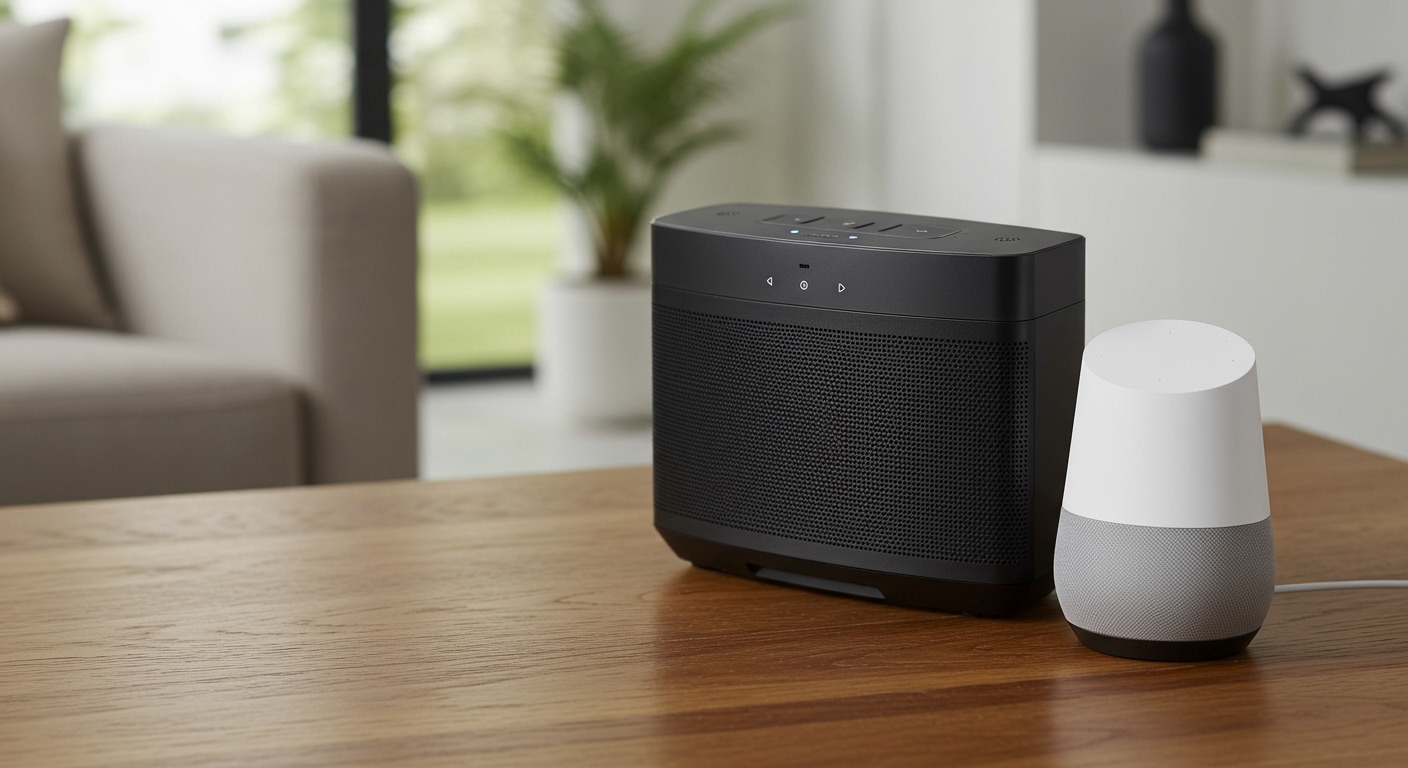
Yes, can two google speakers be used at once easily and seamlessly. You can either link two identical speakers to create a left-right Stereo Pair for immersive sound, or combine any mix of Google Assistant devices into a Speaker Group for synchronized multi-room audio.

Whether you want to fill a single room with rich music or cast your favorite podcast across the entire house, the Google Home app makes this entirely possible. I have personally tested this across various generations of Google hardware, and the ecosystem is incredibly flexible.
Read on to discover the exact step-by-step methods to sync your devices, play different audio streams simultaneously, and troubleshoot common connection issues.
📌 TL;DR / Key Takeaways
Stereo Pairing: Links two identical* Google speakers (e.g., two Nest Audios) in the same room for dedicated left and right audio channels.
Speaker Groups: Syncs multiple, different* Google speakers (e.g., a Nest Hub and a Nest Mini) to play the same audio across multiple rooms.
- Multi-Streaming: You can easily stream different music to different speakers using separate commands or multiple user accounts.
- Requirements: Both speakers must be powered on, connected to the same Wi-Fi network, and registered in the same Google Home app.
- Fixing Echoes: If grouped speakers fall out of sync, you can fix the delay using the Group Delay Correction setting in the app.
How Can Two Google Speakers Be Used at Once? (The Two Methods)
When exploring how can two google speakers be used at once, you need to understand that Google offers two distinct features for dual-speaker playback. Your choice depends on whether you want better sound quality in one room or broader coverage across your home.
The first method is Stereo Pairing. This is strictly for two identical speakers placed in the same room, effectively turning them into a single, high-fidelity sound system.
The second method is creating a Speaker Group. This allows you to combine completely different models and brands (as long as they have Chromecast built-in) to pump the exact same audio throughout your house.
Stereo Pair vs. Speaker Group Comparison
| Feature | Stereo Pair | Speaker Group | Best Used For |
|---|---|---|---|
| Speaker Requirements | Must be two identical models | Any mix of Google/Chromecast speakers | Living rooms, offices, home theaters |
| Audio Output | True Left/Right stereo separation | Mono audio synced across all devices | Parties, whole-home audio, background listening |
| Room Placement | Must be assigned to the same room | Can be in different rooms/zones | Moving around the house while listening |
| Voice Commands | Responds as a single device | Responds individually, but plays together | General smart home control |
Method 1: Creating a Stereo Pair for Immersive Sound
If you bought two Google Nest Audio or Google Nest Mini devices, stereo pairing is the ultimate way to upgrade your listening experience. By splitting the audio track into left and right channels, you get a much wider and more dynamic soundstage.
In my experience setting up two Nest Audios in my living room, the difference in audio depth is night and day compared to a single unit. However, you must ensure both devices are assigned to the exact same “Room” in your Google Home app before starting.
Step-by-Step Setup for Stereo Pairing
- Open the Google Home app: Launch the app on your iOS or Android device. Ensure you are connected to the same Wi-Fi network as your speakers.
- Select the First Speaker: Tap on the tile for one of the speakers you wish to pair.
- Access Settings: Tap the Gear icon (Settings) in the top right corner.
- Initiate Pairing: Tap on Audio, then select Stereo pair.
- Choose the Second Speaker: The app will prompt you to select the second speaker. (Note: Only identical models will appear as options).
- Assign Channels: The app will play a chime on one speaker. You will be asked if that speaker is on the left or the right. Tap accordingly.
- Name the Pair: Give your newly paired system a single name, like “Living Room Stereo.”
Once paired, these two devices will function as a single unit. If you say “Hey Google, turn up the volume,” both speakers will adjust simultaneously.
Method 2: Creating a Speaker Group for Multi-Room Audio
Sometimes, users take to forums and ask, “can you make 2 google speakers llh the same time“—and assuming “llh” is a quick typo for “play at,” the answer is absolutely yes. This is done by creating a Speaker Group.
Speaker groups are perfect for when you are cleaning the house or hosting a party. You can have a Google Home Max in the kitchen and a Nest Hub in the bedroom playing the exact same Spotify playlist in perfect synchronization.
Unlike stereo pairs, speaker groups do not separate left and right audio channels. Instead, they duplicate the same mono audio stream across every device included in the group.
Step-by-Step Setup for Speaker Groups
- Launch the App: Open the Google Home app and navigate to the main dashboard.
- Add a New Device/Group: Tap the + (Plus) icon in the top left corner.
- Select Speaker Group: Choose Create speaker group from the menu.
- Choose Your Devices: You will see a list of all compatible speakers and smart displays on your network. Tap the checkmark next to every device you want to include.
- Name the Group: Tap Next and assign a logical name to the group, such as “Whole House,” “Downstairs,” or “Party Mode.”
- Save: Tap Save. The group will now appear as its own separate tile on your Google Home dashboard.
To use the group, simply say, “Hey Google, play my Discover Weekly playlist on Whole House.” The audio will instantly begin streaming simultaneously across all selected devices.
Can You Play Two Different Songs With Different Google Speakers?
Another incredibly common question I get from smart home beginners is: can you play two different songs with different google speakers at the same time? Yes, you certainly can, and it is a massive benefit for multi-user households.
Because each Google speaker operates independently when not grouped, they can pull separate audio streams from the internet. For example, you can have jazz playing in the home office while your kids listen to pop music in their bedroom.
To do this effortlessly, you need to ensure your music streaming service supports multiple concurrent streams, such as a Spotify Family Plan or Apple Music Family Subscription.
How to Stream Different Audio Simultaneously
- **Use Specific