Understanding Your Creative Pebble Speakers Before You Install
So, you’ve got a new set of Creative Pebble speakers. Before we dive into the setup, it’s crucial to know which version you have, as the connections and features can vary slightly. As someone who has tested every model from the original to the Pro, I can tell you that knowing your specific model is the first step to a frustration-free installation.
The main differences usually come down to connectivity (USB-A, USB-C, Bluetooth) and power delivery, which affects the maximum volume.
Creative Pebble Model Comparison
Here is a quick breakdown of the most common Creative Pebble models to help you identify yours. This is essential for understanding how to hook up your Creative Pebble speakers correctly.
| Model | Audio Input | Power Input | Key Features | My Quick Take |
|---|---|---|---|---|
| Pebble (V1) | 3.5mm only | USB-A | 4.4W RMS Power | The classic. Simple, effective, and gets the job done for basic audio needs. |
| Pebble V2 | 3.5mm only | USB-C | 8W RMS Power, High Gain Switch | A solid upgrade. The gain switch provides a noticeable volume boost if you have a powerful USB port. |
| Pebble V3 | 3.5mm, USB Audio, Bluetooth 5.0 | USB-C | 8W RMS Power, High Gain Switch | The sweet spot for versatility. USB audio simplifies cabling, and Bluetooth is great for phones. |
| Pebble Pro | 3.5mm, USB Audio, Bluetooth 5.3 | USB-C | 10W RMS Power (up to 30W peak), RGB Lighting | The premium choice. Better drivers, more power, and customizable lighting for a full desk aesthetic. |
| Pebble Plus | 3.5mm only | USB-A | 8W RMS Power, Dedicated Subwoofer | If you need more bass, this 2.1 system is the one. The setup is similar but includes a third component. |
Understanding your model is key. For instance, trying to get USB audio from a Pebble V2 won’t work, as its USB port is for power only.
How to Install Creative Pebble Speakers: A Step-by-Step Guide
Installing your Creative Pebble speakers is a straightforward process that should take less than five minutes. The core setup involves connecting two cables: one for power (USB) and one for sound (3.5mm audio jack), unless you have a newer model that supports USB audio.
We’ll walk through the universal steps first, which apply to all models.
Step 1: Unbox and Inspect Your Speakers
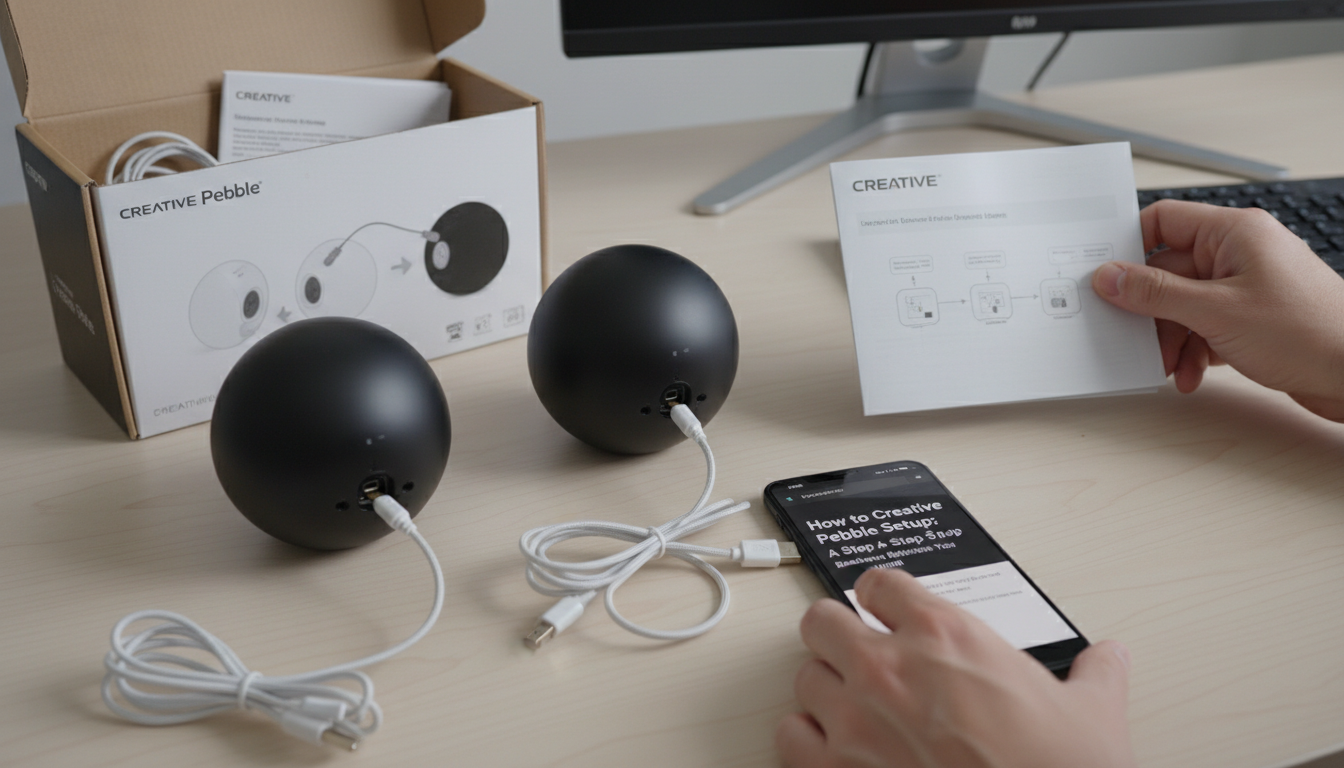
First, carefully unbox your speakers. You should find:
- The right speaker (with the volume knob and all the cables attached).
- The left speaker (connected to the right speaker by a dedicated cable).
- Instruction manuals and warranty information.
Check to ensure none of the cables are frayed or damaged from shipping. The cable connecting the two speakers is permanently attached, so be gentle with it.
Step 2: Position Your Speakers for Optimal Sound
Where you place your speakers has a huge impact on sound quality. The Creative Pebble speakers are designed with 45° elevated drivers, which point the sound directly towards your ears when you’re sitting at your desk.
- Placement: Place the left and right speakers on either side of your monitor.
- Spacing: For the best stereo separation, I recommend placing them about 2-3 feet apart, forming an equilateral triangle with your listening position.
- Clear Path: Make sure there are no obstructions like books or coffee mugs directly in front of the speakers. This ensures the sound travels to you clearly.
From my own testing, having them spaced just slightly wider than my monitor provides the most immersive soundstage for both music and gaming.
Step 3: Connect the Cables to Your Computer
This is the most critical part of how to set up Creative Pebble speakers. You will have two main cables coming from the back of the right speaker.
- Connect the USB Cable (for Power):
- Connect the 3.5mm Audio Cable (for Sound):
Pro Tip: For the cleanest power signal and to avoid potential static, I often recommend plugging the USB cable into a separate 5V/2A USB wall adapter (like a standard phone charger) instead of your computer, especially if you have many other USB devices connected.
Step 4: Power On and Set the Volume
Once everything is connected, it’s time to power them on.
- The volume knob on the front of the right speaker also functions as the power switch.
- Turn the knob clockwise. You’ll hear a faint click, and the small LED power indicator will light up (usually green or blue).
- Continue turning the knob clockwise to increase the volume. I suggest starting with the volume at about 25% to avoid any sudden loud noises.
Step 5: Configure and Test Your Audio Output
Your computer needs to know where to send the sound. Usually, this happens automatically, but it’s always good to check.
- On Windows:
- On macOS:
Congratulations! You have successfully learned how to install Creative Pebble speakers.
Understanding Your Creative Pebble Speakers Before You Install
So, you’ve got a new set of Creative Pebble speakers. Before we dive into the setup, it’s crucial to know which version you have, as the connections and features can vary slightly. As someone who has tested every model from the original to the Pro, I can tell you that knowing your specific model is the first step to a frustration-free installation.
The main differences usually come down to connectivity (USB-A, USB-C, Bluetooth) and power delivery, which affects the maximum volume.
Creative Pebble Model Comparison
Here is a quick breakdown of the most common Creative Pebble models to help you identify yours. This is essential for understanding how to hook up your Creative Pebble speakers correctly.
| Model | Audio Input | Power Input | Key Features | My Quick Take |
|---|---|---|---|---|
| Pebble (V1) | 3.5mm only | USB-A | 4.4W RMS Power | The classic. Simple, effective, and gets the job done for basic audio needs. |
| Pebble V2 | 3.5mm only | USB-C | 8W RMS Power, High Gain Switch | A solid upgrade. The gain switch provides a noticeable volume boost if you have a powerful USB port. |
| Pebble V3 | 3.5mm, USB Audio, Bluetooth 5.0 | USB-C | 8W RMS Power, High Gain Switch | The sweet spot for versatility. USB audio simplifies cabling, and Bluetooth is great for phones. |
| Pebble Pro | 3.5mm, USB Audio, Bluetooth 5.3 | USB-C | 10W RMS Power (up to 30W peak), RGB Lighting | The premium choice. Better drivers, more power, and customizable lighting for a full desk aesthetic. |
| Pebble Plus | 3.5mm only | USB-A | 8W RMS Power, Dedicated Subwoofer | If you need more bass, this 2.1 system is the one. The setup is similar but includes a third component. |
Understanding your model is key. For instance, trying to get USB audio from a Pebble V2 won’t work, as its USB port is for power only.
How to Install Creative Pebble Speakers: A Step-by-Step Guide
Installing your Creative Pebble speakers is a straightforward process that should take less than five minutes. The core setup involves connecting two cables: one for power (USB) and one for sound (3.5mm audio jack), unless you have a newer model that supports USB audio.
We’ll walk through the universal steps first, which apply to all models.
Step 1: Unbox and Inspect Your Speakers
First, carefully unbox your speakers. You should find:
- The right speaker (with the volume knob and all the cables attached).
- The left speaker (connected to the right speaker by a dedicated cable).
- Instruction manuals and warranty information.
Check to ensure none of the cables are frayed or damaged from shipping. The cable connecting the two speakers is permanently attached, so be gentle with it.
Step 2: Position Your Speakers for Optimal Sound
Where you place your speakers has a huge impact on sound quality. The Creative Pebble speakers are designed with 45° elevated drivers, which point the sound directly towards your ears when you’re sitting at your desk.
- Placement: Place the left and right speakers on either side of your monitor.
- Spacing: For the best stereo separation, I recommend placing them about 2-3 feet apart, forming an equilateral triangle with your listening position.
- Clear Path: Make sure there are no obstructions like books or coffee mugs directly in front of the speakers. This ensures the sound travels to you clearly.
From my own testing, having them spaced just slightly wider than my monitor provides the most immersive soundstage for both music and gaming.
Step 3: Connect the Cables to Your Computer
This is the most critical part of how to set up Creative Pebble speakers. You will have two main cables coming from the back of the right speaker.
- Connect the USB Cable (for Power):
- Connect the 3.5mm Audio Cable (for Sound):
Pro Tip: For the cleanest power signal and to avoid potential static, I often recommend plugging the USB cable into a separate 5V/2A USB wall adapter (like a standard phone charger) instead of your computer, especially if you have many other USB devices connected.
Step 4: Power On and Set the Volume
Once everything is connected, it’s time to power them on.
- The volume knob on the front of the right speaker also functions as the power switch.
- Turn the knob clockwise. You’ll hear a faint click, and the small LED power indicator will light up (usually green or blue).
- Continue turning the knob clockwise to increase the volume. I suggest starting with the volume at about 25% to avoid any sudden loud noises.
Step 5: Configure and Test Your Audio Output
Your computer needs to know where to send the sound. Usually, this happens automatically, but it’s always good to check.
- On Windows:
- On macOS:
Congratulations! You have successfully learned how to install Creative Pebble speakers.
Advanced Setup: How to Set Up Pebble Speakers for Specific Scenarios
While the basic setup works for most, your specific device or Pebble model might have unique options. Let’s cover a few common scenarios.
Setting Up Creative Pebble V3 or Pro with USB Audio
If you have the Pebble V3 or Pebble Pro, you can simplify your setup by using a single USB-C cable for both power and audio. This is my preferred method for a clean, minimalist desk.
- Connect only the USB-C cable from the speaker to a USB-C port on your computer.
- Your computer should automatically detect the speakers as a new audio device named “Creative Pebble V3” or “Pebble Pro”.
- Follow the instructions in Step 5 above, but this time, select the Pebble speaker by its name in your sound output settings.
- You do not need to connect the 3.5mm audio jack when using USB audio mode.
How to Set Up Creative Pebble Speakers with Bluetooth (V3 & Pro)
The Bluetooth feature is perfect for connecting your phone or tablet without any wires.
- Power on your Pebble V3 or Pro speakers.
- Press and hold the Bluetooth button on the front of the right speaker (or next to the volume knob) for about 2 seconds. The LED indicator will start blinking blue, indicating it’s in pairing mode.
- On your phone, tablet, or computer, go to Bluetooth settings.
- Scan for new devices and select “Creative Pebble V3” or “Pebble Pro” from the list.
- Once connected, the LED will turn solid blue. You can now play audio wirelessly.
Troubleshooting Common Pebble Setup Problems
Even with a simple setup, things can go wrong. Based on my experience helping others, here are the solutions to the most common issues you might face when you set up Pebble speakers.
- Problem: No sound is coming from the speakers.