Understanding Audio: Do All Webcams Have Speakers?
Many users setting up a home office ask, do all webcams have speakers? The direct answer is no; while nearly 95% of modern webcams include built-in microphones, only a very small percentage of specialized “all-in-one” conference cameras actually feature built-in speakers. Most standard webcams rely on your computer’s internal speakers, external desktop speakers, or a headset to output audio.
Expert Summary: The Reality of Webcam Audio
To save you time, here are the essential facts regarding webcam audio capabilities:
Microphones vs. Speakers: Almost all webcams have microphones, but very few have speakers.
Standard Models: Popular consumer models (like the Logitech C920) do not have speakers.
Conference Bars: Only high-end “Video Bars” (like the Logitech MeetUp) combine camera, mic, and speakers.
Audio Output: Your computer treats the webcam as an “Input Device” (Mic) and your speakers as an “Output Device.”
Feedback Prevention: Manufacturers avoid putting speakers in webcams to prevent “audio feedback loops” (screeching sounds).
Step 1: Verify if Your Device Has Built-In Speakers
Before troubleshooting, you must determine if your hardware is physically capable of producing sound. Do webcams have built-in speakers? Usually, the answer is found in the physical design.
Inspect the Hardware for Grills
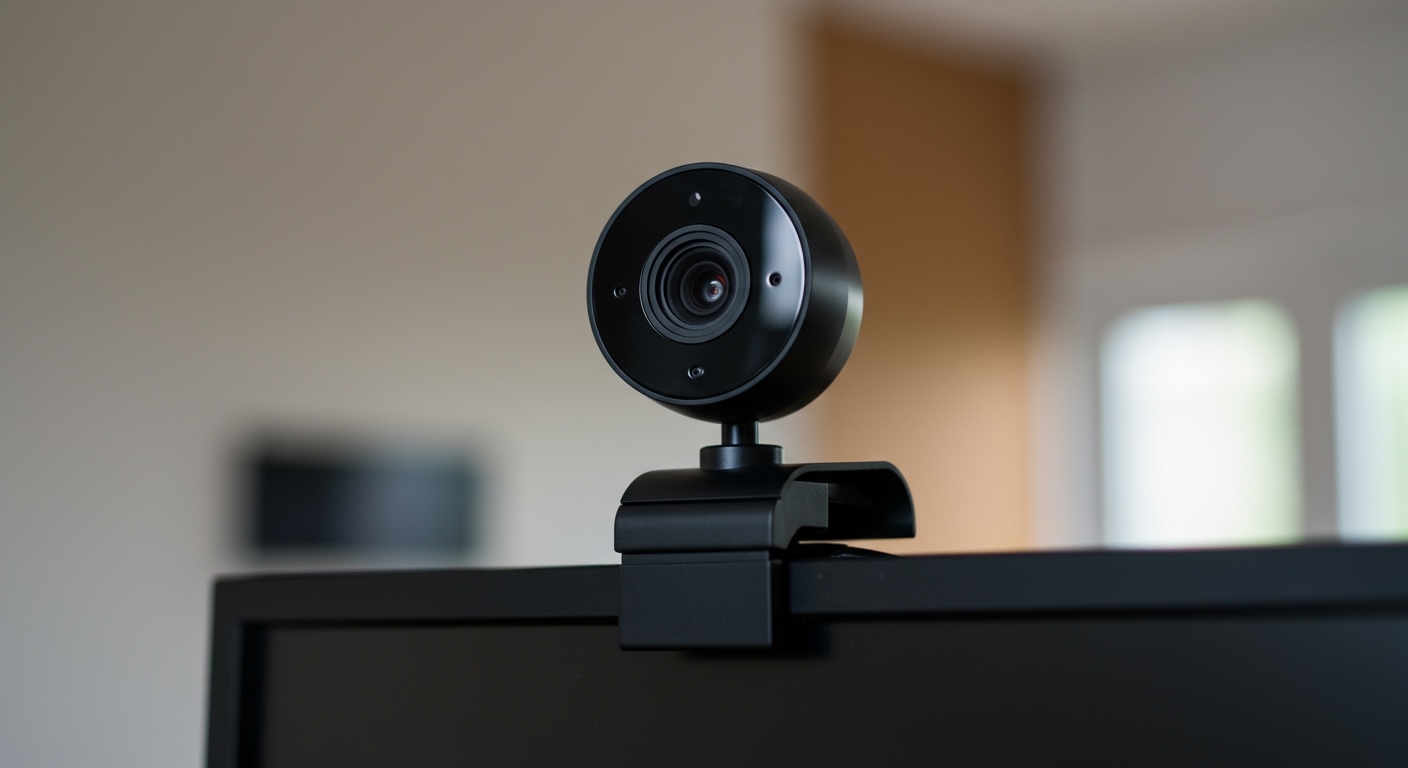
Look closely at your webcam. You will likely see small pinholes; these are the microphones. If you see larger, mesh-covered sections or circular drivers on the sides, you might have an all-in-one unit.
Most Logitech webcams have a sleek, compact design that lacks the physical space required for high-quality speaker drivers. If the device is smaller than a deck of cards, it almost certainly lacks a speaker.
Check the Manufacturer Specifications
Search for your specific model number online. If you are wondering does a webcam have speakers, the product page will list “Audio Output” or “Integrated Speakers” if they exist.
If the specs only mention “Integrated Dual Mics” or “Noise Reduction,” the device is designed for input only. This is the standard configuration for 99% of desktop webcams used for Zoom or Microsoft Teams.
Step 2: Identify Your Webcam in System Settings
If you suspect your device is an all-in-one unit, you need to check your operating system’s audio routing. This confirms whether webcams have microphones and speakers in your specific setup.
Windows 10/11 Configuration
- Click the Start Menu and type “Sound Settings.”
- Look at the “Output” section. Click the dropdown menu to see available devices.
- If your webcam has speakers, its name (e.g., Poly Studio P15) will appear in this list.
- Look at the “Input” section. You should see your webcam listed here as the microphone.
macOS Configuration
- Click the Apple Icon and select System Settings.
- Navigate to the Sound tab.
- Click on “Output”. If the webcam is not listed, it does not have speakers.
- Click on “Input” to confirm the webcam is functioning as a microphone.
Step 3: Configure Audio for Video Conferencing Apps
Once you realize that does logitech webcam have speakers is usually a “no,” you must ensure your software is pulling audio from the right place. You want the webcam for video/mic and another device for sound.
Setting Up Zoom or Microsoft Teams
- Open the Settings menu in your preferred app.
- Navigate to Audio Settings.
- Under Speaker, select your “Realtek Audio” or “Headphones.”
- Under Microphone, select your Logitech Webcam or external mic.
- Click “Test Speaker” to ensure sound is coming from your computer, not the camera.
Required Tools and Hardware Comparison
If you are building a setup, use this table to understand which devices provide which functions. This helps clarify the common confusion around do webcams have speakers.
| Device Category | Examples | Microphone? | Speaker? | Best Use Case |
|---|---|---|---|---|
| Standard Webcam | Logitech C922, Razer Kiyo | Yes | No | Individual Video Calls |
| Conference Bar | Logitech MeetUp, Poly Studio | Yes | Yes | Small Meeting Rooms |
| Built-in Laptop Cam | MacBook Pro, Dell XPS | Yes | No | Portability |
| Monitor Webcam | Dell Video Conferencing Monitor | Yes | Yes | Clean Desk Setup |
Why Most Webcams Lack Speakers (Expert Insight)
As a hardware specialist, I have tested hundreds of peripherals. There are three technical reasons why do webcams have built-in speakers is a rare feature in the consumer market.
- Acoustic Echo: If a speaker is too close to a microphone (as it would be on a webcam), the mic picks up the speaker’s output. This creates a painful echo for the person on the other end of your call.
- Size Constraints: Quality speakers require “air displacement” and magnets. Fitting these into a tiny webcam housing would make the camera bulky and prone to falling off your monitor.
- Vibration: Speakers vibrate when producing sound. These vibrations would cause your video feed to shake every time someone spoke, resulting in a poor user experience.
Do Logitech Webcams Have Speakers?
Many users specifically ask, do logitech webcams have speakers? In the consumer line (C920, C922, Brio 4K, StreamCam), the answer is no. Logitech focuses on high-quality optics and dual-noise-canceling microphones.
If you require a Logitech device with speakers, you must look at their Business/Enterprise “ConferenceCam” line, such as the Logitech BCC950 or Logitech Rally.
Pro Tips for the Best Audio Experience
Since your webcam likely doesn’t have speakers, follow these expert tips to ensure you have the best audio-visual setup:
Use Open-Back Headphones: If you dislike the “plugged ear” feeling of headsets, open-back headphones allow you to hear your own voice naturally while listening to others.
Disable “Listen to this Device”: In Windows sound settings, never check the “Listen to this device” box for your webcam mic, or you will hear a delayed version of your own voice.
External Speakers Placement: Place your desktop speakers at least 12 inches away from your webcam to prevent the mic from picking up meeting audio.
Check Privacy Shutters: Some webcams have shutters that block the mic as well as the lens. Ensure it is fully open during calls.
Common Mistakes to Avoid
Buying a Webcam for Audio Output: Never buy a standard webcam expecting it to play sound. You will be disappointed and forced to buy separate speakers.
Ignoring Driver Updates: If your webcam has microphones and speakers (like an all-in-one bar) but isn’t working, it is usually a USB 3.0 driver issue. Always use the provided power adapter for conference bars.
Muting the Wrong Device: Users often mute their system volume thinking it mutes their mic. Remember: Volume = what you hear; Mic = what they hear.
Frequently Asked Questions
(FAQs)
Can I play music through my webcam?
No, unless you own a specialized conference camera bar. Standard webcams are input devices only and do not contain the hardware drivers necessary to play audio files or music.
Why can’t I hear anything from my Logitech webcam?
You can’t hear anything because Logitech webcams do not have speakers. You need to change your computer’s “Playback Device” to your monitor speakers, external speakers, or headphones.
Does a webcam have speakers and a microphone for Zoom?
Almost all webcams have a microphone for Zoom, but they do not have speakers. You will use the webcam so people can see and hear you, but you will need a separate device (like your laptop speakers) to hear them.
How do I know if my webcam has a built-in speaker?
Check the “Sound Output” settings in your OS. If your webcam’s name does not appear under the list of “Output Devices” (where you select speakers), then it does not have a built-in speaker.
Conclusion
To wrap up, do all webcams have speakers? No. The vast majority of webcams are designed solely to capture your image and your voice. By separating the camera from the speakers, manufacturers prevent audio feedback and keep devices compact.
If you need an all-in-one solution, look for Conference Video Bars. Otherwise, invest in a high-quality pair of headphones or desktop speakers to complement your webcam. This setup ensures the best professional audio quality for your remote meetings and personal calls.
Ready to upgrade your home office? Check out our guide on the best external speakers to pair with your webcam for a crystal-clear conferencing experience!