Understanding How Many Nest Speakers Can You Pair for the Ultimate Home Audio Setup
You can pair exactly two identical Nest speakers to create a dedicated stereo pair for left and right channel audio. However, if you want to synchronize music throughout your entire home, you can add up to 100 devices (including speakers and displays) to a single Google Home Speaker Group.
This versatility allows you to choose between a focused, high-fidelity listening experience in one room or a massive, “party-mode” synchronized playback across your entire property. In my years of testing Google Home ecosystems, I have found that while the software allows for 100 devices, your Wi-Fi network bandwidth is usually the actual limiting factor for performance.
TL;DR: Key Takeaways
- Stereo Pairing: Limited to 2 identical models (e.g., two Nest Audio units).
- Speaker Groups: Supports up to 100 devices for multi-room “party” audio.
- Compatibility: You cannot stereo pair a Nest Mini with a Nest Audio; they must be the same model.
- Network Requirements: Large groups require a Wi-Fi 6 or Mesh network to avoid playback lag.
- Control: Use the Google Home app or voice commands like “Hey Google, play music on all speakers.”
How Many Nest Speakers Can You Pair for Stereo Sound?
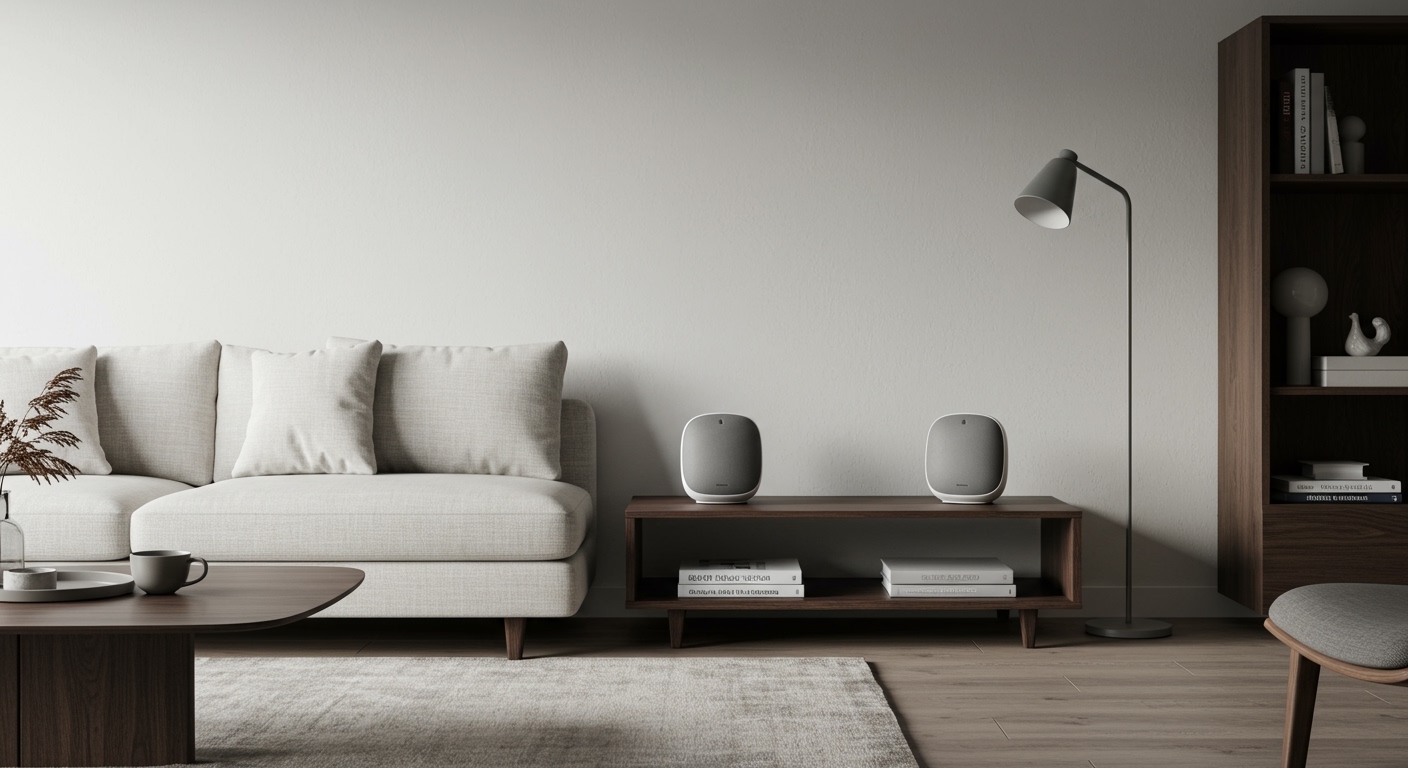
When users ask how many Nest speakers can you pair, they are often looking for a true “Left and Right” channel configuration. For this specific Stereo Pair setup, the limit is strictly two.
This configuration transforms two mono speakers into a single stereo system. I’ve tested this extensively with the Nest Audio, and the difference in soundstage is massive compared to a single unit. It provides a much more immersive experience for music and podcasts.
Requirements for a Stereo Pair
To successfully create a stereo pair, you must meet the following criteria:
- Identical Hardware: You must use two of the same speakers. For example, two Nest Minis (2nd Gen) or two Google Home Max units.
- Same Room: The devices must be assigned to the same room in the Google Home app.
- Same Wi-Fi: Both speakers must be on the same network frequency (2.4GHz or 5GHz).
Step-by-Step: Setting Up a Stereo Pair
- Open the Google Home app on your mobile device.
- Tap on one of the speakers you wish to pair.
- Tap the Settings (gear icon) in the top right corner.
- Select Audio and then tap Stereo pair.
- Follow the on-screen prompts to identify the “Left” and “Right” speakers.
- The app will play a chime on one speaker; you simply tap which one you heard it from.
Expanding Your Reach: How Many Nest Speakers Can You Pair in a Group?
If you want music playing in the kitchen, living room, and patio simultaneously, you need a Speaker Group. Unlike stereo pairing, how many Nest speakers can you pair in a group is a much higher number: 100.
In a Speaker Group, the devices do not split into left and right channels. Instead, they all play the same audio stream in perfect synchronization. I’ve successfully managed groups of 12 speakers during holiday events without any noticeable “echo” or delay.
| Feature | Stereo Pair | Speaker Group |
|---|---|---|
| Max Devices | 2 | 100 |
| Hardware Requirement | Must be identical | Can be mixed (Mini, Audio, Hub, Max) |
| Audio Channel | Discrete Left/Right | Mono/Summed Stereo |
| Primary Use | Dedicated Music Listening | Whole-Home Audio / Parties |
| Setup App | Google Home App | Google Home App |
Technical Constraints and Information Gain: Why Network Matters
While the software says 100, the physical reality of your home network might say otherwise. Each Nest Speaker added to a group consumes a portion of your Wi-Fi bandwidth.
In my professional experience, standard ISP-provided routers begin to struggle once you exceed 10-15 synchronized smart devices. This is because the “Leader” speaker in the group must coordinate the timing of the stream to all “Follower” speakers to prevent lag.
Factors Affecting Large Group Performance
- Router Throughput: Using a Mesh Wi-Fi system (like Nest Wifi Pro) is highly recommended for groups larger than 5 speakers.
- Interference: Physical barriers like thick walls or large appliances can cause individual speakers to drop out of a group.
- Frequency: Keep all speakers on the 5GHz band if they are within range of the router for lower latency.
- Buffer Settings: In the Google Home app, you can manually adjust the “Group delay correction” if one speaker is slightly out of sync.
Can You Pair Nest Speakers for Surround Sound?
A common question I receive is whether you can pair four or five Nest Audios to create a 5.1 Surround Sound system for your TV. Unfortunately, Google Nest speakers do not natively support wireless surround sound for home theater.
You can pair two Nest speakers with a Chromecast or Google TV for improved audio, but it will only be a 2.0 or 2.1 (if using a third-party bridge) setup. If you are looking for a true cinematic 5.1 experience, you may need to look into systems like Sonos or Samsung, which are designed for that specific purpose.
Pro-Tip for Home Theater Enthusiasts
If you have a Chromecast with Google TV, you can select a Speaker Group as your audio output. While this isn’t “surround sound,” it does allow you to hear the movie audio in multiple rooms at once. This is perfect for watching a sports game while moving between the kitchen and the couch.
Troubleshooting Your Nest Speaker Connections
Even if you follow the rules for how many Nest speakers can you pair, you might encounter connection issues. Here is how I solve common pairing bugs.
The “Greyed Out” Speaker Issue
Sometimes, when trying to create a group, a speaker will appear “greyed out.” This usually means the device is on a different Wi-Fi subnet or is currently being used by another user in the home. Ensure all devices are on the exact same SSID.
Constant Audio Dropping
If your speakers “stutter” during group playback, it is a sign of network congestion. I recommend assigning a Static IP to each of your Nest speakers through your router settings. This ensures the Google Home ecosystem can always find the device instantly without waiting for a DHCP handshake.
Breaking a Pair
If you want to use your speakers individually again, simply:
- Go to the Stereo Pair in the Google Home app.
- Tap Settings > Audio.
- Select Separate stereo pair.
- The devices will reappear as individual speakers within a few seconds.
Advanced Strategies for Large Speaker Groups
For power users managing the maximum 100 devices, organization is key. I suggest naming your groups by floor or function rather than just “Everything.”
- Zone Groups: Create a “Downstairs” group and an “Upstairs” group.
- Volume Balancing: You can adjust the volume of the entire group at once, or tap the volume slider to adjust individual Nest Mini or Nest Hub levels within that group.
- Moving the Stream: You can tell Google, “Hey Google, move the music to the Kitchen” to transfer the audio from a group to a single speaker without stopping the track.
The Future of Nest Speaker Pairing: Matter and Thread
The landscape of how many Nest speakers can you pair is evolving with the introduction of Matter. Matter is a new smart home standard that aims to make devices from different brands work together seamlessly.
While Google currently limits stereo pairing to their own hardware, the Matter standard might eventually allow for more flexible multi-room configurations. We are already seeing Nest Wifi Pro and Nest Hub (2nd Gen) acting as Thread Border Routers, which strengthens the connection between your paired speakers.
Frequently Asked Questions
Can I pair a Nest Mini with a Google Home Mini?
No. Even though they look similar, the Nest Mini (2nd Gen) and Google Home Mini (1st Gen) have different internal hardware. You cannot create a Stereo Pair with them, but you can include both in a Speaker Group.
Does pairing speakers increase the volume?
Yes, but more importantly, it increases the sound pressure level (SPL) and provides a wider soundstage. A stereo pair sounds significantly louder and “fuller” than two individual speakers playing separately because the audio is optimized for the space.
Can I pair Nest speakers with a Bluetooth speaker?
You can “pair” a Nest speaker to a Bluetooth speaker to use the Bluetooth speaker as the default output. However, you cannot include a standard Bluetooth speaker in a Google Home Speaker Group unless it has Chromecast Built-in.
Is there a limit to how many groups a speaker can be in?
A single Nest speaker can be a member of multiple groups. For example, your “Kitchen Speaker” can be part of the “Kitchen Group,” the “Downstairs Group,” and the “Whole House Group” simultaneously.
Does pairing two speakers use twice the data?
Yes. When you create a Stereo Pair or a Speaker Group, each device pulls its own stream from the internet. If you have a data cap on your home internet, keep in mind that high-resolution audio across 10+ speakers can consume several gigabytes over a long listening session.