Why Your TV Sound Needs an Upgrade
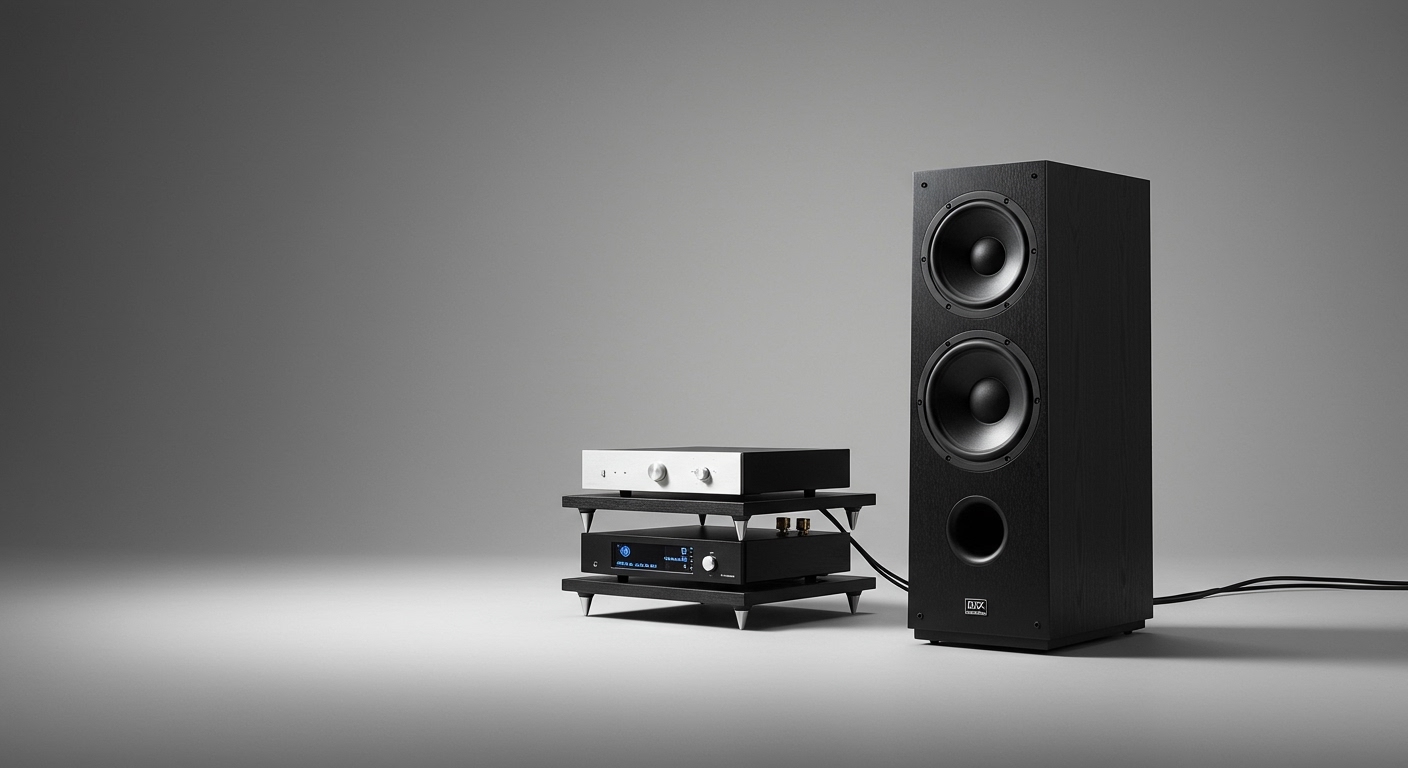
Modern televisions are thinner than ever, which means their built-in speakers are physically limited. To truly enjoy a cinematic experience, you must learn how to change sound from tv to speakers or a dedicated soundbar. By bypassing internal speakers, you unlock deeper bass, clearer dialogue, and immersive surround sound.
Connecting an external audio system isn’t just about plugging in a wire; it’s about configuring the software to ensure the highest fidelity. Whether you are using a high-end A/V Receiver, a compact Soundbar, or vintage Stereo Speakers, the process follows a logical flow of hardware connection and software mapping.
⚡ Key Takeaways: TV Audio Output
Best Quality: Use HDMI ARC/eARC for uncompressed audio and the ability to control volume with your TV remote.
Best Compatibility: Optical (Toslink) works with almost any home theater system from the last 20 years.
Quickest Setup: Bluetooth is convenient but may introduce slight “lip-sync” lag.
Pro Tip: Always set your TV’s digital output to “Pass-through” or “Bitstream” if you have a surround sound system to ensure the receiver does the heavy lifting.
Comparison of TV Audio Connection Methods
Before you learn how to get sound from tv to speakers, you need to choose the right “bridge.” Use this table to identify the best port available on your TV and audio device.
| Connection Type | Audio Quality | Best For | Supports Surround? | Key Benefit |
|---|---|---|---|---|
| HDMI ARC / eARC | Ultra-High (Lossless) | Modern Soundbars & Receivers | Yes (Atmos/DTS:X) | Single cable for audio & control (CEC). |
| Digital Optical | High (Compressed) | Older Receivers | Yes (5.1 Dolby/DTS) | High immunity to electrical noise. |
| 3.5mm / RCA | Analog (Standard) | PC Speakers / Vintage Amps | No (Stereo only) | Simple, universal “plug and play.” |
| Bluetooth | Medium (Compressed) | Wireless Headphones / Speakers | No | No wires required; very flexible. |
Step 1: Identify Your TV’s Output Ports
The first step in how to get tv sound through speakers is looking at the back or side panel of your television. Most modern TVs from Samsung, LG, or Sony will have a cluster of ports labeled “Audio Out.”
Look for these specific labels:
- HDMI (ARC/eARC): Usually one specific HDMI port is labeled. This is the gold standard.
- Digital Audio Out (Optical): A square-ish port that often glows with a faint red light.
- Headphone / Line Out: A small 3.5mm round jack.
- RCA Out: Red and White circular “phono” jacks (rare on newer 4K TVs).
Step 2: Connect the Hardware Correctly
Once you have identified the ports, you need to physically transfer sound from tv to speakers. Follow these steps based on your chosen cable.
Using HDMI ARC or eARC
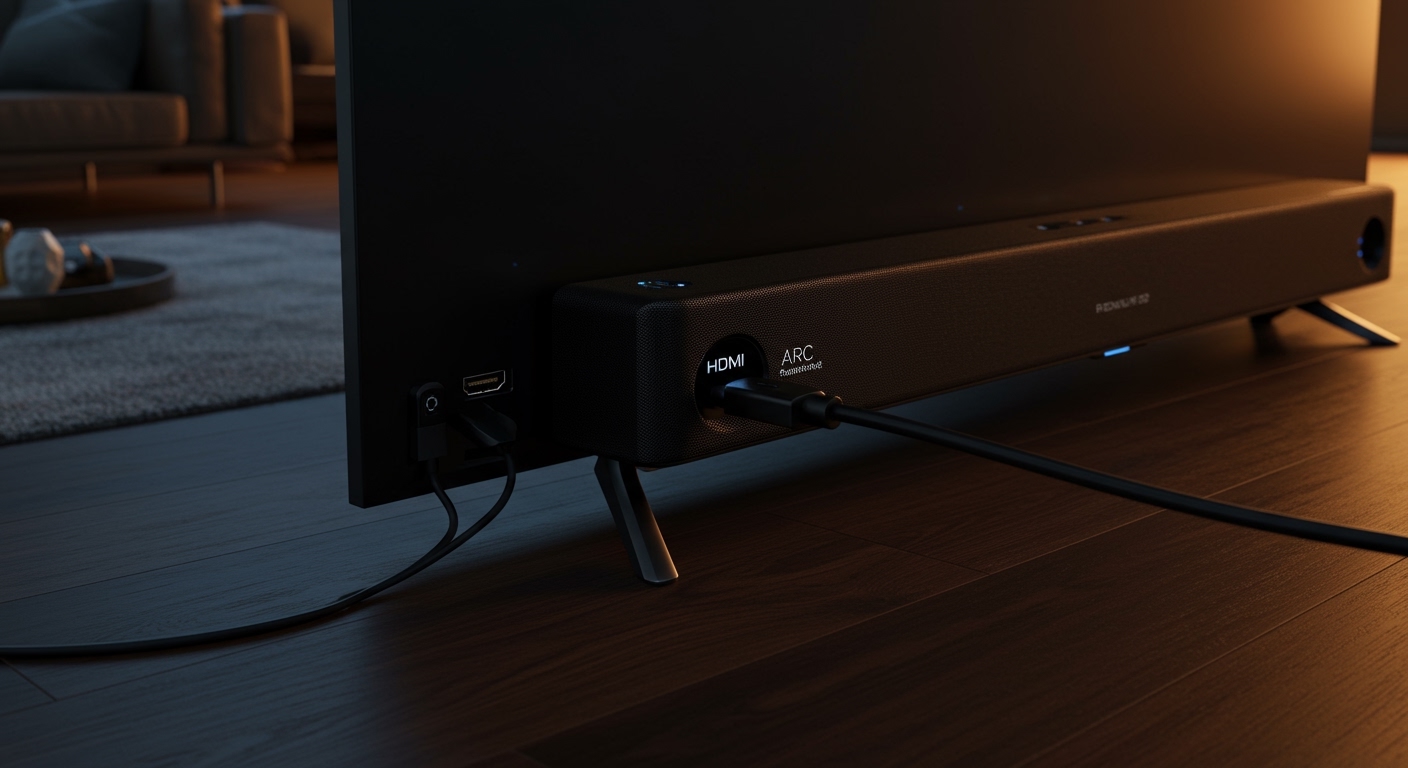
HDMI ARC (Audio Return Channel) is the most efficient way to make tv audio come out of speakers. It allows the TV to send audio “upstream” to the receiver.
Action: Plug one end of a High-Speed HDMI cable into the TV’s HDMI ARC port.
Action: Plug the other end into the HDMI Out (ARC) port on your soundbar or receiver.
Expert Insight: If you are using eARC (Enhanced ARC), ensure you use an HDMI 2.1 cable to support high-bitrate formats like Dolby Atmos.
Using Digital Optical (Toslink)
If your receiver doesn’t have HDMI, the Optical port is the next best thing to make tv sound come out of speakers.
Action: Remove the plastic protective caps from the ends of the optical cable.
Action: Align the cable’s shape with the port and click it into place.
Warning: Optical cables are made of glass or plastic fiber; do not bend them sharply, or the signal will break.
Step 3: Change the TV Software Settings
Simply plugging in the cable is often not enough. You must manually tell the TV how to output tv audio to speakers via the internal menu.
How to Change the Audio Output (General Guide)
- Open Settings: Use your remote to navigate to the Settings or All Settings menu.
- Select Sound: Look for a tab labeled Sound, Audio, or Speaker Output.
- Change Output: Switch the setting from “Internal TV Speaker” to your specific connection (e.g., “Optical”, “HDMI ARC”, or “Bluetooth”).
- Enable HDMI-CEC: If using HDMI, look for settings like Anynet+ (Samsung), SimpLink (LG), or Bravia Sync (Sony). Turn this ON so your TV remote controls the speaker volume.
Adjusting Digital Output Format
To ensure you can get sound through tv speakers and external systems correctly, check the “Digital Output Audio Format”:
PCM: Best for stereo speakers or older amps.
Bitstream / Auto: Best for surround sound systems (5.1 or 7.1).
Pass-through: The best setting for modern receivers to prevent the TV from interfering with the sound quality.
Step 4: How to Play TV Through Speakers (Brand Specifics)
Different manufacturers use different terminology. Here is a quick cheat sheet for the major players.
For Samsung TVs
Go to Settings > Sound > Sound Output.
Select Receiver (HDMI) or Optical.
Expert Tip: Navigate to Expert Settings and ensure HDMI-eARC Mode is set to Auto.
For LG TVs (webOS)
Press the Settings gear on your remote.
Go to Sound > Sound Out.
Choose HDMI ARC or Optical.
Enable LG Sound Sync if you are using an LG soundbar for a seamless wireless connection.
For Sony Bravia TVs (Android/Google TV)
Press Quick Settings > Display & Sound > Audio Output.
Set Speakers to Audio System.
Ensure Prioritize Bluetooth Device is off if you are using a wired connection to avoid interference.
Common Mistakes to Avoid
Even experts run into issues when trying to play tv through speakers. Avoid these common pitfalls:
Wrong HDMI Port: Only one HDMI port on your TV supports ARC. If you plug into HDMI 1 and the ARC is on HDMI 3, you will get no sound.
Muted External Device: Ensure the soundbar or receiver is set to the correct “Source” (e.g., D-In for Optical or TV for HDMI ARC).
Software Updates: Modern smart TVs and soundbars often need firmware updates to resolve “handshake” issues where the two devices stop talking to each other.
Internal Speakers Still On: Some TVs don’t automatically mute internal speakers. You may hear an “echo.” Manually turn the TV volume to zero or disable internal speakers in settings.
Advanced Setup: Can You Output TV Sound to Multiple Speakers?
Many users ask, “can you output tv sound to speakers in different rooms?” The answer is yes, but it requires specific hardware.
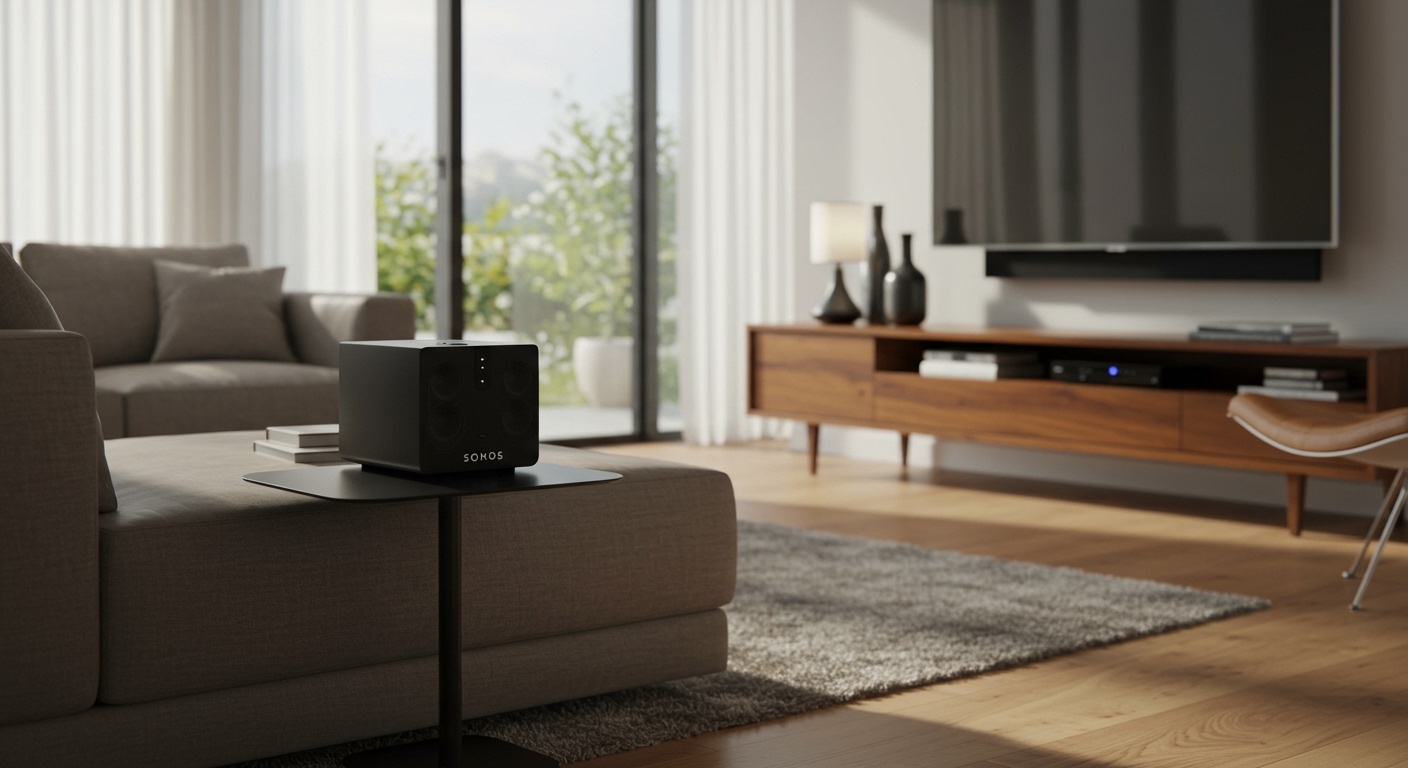
- Multi-room Systems: Use systems like Sonos or Denon HEOS. You connect the TV to one “Master” device (Soundbar), which then streams the audio over Wi-Fi to other speakers.
- A/V Receivers (Zone 2): High-end receivers have a “Zone 2” output. This allows you to play the TV audio in the living room and the kitchen simultaneously.
- Bluetooth Dual Audio: Some high-end TVs allow “Dual Audio” output to two pairs of Bluetooth headphones at once.
Troubleshooting: Why No Sound is Coming Out?
If you followed the steps on how to transfer sound from tv to speakers but still hear silence, try this checklist:
- Power Cycle: Unplug the TV and the speakers from the wall for 60 seconds. This resets the HDMI handshake.
- Check PCM Settings: If you are using an older DAC or Amp, your TV might be sending a Dolby Digital signal it can’t decode. Switch the TV output to PCM.
- Test the Cable: Try a different HDMI or Optical cable. Cables are the most common point of failure.
- Check for “Mute”: It sounds simple, but ensure the “Mute” button wasn’t accidentally pressed on the external* device remote.
Frequently Asked Questions
(FAQs)
How do I get my TV sound to play through my speakers?
To get your TV sound to play through speakers, connect them using an HDMI ARC or Optical cable. Then, go to your TV’s Sound Settings and change the Audio Output from “Internal Speakers” to the connected device.
Can I connect regular speakers directly to my TV?
Usually, no. Most TVs do not have built-in amplifiers to power “passive” speakers. You will need an Amplifier or Receiver in between, or use “Active” (powered) speakers that have their own power plug.
Why is there a delay between the TV picture and the speaker sound?
This is known as Audio Latency. To fix this, look for a setting called “Audio Delay” or “Lip Sync” in your TV or Soundbar settings. Adjust the millisecond (ms) offset until the voices match the lip movements.
Does Optical or HDMI sound better?
HDMI ARC/eARC is superior to Optical. HDMI supports high-definition formats like Dolby Atmos and DTS-HD Master Audio, whereas Optical is limited to standard 5.1 surround sound and cannot handle lossless audio.
Conclusion
Learning how to change sound from tv to speakers is the single most impactful upgrade you can make to your home entertainment system. By using HDMI ARC for modern setups or Optical for legacy gear, you ensure a crisp, powerful audio experience that internal speakers simply cannot match.
Remember to always check your Digital Output settings and ensure HDMI-CEC is enabled for the most user-friendly experience. If you found this guide helpful, consider exploring our other tutorials on optimizing your home theater acoustics!