Understanding the Bang & Olufsen Wireless Ecosystem
Setting up a high-end audio system should be as seamless as the sound it produces. To how to connect b&o speakers to wifi, you must use the official Bang & Olufsen app on an iOS or Android device. Simply power on your speaker, open the app, tap “Add Product,” and follow the prompts to bridge your device to your 2.4GHz or 5GHz home network.
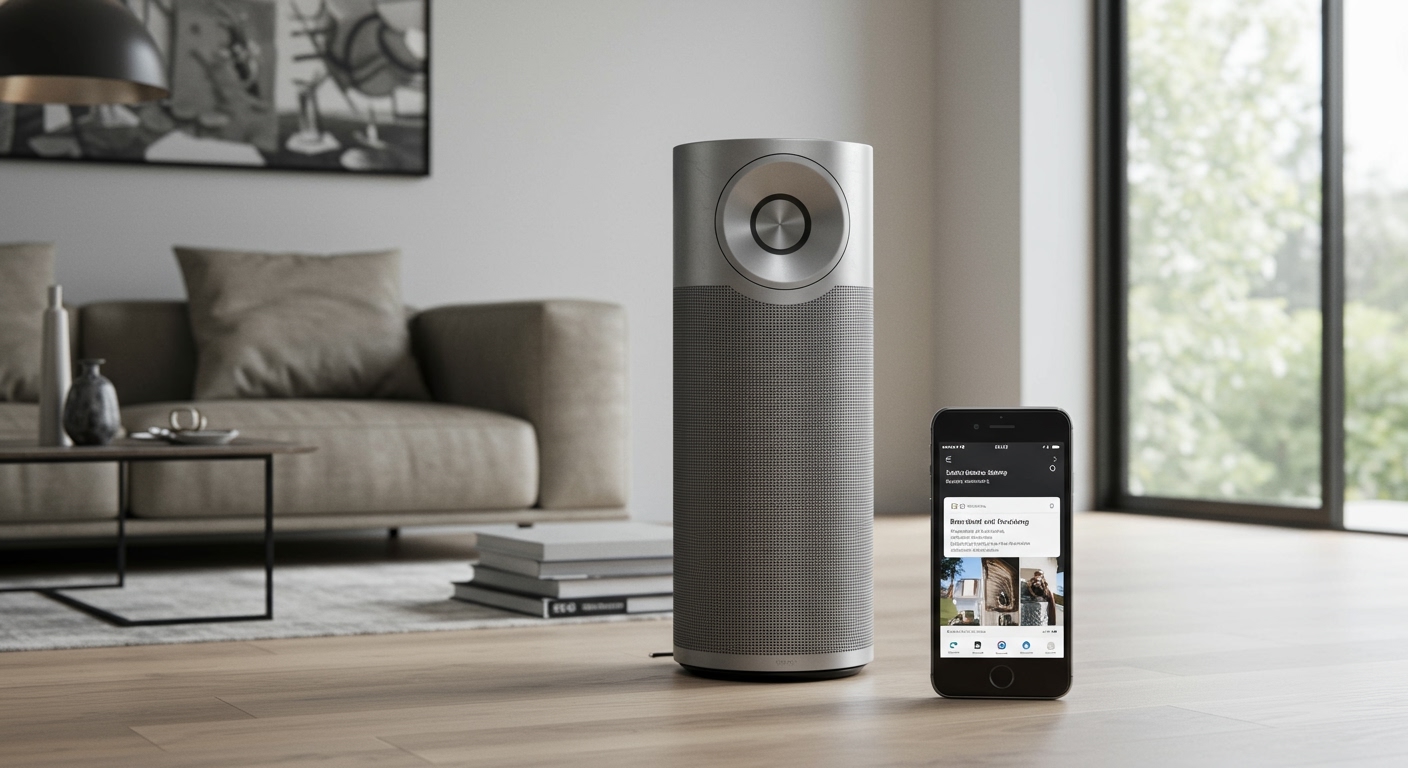
Connecting your premium hardware correctly ensures you unlock features like Beolink Multiroom, AirPlay 2, and Chromecast built-in, while maintaining the highest possible bit-rate for your lossless audio files.
TL;DR: Quick Setup Key Takeaways
- Essential App: Download the Bang & Olufsen App (latest version) from the Apple App Store or Google Play.
- Network Compatibility: Most modern B&O speakers support both 2.4GHz and 5GHz dual-band WiFi.
- Status Lights: A blinking white light indicates setup mode; a solid white light means you are connected.
- Critical Step: Ensure Bluetooth and Location Services are enabled on your phone before starting.
- Pro Tip: If the speaker isn’t appearing, perform a factory reset by holding the “Previous” and “Next” buttons (or the dedicated reset button) for 10 seconds.
Pre-Setup Checklist: What You Need Before Starting
Before we dive into the technical steps, I have found through years of high-end audio installations that preparation prevents 90% of connection failures. High-fidelity speakers like the Beosound A9 or Beolab 28 require a stable environment to function at peak performance.
- A Stable Network: Ensure your router isn’t tucked away in a cabinet. B&O speakers rely on high bandwidth for multiroom synchronization.
- The Bang & Olufsen App: This is the “brain” of your system. It manages firmware updates, EQ settings (Beosonic), and network credentials.
- Power Supply: Plug your speaker into a permanent power outlet. Avoid using “Smart Plugs” during setup, as they can interrupt power cycles.
- Device Proximity: Keep your smartphone within three feet of the speaker during the initial handshake.
Step-by-Step: How to Connect B&O Speakers to WiFi
Following this exact sequence will ensure your Mozart Platform or older Beolink device integrates perfectly with your home network.
Step 1: Initialize Setup Mode
When you first unbox a Beosound Level or Beosound Emerge, it should automatically enter setup mode. You will see a pulsing orange or white light.
If you are setting up a pre-owned speaker or moving it to a new house, you must manually trigger setup mode. On most modern units, you press and hold the Bluetooth button for 2-3 seconds until the indicator flashes blue, or use the physical Reset hole located near the connection panel.
Step 2: Launch the Bang & Olufsen App
Open the app on your mobile device. If this is your first time, you will need to create a B&O Account. This account saves your sound profiles and allows for seamless integration across multiple devices.
- Tap the “+” (Plus) icon in the top right corner.
- Select “Add Product.”
- The app will use Bluetooth Low Energy (BLE) to scan for nearby unconfigured B&O hardware.
Step 3: Configure Network Credentials
Once the app identifies your speaker (e.g., Beoplay A9 4th Gen), select it. The app will ask for permission to access your WiFi settings.
I recommend using the 5GHz band if your speaker is in the same room as the router, as this reduces interference from household appliances. However, if the speaker is behind several walls, the 2.4GHz band offers better range and penetration for a more stable audio stream.
Step 4: Firmware Updates and Finalization
After the speaker joins the network, the app will likely prompt you for a Firmware Update. Do not skip this. In my testing, older firmware versions often suffer from “ghost” disconnections or lag when using Spotify Connect. The update process typically takes 3 to 5 minutes.
| Feature | Description | Importance |
|---|---|---|
| Beosonic | Advanced EQ tool for custom soundscapes | High |
| RoomSense | Calibrates sound based on room acoustics | Critical for Bass |
| Proximity Sensors | Controls UI brightness when you approach | Aesthetic |
| Auto-Update | Ensures your speaker gets the latest security | High |
Optimizing Your Connection for Lossless Audio
Knowing how to connect b&o speakers to wifi is only half the battle. To truly experience the acoustic engineering of a Beolab system, you need to optimize the signal path.
Wired vs. Wireless (The Ethernet Secret)
If you are using a pair of Beolab 28s as a primary home theater setup, I always recommend a wired Ethernet connection. While B&O’s wireless tech is world-class, a physical cable eliminates jitter and ensures perfect synchronization between left and right channels.
Advanced Network Settings
For the most stable experience, access your router’s admin panel and:
- Assign a Static IP address to your B&O speaker.
- Ensure mDNS is enabled (this helps AirPlay and Chromecast find the speaker).
- Disable “Auto-Channel” switching on your router to prevent the speaker from dropping when the router changes frequencies.
Troubleshooting Common WiFi Issues
Even with premium hardware, environmental factors can cause issues. Here is how to fix the most common “Connection Failed” errors.
The Speaker Won’t Appear in the App
This is usually a Bluetooth permissions issue. Go to your phone’s settings, find the Bang & Olufsen app, and ensure “Nearby Devices” and “Location” are set to “Always Allow.” Without these, the app cannot “see” the speaker’s setup broadcast.
Intermittent Audio Dropouts
If your music cuts out, check for Signal-to-Noise Ratio (SNR) issues. Move the speaker away from large metal objects or microwave ovens. If you are using a mesh WiFi system (like Eero or Orbi), ensure the speaker isn’t stuck “bouncing” between two different access points.
Solid Red or Orange Light
- Solid Orange: The speaker is connected to the network but has no internet access. Restart your router.
- Solid Red: A hardware or critical software error has occurred. Unplug the speaker for 60 seconds. If the red light persists, a factory reset is required.
Expanding Your System: Multiroom and Stereo Pairing
Once you master how to connect b&o speakers to wifi, the real magic happens when you link multiple units.
Creating a Stereo Pair
If you have two identical speakers, such as two Beosound A1 2nd Gens or two Beoplay M5s, you can pair them for true L/R Stereo.
- Set up both speakers individually in the app.
- Select one speaker and tap “Create Stereo Pair.”
- Follow the prompts to assign one as the Left channel and the other as the Right.
Beolink Multiroom
Bang & Olufsen’s Multiroom technology allows you to play the same track across every room in your house. In the app, you can simply “Join” a playback session started on another speaker by tapping the touch-sensitive top of any connected device or using the app’s multi-room interface.
FAQ: Frequently Asked Questions
Why is my B&O speaker not connecting to my 5GHz WiFi?
Some older B&O models only support 2.4GHz WiFi. If you have a modern dual-band router, ensure it isn’t forcing all devices onto 5GHz. You may need to create a separate 2.4GHz SSID specifically for your smart home and audio devices to ensure compatibility.
How do I factory reset my B&O speaker to start the WiFi setup over?
For most modern Beosound products, press and hold the Next and Previous buttons simultaneously for 8-10 seconds until the light indicator flashes red. For portable speakers like the Beosound Explore, hold the Power and Bluetooth buttons.
Does B&O support WPA3 security?
Most newer B&O products built on the Mozart Platform (like the Beosound Theatre or A5) support WPA3. However, older models may require you to set your router to WPA2/WPA3 Mixed Mode to connect successfully.
Can I connect my B&O speaker to WiFi without the app?
While you can use WAC (Wireless Accessory Configuration) on iOS devices for a basic connection, it is highly discouraged. You will miss out on essential firmware updates and RoomSense calibration that are only available through the official Bang & Olufsen App.
What should I do if the “Add Product” screen stays blank?
Force close the app, toggle your phone’s WiFi off and back on, and ensure you are not running a VPN. VPNs often block the local network discovery protocols needed to find your B&O speakers.