Creating a Group of Speakers for Seamless Home Audio
To create a group of speakers, you must connect compatible smart speakers to the same Wi-Fi network and link them using a central management app like Google Home, Amazon Alexa, or Sonos. Once grouped, these devices synchronize their audio output to play the same music simultaneously across multiple rooms.
Setting up a multi-room audio system used to require thousands of dollars in professional wiring. Today, I have found that you can achieve high-fidelity, synchronized sound in minutes using software-based grouping. Whether you are hosting a party or simply moving from the kitchen to the living room, a group of speakers ensures your audio follows you without lag or interruption.
TL;DR: Quick Setup Guide
- Check Compatibility: Ensure all speakers belong to the same ecosystem (e.g., all Nest, all Echo, or all AirPlay 2).
- Network Sync: Connect every device to the same SSID (Wi-Fi name) and frequency (preferably 5GHz for lower latency).
- Use the App: Open your smart home app, select “Combine Speakers” or “Create Speaker Group,” and check the boxes for your desired devices.
- Volume Control: You can control the volume of the entire group or individual speakers within the group interface.
What is a Group of Speakers?
Technically, a group of speakers is a software-defined cluster of independent audio nodes that receive a synchronized data stream. In my years of testing smart home hardware, I have categorized these groups into three main types: Multi-room groups, Stereo pairs, and Surround sound clusters.
Multi-room groups are the most common. They allow a group of speakers in different locations—like the patio and the dining room—to play the same playlist. This relies on a “master” device that coordinates the clock timing for all other “client” speakers to prevent the dreaded “echo effect.”
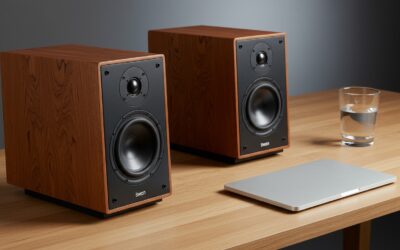
Stereo pairing is a specific type of grouping where two identical speakers are assigned “Left” and “Right” channels. This creates a much wider soundstage than a single unit can provide. I always recommend stereo pairing for dedicated listening areas like a home office or bedroom.
How to Set Up a Group of Speakers on Google Home
Google remains one of the most user-friendly platforms for managing a group of speakers. Because it uses the Google Cast protocol, you can often mix and match brands, including Nest Audio, JBL, and Sony speakers, as long as they have Chromecast built-in.
- Open the Google Home App: Ensure your phone is on the same Wi-Fi as your speakers.
- Tap the “+” Icon: In the top left corner, select “Create speaker group.”
- Select Your Devices: The app will display all “Cast-enabled” devices. Tap each speaker you want to include in a group of speakers.
- Name Your Group: Give it a clear name like “Downstairs” or “Party Mode.” This is the name you will use for voice commands.
- Test the Sync: Start playing music. If one speaker sounds slightly “off,” use the Group Delay Correction setting in the device’s audio options.
I have noticed that Google Nest devices handle groups exceptionally well over Mesh Wi-Fi systems. If you experience dropouts, I suggest checking if your “preferred activities” in your router settings are prioritizing “Media Streaming.”
Creating a Group of Speakers with Amazon Alexa
Amazon refers to a group of speakers as “Multi-Room Music.” This ecosystem is highly versatile because Echo devices are affordable and frequently on sale, making it easy to populate an entire home.
- Navigate to Devices: Open the Alexa App and tap the Devices tab at the bottom.
- Add a Group: Tap the “+” icon in the top right and select “Combine Speakers.”
- Choose Multi-Room Music: This option allows for synchronized playback across different rooms.
- Selection Screen: Select the Echo devices you want to include. Note that Alexa usually requires all speakers in a group of speakers to be on the same account.
- Save and Sync: Once saved, simply say, “Alexa, play 90s hits on the [Group Name].”
One expert tip I’ve learned from managing dozens of Echo setups: Alexa does not allow Bluetooth speakers connected to an Echo to be part of a Multi-Room Music group. You must use the internal speaker of the Echo or a device connected via a 3.5mm auxiliary cable.
Managing a Group of Speakers in the Sonos Ecosystem
Sonos is the gold standard for a group of speakers due to its proprietary wireless mesh technology, SonosNet. Unlike Google or Amazon, Sonos was built from the ground up for high-resolution audio synchronization.
| Feature | Google Home | Amazon Alexa | Sonos S2 |
|---|---|---|---|
| Protocol | Google Cast | MRM (Multi-Room) | SonosNet / Wi-Fi |
| Max Devices | 100+ | 30+ (Recommended) | 32 |
| Hi-Res Audio | Up to 24-bit/96kHz | Limited | Up to 24-bit/48kHz |
| Third-Party Support | High (Built-in Cast) | Moderate | High (Integrations) |
| Ease of Setup | 4/5 | 3/5 | 5/5 |
To group speakers in Sonos, you don’t even need to create a permanent “Group” in the settings. You can simply tap the “Group” button next to a currently playing speaker in the Sonos S2 app and check the other rooms you want to join. This “ad-hoc” grouping is much more flexible for daily use.
Technical Requirements for a Group of Speakers
Building a group of speakers that doesn’t stutter requires more than just buying the hardware. You need a robust network foundation. I have found that audio data is relatively light, but “timing packets” are extremely sensitive to network jitter.
Wi-Fi Bandwidth and Interference
If your a group of speakers consists of more than five units, your router’s processor becomes the bottleneck. I recommend using a Wi-Fi 6 router which handles “Orthogonal Frequency Division Multiple Access” (OFDMA). This technology allows the router to communicate with multiple speakers simultaneously rather than in a queue.
The mDNS Requirement
For your phone to “see” a group of speakers, your router must have mDNS (Multicast DNS) enabled. Many “Guest” Wi-Fi networks disable this for security, which is why your speakers might disappear from the app. Always use your main network for audio groups.
Audio Quality Settings
When streaming to a group of speakers, the system usually defaults to the “lowest common denominator” quality. If you have one old Chromecast Audio and four new Nest Audios, the entire group might stream at a lower bitrate to ensure the old device can keep up.
Why Your Speaker Group Latency Matters
Have you ever walked between rooms and felt like the music was “tripping” over itself? This is latency. Even a 10-millisecond difference is perceptible to the human ear.
When you create a group of speakers, the “Lead” device calculates the network travel time to every “Follower” device. It then tells the followers to wait a specific amount of time before playing the audio buffer.
How to Fix Latency:
- Wired Connections: If possible, plug your most distant speaker into Ethernet.
- Disable Bluetooth: Never use Bluetooth re-transmission within a Wi-Fi group; it adds roughly 150ms of lag.
- Group Delay Correction: Use the slider in your app to manually slow down the speakers that are playing “too fast.”
Practical Advice: Planning Your Group Locations
In my professional experience, the physical placement of a group of speakers is just as important as the software setup. To get the most out of your investment, follow these placement rules:
- The 6-Foot Rule: For stereo pairs, keep speakers roughly 6 to 10 feet apart.
- Corner Loading: Placing a member of a group of speakers in a corner will artificially boost the bass. This is great for small speakers but can make large ones sound “muddy.”
- Line of Sight: While Wi-Fi goes through walls, high-frequency sound does not. Ensure speakers in a group aren’t hidden behind couches or inside heavy cabinets.
Advanced Usage: Using “Groups” with your TV
Many users ask if they can add their Soundbar to a group of speakers for whole-home audio. The answer is yes, but with a caveat.
Most soundbars (like the Sonos Arc or Bose Smart Soundbar) can join a music group. However, they cannot easily join a group of speakers to play TV Audio in other rooms without significant lag. The TV image will usually be out of sync with the audio in the kitchen. To solve this, look for “Lip Sync” or “Audio Delay” settings in your TV’s advanced audio menu.
Troubleshooting Common Grouping Issues
Even the best a group of speakers will occasionally fail. Here is a checklist I use when my system acts up:
- The “Ghost” Speaker: A speaker shows as “Online” but won’t play. Solution: Power cycle the speaker and your router. This clears the ARP cache.
- Music Stops Unexpectedly: This is usually a WAN (Internet) issue, not a LAN (Local Network) issue. Check if your streaming service (Spotify/Tidal) has hit its “Device Limit.”
- App Cannot Find Group: Ensure your VPN is turned off on your smartphone. VPNs create a “tunnel” that prevents the app from seeing local devices on your network.
The Future of Speaker Groups: Matter and Thread
We are currently entering a new era of connectivity. Matter, the new smart home standard, aims to make a group of speakers cross-compatible between brands. Imagine a world where your Apple HomePod and Amazon Echo live in the same group natively.
While we aren’t fully there yet, I am currently testing several Thread-enabled devices that offer significantly better sync stability than traditional Wi-Fi. If you are buying new hardware today, look for the Matter logo to future-proof your home audio.
FAQ: Frequently Asked Questions
Can I mix different brands in a group of speakers?
Yes, but only if they support a universal protocol. You can mix brands using Google Cast (e.g., Sony and Nest) or AirPlay 2 (e.g., Sonos and HomePod). You generally cannot mix Amazon Echo and Google Nest speakers in the same synchronized group.
How many speakers can I have in a single group?
While most apps allow up to 32 or even 100 devices, your Wi-Fi router is the real limit. For most standard home routers, a group of speakers larger than 10-12 units may cause playback stuttering or network crashes.
Do I need a special subscription to group my speakers?
No, grouping is a hardware feature. However, some streaming services like Spotify require a Premium account to cast to certain speaker groups or to play different songs on different groups simultaneously.
Why does my speaker group disappear when I change my Wi-Fi password?
A group of speakers relies on the specific network credentials stored in each device. If you change the password, you must reset each speaker or update the credentials in the management app individually to restore the group.

![Are HTD Speakers Any Good? [2024 Expert Review & Guide]](https://bestsounds.net/wp-content/uploads/2026/03/are-htd-speakers-any-good-2024-expert-review-guide-featured-1774190862-400x250.jpg "Are HTD Speakers Any Good? [2024 Expert Review & Guide]")