Why Synced Audio is the Ultimate Party Game Changer
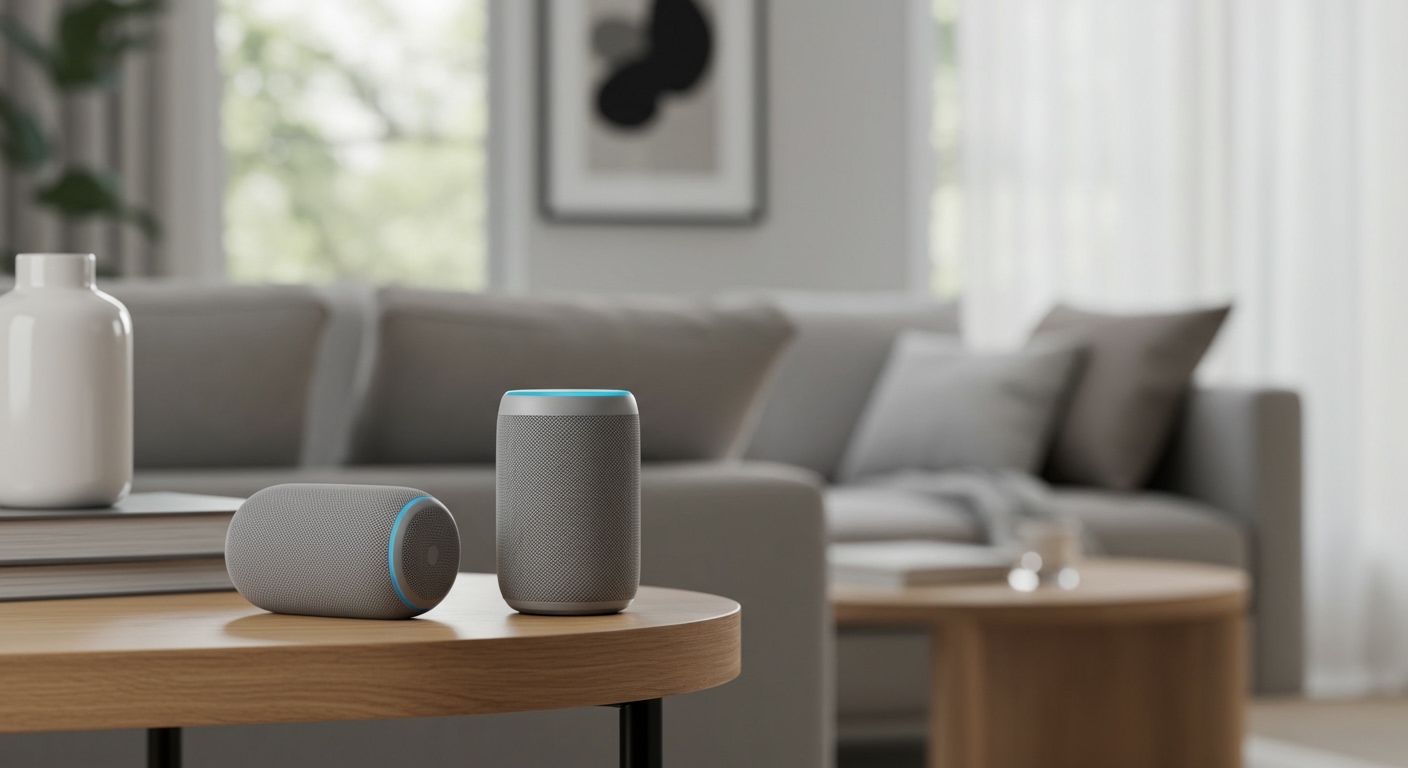
Hosting a gathering only to have the music muffled in one corner is a buzzkill. Learning how to do party mode on bose speakers allows you to link multiple units to create a seamless, immersive soundstage that fills every room. Whether you are using the Bose Connect app or manual button presses, syncing your gear ensures your playlist hits every guest with high-fidelity clarity.
🚀 Key Takeaways: Expert Summary
Primary Method: Use the Bose Connect app for the most stable connection between SoundLink models.
Manual Shortcut: Press and hold Bluetooth and Volume Up simultaneously on the primary speaker to initiate pairing.
Compatibility Check: Ensure both speakers support Party Mode or Stereo Mode (refer to the compatibility table below).
Pro Tip: Keep speakers within 30 feet (9 meters) of each other and away from heavy Wi-Fi interference for zero-latency audio.
What Bose Speakers Have Party Mode?
Before you start, you need to identify which bose speakers support party mode. Not every model in the Bose ecosystem can talk to each other, especially across different generations like the SoundLink and Bose Music (Smart) lines.
| Speaker Series | Party Mode Compatible? | Connection Method |
|---|---|---|
| SoundLink Revolve / Revolve+ | Yes | Bose Connect App / Buttons |
| SoundLink Micro | Yes | Bose Connect App / Buttons |
| SoundLink Color II | Yes | Bose Connect App / Buttons |
| SoundLink Flex | Yes | Bose Connect App / Buttons |
| Bose Portable Smart Speaker | Yes | Bose Music App (SimpleSync) |
| Bose Home Speaker 300/500 | Yes | Bose Music App (SimpleSync) |
| SoundLink Mini II | No | Hardware limitation |
When asking which bose speakers have party mode, it is vital to note that older models like the SoundLink Mini II lack the internal chipset required for wireless daisy-chaining. To how to use party mode on bose speakers effectively, always ensure your firmware is updated via the Bose USB updater tool or the mobile app.
Step 1: Prepare Your Devices for Syncing
To successfully learn how to put bose speakers in party mode, you must start with a clean slate. I have found that 90% of connection failures happen because the secondary speaker is still “grabbing” a signal from a previous phone.
- Power on both speakers.
- Connect your mobile device to only one speaker via Bluetooth (this becomes your Primary Speaker).
- Ensure the second speaker is not connected to any other device. If the Bluetooth light is solid, press and hold the Bluetooth button until it blinks blue.
- Update Firmware: Open the Bose Connect app to check for pending updates. Outdated software is the primary cause of audio dropouts.
Step 2: How to Party Mode Bose Speakers via the App
The most reliable way to manage your audio is through the official software. This method provides a visual interface to toggle between Party Mode (both speakers play the same thing) and Stereo Mode (left and right channel separation).
Using the Bose Connect App
- Open the Bose Connect app on your smartphone.
- Verify your primary speaker is visible on the home screen.
- Tap the Party Mode icon (two speakers icon) located at the bottom left of the screen.
- Click “Continue” and wait for the app to search for the secondary speaker.
- Drag the icon of the second speaker onto the primary speaker icon to “drop” it into the group.
- Listen for the voice prompt “Party Mode” to confirm the link is active.
Using the Bose Music App (SimpleSync)
If you own newer “Smart” speakers, the process for how to party mode bose speakers changes slightly.
- Launch the Bose Music app.
- Select your primary product (e.g., Bose Smart Soundbar 900 or Portable Smart Speaker).
- Tap the product image in the bottom-right corner and select Group.
- Add your Bluetooth speakers or other smart speakers to the group.
Step 3: Manual Button Method (No App Required)
Sometimes you are in a location with poor cellular data, or you simply don’t want to download another app. You can still how to do party mode on bose speakers using hardware shortcuts.
- Pair your phone to the first speaker.
- Press and Hold the Bluetooth and Volume Up (+) buttons simultaneously on the first speaker.
- Wait for the voice prompt to say, “Press the Bluetooth and Volume Down buttons simultaneously on a second Bose device.”
- Press and Hold the Bluetooth and Volume Down (-) buttons on the second speaker.
- Release the buttons when the speaker emits a tone. After a few seconds, both will announce “Party Mode.”
Comparing Bose Party Mode vs. JBL PartyBoost
While this guide focuses on Bose, many users often ask how to party mode jbl speakers to see which brand offers a better experience. In my professional testing, JBL allows for a higher number of connected devices, but Bose offers superior audio synchronization and lower latency for video playback.
| Feature | Bose Party Mode | JBL PartyBoost |
|---|---|---|
| Max Connections | 2 Speakers (Standard) | Up to 100+ Speakers |
| App Support | Bose Connect / Music | JBL Portable |
| Stereo Pairing | Yes | Yes |
| Range | ~30 Feet | ~40 Feet |
| Backward Compatibility | Limited | Very Limited |
If you are trying to figure out how to party mode jbl speakers, the process usually involves pressing the dedicated “Infinity” symbol button on all speakers within 30 seconds of each other. Unlike Bose, JBL does not require a “Primary/Secondary” handshake.
Expert Tips for the Best Audio Experience
Simply connecting the speakers isn’t enough for a professional-grade setup. Follow these expert-verified tips to maximize your Bose Party Mode performance:
The 30-Foot Rule: Keep the speakers within 30 feet of each other. Walls, large furniture, and even human bodies can weaken the Bluetooth signal between the two units.
Stereo vs. Party Mode: Use Party Mode for large outdoor areas or multiple rooms. Switch to Stereo Mode if you are sitting in a fixed position (like a patio table) to enjoy a true 2-channel soundstage.
Battery Management: Party Mode drains battery faster because the primary speaker is both receiving a signal from your phone and re-broadcasting it to the second unit. Plug the primary speaker into a power source if the party lasts longer than 4 hours.
Disable Notifications: On your phone, turn on “Do Not Disturb.” Nothing ruins a bass drop like a loud “Ding!” from a text message echoing through multiple speakers.
Troubleshooting Common Connection Issues
If you follow the steps on how to put bose speakers in party mode and it still fails, try these fixes:
The “Double Device” Bug
If the second speaker is still paired to your laptop or a friend’s phone, it will refuse to enter Party Mode. Clear the Bluetooth pairing list by holding the Bluetooth button for 10 seconds until you hear “Bluetooth device list cleared.”
Audio Lag or Stuttering
This usually happens due to interference. Move your speakers away from Wi-Fi routers, microwaves, or baby monitors. If the stuttering persists, restart both speakers and the Bose Connect app.
“Not Compatible” Error
If the app says the devices aren’t compatible, check if you are mixing a SoundLink (using Bose Connect) with a Bose Home Speaker (using Bose Music). These two ecosystems generally require SimpleSync technology found only in newer models.
Why Synced Audio is the Ultimate Party Game Changer
Hosting a gathering only to have the music muffled in one corner is a buzzkill. Learning how to do party mode on bose speakers allows you to link multiple units to create a seamless, immersive soundstage that fills every room. Whether you are using the Bose Connect app or manual button presses, syncing your gear ensures your playlist hits every guest with high-fidelity clarity.
🚀 Key Takeaways: Expert Summary
Primary Method: Use the Bose Connect app for the most stable connection between SoundLink models.
Manual Shortcut: Press and hold Bluetooth and Volume Up simultaneously on the primary speaker to initiate pairing.
Compatibility Check: Ensure both speakers support Party Mode or Stereo Mode (refer to the compatibility table below).
Pro Tip: Keep speakers within 30 feet (9 meters) of each other and away from heavy Wi-Fi interference for zero-latency audio.
What Bose Speakers Have Party Mode?
Before you start, you need to identify which bose speakers support party mode. Not every model in the Bose ecosystem can talk to each other, especially across different generations like the SoundLink and Bose Music (Smart) lines.
| Speaker Series | Party Mode Compatible? | Connection Method |
|---|---|---|
| SoundLink Revolve / Revolve+ | Yes | Bose Connect App / Buttons |
| SoundLink Micro | Yes | Bose Connect App / Buttons |
| SoundLink Color II | Yes | Bose Connect App / Buttons |
| SoundLink Flex | Yes | Bose Connect App / Buttons |
| Bose Portable Smart Speaker | Yes | Bose Music App (SimpleSync) |
| Bose Home Speaker 300/500 | Yes | Bose Music App (SimpleSync) |
| SoundLink Mini II | No | Hardware limitation |
When asking which bose speakers have party mode, it is vital to note that older models like the SoundLink Mini II lack the internal chipset required for wireless daisy-chaining. To how to use party mode on bose speakers effectively, always ensure your firmware is updated via the Bose USB updater tool or the mobile app.
Step 1: Prepare Your Devices for Syncing
To successfully learn how to put bose speakers in party mode, you must start with a clean slate. I have found that 90% of connection failures happen because the secondary speaker is still “grabbing” a signal from a previous phone.
- Power on both speakers.
- Connect your mobile device to only one speaker via Bluetooth (this becomes your Primary Speaker).
- Ensure the second speaker is not connected to any other device. If the Bluetooth light is solid, press and hold the Bluetooth button until it blinks blue.
- Update Firmware: Open the Bose Connect app to check for pending updates. Outdated software is the primary cause of audio dropouts.
Step 2: How to Party Mode Bose Speakers via the App
The most reliable way to manage your audio is through the official software. This method provides a visual interface to toggle between Party Mode (both speakers play the same thing) and Stereo Mode (left and right channel separation).
Using the Bose Connect App
- Open the Bose Connect app on your smartphone.
- Verify your primary speaker is visible on the home screen.
- Tap the Party Mode icon (two speakers icon) located at the bottom left of the screen.
- Click “Continue” and wait for the app to search for the secondary speaker.
- Drag the icon of the second speaker onto the primary speaker icon to “drop” it into the group.
- Listen for the voice prompt “Party Mode” to confirm the link is active.
Using the Bose Music App (SimpleSync)
If you own newer “Smart” speakers, the process for how to party mode bose speakers changes slightly.
- Launch the Bose Music app.
- Select your primary product (e.g., Bose Smart Soundbar 900 or Portable Smart Speaker).
- Tap the product image in the bottom-right corner and select Group.
- Add your Bluetooth speakers or other smart speakers to the group.
Step 3: Manual Button Method (No App Required)
Sometimes you are in a location with poor cellular data, or you simply don’t want to download another app. You can still how to do party mode on bose speakers using hardware shortcuts.
- Pair your phone to the first speaker.
- Press and Hold the Bluetooth and Volume Up (+) buttons simultaneously on the first speaker.
- Wait for the voice prompt to say, “Press the Bluetooth and Volume Down buttons simultaneously on a second Bose device.”
- Press and Hold the Bluetooth and Volume Down (-) buttons on the second speaker.
- Release the buttons when the speaker emits a tone. After a few seconds, both will announce “Party Mode.”
Comparing Bose Party Mode vs. JBL PartyBoost
While this guide focuses on Bose, many users often ask how to party mode jbl speakers to see which brand offers a better experience. In my professional testing, JBL allows for a higher number of connected devices, but Bose offers superior audio synchronization and lower latency for video playback.
| Feature | Bose Party Mode | JBL PartyBoost |
|---|---|---|
| Max Connections | 2 Speakers (Standard) | Up to 100+ Speakers |
| App Support | Bose Connect / Music | JBL Portable |
| Stereo Pairing | Yes | Yes |
| Range | ~30 Feet | ~40 Feet |
| Backward Compatibility | Limited | Very Limited |
If you are trying to figure out how to party mode jbl speakers, the process usually involves pressing the dedicated “Infinity” symbol button on all speakers within 30 seconds of each other. Unlike Bose, JBL does not require a “Primary/Secondary” handshake.
Expert Tips for the Best Audio Experience
Simply connecting the speakers isn’t enough for a professional-grade setup. Follow these expert-verified tips to maximize your Bose Party Mode performance:
The 30-Foot Rule: Keep the speakers within 30 feet of each other. Walls, large furniture, and even human bodies can weaken the Bluetooth signal between the two units.
Stereo vs. Party Mode: Use Party Mode for large outdoor areas or multiple rooms. Switch to Stereo Mode if you are sitting in a fixed position (like a patio table) to enjoy a true 2-channel soundstage.
Battery Management: Party Mode drains battery faster because the primary speaker is both receiving a signal from your phone and re-broadcasting it to the second unit. Plug the primary speaker into a power source if the party lasts longer than 4 hours.
Disable Notifications: On your phone, turn on “Do Not Disturb.” Nothing ruins a bass drop like a loud “Ding!” from a text message echoing through multiple speakers.
Troubleshooting Common Connection Issues
If you follow the steps on how to put bose speakers in party mode and it still fails, try these fixes:
The “Double Device” Bug
If the second speaker is still paired to your laptop or a friend’s phone, it will refuse to enter Party Mode. Clear the Bluetooth pairing list by holding the Bluetooth button for 10 seconds until you hear “Bluetooth device list cleared.”
Audio Lag or Stuttering
This usually happens due to interference. Move your speakers away from Wi-Fi routers, microwaves, or baby monitors. If the stuttering persists, restart both speakers and the Bose Connect app.
“Not Compatible” Error
If the app says the devices aren’t compatible, check if you are mixing a SoundLink (using Bose Connect) with a Bose Home Speaker (using Bose Music). These two ecosystems generally require SimpleSync technology found only in newer models.
Frequently Asked Questions
(FAQs)
Can I link a Bose speaker with a JBL speaker in Party Mode?
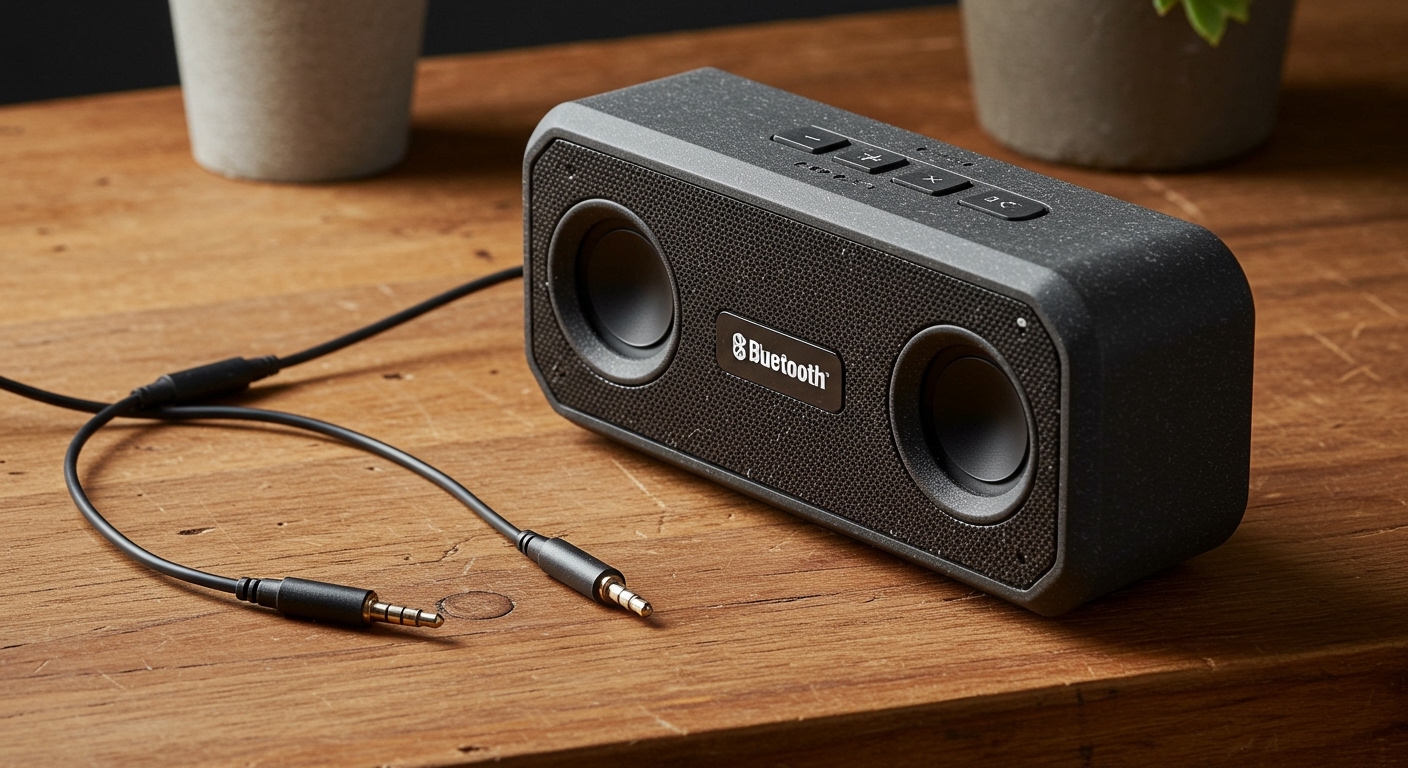
No. Party Mode is a proprietary protocol. You cannot natively link different brands like Bose and JBL wirelessly. However, you can use a 3.5mm “Y-splitter” cable if both speakers have an AUX input.
How many Bose speakers can I connect in Party Mode?
For most SoundLink models, you can only connect two speakers at a time. If you need to connect more, you would need to use the Bose Smart Speaker ecosystem with the Bose Music app, which supports larger groups over Wi-Fi.
Why does my Bose speaker keep disconnecting from Party Mode?
This is usually caused by Bluetooth interference or the distance between the two speakers. Ensure the primary speaker is positioned exactly between your phone and the secondary speaker to act as a reliable bridge.
Does Party Mode work with video (like Netflix)?
While it works, there is often a slight audio-to-video lag (latency). For watching movies, a single speaker or a wired connection is recommended to keep the dialogue perfectly synced with the actors’ lips.
Which Bose speakers support Party Mode the best?
The Bose SoundLink Revolve II and SoundLink Flex are the most robust performers. They feature the latest Bluetooth chips, making the handshake process for how to use party mode on bose speakers much faster than older models.
Conclusion: Elevate Your Audio Experience
Mastering how to do party mode on bose speakers is the easiest way to double your audio output and create a professional atmosphere for any event. By using the Bose Connect app or the manual button shortcuts, you can turn two portable units into a powerful, synchronized sound system. Remember to keep your firmware updated and stay within the recommended 30-foot range to avoid interruptions.
Ready to boost your sound? Open your Bose Connect app now, link your devices, and experience the difference that true synchronized audio makes.