Master the Clock: How to Keep Speakers on Time
To effectively keep speakers on time, you must combine strict pre-event communication with visual timing tools and proactive moderation. By setting clear expectations during the briefing and using countdown monitors or cue cards, you ensure your event stays on schedule and respects your audience’s time.
The “cascade effect” is a nightmare for event planners; one speaker going 10 minutes over can ruin the entire afternoon networking block or delay a catered lunch. In my fifteen years of managing international conferences, I have learned that “hoping” a speaker respects the clock is a recipe for disaster. You need a systematic approach that blends technology, psychology, and firm leadership.
Key Takeaways for Event Success
- Establish Hard Stops: Clearly define the difference between “presentation time” and “Q&A time” in your speaker contracts.
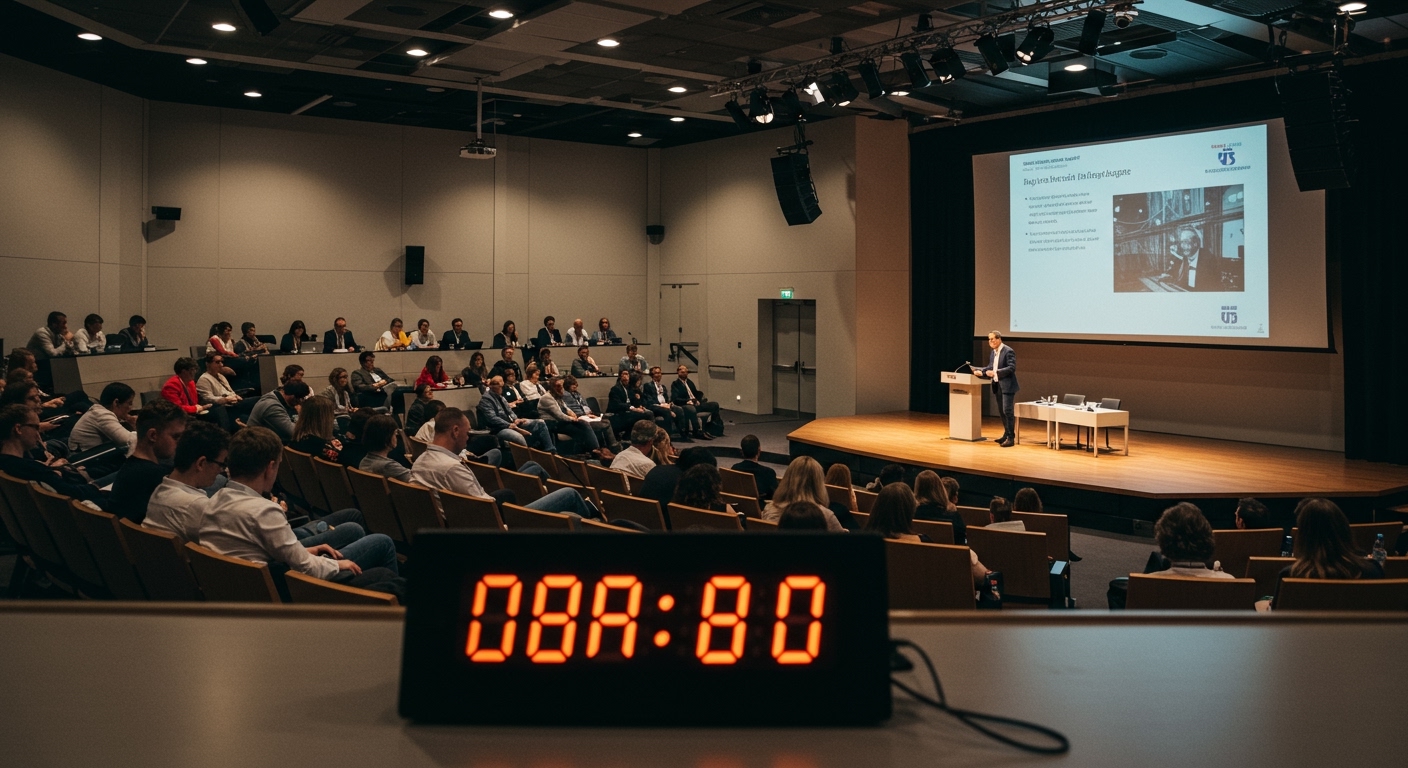
- Use Visual Cues: Implement a Green-Yellow-Red lighting system or a large digital countdown clock.
- Empower Moderators: Give your MCs the explicit authority to walk onto the stage when time is up.
- Build in Buffers: Always include 5–10 minute “transition buffers” between sessions to absorb minor overruns.
- Brief Early: Conduct a “Tech Run” where timing signals are tested and agreed upon by the speaker.
The Psychology of the “Runaway” Speaker
Understanding why speakers go over time is the first step in learning how to keep speakers on time. Most professionals don’t intend to be disrespectful; rather, they suffer from “The Expert’s Blind Spot.” This occurs when a speaker is so passionate about their subject matter that they lose track of their internal clock.
In our experience, speakers often underestimate their content length by 20%. If they have a 30-minute slot, they likely have 40 minutes of material. To counter this, we recommend asking speakers to submit their slide decks early. If you see 60 slides for a 20-minute talk, you know you have a timing risk on your hands.
Common Reasons Speakers Overrun
- Late Starts: Technical glitches at the beginning eat into their allotted time.
- Anecdote Creep: Telling “one quick story” that lasts five minutes.
- Q&A Rabbit Holes: Answering a complex question with a mini-lecture.
- Lack of Visual Feedback: Not being able to see a clock from the podium.
Pre-Event Strategies: Setting the Foundation
The secret to how to keep speakers on time actually happens weeks before the event starts. If the first time a speaker hears about their time limit is on the day of the event, you have already lost.
The “Hard Stop” Briefing
When you send the initial speaker agreement, don’t just list the time slot. Define the Presentation Length, Q&A Duration, and the Hard Stop Time.
Example Language:
“Your session is from 10:00 AM to 10:45 AM. This includes 35 minutes of content and 10 minutes of Q&A. At 10:45 AM, the floor microphones will be turned off to allow for the next transition.”
Mandatory Tech Rehearsals
We have found that a 15-minute Tech Rehearsal (or “Dry Run”) reduces timing issues by 40%. During this time, show the speaker exactly where the Confidence Monitor (the screen on the floor) is located and how the countdown timer will look.
The Slide Count Rule
A good rule of thumb for a professional pace is one slide per minute. If a speaker arrives with a massive deck, politely suggest they move supplemental data to an “Appendix” section for the Q&A portion.
Essential Tools for Speaker Timing
You cannot expect a speaker to manage their own time while also delivering a high-energy presentation. You must provide the infrastructure.
| Tool Type | Product Examples | Best For | Pros/Cons |
|---|---|---|---|
| Hardware Timers | D’San Limitimer | Large Stage / Keynotes | + High visibility, – Requires setup |
| Software Apps | SpeakerTimerPro, Stagetimer.io | Hybrid/Virtual Events | + Easy to share link, – Tech dependent |
| Manual Cues | Handheld Paddle Signs | Small Workshops | + Reliable, – Can feel “low tech” |
| Visual Signals | Traffic Light Systems | Award Ceremonies | + Intuitive, – Can be distracting |
Implementing the “Traffic Light” System
The most effective visual cue is the Green-Yellow-Red system.
- Green: Presentation is in progress (Start to -5 mins).
- Yellow: Wrap up your main points (5 mins remaining).
- Red (Flashing): Stop immediately; your time is up.
How to Keep Speakers on Time During the Live Event
Once the “Live” light goes on, your Stage Manager or Moderator becomes the primary enforcer.
The “Five-Three-One” Method
Use physical cards or digital signals at the 5-minute, 3-minute, and 1-minute marks. In my years of production, I’ve found that the 1-minute mark is the most critical. It signals to the speaker that they should stop taking new questions and deliver their final “Closing Statement.”
The Art of the “Soft Interruption”
If a speaker is clearly ignoring the timer, the Moderator must act. Do not be afraid to be the “bad guy” for the sake of the audience.
- Step 1: Stand up and move to the side of the stage where the speaker can see you in their peripheral vision.
- Step 2: If they continue, walk onto the stage with a smile and say, “That was an incredible point, [Speaker Name]! To make sure we stay on schedule for our next guest, let’s take one final question or move the rest to the networking break.”
Managing the Q&A Session
Q&A is where schedules go to die. To keep this under control:
- Pre-screen Questions: Use an app like Slido or Sli.do to let the audience upvote questions.
- The “One Question” Rule: Instruct the audience that follow-ups are not allowed.
- The Moderator Bridge: The moderator should summarize the last answer and immediately pivot to the closing remarks.
Technical Solutions for Modern Events
In the age of Generative AI and advanced AV tech, you have more options than ever to automate the timing process.
Confidence Monitors and “Stagetimer”
A Confidence Monitor is a screen placed at the foot of the stage, tilted upward toward the speaker. It displays their current slide, their “next” slide, and a massive, high-contrast Countdown Timer.
Using a tool like Stagetimer.io, you can control this timer remotely from a laptop in the back of the room. You can even send “Messages” to the screen that only the speaker sees, such as “Wrap up now” or “Skip to the final slide.”
Audio Cues: Use with Caution
Some events use a “Chime” or “Music Fade-in” to end a session. While effective for massive breakout sessions, it can be jarring for a keynote. Use Audio Cues only if you have briefed the speaker that “The exit music will begin at exactly 12:15 PM.”
Specialized Advice for Virtual and Hybrid Events
Keeping speakers on time in a Zoom or Microsoft Teams environment requires different tactics because you lack the physical presence to “walk onto the stage.”
- Private Chat Alerts: Send direct messages at 10, 5, and 2 minutes.
- The Virtual Backdrop Timer: Some platforms allow the moderator to use a virtual background that features a countdown clock.
- Auto-Closing Breakout Rooms: If using breakouts, set the software to automatically close the rooms. This is the only “fail-proof” way to keep virtual speakers on time.
Case Study: The “3000-Person Keynote” Success
At a tech conference we managed in 2023, we faced a challenge with a CEO known for talking 15 minutes over every single year. We implemented a “Hard Cut” strategy.
We told the CEO’s team: “At 9:30 AM, the house lights will slowly brighten, and the background music for the next segment will begin at 10% volume.” Because the speaker knew the environment would literally change around him, he finished his final slide with 14 seconds to spare. This proves that environmental cues are often more effective than verbal ones.
FAQ: Frequently Asked Questions
What do I do if a speaker refuses to stop talking?
If a speaker ignores all visual cues, the Moderator must physically join them on stage. A warm but firm “Thank you so much, we have to move to the next session now” usually forces a conclusion. As a last resort, the AV team can slowly fade the microphone volume down.
How much buffer time should I include in a schedule?
We recommend a 15% buffer rule. If you have 4 hours of content, add 36 minutes of “empty” space distributed throughout the day. This allows for technical delays and speaker overruns without pushing the end-of-day time back.
Is it rude to cut a speaker off?
No, it is respectful to the audience. Your attendees have paid for a specific experience and likely have personal schedules or travel plans. Letting one speaker run long punishes every other speaker and attendee at the event.
How do I handle a “VIP” speaker who thinks the rules don’t apply?
During the Pre-Event Briefing, frame the timing as a “User Experience” (UX) issue. Explain that the audience’s retention drops significantly after the scheduled end time. Even VIPS want their message to be heard, and a tired, restless audience won’t listen.
Can I use a “Vibrating Pager” for speakers?
Some professional speakers use a device called a “TimeTimer” or a vibrating watch. While effective, it requires the speaker to bring their own gear. It is always better for the event organizer to provide the timing solution to ensure consistency across all sessions.