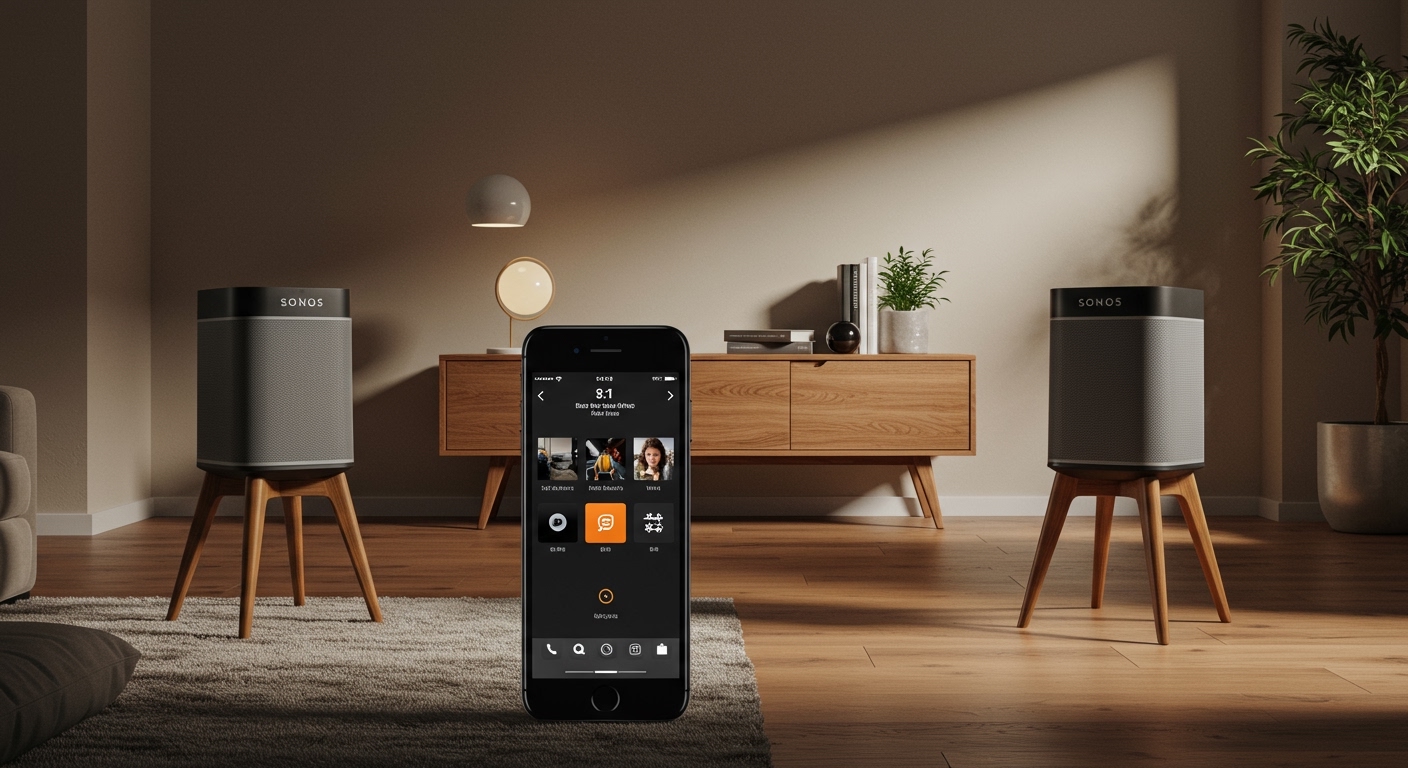
To sync your Sonos speakers, open the Sonos S2 app, tap the System tab (square icon with two lines), and select Group next to the room currently playing audio. Check the boxes for the additional speakers you want to include and tap Done to achieve perfectly synchronized multi-room sound.
Expert Summary: Sonos Syncing at a Glance
Primary Method: Use the “Group” feature in the Sonos App for multi-room playback.
Stereo Pairing: For a wider soundstage, you can sync 2 Sonos speakers of the identical model as a permanent left/right pair.
Tech Behind the Sync: Sonos uses a proprietary low-latency wireless mesh network to ensure sub-millisecond synchronization.
Compatibility: Most modern speakers require the Sonos S2 app, while legacy products may still use Sonos S1.
Quick Start: Tools & Requirements Needed
Before you begin the process of how to sync Sonos speakers together, ensure you have the following components ready.
| Requirement | Details |
|---|---|
| App Version | Sonos S2 (Gold icon) or Sonos S1 (Grey icon) |
| Network | All speakers must be on the same 2.4GHz or 5GHz Wi-Fi network |
| Device | iOS or Android smartphone/tablet |
| Hardware | At least two Sonos speakers (e.g., Era 100, Five, Beam, Move) |
Step 1: How do I Sync My Sonos Speakers for Multi-Room Audio?
The most common way to sync Sonos speakers is through “Grouping.” This allows different rooms to play the same music simultaneously without any echo or delay.
- Open the Sonos App: Ensure your mobile device is connected to the same Wi-Fi as your sound system.
- Navigate to the System Tab: Tap the System icon (the middle icon at the bottom of the screen that looks like a small audio system).
- Select the “Now Playing” Room: Tap the room that is currently playing the music or audio source you want to share.
- Tap the Group Button: Look for the Group icon (a square with a triangle pointing into it) located on the room bar.
- Choose Your Speakers: A list of all available rooms will appear. Check the circles next to the rooms you want to sync.
- Apply Changes: Tap Done. Your selected speakers will now play in perfect harmony.
Expert Insight: If you have a large home, you can create “Groups” (like “Downstairs” or “Party Mode”) to sync multiple speakers with a single tap rather than selecting them individually every time.
Step 2: How to Sync 2 Sonos Speakers as a Stereo Pair
If you are wondering how to sync two Sonos speakers to act as a single unit (Left and Right channels), you need to use the Stereo Pair setting. This provides a much deeper, more immersive soundstage than two speakers playing mono audio.
Requirements for Stereo Pairing
Both speakers must be the identical model (e.g., two Sonos Era 300s or two Sonos Ones).
They must be placed in the same physical “Room” in the app.
Instructions to Create a Stereo Pair
- Access Settings: Open the Sonos App and tap the Settings (gear icon) in the bottom right.
- Select System: Tap on System and choose one of the speakers you want to pair.
- Initiate Pairing: Tap Set Up Stereo Pair (or Create Stereo Pair).
- Follow On-Screen Prompts: The app will ask you to press a button on the speaker to identify which one is on the Left and which is on the Right.
- Calibration: Once synced, I highly recommend running Trueplay Tuning to optimize the sound for your room’s acoustics.
Step 3: Syncing Sonos Speakers with a Home Theater Setup
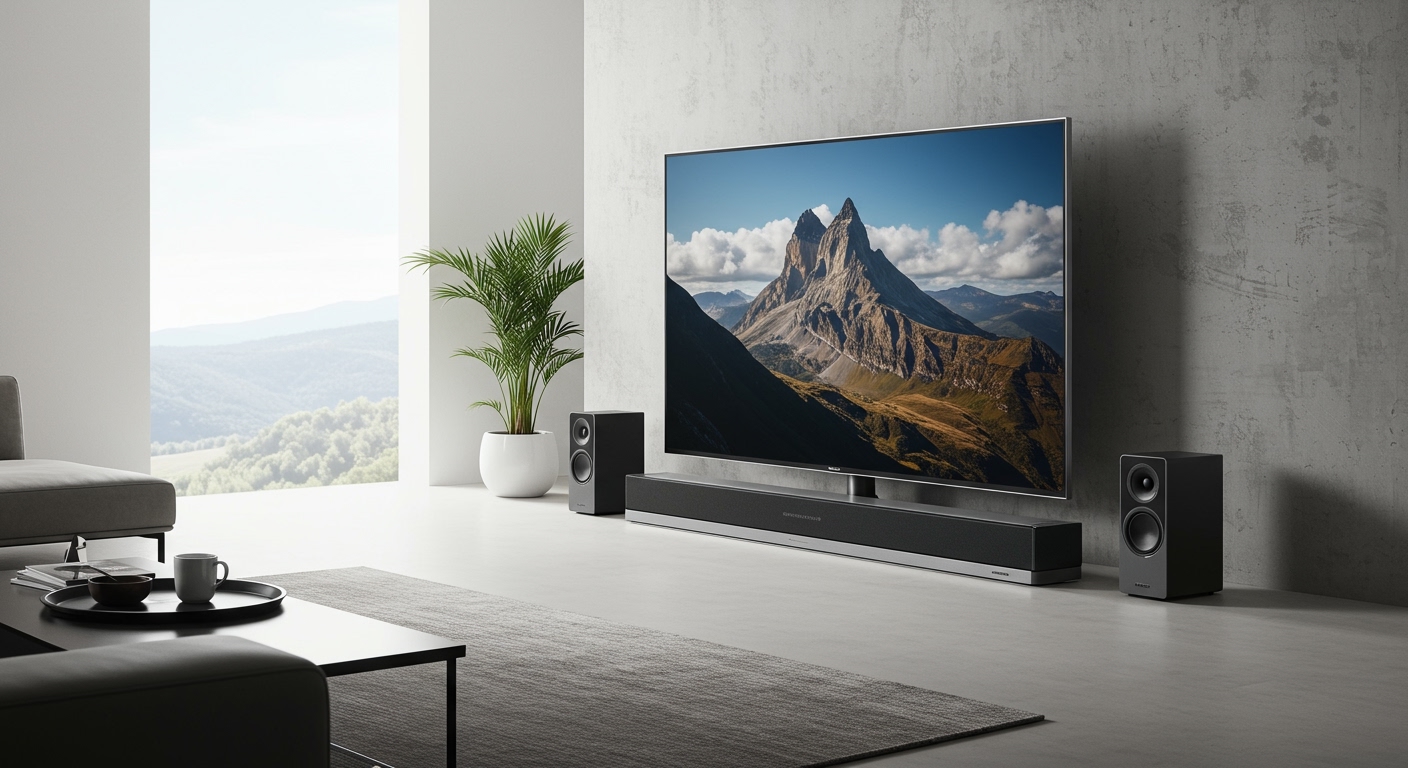
Can Sonos speakers sync with your TV? Yes, but the process is slightly different. To sync Sonos speakers together for a surround sound experience, you need a Sonos Soundbar (Arc, Beam, or Ray).
- Connect the Soundbar: Ensure your soundbar is connected to the TV via HDMI eARC/ARC.
- Add Surrounds: In the Settings menu, select your soundbar “Room.”
- Select Add Surrounds: The app will look for compatible speakers (like two Era 100s or IKEA Symfonisk lamps) to act as rear channels.
- Complete the Sync: Follow the pairing tones to finalize the Sonos speaker sync for your home cinema.
How Do Sonos Speakers Stay in Sync?
Many users ask, “How do Sonos speakers stay in sync?” without the lag found in traditional Bluetooth speakers. The secret lies in their proprietary networking architecture.
Clock Synchronization: Sonos uses a master-slave clocking system. One speaker acts as the “Group Coordinator,” sending tiny timing packets to all other speakers to ensure they trigger the audio at the exact same millisecond.
SonosNet: If you have a Sonos Boost or one speaker wired via Ethernet, Sonos creates a dedicated AES-encrypted mesh network. This reduces interference from your standard home Wi-Fi.
Buffering: Sonos creates a robust buffer of audio data. Even if your Wi-Fi fluctuates for a second, the speakers have enough “pre-loaded” music to keep playing in sync.
Common Mistakes to Avoid When Syncing
Through years of testing these systems, I’ve identified several common pitfalls that prevent a successful Sonos speaker sync:
Mixing S1 and S2 Products: You cannot sync an older Sonos Play:5 (Gen 1) on the S1 app with a new Sonos Era 300 on the S2 app. They are incompatible for grouping.
Wi-Fi Extenders: Using cheap Wi-Fi extenders often causes “ghosting” where speakers appear and disappear. Use a Mesh Wi-Fi system (like Eero or Orbi) for better stability.
Different Models in Stereo: You cannot create a stereo pair with a Sonos One and a Sonos Era 100. They must be the same model to ensure balanced frequency response.
Troubleshooting: What to Do if Speakers Won’t Sync
If you are struggling with how to sync Sonos speakers, try these expert-verified fixes:
- The 10-Second Reset: Unplug the power cord from the “problem” speaker, wait 10 seconds, and plug it back in.
- Check for Updates: Go to Settings > System > System Updates > Check for Updates. Outdated firmware is the #1 cause of sync failure.
- Toggle Wi-Fi: Ensure your phone hasn’t accidentally hopped onto a “Guest” network or a different 5GHz band that is isolated from the 2.4GHz band.
- Reduce Interference: Move speakers away from large metal objects or microwave ovens, which can disrupt the Sonos wireless signal.
FAQs: Expert Answers for Sonos Syncing
How many Sonos speakers can I sync together?
You can sync up to 32 Sonos speakers in a single system. However, for a single “Group” playing the same music, performance is best when kept under 10-12 speakers depending on your Wi-Fi bandwidth.
Can Sonos speakers sync with Bluetooth speakers?
Generally, no. Sonos is a Wi-Fi-based system. However, if you have a Sonos Roam or Move, you can share its Bluetooth audio with the rest of your Sonos system via the app when connected to Wi-Fi.
Why is there a delay when I sync my Sonos speakers with my TV?
This usually happens when you “Group” a non-home theater speaker (like a Sonos Five) with a soundbar while watching TV. To fix this, go to Settings > System > [Your Soundbar] > Group Audio Delay and increase the buffer.
Does syncing two speakers make them louder?
Yes. Syncing 2 Sonos speakers provides roughly a 3dB to 6dB increase in volume and significant improvements in headroom and bass clarity compared to a single unit.
Can I sync Sonos speakers with AirPlay 2?
Yes. If you have Apple devices, you can sync compatible Sonos speakers directly through the iOS Control Center by selecting multiple speakers in the AirPlay menu.
Quick Start: Tools & Requirements Needed
Before you begin the process of how to sync Sonos speakers together, ensure you have the following components ready.
| Requirement | Details |
|---|---|
| App Version | Sonos S2 (Gold icon) or Sonos S1 (Grey icon) |
| Network | All speakers must be on the same 2.4GHz or 5GHz Wi-Fi network |
| Device | iOS or Android smartphone/tablet |
| Hardware | At least two Sonos speakers (e.g., Era 100, Five, Beam, Move) |
Step 1: How do I Sync My Sonos Speakers for Multi-Room Audio?
The most common way to sync Sonos speakers is through “Grouping.” This allows different rooms to play the same music simultaneously without any echo or delay.
- Open the Sonos App: Ensure your mobile device is connected to the same Wi-Fi as your sound system.
- Navigate to the System Tab: Tap the System icon (the middle icon at the bottom of the screen that looks like a small audio system).
- Select the “Now Playing” Room: Tap the room that is currently playing the music or audio source you want to share.
- Tap the Group Button: Look for the Group icon (a square with a triangle pointing into it) located on the room bar.
- Choose Your Speakers: A list of all available rooms will appear. Check the circles next to the rooms you want to sync.
- Apply Changes: Tap Done. Your selected speakers will now play in perfect harmony.
Expert Insight: If you have a large home, you can create “Groups” (like “Downstairs” or “Party Mode”) to sync multiple speakers with a single tap rather than selecting them individually every time.
Step 2: How to Sync 2 Sonos Speakers as a Stereo Pair
If you are wondering how to sync two Sonos speakers to act as a single unit (Left and Right channels), you need to use the Stereo Pair setting. This provides a much deeper, more immersive soundstage than two speakers playing mono audio.
Requirements for Stereo Pairing
Both speakers must be the identical model (e.g., two Sonos Era 300s or two Sonos Ones).
They must be placed in the same physical “Room” in the app.
Instructions to Create a Stereo Pair
- Access Settings: Open the Sonos App and tap the Settings (gear icon) in the bottom right.
- Select System: Tap on System and choose one of the speakers you want to pair.
- Initiate Pairing: Tap Set Up Stereo Pair (or Create Stereo Pair).
- Follow On-Screen Prompts: The app will ask you to press a button on the speaker to identify which one is on the Left and which is on the Right.
- Calibration: Once synced, I highly recommend running Trueplay Tuning to optimize the sound for your room’s acoustics.
Step 3: Syncing Sonos Speakers with a Home Theater Setup
Can Sonos speakers sync with your TV? Yes, but the process is slightly different. To sync Sonos speakers together for a surround sound experience, you need a Sonos Soundbar (Arc, Beam, or Ray).
- Connect the Soundbar: Ensure your soundbar is connected to the TV via HDMI eARC/ARC.
- Add Surrounds: In the Settings menu, select your soundbar “Room.”
- Select Add Surrounds: The app will look for compatible speakers (like two Era 100s or IKEA Symfonisk lamps) to act as rear channels.
- Complete the Sync: Follow the pairing tones to finalize the Sonos speaker sync for your home cinema.
How Do Sonos Speakers Stay in Sync?
Many users ask, “How do Sonos speakers stay in sync?” without the lag found in traditional Bluetooth speakers. The secret lies in their proprietary networking architecture.
Clock Synchronization: Sonos uses a master-slave clocking system. One speaker acts as the “Group Coordinator,” sending tiny timing packets to all other speakers to ensure they trigger the audio at the exact same millisecond.
SonosNet: If you have a Sonos Boost or one speaker wired via Ethernet, Sonos creates a dedicated AES-encrypted mesh network. This reduces interference from your standard home Wi-Fi.
Buffering: Sonos creates a robust buffer of audio data. Even if your Wi-Fi fluctuates for a second, the speakers have enough “pre-loaded” music to keep playing in sync.
Common Mistakes to Avoid When Syncing
Through years of testing these systems, I’ve identified several common pitfalls that prevent a successful Sonos speaker sync:
Mixing S1 and S2 Products: You cannot sync an older Sonos Play:5 (Gen 1) on the S1 app with a new Sonos Era 300 on the S2 app. They are incompatible for grouping.
Wi-Fi Extenders: Using cheap Wi-Fi extenders often causes “ghosting” where speakers appear and disappear. Use a Mesh Wi-Fi system (like Eero or Orbi) for better stability.
Different Models in Stereo: You cannot create a stereo pair with a Sonos One and a Sonos Era 100. They must be the same model to ensure balanced frequency response.
Troubleshooting: What to Do if Speakers Won’t Sync
If you are struggling with how to sync Sonos speakers, try these expert-verified fixes:
- The 10-Second Reset: Unplug the power cord from the “problem” speaker, wait 10 seconds, and plug it back in.
- Check for Updates: Go to Settings > System > System Updates > Check for Updates. Outdated firmware is the #1 cause of sync failure.
- Toggle Wi-Fi: Ensure your phone hasn’t accidentally hopped onto a “Guest” network or a different 5GHz band that is isolated from the 2.4GHz band.
- Reduce Interference: Move speakers away from large metal objects or microwave ovens, which can disrupt the Sonos wireless signal.
FAQs: Expert Answers for Sonos Syncing
How many Sonos speakers can I sync together?
You can sync up to 32 Sonos speakers in a single system. However, for a single “Group” playing the same music, performance is best when kept under 10-12 speakers depending on your Wi-Fi bandwidth.
Can Sonos speakers sync with Bluetooth speakers?
Generally, no. Sonos is a Wi-Fi-based system. However, if you have a Sonos Roam or Move, you can share its Bluetooth audio with the rest of your Sonos system via the app when connected to Wi-Fi.
Why is there a delay when I sync my Sonos speakers with my TV?
This usually happens when you “Group” a non-home theater speaker (like a Sonos Five) with a soundbar while watching TV. To fix this, go to Settings > System > [Your Soundbar] > Group Audio Delay and increase the buffer.
Does syncing two speakers make them louder?
Yes. Syncing 2 Sonos speakers provides roughly a 3dB to 6dB increase in volume and significant improvements in headroom and bass clarity compared to a single unit.
Can I sync Sonos speakers with AirPlay 2?
Yes. If you have Apple devices, you can sync compatible Sonos speakers directly through the iOS Control Center by selecting multiple speakers in the AirPlay menu.
Conclusion: Achieve the Perfect Soundscape
Learning how do I sync my Sonos speakers is the key to unlocking the full potential of your home audio investment. Whether you are grouping rooms for a holiday party or creating a dedicated stereo pair for critical listening, the Sonos S2 app makes the process intuitive.
Remember to keep your software updated and ensure a stable Wi-Fi connection to prevent dropouts. If you want the ultimate experience, always perform a Trueplay calibration after syncing your speakers to ensure the audio is tailored to your specific environment.
Ready to expand your system? Explore the latest Sonos Era** series to see how the new line handles spatial audio syncing for an even more immersive experience.