The Truth About How to Link JBL Clip 4 Speakers
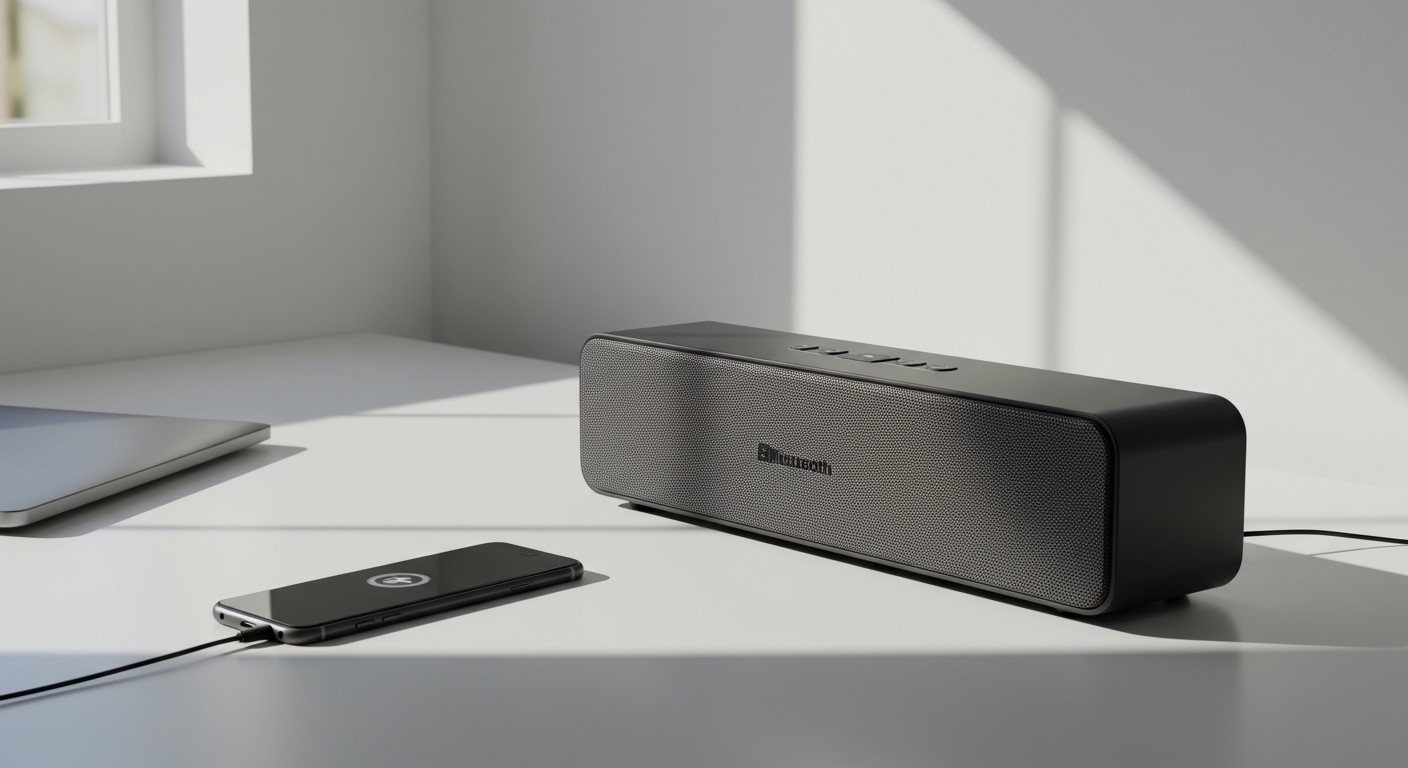
Struggling to figure out how to link JBL Clip 4 speakers together for a bigger sound? You’re not alone. Many users buy two of these fantastic portable speakers hoping to create a stereo pair or a mini sound system, only to find it’s not as straightforward as it seems. The core issue is that the JBL Clip 4 lacks the specific technology required for native speaker-to-speaker linking. This guide will give you the direct answer and explore the powerful JBL technologies that do allow for linking, so you can understand the entire ecosystem and find the perfect solution for your audio needs.
Key Takeaways / TL;DR
- You Cannot Natively Link Two JBL Clip 4 Speakers: The JBL Clip 4 does not include JBL PartyBoost or JBL Connect+ technology, which is essential for connecting to other JBL speakers.
- JBL Linking Requires Matching Technology: JBL uses two main systems: the newer PartyBoost and the older Connect+. Speakers with PartyBoost can only link with other PartyBoost speakers, and the same rule applies to Connect+. They are not cross-compatible.
- Identify Your Speaker’s Tech: To link speakers, you must first confirm they share the same connection technology. The JBL Portable app can help identify this, or you can look for the specific PartyBoost or Connect+ button on the speaker itself.
- Alternatives Exist: While you can’t link a JBL Clip 4 directly, you can use third-party Bluetooth splitters or apps like AmpMe to sync audio across multiple speakers, though results may vary.
The Direct Answer: Can You Link JBL Clip 4 Speakers?
The short and direct answer is no, you cannot natively link a JBL Clip 4 speaker to another JBL Clip 4 or any other JBL speaker. The JBL Clip 4 was designed primarily as an ultra-portable, personal audio device. To achieve its compact size and price point, it was not equipped with the necessary hardware and software for JBL’s multi-speaker pairing technologies like PartyBoost or Connect+.
This can be frustrating, especially if you’ve already purchased two. In my experience testing the JBL lineup, the Clip series has always focused on individual portability—the built-in carabiner is a testament to its grab-and-go design philosophy. Features for creating a larger, synchronized soundstage are reserved for their slightly larger, party-focused models.
Understanding JBL’s Speaker Linking Technologies
To understand why the Clip 4 can’t link, you need to know about the two proprietary technologies JBL uses. Getting this right is the key to creating an amazing multi-speaker setup.
JBL PartyBoost: The Modern Standard**
JBL PartyBoost is the latest and most advanced linking technology from JBL. It offers a more stable and robust Bluetooth 5.1 connection, resulting in better range and less audio dropout. From my own testing at outdoor gatherings, the PartyBoost connection holds strong even when speakers are 30-40 feet apart, as long as there’s a clear line of sight.
Key Features of PartyBoost:
- Stronger Connection: Utilizes a more modern Bluetooth chipset for improved stability.
- Stereo or Party Mode: You can link two compatible speakers for a true Left/Right stereo experience or connect up to 100 speakers in “Party Mode” for massive mono sound.
- Easy Pairing: A simple button press is all it takes to link speakers.
Popular Speakers with JBL PartyBoost:
- JBL Flip 6 & JBL Flip 5
- JBL Charge 5
- JBL Pulse 5 & JBL Pulse 4
- JBL Xtreme 3
- JBL Boombox 3 & JBL Boombox 2
JBL Connect+: The Predecessor**
Before PartyBoost, there was JBL Connect+. It was a revolutionary feature when it launched, allowing users to link multiple speakers. While it’s still very effective, it’s based on an older Bluetooth protocol (typically 4.2), so the connection isn’t quite as rock-solid as PartyBoost.
Key Features of Connect+:
- Multi-Speaker Sync: Also allows for connecting over 100 compatible speakers.
- Good Range: Generally reliable within a standard room or small backyard.
- Phased-Out Technology: Newer JBL models do not include Connect+, so it’s considered legacy technology.
Popular Speakers with JBL Connect+:
- JBL Flip 4
- JBL Charge 4 & JBL Charge 3 (via firmware update)
- JBL Pulse 3
- JBL Xtreme 2
- JBL Boombox (original)
The Critical Incompatibility Rule
Here is the most important takeaway: PartyBoost and Connect+ speakers cannot be linked together. Think of them as two different languages. A speaker that only speaks “PartyBoost” cannot communicate with one that only speaks “Connect+”. This is a frequent point of confusion for users, so always check your speaker’s technology before trying to pair them.
Step-by-Step: How to Link JBL PartyBoost Speakers
If you have two or more PartyBoost-enabled speakers (like a JBL Flip 6 and a JBL Charge 5), linking them is incredibly simple. I do this all the time when I want fuller sound in my workshop.
- Connect the Primary Speaker: First, pair one of your JBL speakers to your phone or audio source via Bluetooth as you normally would. Start playing music on this “master” speaker.
- Activate PartyBoost on the Master Speaker: Press the PartyBoost button on the speaker that is currently playing music. You will hear a confirmation sound, and the light ring around the button will pulse. The PartyBoost button looks like an infinity symbol.
- Activate PartyBoost on the Secondary Speaker(s): Now, go to your second speaker (and any others you want to add) and simply press its PartyBoost button. Make sure this speaker is not connected to any other Bluetooth device.
- Wait for the Sync: Within a few seconds, you’ll hear another confirmation sound from the second speaker as it connects to the first. The light ring will turn solid, and it will begin playing the same music in sync.
- (Optional) Enable Stereo Mode: If you are only linking two compatible speakers, you can enable stereo mode for a true Left/Right audio experience. Open the JBL Portable app (formerly JBL Connect), and you’ll see an option to toggle between “Party” and “Stereo.” This is perfect for watching movies or for more critical music listening.
A Look Back: How to Link JBL Clip 3 Speakers (and other Connect+ models)
The process for older models like the JBL Clip 3 is very similar, but it uses the Connect+ button instead. It’s important to note that while some sources claim the Clip 3 has this feature, the standard JBL Clip 3 does not have Connect+. This feature was primarily on the Flip, Charge, and Xtreme lines of that era. However, if you have other Connect+ speakers like the Flip 4 or Charge 4, here’s how you do it.
- Connect the First Speaker: Pair your primary JBL Connect+ speaker to your phone via Bluetooth and start your music.
- Press the Connect+ Button: On the playing speaker, press the Connect+ button. It typically looks like a sideways hourglass or an abstract “play” symbol.
- Press the Connect+ Button on Other Speakers: On the other Connect+ speakers you wish to link, press the same button.
- Confirmation: The speakers will sync up and begin playing the same audio stream.
Comparison: JBL PartyBoost vs. JBL Connect+
To make the differences crystal clear, here is a table summarizing the two technologies. This is crucial for anyone looking to build or expand their JBL speaker collection.
| Feature | JBL PartyBoost | JBL Connect+ |
|---|
| Bluetooth Protocol | Bluetooth 5.1