Uncovering Why Your Realtek Speakers Are Not Working: The First Steps
You sit down at your PC, ready to listen to music or join a call, but you’re met with frustrating silence. This is an incredibly common issue, and the good news is that the fix is often simple. The problem of why are my Realtek speakers not working usually stems from one of four main areas: a physical connection issue, incorrect Windows sound settings, a faulty or outdated audio driver, or a software conflict.
As a PC builder and troubleshooter with over a decade of experience, I’ve dealt with this exact problem hundreds of times. This guide will walk you through the same step-by-step process I use, from the most basic checks to advanced driver management, to get your sound back online quickly.
Key Takeaways (TL;DR)
- Check Physical Connections: Ensure your speakers are plugged into the correct lime green audio port on your PC and are powered on.
- Set as Default Device: Your PC might be trying to send audio to another device, like a monitor or headset. You must set your Realtek speakers as the default playback device in Windows Sound settings.
- Update Your Audio Driver: An outdated, corrupt, or incorrect driver is the most common culprit. Updating or reinstalling the Realtek audio driver from your motherboard manufacturer’s website is the most reliable fix.
- Run the Troubleshooter: Windows has a built-in audio troubleshooter that can automatically find and fix many common configuration problems.
The Essential Preliminary Checks
Before diving into complex software settings, we always start with the basics. In my experience, a surprising number of audio issues are resolved in these first two steps, saving you a lot of time and frustration.
Step 1: Verify All Physical Connections
It might sound obvious, but a loose cable is a frequent cause of audio failure. Let’s confirm everything is seated correctly.
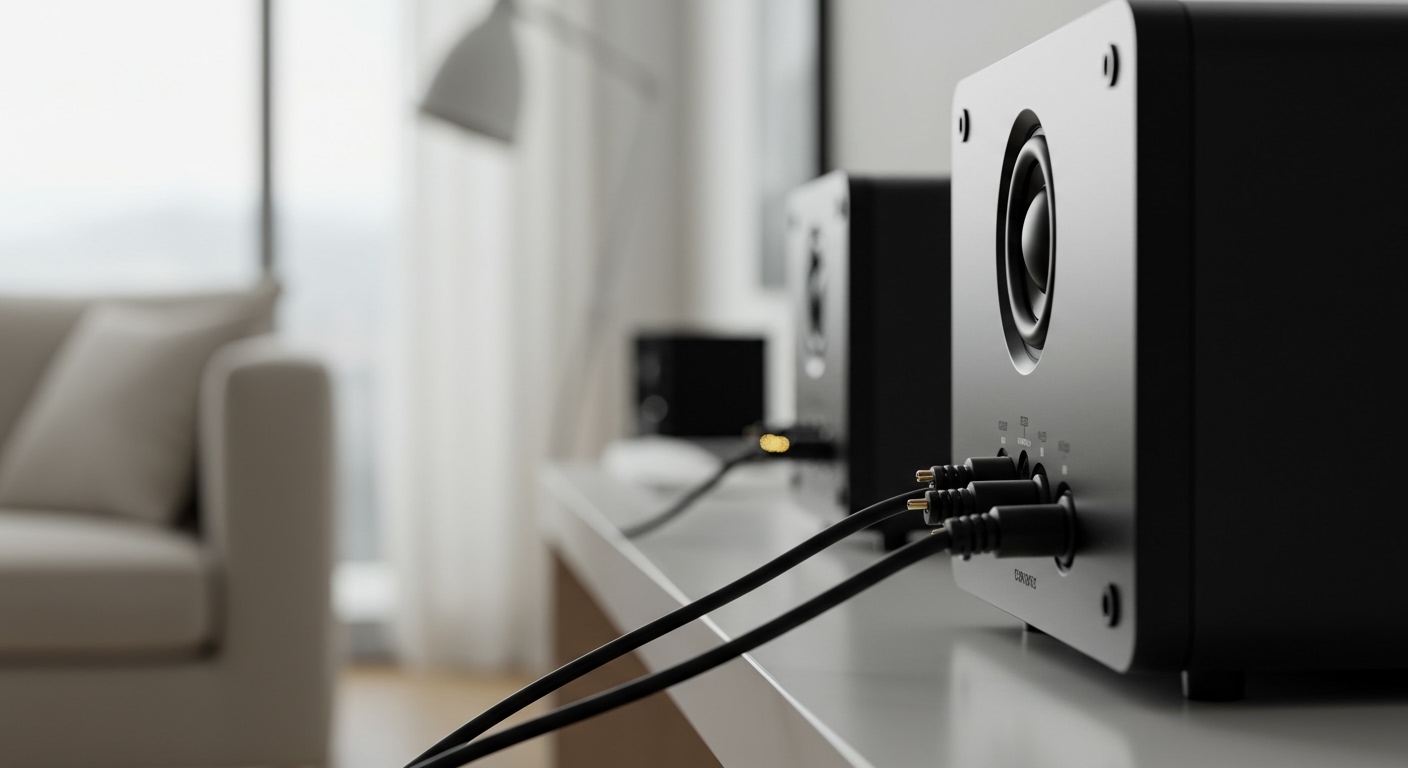
- Check the PC Connection: Look at the back of your computer tower. You should see a cluster of small, color-coded audio ports. Your speakers must be plugged into the lime green “line-out” port. It’s easy to accidentally plug them into the blue “line-in” or pink “microphone” port.
- Inspect the Speaker Connection: Ensure the cable is firmly connected to the speakers themselves. If you have a subwoofer, confirm the satellite speakers are correctly plugged into it.
- Confirm Power: Most desktop speakers require their own power source. Check that the speaker’s power adapter is plugged into a working electrical outlet and that the power switch or volume knob on the speaker is turned on. A small LED light should indicate they are receiving power.
- Test the Outlet: If the power LED isn’t on, try plugging a different device (like a lamp) into the same outlet to ensure the outlet is working.
Step 2: Review Basic Volume and Mute Settings
Next, let’s make sure the sound isn’t simply muted somewhere in the chain.
- Physical Speaker Volume: Turn the physical volume knob on your speakers up to at least 50%. Many speakers have a mute button, so ensure that is not active.
- Windows System Volume: Click the speaker icon in the bottom-right corner of your taskbar. Make sure the volume slider is not at 0 and that the speaker icon does not have a small ‘x’ next to it, which indicates it’s muted.
- Application Volume: If you’re trying to get sound from a specific app (like Spotify or Google Chrome), right-click the speaker icon in the taskbar and select “Open Volume mixer”. Check that the volume slider for that specific application is not muted or set to zero.
Diving into Windows: Software Fixes for Realtek Audio
If the physical connections are solid, the next stop is your Windows sound configuration. This is where your PC decides where to send audio signals, and it’s a common point of failure.
Step 3: Set Realtek as the Default Playback Device
Your computer can have multiple audio outputs, such as monitor speakers, USB headsets, or Bluetooth devices. If the wrong one is selected as the default, your Realtek speakers will remain silent.
- Right-click the speaker icon in the taskbar and select “Sound settings”.
- Scroll down and click on “More sound settings”. This will open the classic Sound control panel.
- Go to the “Playback” tab. You will see a list of all available audio devices.
- Locate your “Speakers” or “Realtek High Definition Audio” device in the list.
- Right-click on it and select “Set as Default Device”. A green checkmark will appear next to it.
- Right-click it again and select “Test”. You should hear a test chime from your speakers.
If your speakers were not the default, this simple change often solves the problem instantly.
Step 4: Run the Built-in Windows Audio Troubleshooter
Windows has an excellent built-in tool designed to diagnose and fix audio problems automatically. It can reset services and correct settings that may have been misconfigured.
- Navigate to Settings > System > Sound.
- Under the “Advanced” section, click on “Troubleshoot common sound problems” and select “Output devices”.
- The troubleshooter will launch. Select your Realtek speakers from the list and click “Next”.
- Follow the on-screen prompts. The tool will check for common issues and suggest fixes. I’ve seen this tool successfully restart a stalled audio service, which is a fix that’s hard to find manually.
Step 5: Disable Audio Enhancements
Sometimes, special audio processing effects designed to “enhance” sound can conflict with drivers or applications, causing audio to cut out entirely.
- In the “Playback” tab of the Sound control panel (from Step 3), right-click your Realtek speakers and select “Properties”.
- Go to the “Enhancements” or “Advanced” tab (the name varies by driver version).
- Check the box that says “Disable all enhancements” or “Disable all sound effects”.
- Click “Apply” and then “OK”. Test your audio again.
The Driver Dilemma: Solving Why Realtek Speakers Won’t Work
If the settings are correct, the most likely culprit is the Realtek audio driver. This is the software that allows Windows to communicate with your computer’s physical audio hardware. A corrupt, outdated, or incorrect driver is the root cause of most persistent audio failures.
Step 6: Update Your Realtek Audio Driver via Device Manager
This is the standard way to ask Windows to find a better driver for your hardware.
- Right-click the Start button and select “Device Manager”.
- Expand the “Sound, video and game controllers” category.
- You should see “Realtek High Definition Audio” or a similar entry. Right-click on it.
- Select “Update driver”.
- Choose “Search automatically for drivers”. Windows will scan its database for a suitable update. If it finds one, follow the instructions to install it and then restart your PC.
Step 7: The “Clean Install” Method for Stubborn Drivers
Often, the automatic search isn’t enough. The most reliable fix, and the one I personally use for tough cases, is to manually perform a “clean install” of the correct driver from your motherboard’s manufacturer.
- Identify Your Motherboard: You need to know the manufacturer and model of your motherboard (e.g., ASUS ROG Strix B550-F, MSI MAG B660 Tomahawk). If you don’t know, you can use a free tool like CPU-Z to find this information on its “Mainboard” tab.
- Download the Correct Driver: Go to the support website for your motherboard manufacturer (ASUS, MSI, Gigabyte, ASRock, etc.). Navigate to the support/downloads page for your specific model and find the latest Audio or Realtek driver. Download it, but don’t install it yet.
- Uninstall the Old Driver: Open Device Manager, expand “Sound, video and game controllers”, right-click your Realtek device, and select “Uninstall device”. Critically, in the pop-up window, check the box that says “Attempt to remove the driver for this device”. This is the “clean” part of the process.
- Install the New Driver: After the uninstallation is complete, restart your computer. Windows may install a generic driver, which is fine. Now, run the installer file you downloaded in step 2.
- Restart Again: Once the new driver is installed, perform one final restart to ensure all changes take effect.
This process removes any corrupt files and ensures you are using the exact driver optimized for your