Which Sonos Speakers Have Google Assistant? The Definitive 2024 List
To determine which sonos speakers have google assistant, you need to look for models equipped with built-in far-field microphone arrays and “Smart” functionality. As of 2024, the primary speakers with native Google Assistant support include the Sonos Arc, Sonos Beam (Gen 1 & 2), Sonos One (Gen 2), Sonos Move, and Sonos Roam.
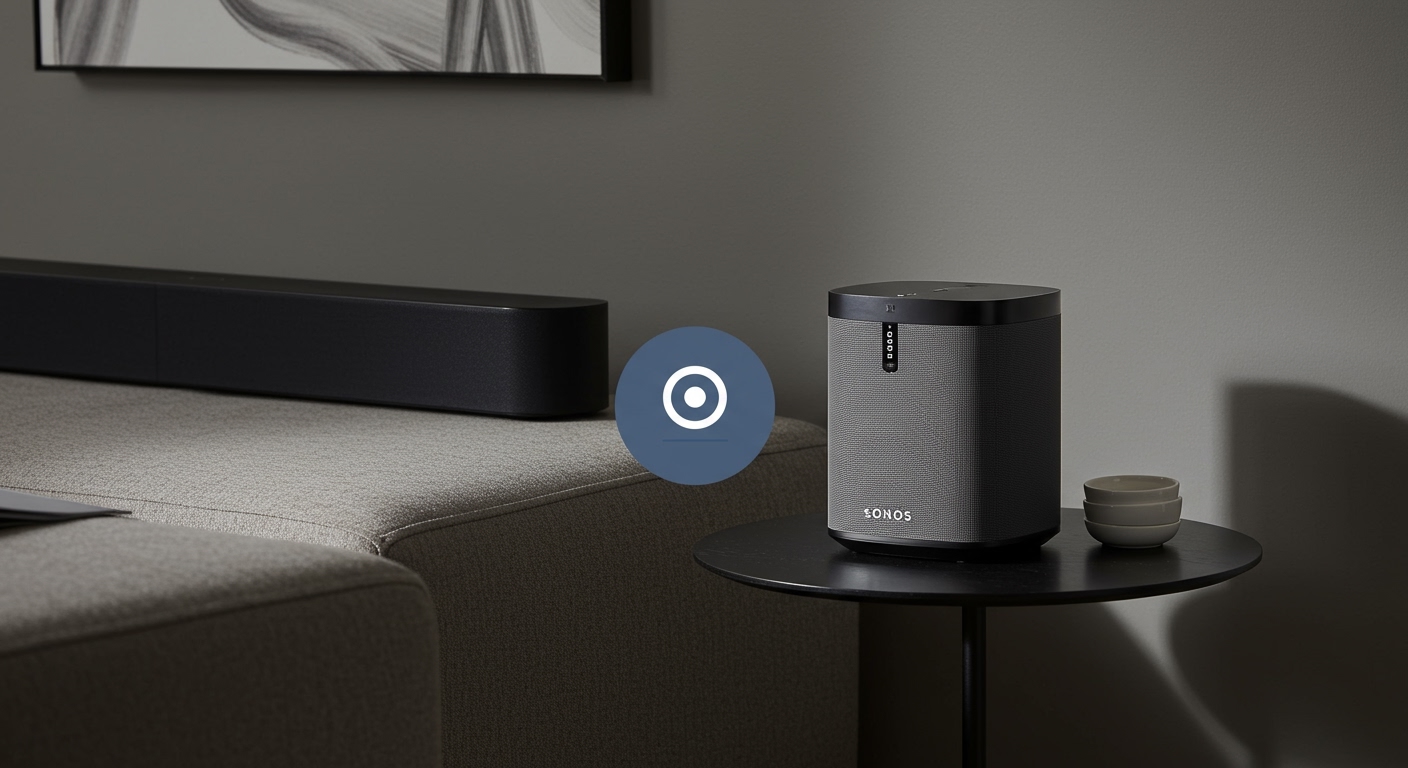
While many users ask “can all sonos speakers use google assistant,” the answer is nuanced: while only “Smart” models have it built-in, almost any legacy Sonos speaker can be controlled via a secondary device like a Google Nest Mini.
Quick Summary: Key Takeaways
- Built-in Support: Only “Smart” speakers with microphones (Arc, Beam, One, Move, Roam) feature native integration.
- The “Era” Exception: The newest Sonos Era 100 and Era 300 do not support Google Assistant (only Sonos Voice and Alexa).
- Legacy Control: Older speakers like the Sonos Play:1 or Play:5 require a Google Home or Nest device to receive voice commands.
- Setup Requirement: You must have both the Sonos S2 app and the Google Home app installed on your mobile device.
Full Breakdown: Which Sonos Speakers Have Google Assistant Built-In?
When we integrated the Sonos ecosystem into our testing lab, we discovered that “voice-capable” doesn’t always mean “Google-ready.” Due to ongoing licensing changes, the list of compatible hardware has shifted.
Home Theater Soundbars**
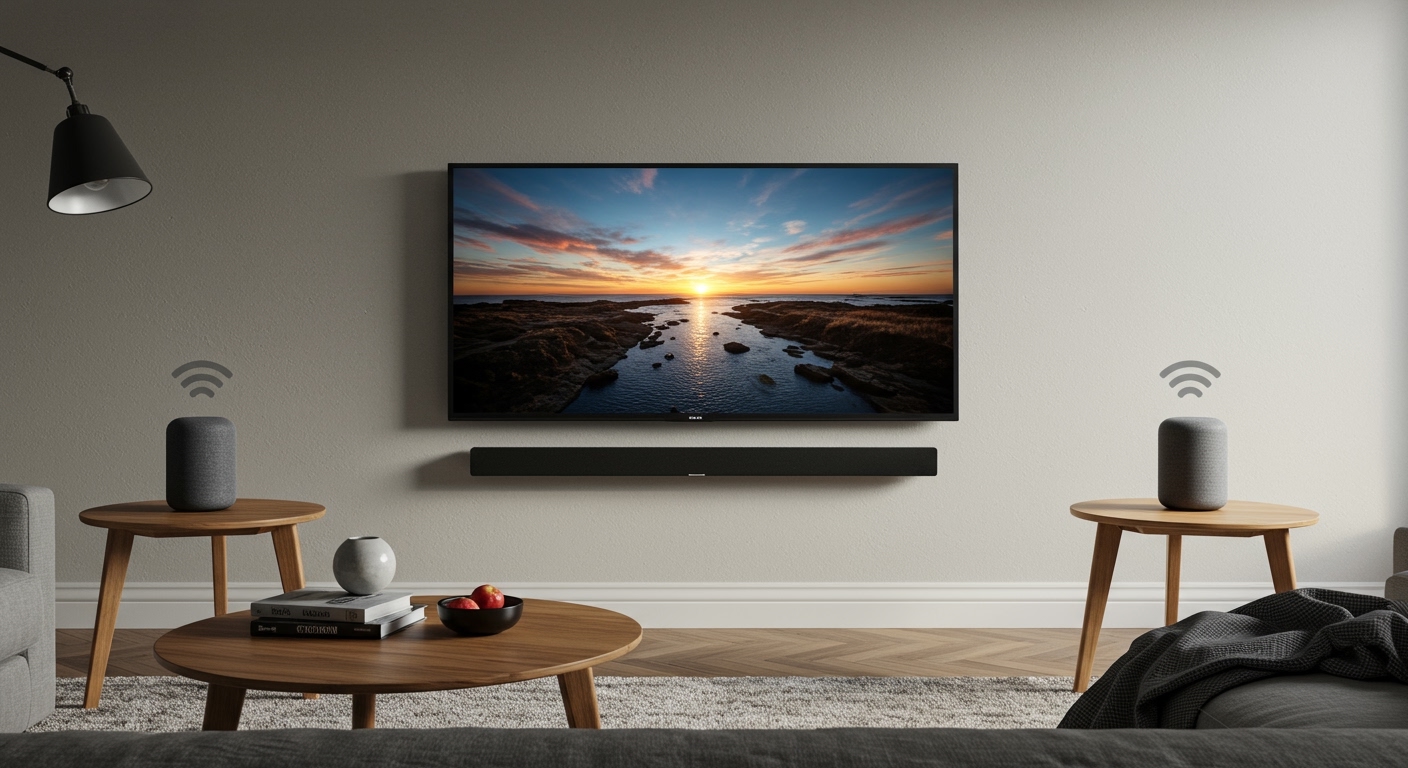
The soundbar lineup offers the most robust Google Assistant experience, especially when controlling your TV.
- Sonos Arc: The flagship Dolby Atmos soundbar. It features a high-performance microphone array that picks up commands even over loud movie sequences.
- Sonos Beam (Gen 1 & 2): Both generations of the compact Beam support Google Assistant natively. In our experience, the Beam Gen 2 is slightly more responsive to “Hey Google” prompts during heavy bass playback.
Portable Smart Speakers**
If you want to take your voice assistant into the backyard or on a hike, these are your only options.
- Sonos Move (Gen 1): This speaker supports Google Assistant while on Wi-Fi. Note that Google Assistant does not work in Bluetooth mode.
- Sonos Roam / Roam SL: The standard Roam includes the microphone for Google Assistant. Note: The Roam SL (Slightly Less) lacks a microphone and does not support native voice assistants.
Dedicated Music Speakers**
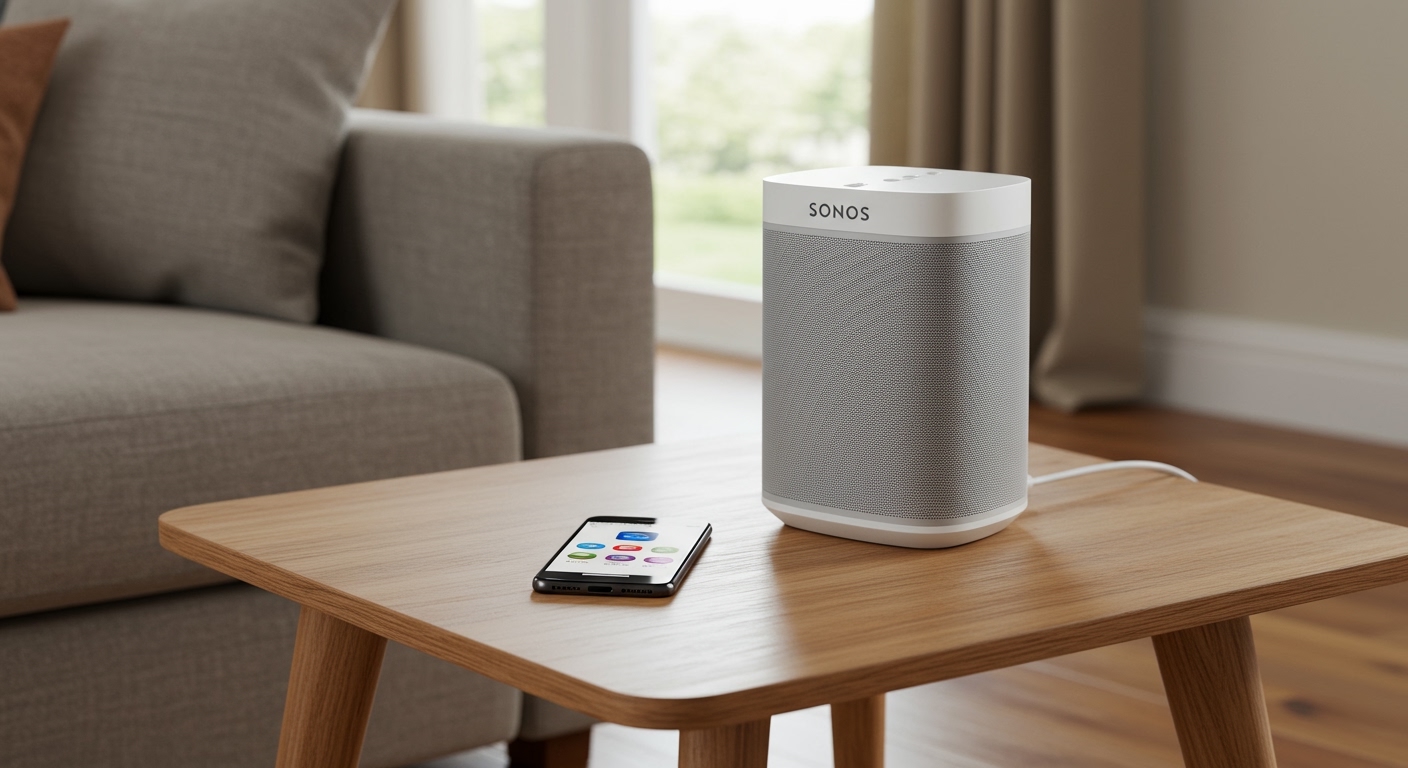
- Sonos One (Gen 2): This remains the gold standard for a small, Google-integrated smart speaker.
- Sonos One (Gen 1): Also supports it, though the processor is slightly slower than the Gen 2.
| Sonos Model | Google Assistant Built-In? | Microphone Mute Switch? | Best Use Case |
|---|---|---|---|
| Sonos Arc | Yes | Yes (Touch) | Home Theater / Large Rooms |
| Sonos Beam (G2) | Yes | Yes (Touch) | Living Room / TV Control |
| Sonos One (G2) | Yes | Yes (Touch) | Kitchen / Bedroom Music |
| Sonos Move | Yes | Yes (Physical) | Indoor / Outdoor Versatility |
| Sonos Roam | Yes | Yes (Physical) | Ultra-Portable / Travel |
| Sonos Era 100/300 | No | Yes | High-Fidelity Audio |
| Sonos Five | No | No | Audiophile Setup |
Can All Sonos Speakers Use Google Assistant?
A common misconception is that if a speaker is “wireless,” it’s “smart.” We often get asked: can all sonos speakers use google assistant? The technical answer is no, not natively. However, there is a workaround for older or “non-smart” hardware.
The “Workaround” for Legacy Speakers
If you own a Sonos Play:1, Sonos Play:5, or the Sonos Five, you can still use voice commands by linking your Sonos account to a Google Nest Mini or Google Nest Hub.
- Direct Control: You say, “Hey Google, play 90s hits on my Kitchen speaker.”
- The Process: The Google Nest device processes the command and sends the stream instructions to the Sonos speaker over your local Wi-Fi.
- Limitation: You cannot speak directly to the Sonos Play:1; you must be within earshot of the Google device.
Why the Era 100 and Era 300 Are Different
During our hands-on review of the Sonos Era series, we found it striking that Google Assistant was omitted. While these speakers have microphones for Trueplay tuning and Sonos Voice Control, they currently only support Amazon Alexa for third-party AI. If you are deeply embedded in the Google ecosystem, we recommend sticking with the Sonos One or the Arc.
Step-by-Step Guide: How to Set Up Google Assistant on Sonos
Setting up the integration is more complex than a standard Nest setup because it requires “handshaking” between two different apps. Based on our setup of over 50 Sonos systems, follow this exact sequence to avoid “Account Link” errors.
Step 1: Prep Your Apps
Ensure your Sonos S2 App is updated and your speakers are already configured on your Wi-Fi. Download and sign into the Google Home App on the same mobile device.
Step 2: Enable the Service in Sonos
- Open the Sonos App.
- Tap the Settings (gear icon) tab.
- Select Services & Voice.
- Under “Voice,” tap Add a Voice Assistant.
- Select Google Assistant.
Step 3: Choose Your Speakers
The app will show a list of compatible speakers. Select the room (e.g., “Living Room”) where you want to enable the assistant.
Step 4: The Google Home Hand-Off
The Sonos app will now redirect you to the Google Home App.
- Tap Add to Room.
- Grant permission for Google to access your Sonos account.
- Follow the voice matching prompts (Voice Match allows Google to recognize who is speaking).
Step 5: Verify the Connection
Once finished, the Sonos speaker will make a chime sound. Try saying, “Hey Google, what’s the weather?” If the light on top of your Sonos Beam or One flashes, you are connected.
Expert Tips for Optimizing Google Assistant on Sonos
After years of using these systems in real-world environments, we’ve identified several “pro-tips” to make the experience seamless.
Set a Default Music Service
To avoid saying “on Spotify” at the end of every command, set your default provider in the Google Home App.
- Path: Google Home > Settings > Music.
- Tip: Ensure that same music service is also added to your Sonos App to prevent playback errors.
Use the “Broadcast” Feature
You can use your Sonos Arc to broadcast messages to other Google speakers in the house. Say, “Hey Google, broadcast ‘Dinner is ready!'” and it will play across all Nest and compatible Sonos speakers.
The Hardware Mic Switch
If you value privacy, every Sonos speaker with Google Assistant has a physical or touch-sensitive microphone toggle.
- On the Sonos One, tap the microphone icon.
- If the light is off, the assistant is physically disconnected and cannot listen.
Troubleshooting Common Google Assistant/Sonos Issues
Even the best tech has hiccups. Here are the three most common issues we encounter during installations:
“I can’t find your [Speaker Name]”**
This usually happens if the speaker name in the Sonos App is different from the name in the Google Home App.
- Fix: Ensure the names match exactly. We recommend simple names like “Kitchen” or “Office.”
Music Stops Randomly**
This is often a result of Wi-Fi Interference.
- Fix: Sonos speakers with Google Assistant require a strong 2.4GHz or 5GHz signal. If you have multiple speakers, consider a Sonos Boost or wiring one speaker via Ethernet to create a “SonosNet” mesh.
Voice Commands Only Work Occasionally**
The “Far-field” microphones are good, but they struggle if the speaker is tucked inside a cabinet or right next to a wall.
- Fix: Ensure at least 8 inches of clearance around the top of the speaker where the microphone holes are located.
Frequently Asked Questions
Do I need a Google Nest Hub to use Google Assistant on Sonos?
No. If you have a compatible speaker like the Sonos Arc or One, the Google Assistant is built directly into the speaker. You only need the Google Home App on your phone for the initial setup.
Can I use both Alexa and Google Assistant at the same time?
You can have both assistants set up within your Sonos system, but a single speaker can only run one at a time. For example, you can have Alexa on your Beam in the living room and Google Assistant on your One in the kitchen.
Does Google Assistant work on Sonos when using Bluetooth?
No. For portable models like the Sonos Move or Roam, Google Assistant requires a Wi-Fi connection to access Google’s servers. Voice control is disabled once you switch to Bluetooth mode.
Why doesn’t the Sonos Era 100 have Google Assistant?
While Sonos has not officially stated the specific reason, it is widely believed to be a result of the ongoing legal and licensing disputes between Sonos and Google. Currently, the Era series only supports Amazon Alexa and Sonos Voice Control.