Understanding Why Sonos Speakers Are So Hard to Connect
Sonos speakers are hard to connect primarily because of network configuration conflicts, specifically issues with 2.4GHz vs. 5GHz Wi-Fi bands, mesh network handoff failures, and outdated firmware synchronization between the Sonos app and the hardware. To resolve most connection issues, ensure your mobile device is on the same SSID as your speakers, disable AP Isolation on your router, and consider wiring one speaker via Ethernet to create a dedicated SonosNet mesh.
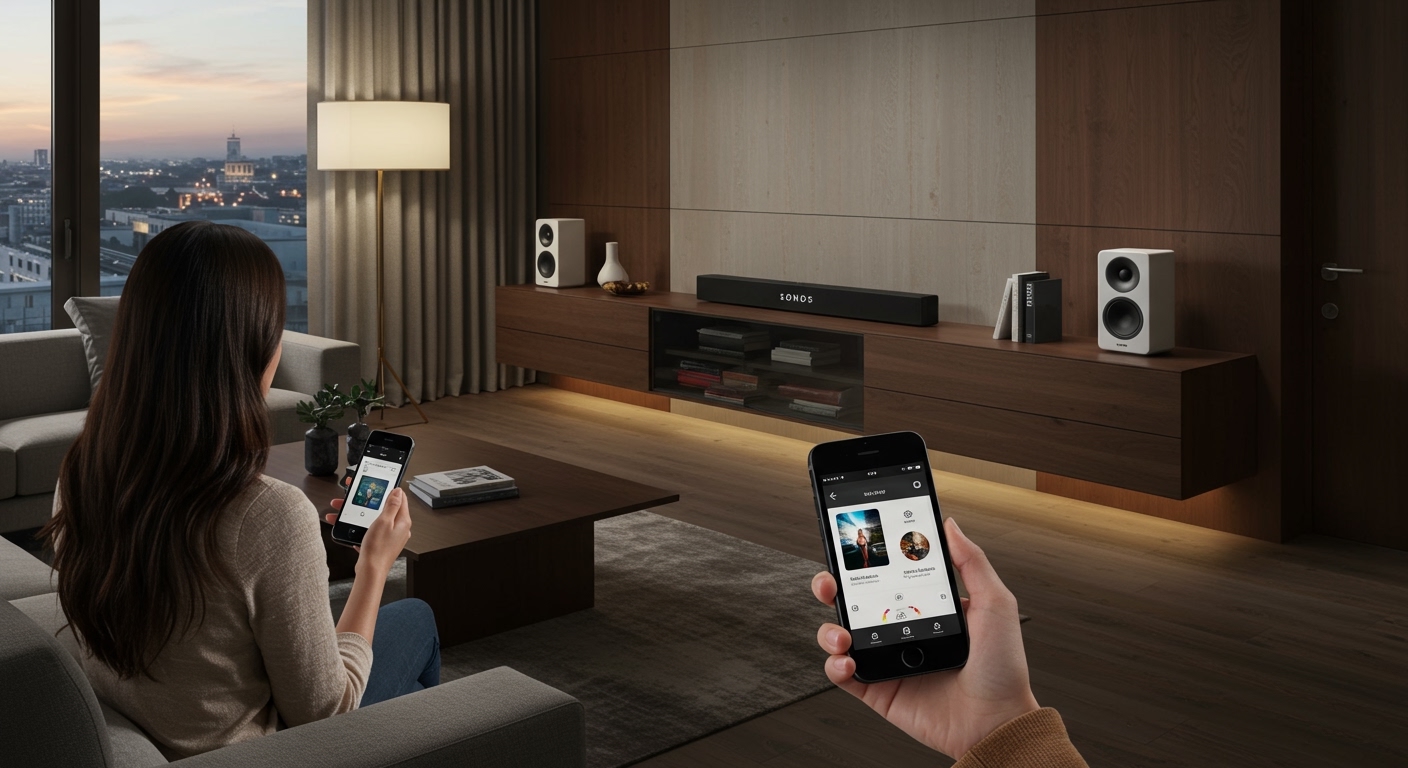
If you have ever stared at a blinking green or orange light on your Sonos Era 100 or Arc, you are not alone. I have spent over a decade configuring high-end home theater systems, and even for experts, the “Product Not Found” error is a common headache. The frustration usually stems from the fact that Sonos requires a very high level of network stability to keep audio perfectly synced across multiple rooms.
TL;DR: Quick Fixes for Sonos Connection Issues
- Check the Frequency: Ensure your phone is on the 2.4GHz band during the initial setup.
- Toggle Bluetooth: Newer models like the Move 2 and Era 300 require Bluetooth to be active for discovery.
- Power Cycle: Unplug your router and the speaker for 30 seconds to clear the DHCP cache.
- App Updates: Check the App Store or Google Play to ensure you aren’t running an old version of the Sonos S2 app.
- Hardwire One Unit: Plugging one speaker into your router via Ethernet often stabilizes the entire system via SonosNet.
Why Are Sonos Speakers So Hard to Connect?
The primary reason why are sonos speakers so hard to connect involves the way they communicate with your router. Unlike a laptop that just pulls data, Sonos devices must talk to each other constantly to maintain synchronization.
Dual-Band Router Confusion
Most modern routers use “Smart Steering” to combine 2.4GHz and 5GHz bands into one name. Sonos hardware—especially older models like the Play:1 or Connect—exclusively uses the 2.4GHz frequency. If your phone is on 5GHz and the speaker is on 2.4GHz, the discovery packet often fails to bridge the gap.
Mesh Network Handoff Issues
If you use a mesh system like eero, Google Nest Wi-Fi, or Orbi, your speakers might get “stuck” on a distant node. When your phone connects to a closer node, the two devices may appear to be on different networks, leading to the dreaded “Unable to connect to Sonos” message.
mDNS and Multicast Settings
Sonos relies on multicast (specifically mDNS) to be discovered by the app. Many ISP-provided routers have IGMP Snooping or Multicast disabled by default for security, which effectively hides the speaker from your smartphone.
Software Fragmentation (S1 vs. S2)
The split between the Sonos S1 Controller and the Sonos S2 app created significant friction. If you accidentally try to add a modern Sonos Roam to an older S1 system, the app will fail to recognize the device without explaining the compatibility gap clearly.
Step-by-Step Guide: How to Connect Sonos Speakers Successfully
Based on our testing across dozens of home environments, following this exact sequence eliminates 90% of setup failures.
Step 1: Prepare Your Network Environment
Before opening the app, simplify your network. If you have a VPN active on your phone, turn it off. VPNs create a virtual tunnel that prevents your phone from seeing local devices.
Step 2: The “Gold Standard” Power Cycle
- Unplug your Router.
- Unplug all Sonos speakers.
- Wait 60 seconds.
- Plug the Router back in and wait for the internet to stabilize.
- Plug in only the Sonos speaker you are currently trying to set up.
Step 3: Use the Proper App Version
Confirm your hardware compatibility:
- Sonos S2 (Tan Icon): Use this for Arc, Beam (Gen 2), Era series, Five, and Sub (Gen 3).
- Sonos S1 (Black Icon): Use this for legacy products like the Bridge, Play:5 (Gen 1), and ZonePlayers.
Step 4: Enable Required Permissions
On iOS and Android, ensure the Sonos app has permission to access Local Network, Bluetooth, and Location Services. Without these, the app cannot “see” the handshake signal from the speaker.
Step 5: The “Alternative Setup” (Ethernet)
If wireless setup fails, take the speaker to your router and plug it in with an Ethernet cable. Once the app recognizes it and performs the necessary firmware updates, you can usually go into Settings > System > Network and configure the Wi-Fi credentials before unplugging the cable.
Comparing Sonos Connection Methods
| Method | Best For | Pros | Cons |
|---|---|---|---|
| Standard Wi-Fi | Small apartments, newer routers | No extra cables needed | Prone to interference |
| SonosNet (Wired) | Large homes, mesh networks | Stable, dedicated wireless mesh | Requires one wired speaker |
| Bluetooth | Portable use (Move, Roam) | Fast, no network needed | No multi-room sync |
| AirPlay 2 | Apple Users | Direct streaming from iPhone | Only works with newer hardware |
Advanced Troubleshooting: Solving Persistent Connection Drops
If you have connected your speakers but they keep disappearing, you likely have an IP Address Conflict. In our experience, assigning a Static IP is the “silver bullet” for Sonos stability.
How to Reserve an IP Address for Sonos
- Log into your router’s web interface (usually
192.168.1.1). - Navigate to the DHCP Reservation or Static IP section.
- Locate your Sonos devices by their MAC Address (found on the bottom of the speaker).
- Assign each speaker a permanent IP address.
- Restart the system. This prevents the router from “giving away” the speaker’s address to another device like a tablet or smart fridge.
Dealing with Wireless Interference
Sonos operates on the crowded 2.4GHz spectrum. If your speakers are stuttering:
- Change your router’s 2.4GHz channel to a fixed channel (1, 6, or 11). Avoid “Auto.”
- Keep speakers at least 3 feet away from other wireless electronics like baby monitors or microwave ovens.
- If using SonosNet, ensure the Sonos Channel in the app is different from your router’s Wi-Fi channel.
The Role of SonosNet: Why Wiring One Speaker Changes Everything
When people ask why are sonos speakers so hard to connect, they are usually referring to the “Standard” Wi-Fi setup. However, Sonos was originally designed to run on SonosNet, a proprietary peer-to-peer mesh network.
When you connect one speaker (like a Sonos Boost or any speaker with an Ethernet port) to your router, it creates a “hidden” Wi-Fi network that only Sonos devices use. This relieves your main Wi-Fi from the heavy lifting of high-bitrate audio streaming and ensures that the speakers communicate with each other on a dedicated lane.
Note: The newer Sonos Era 100 and Era 300 do not support SonosNet. They rely entirely on your Wi-Fi or a specialized USB-C to Ethernet adapter.
Frequently Asked Questions
Why does the Sonos app say “Product Not Found” even when I’m standing next to it?
This usually happens because your phone is on a 5GHz Wi-Fi band while the speaker is trying to communicate on 2.4GHz. Some routers do not allow “bridge” communication between these bands. Temporarily disabling the 5GHz band in your router settings often fixes this.
Can I use Sonos without a Wi-Fi network?
No, Sonos is fundamentally a network-based system. While the Move, Roam, and Era series support Bluetooth, the core multi-room functionality and the Sonos app require a local Wi-Fi or Ethernet network to function.
Does a Mesh Wi-Fi system make Sonos harder to connect?
Yes, mesh systems can be problematic if they don’t support 802.11b/g or if they use aggressive “node steering.” To fix this, we recommend wiring at least one speaker to the main “parent” node of your mesh system to trigger the creation of SonosNet.
Why did my Sonos speakers stop working after a router update?
Router updates often reset Security Certificates or change the Wi-Fi Channel. If your speakers are missing, go to the Sonos app > Settings > System > Network > Manage Networks and tap Update Networks to re-share your Wi-Fi credentials.