

Understanding How to Listen to Podcasts Through Car Speakers
To learn how to listen to podcasts through car speakers, you simply need to connect your smartphone to your vehicle’s audio system via Bluetooth, Apple CarPlay/Android Auto, or a physical 3.5mm AUX cable. For older vehicles without modern tech, you can use an FM transmitter or a cassette adapter to bridge the gap and enjoy high-quality audio during your commute.
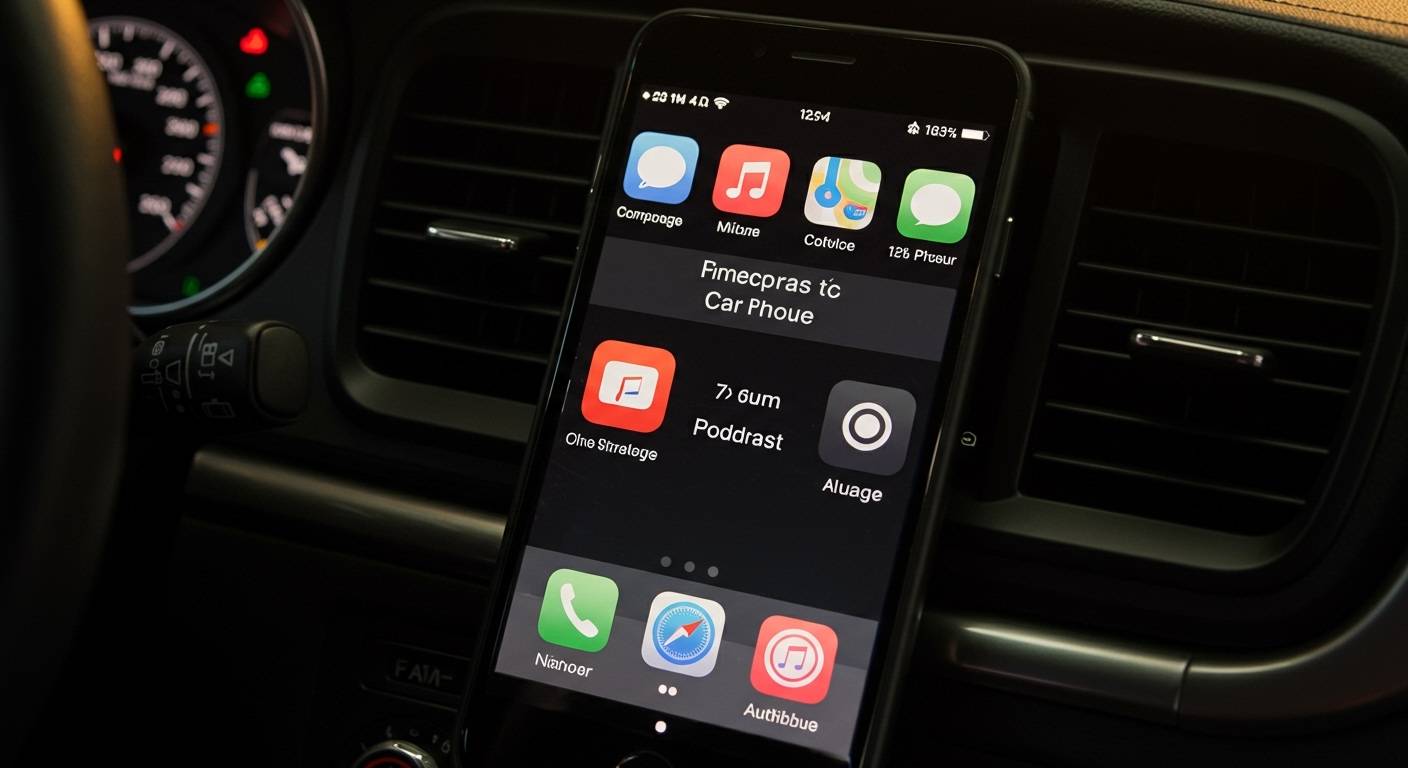
Whether you are driving a brand-new electric vehicle or a reliable 20-year-old sedan, getting your favorite shows to play through your car’s sound system is straightforward. Over the years, I have tested dozens of configurations—from high-end infotainment systems to “hacky” solutions for vintage cars—to ensure crystal-clear audio quality and safety. This guide provides the exact steps I use to optimize my mobile listening experience.
Quick Summary: Best Ways to Connect
- Modern Cars: Use Apple CarPlay or Android Auto for the best interface and safety.
- Most Common: Bluetooth Pairing offers wireless convenience for almost all cars made after 2010.
- Best Audio Quality: A physical USB or AUX connection minimizes data compression.
- Older Vehicles: Use an FM Transmitter or Bluetooth Cassette Adapter.
- Safety First: Always use voice commands (Siri or Google Assistant) to control playback while driving.
The Ultimate Connection Comparison Table
| Method | Best For… | Audio Quality | Ease of Use | Setup Cost |
|---|---|---|---|---|
| Apple CarPlay | iPhone Users | High | Excellent | Built-in |
| Android Auto | Android Users | High | Excellent | Built-in |
| Bluetooth | Wireless Convenience | Medium-High | Good | Free |
| AUX Cable | Reliability/Older Tech | High | Simple | $5 – $10 |
| FM Transmitter | Vintage Cars | Medium-Low | Moderate | $15 – $30 |
| USB Drive | No Smartphone | High | Manual | $10 |
Method 1: Using Apple CarPlay and Android Auto
If your car supports Apple CarPlay or Android Auto, this is the gold standard for how to listen to podcasts through car speakers. These systems mirror your phone’s interface onto the car’s dashboard screen, allowing you to use apps like Spotify, Apple Podcasts, and Pocket Casts safely.
How to Set Up CarPlay or Android Auto
- Check Compatibility: Ensure your smartphone is updated to the latest OS and your car supports the feature.
- Connect via Cable: Plug your phone into the vehicle’s USB data port using a high-quality, certified cable.
- Enable Wireless (Optional): Many newer cars support Wireless CarPlay. Go to your phone’s Bluetooth settings and look for the car’s ID to initiate the handshake.
- Launch the App: Tap the Podcast icon on your car’s touchscreen.
- Voice Control: Use “Hey Siri” or “OK Google” to ask for specific episodes, which keeps your eyes on the road.
Pro Tip from Experience: If you experience frequent disconnects, 90% of the time it is due to a low-quality cable. I always recommend using Anker or official Apple/Samsung cables to handle the data transfer required for these systems.
Method 2: Pairing via Bluetooth Connectivity
Bluetooth is the most universal method for modern drivers. It eliminates wires and allows for automatic syncing the moment you turn on the ignition.
Step-by-Step Bluetooth Pairing
- Enable Discovery: Put your car’s head unit into “Pairing Mode” (usually found under Setup > Bluetooth > Add Device).
- Phone Search: On your smartphone, go to Settings > Bluetooth and ensure it is toggled “On.”
- Select Vehicle: Tap on your car’s name (e.g., “Toyota Multimedia” or “HandsFreeLink”) when it appears on your screen.
- Confirm PIN: Ensure the 4-6 digit code on your phone matches the one on your car’s display.
- Audio Source: On your car’s radio, change the Source or Media input to Bluetooth Audio.
Note on Audio Lag: If you notice a delay between your phone and the speakers, check if your car supports the AAC or aptX codec. In my testing, using the Overcast app’s “Voice Boost” feature helps overcome the slight fidelity loss inherent in standard Bluetooth streaming.
Method 3: The Reliable Auxiliary (AUX) Input
For many years, the 3.5mm AUX jack was the king of car audio. It remains a favorite for audiophiles because it provides a direct, uncompressed analog signal.
How to Connect via AUX
- Locate the Port: Find the small circular hole labeled “AUX” or “Line In” on your dashboard or inside the center console.
- The Cable: Use a 3.5mm male-to-male stereo cable.
- Dongle Requirement: If you have a modern iPhone or Android without a headphone jack, you will need a USB-C to 3.5mm adapter or a Lightning to 3.5mm adapter.
- Input Selection: Press the AUX button on your radio.
- Volume Management: Set your phone’s volume to about 80% and use the car’s volume knob to adjust the rest. This prevents signal clipping and distortion.
Method 4: Solutions for Older Cars (FM Transmitters & Cassette Adapters)
If you drive a classic or an older model that lacks digital inputs, you can still learn how to listen to podcasts through car speakers without replacing the entire head unit.
Using an FM Transmitter
An FM Transmitter plugs into your cigarette lighter (12V port) and broadcasts a tiny radio signal that your car’s antenna picks up.
- Find a Dead Frequency: Look for a frequency on your radio that is only static (e.g., 88.5 FM).
- Match the Device: Set the FM Transmitter to that exact same frequency.
- Pair Phone: Connect your phone to the transmitter via Bluetooth.
- Broadcast: Your podcast will now play over that specific radio station.
Using a Bluetooth Cassette Adapter
If your car has a tape deck, a Bluetooth Cassette Adapter is a brilliant piece of “bridge” technology.
- Insert the cassette into the deck.
- Pair your phone to the cassette via Bluetooth.
- The tape head “reads” the signal from the Bluetooth chip and plays it through the speakers.
Optimizing Your Podcast App for Driving
Simply connecting your phone is only half the battle. To truly master how to listen to podcasts through car speakers, you need to optimize your software settings for the road.
Recommended App Settings
- Silence Removal: Apps like Pocket Casts and Overcast have a feature called “Shorten Silences.” I use this to shave 5-10 minutes off long commutes without making the hosts sound like chipmunks.
- Voice Boost: This normalizes the volume, making quiet guests easier to hear over road noise and wind.
- Auto-Download: Set your favorite shows to auto-download over Wi-Fi so you don’t burn through mobile data or lose audio in “dead zones.”
- Offline Playback: Always ensure you have at least 2-3 episodes cached. In my experience, there is nothing more frustrating than a podcast buffering while you’re stuck in stop-and-go traffic.
Troubleshooting Common Audio Issues
Even the best setups can fail. Here is a guide to fixing common problems when trying to listen to podcasts through car speakers.
Problem: No Sound is Playing
- Check Input: Ensure the car radio is set to BT Audio, AUX, or USB, not just “Radio.”
- Phone Volume: Ensure your phone is not on Silent Mode or that the media volume is turned up.
- App Status: Sometimes the app pauses itself when the connection is made. Press “Play” on the phone or dashboard.
Problem: Audio is Choppy or Stuttering
- Interference: Move your phone closer to the dashboard if using Bluetooth.
- Clear Cache: Restart your podcast app or your phone.
- Firmware Updates: Check if your car’s infotainment system requires a software update from the manufacturer’s website.
Problem: Low Volume
- Phone Limit: Some phones have a “Safety Volume” limit that caps audio. Disable this in your phone’s Sound & Haptics settings.
- Equalizer (EQ): Set your car’s EQ to “Flat” or “Speech” mode to improve clarity.
Frequently Asked Questions (FAQ)
Can I listen to podcasts through my car speakers without Bluetooth?
Yes. You can use an AUX cable, a USB data cable, an FM transmitter, or a cassette adapter. These methods provide excellent alternatives for vehicles that do not have built-in Bluetooth capabilities.
Why is my podcast volume so low in the car?
This is usually caused by the phone’s media volume being set too low. For the best sound quality, turn your phone’s volume to approximately 80-90% and use the car’s physical volume knob to reach your desired listening level. This prevents background “hiss” or static.
Does listening to podcasts in the car use a lot of data?
Streaming a one-hour podcast can use between 50MB and 150MB of data depending on the audio quality. To save data, I highly recommend downloading episodes over Wi-Fi before you leave your house.
Is it legal to use my phone to change podcasts while driving?
In many jurisdictions, touching your phone while driving is illegal. To stay safe and legal, use voice commands (Siri/Google Assistant) or your car’s steering wheel controls to skip tracks or change episodes.
Which podcast app is best for car use?
Apple Podcasts and Spotify are the most integrated. However, Overcast (iOS) and Pocket Casts (Android/iOS) offer superior “Voice Boost” and “Silence Removal” features that are particularly helpful for overcoming cabin noise in older vehicles.









