

Can Computer Speakers Be Used on an Android Phone?
Yes, can computer speakers be used on a android phone? Absolutely. You can connect almost any set of computer speakers to an Android phone or tablet using a 3.5mm headphone jack, a USB-C adapter, or Bluetooth connectivity. Most setups are “plug-and-play,” meaning they require no special software to function.
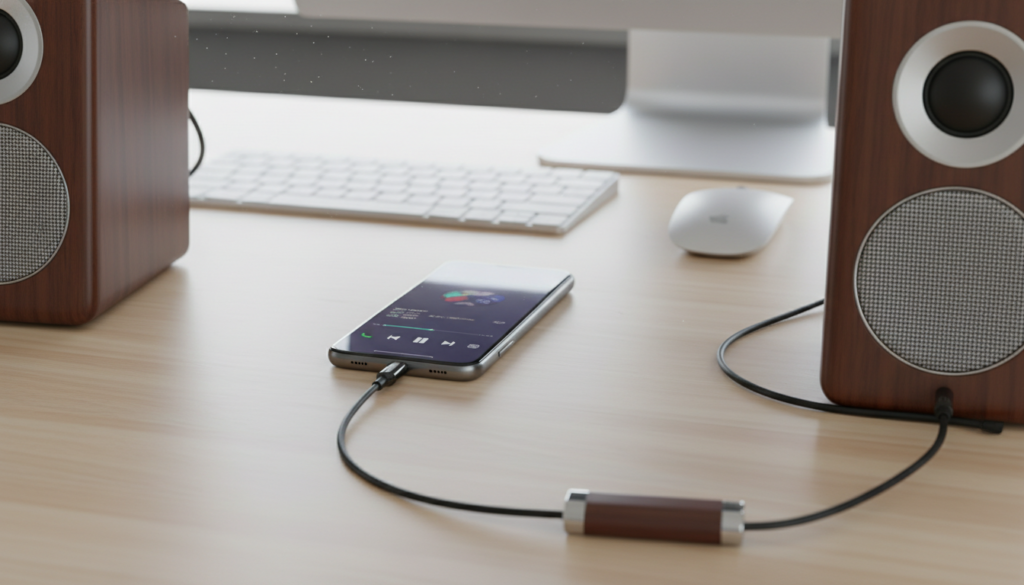
Whether you are looking to boost your audio for a movie marathon or want better sound for mobile gaming, repurposing your PC speakers is a cost-effective solution. Based on my years of testing various audio configurations, the process is straightforward but requires understanding your specific speaker’s power requirements and your phone’s available ports.
Quick Guide: Key Takeaways for Connecting PC Speakers
- 3.5mm Connection: The most common method; requires a USB-C to 3.5mm dongle for modern Android phones.
- Power Source: Most PC speakers are not powered by the phone; they must be plugged into a wall outlet or a USB power bank.
- Bluetooth Adapters: Older wired speakers can be made wireless using a cheap Bluetooth receiver.
- Sound Quality: Using an external DAC (Digital-to-Analog Converter) can significantly improve audio fidelity compared to cheap adapters.
- Compatibility: This process works for both Android phones and Android tablets.
Understanding the Connection: Can I Connect a PC Speakers to My Android Phone?
Many users wonder, “can i connect a pc speakers to my android phone” when their built-in mobile speakers feel thin or quiet. The answer is a resounding yes, but the “how” depends on the era of your hardware.
In the past, every Android phone had a 3.5mm headphone jack. You simply plugged the green speaker cable into the phone, and it worked. Today, most flagship devices from Samsung, Google, and OnePlus have removed this jack in favor of USB-C.
The Three Main Connection Methods
| Method | Best For | Pros | Cons |
|---|---|---|---|
| 3.5mm Aux Cable | Older phones or those with a dongle. | Zero latency, reliable. | Requires a physical wire. |
| USB-C DAC/Dongle | Modern flagship Android phones. | Improved sound quality. | Can drain phone battery slightly. |
| Bluetooth Receiver | Wireless freedom. | No cables to the phone. | Potential for audio lag (latency). |
Step-by-Step: How to Hook Computer Speakers to an Android Phone
If you are asking can you hook computer speakers to an android phone, follow these specific steps to ensure a safe and high-quality connection.
Method 1: Using the 3.5mm Headphone Jack (Legacy Hardware)
- Locate the 3.5mm audio cable (usually green) coming from your computer speakers.
- Plug the cable directly into the headphone port on your Android device.
- Ensure your speakers are plugged into a power outlet and turned on.
- Play a song to test the volume levels.
Method 2: Using a USB-C to 3.5mm Adapter (Modern Hardware)
- Purchase a high-quality USB-C to 3.5mm adapter (often called a dongle).
- Plug the USB-C end into your phone and the speaker’s aux cable into the adapter.
- Android will automatically detect the “Wired Headset” and route audio to the speakers.
- I recommend using an active DAC adapter (like the Google USB-C Headphone Adapter) for better volume overhead.
Method 3: USB-Powered Speakers
Some smaller PC speakers draw power via a USB-A cable rather than a wall plug.
- To use these, you need a USB-OTG (On-The-Go) adapter.
- Connect the speaker’s USB power cable to the OTG adapter.
- Connect the 3.5mm audio jack to the phone’s dongle.
- Note: This can drain your phone battery very quickly. I suggest plugging the USB power into a portable power bank instead of the phone itself.
Can I Connect My PC Speakers to Android Tablet?
A common follow-up question is can i connect my pc speakers to android tablet? The logic remains identical to phones. Android tablets like the Samsung Galaxy Tab or Lenovo Tab series often serve as portable media centers, making them perfect candidates for external speakers.
Why Use PC Speakers with a Tablet?
- Media Consumption: Large tablets provide a great screen, but PC speakers add the “thump” needed for action movies.
- Desktop Mode: If you use Samsung DeX, adding PC speakers completes the desktop-like experience.
Power Requirements: A Critical Factor
When you hook computer speakers to your android phone, you must understand how they are powered. Unlike small earbuds, computer speakers require significant energy to move their drivers.
Active vs. Passive Speakers
- Active Speakers: These have a built-in amplifier and their own power cord. These are the best for Android phones because the phone only has to send a low-power audio signal.
- Passive Speakers: These require an external amplifier. You cannot plug these directly into an Android phone without an intermediate mini-amp.
Powering USB-A Speakers
If your speakers have a USB connector for power, do not assume your phone can power them. Most Android phones output limited current through the USB-C port. If the speakers crackle or the phone shuts off the port, you must use an external USB wall charger to provide power to the speakers while the audio signal comes from the 3.5mm jack.
Improving Sound Quality: Expert Tips for Android Audio
Simply connecting the wires is just the start. To get the most out of your PC speakers on Android, follow these professional optimization tips I’ve gathered from years of audio testing.
Use a Dedicated DAC
The internal audio processing on many mid-range Android phones is mediocre. Using a USB-C DAC (Digital-to-Analog Converter) like the DragonFly Black or the Fiio KA3 will provide a cleaner signal to your speakers, resulting in less “hiss” and deeper bass.
Disable “Absolute Volume”
Sometimes, the phone volume and speaker volume don’t sync properly.
- Go to Settings > About Phone.
- Tap Build Number seven times to enable Developer Options.
- In Developer Options, find and toggle Disable Absolute Volume.
- This allows you to control the phone’s output strength and the speaker’s physical knob independently for better gain staging.
Audio FX and Equalizers
Android has built-in sound enhancers like Dolby Atmos. While great for tiny phone speakers, these can sometimes make high-end PC speakers sound “muddy.” Try turning off these enhancements for a more “flat” and accurate studio sound, or use an app like Wavelet to tune the EQ specifically for your speaker model.
Common Problems and Fixes
If you are struggling with how to hook computer speakers to your android phone, check these common troubleshooting steps:
Issue: The sound is very quiet.
- Fix: Ensure the volume on the phone is set to 100%, then use the physical knob on the computer speakers to adjust. If it’s still quiet, you may need a pre-amp or a better USB-C dongle.
Issue: There is a constant buzzing or humming sound.
- Fix: This is often a ground loop. It happens when your speakers and phone are connected to different power sources that aren’t grounded together. Try running your phone on battery power while the speakers are plugged in, or use a Ground Loop Noise Isolator.
Issue: The phone doesn’t recognize the speakers.
- Fix: If using a dongle, ensure it is Digital (Active) and not Analog (Passive). Most modern phones require a dongle with an internal chip (DAC).
Recommended Gear for Android Audio Setup
To successfully hook computer speakers to your android phone, having the right accessories is vital. Here are my top picks based on durability and sound fidelity:
- Best Budget Dongle: Apple USB-C to 3.5mm Headphone Jack Adapter (surprisingly, it works flawlessly on most Android devices and has a very clean DAC).
- Best Premium DAC: THX Onyx.
- Best Bluetooth Adapter: Logitech Bluetooth Audio Receiver (turns any wired PC speaker into a wireless Android-compatible system).
- Best OTG Cable: Anker USB-C to USB 3.0 Female Adapter.
Frequently Asked Questions
Can you hook computer speakers to an android phone via Bluetooth?
Yes, if your computer speakers don’t have built-in Bluetooth, you can buy a Bluetooth receiver. You plug the speaker’s 3.5mm jack into the receiver, and then pair your Android phone to the receiver wirelessly.
Will using PC speakers damage my Android phone?
No, using active computer speakers (those with their own power supply) is perfectly safe. The phone only sends a low-voltage audio signal. However, avoid trying to power large USB speakers directly from the phone’s battery for long periods, as it may cause overheating or battery strain.
Why does my Android phone say “USB device not supported” when I plug in my speakers?
This usually happens if you are using a passive USB-C to 3.5mm adapter on a phone that requires an active one. Ensure your adapter has a built-in DAC chip. Additionally, some USB-powered speakers might try to draw too much power, causing the phone to reject the connection.
Can I use 2.1 or 5.1 computer speakers with my phone?
Yes, you can use 2.1 systems (two speakers and a subwoofer) easily. 5.1 systems will also work, but since Android outputs stereo (2.0) audio through the jack, you will likely only hear sound from the front two speakers and the subwoofer unless your speaker system has a “Matrix” or “Surround” mode to upmix the signal.
Can I connect my pc speakers to android tablet for gaming?
Absolutely. Connecting PC speakers to a tablet is one of the best ways to improve the mobile gaming experience. It provides better directional audio than internal speakers, which is crucial for competitive games.
Final Verdict: Should You Use Computer Speakers with Android?
In my experience, repurposing computer speakers for an Android phone is a brilliant “tech hack.” It saves you from buying an expensive Bluetooth speaker and usually results in much higher audio quality, especially if you already own a decent set of Logitech, Creative, or Klipsch PC speakers.
As long as you have the correct USB-C dongle and a way to power the speakers, you can transform your mobile device into a powerful media station in seconds.









