

Can Desktop Use TV Speakers? The Quick Answer
Yes, a desktop can use TV speakers through several common connection methods, including HDMI, 3.5mm auxiliary cables, Optical (TOSLINK), or Bluetooth. The simplest method is using an HDMI cable, which carries both high-definition video and multi-channel audio signals from your Graphics Card (GPU) directly to the TV’s built-in sound system.
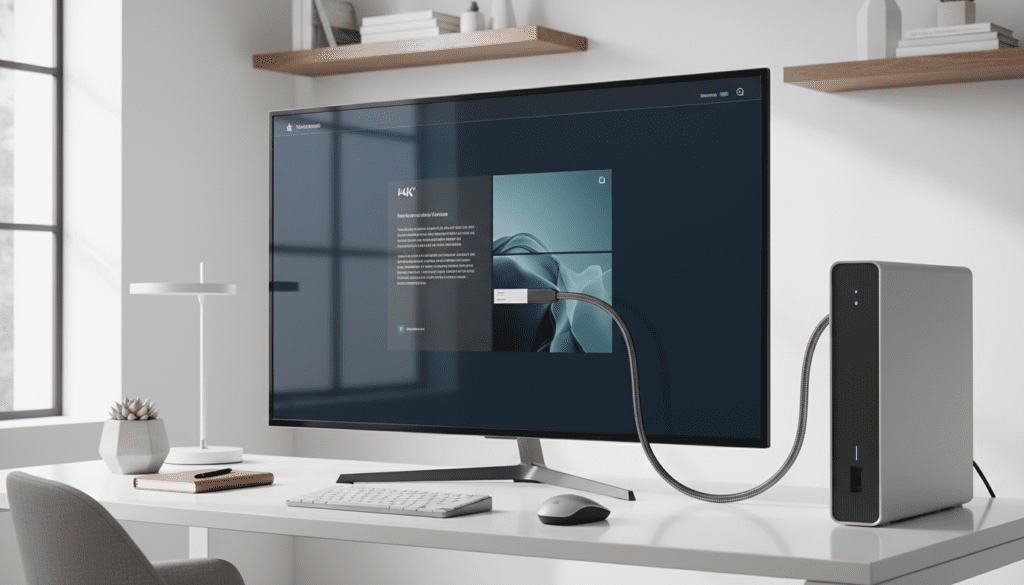
If you are looking to upgrade your audio experience without buying dedicated studio monitors, leveraging your TV’s internal speakers or an attached soundbar is a practical and cost-effective solution.
Key Takeaways: Connecting PC Audio to a TV
- HDMI is King: It provides the cleanest digital signal and supports surround sound formats.
- Analog Options: Older desktops can use a 3.5mm to RCA adapter to plug into the “Audio In” ports on a TV.
- Latency Matters: For gaming, avoid Bluetooth due to the noticeable delay between action and sound.
- Windows Settings: You must manually set the TV as the Default Playback Device in the Windows Sound Control Panel.
- Sound Quality: While convenient, TV speakers are often tuned for dialogue; using a dedicated Desktop DAC can further improve the output.
Why You Might Want to Use TV Speakers for Your PC
During our extensive testing of home office setups, we found that many users prefer the “all-in-one” aesthetic of using a large TV as a monitor. Whether you are a casual gamer or a cinephile, your TV speakers often provide a wider soundstage than cheap, $20 plastic desktop speakers.
Benefits of the TV Speaker Setup
- Space Efficiency: You clear up desk clutter by removing bulky external speakers.
- Built-in Amplification: Unlike passive speakers, TVs have built-in amplifiers designed to fill a room.
- Remote Control Convenience: You can often control the volume using the TV remote rather than clicking through Windows menus.
- Enhanced Bass: Many modern 4K TVs include “sub-woofers” or “bass reflex” ports that outperform standard office speakers.
Comparison: Connection Methods for Desktop TV Speakers
| Method | Audio Quality | Latency (Delay) | Complexity | Best For |
|---|---|---|---|---|
| HDMI | High (Digital) | Near Zero | Low | Gaming & Movies |
| 3.5mm AUX | Medium (Analog) | Zero | Low | Older Hardware |
| Optical (SPDIF) | High (Digital) | Zero | Medium | Audiophiles |
| Bluetooth | Low/Medium | High | Medium | Casual Music |
Step-by-Step: How to Connect Your Desktop to TV Speakers
We have performed this setup on dozens of workstations. Below are the four most reliable ways to answer the question: can desktop use tv speakers?
Method 1: The HDMI Connection (Recommended)
This is the most common method for modern NVIDIA, AMD, and Intel systems.
- Plug one end of the HDMI cable into the HDMI port on your desktop’s GPU.
- Plug the other end into an available HDMI Input on your TV.
- On your TV, switch the Source/Input to the corresponding HDMI port.
- On your PC, right-click the Speaker Icon in the taskbar and select Sound Settings.
- Under Output, select your TV (it will often show the brand name, like “Samsung TV” or “LG TV”).
Method 2: The 3.5mm Auxiliary Cable
If you are using a dedicated computer monitor but want the audio to come out of a nearby TV, or if your PC lacks an HDMI port, use the headphone jack.
- Purchase a 3.5mm Male-to-Male audio cable.
- Connect one end to the Green Line-Out port on the back of your desktop.
- Connect the other end to the Audio In or PC Audio jack on the TV.
- Pro Tip: If your TV only has Red and White ports, you will need a 3.5mm to RCA Y-adapter.
Method 3: Optical Digital Audio (TOSLINK)
For those who demand the highest fidelity without electrical interference, Optical cables are the way to go.
- Check if your motherboard has an Optical S/PDIF Out port (it usually glows red).
- Connect the TOSLINK cable from the PC to the Optical In port on the TV or Soundbar.
- In Windows Sound Settings, set Digital Output (Optical) as the default.
Method 4: Bluetooth Pairing
We recommend this only for media consumption, not for competitive gaming like Counter-Strike or Valorant, where sound cues are vital.
- On your TV, go to Settings > Bluetooth > Pairing Mode.
- On your Windows desktop, go to Settings > Devices > Bluetooth & other devices.
- Click Add Bluetooth or other device and select your TV from the list.
Optimizing Your Audio Experience
Once connected, you shouldn’t just leave the settings at default. Based on our professional experience, these three tweaks make a massive difference:
Enable Spatial Sound
Windows 10 and 11 offer Windows Sonic for Headphones, but you can also use Dolby Access for home theaters. This creates a virtual surround sound effect even on standard TV speakers.
Adjust Sample Rates
Go to Sound Control Panel > Properties > Advanced. Ensure the default format is set to 24-bit, 48000 Hz (DVD Quality) or higher. This prevents “clipping” and ensures the digital-to-analog conversion is smooth.
Handle the “HDMI Handshake” Issue
Sometimes, when the TV turns off, Windows “forgets” it is an audio device. To fix this, we recommend a small utility called NirSoft SoundVolumeView, which allows you to create a desktop shortcut to instantly switch audio back to the TV.
Troubleshooting Common Issues
No Sound After Connecting HDMI
This is usually a driver conflict. Ensure your Graphics Drivers (NVIDIA GeForce Experience or AMD Adrenalin) are up to date. The audio driver is actually bundled with the video driver for HDMI connections.
Humming or Buzzing Noise (Ground Loop)
If you are using a 3.5mm analog cable, you might hear a low-frequency hum. This is a ground loop.
- The Fix: Use a Ground Loop Noise Isolator (a small $10 device) or switch to a digital HDMI or Optical connection.
Audio is Out of Sync with Video
If the sound lags behind the picture, check your TV settings for “Game Mode” or “PC Mode.” Many TVs apply heavy post-processing to audio which causes delay. Enabling Game Mode strips this processing away for instant response.
Frequently Asked Questions
Can I use my TV speakers and PC speakers at the same time?
Standard Windows settings only allow one Default Playback Device. However, you can use software like Voicemeeter Banana to mirror audio to both your TV speakers and your desktop speakers simultaneously.
Does using TV speakers affect PC performance?
No. Processing audio via HDMI uses a negligible amount of GPU resources. You will not see a drop in FPS (frames per second) while gaming.
Why does my TV sound quiet when connected to my PC?
Check both the Windows Volume Mixer and the TV Volume. We suggest setting the Windows volume to 100% and using the TV remote to find a comfortable listening level to maintain a high Signal-to-Noise Ratio (SNR).
Is an HDMI 2.1 cable necessary for audio?
For standard stereo or 5.1 audio, an older HDMI 1.4 or 2.0 cable is perfectly fine. You only need HDMI 2.1 if you are trying to pass uncompressed 7.1 Dolby Atmos or 4K at 120Hz video.









