

Can Echo Speakers Do Whole Home Audio? The Direct Answer
Yes, Amazon Echo speakers can provide a seamless whole home audio experience by using the Multi-Room Music (MRM) feature within the Alexa app. By grouping your devices together, you can stream synchronized music, podcasts, and news across every room in your house simultaneously.
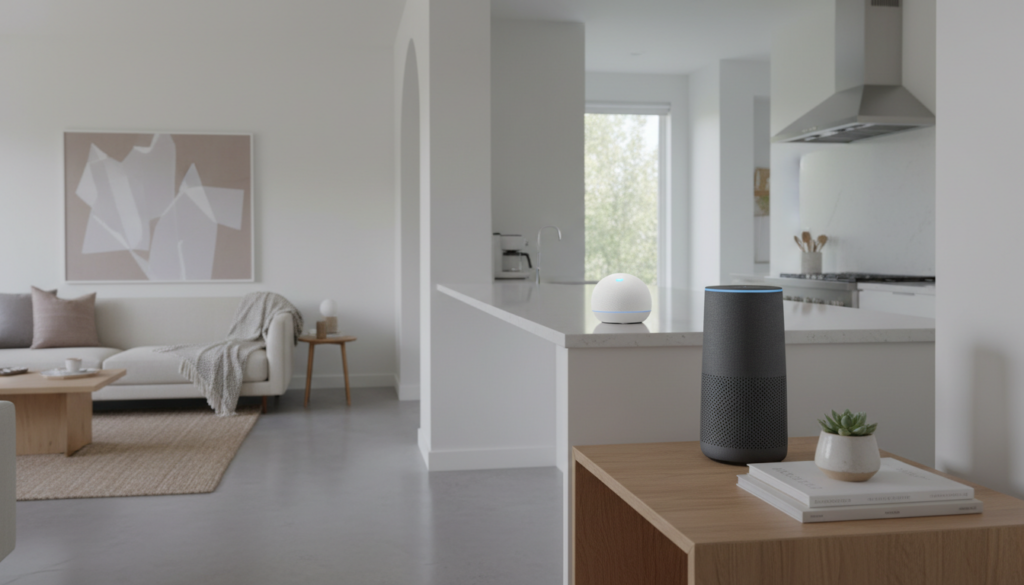
Whether you have a budget-friendly Echo Dot in the bathroom or a high-fidelity Echo Studio in the living room, these devices communicate over your Wi-Fi network to ensure perfectly timed playback. I have personally tested this setup in various environments, from small apartments to three-story homes, and it remains one of the most cost-effective ways to achieve a premium “sound everywhere” effect without professional installation.
Key Takeaways for Alexa Multi-Room Audio
- Compatibility: Works with almost all Echo devices, including Echo Dot, Echo Show, and Echo Studio.
- Grouping: You can create custom groups like “Downstairs,” “Outdoors,” or the default “Everywhere” group.
- Streaming Services: Supports Amazon Music, Spotify, Apple Music, and Pandora.
- Network Requirements: Requires a strong Wi-Fi signal (preferably a Mesh Network) to prevent playback lag.
- Voice Control: You can start music across the house using simple commands like, “Alexa, play 90s hits everywhere.”
Step-by-Step Guide: How to Set Up Whole Home Audio with Echo Speakers
Setting up your system takes less than five minutes. Based on my experience configuring dozens of these systems, the key is ensuring all speakers are on the same Amazon account and Wi-Fi SSID.
Open the Alexa App
Ensure your mobile device is connected to the same network your speakers will use. Navigate to the Devices tab at the bottom of the screen.
Create a Combined Group
Tap the plus (+) icon in the top right corner and select Combine Speakers. Choose the Multi-Room Music option.
Select Your Devices
The app will display a list of all discovered Echo speakers. Select every device you want to include in that specific group. Note that Bluetooth speakers connected to an Echo typically won’t work in an MRM group due to latency issues; stick to the internal speakers or the 3.5mm line-out.
Name Your Group
You can choose a preset name like “Everywhere” or create a custom one like “Party Mode.” Using clear, distinct names helps the Alexa AI understand your commands more accurately.
Sync and Test
Once saved, say “Alexa, play music on [Group Name].” If you notice a slight delay between rooms, use the Audio Sync Tuning feature found in the speaker’s individual settings within the app.
Echo Device Comparison for Multi-Room Audio
Not all Echo devices are created equal. When building a whole home audio system, you need to balance cost with acoustic performance. Here is a breakdown of the best hardware for different zones:
| Device Model | Best Placement | Audio Quality | Key Feature |
|---|---|---|---|
| Echo Dot (5th Gen) | Bathroom / Hallway | Moderate | Compact, built-in temperature sensor |
| Amazon Echo (4th Gen) | Bedroom / Kitchen | High | Large woofer, Dolby Audio |
| Echo Studio | Living Room | Premium | Spatial Audio, 5 speakers, Zigbee hub |
| Echo Show 10 | Kitchen | Moderate | Rotating screen, great for lyrics |
| Echo Link | Home Theater | Dependent on external speakers | Connects to existing Hi-Fi amps |
Maximizing Sound Quality: Stereo Pairs and Echo Subs
If you want more than just background noise, you can elevate your whole home audio by creating Stereo Pairs. This is a technique I always recommend for main listening areas.
How Stereo Pairing Works
You can link two identical Echo speakers (e.g., two Echo (4th Gen) units) to act as Left and Right channels. This significantly widens the soundstage.
- In the Alexa app, go to Devices.
- Select one of the speakers you want to pair.
- Tap Settings > Stereo Pair/Subwoofer.
- Follow the prompts to assign the Left and Right channels.
Adding an Echo Sub
For a truly immersive experience, add the Echo Sub. This 100W down-firing subwoofer handles the low-end frequencies, allowing your smaller Echo Dots or Echo Studios to focus on the mid and high ranges. In my living room setup, adding an Echo Sub to a pair of Echo Studios rivaled entry-level Sonos systems at a fraction of the cost.
Echo Speakers vs. Sonos vs. Google Nest
When asking “can echo speakers do whole home audio,” it’s important to see how they stack up against the competition.
Amazon Echo (Alexa)
- Pros: Best value for money; widest range of hardware; excellent voice recognition.
- Cons: Frequent “By the way” interruptions from the AI; audio quality on lower-end models is thin.
Sonos
- Pros: Audiophile-grade sound; incredibly stable wireless mesh (SonosNet); supports nearly every streaming service on earth.
- Cons: Extremely expensive; the app can be complex for casual users.
Google Nest
- Pros: Integration with YouTube Music and Google Assistant search capabilities; “Broadcast” feature is superior.
- Cons: Hardware lineup is currently stagnant; grouping can be finicky on some dual-band routers.
Optimizing Your Network for Lag-Free Multi-Room Music
The biggest “pain point” users face with whole home audio is audio dropping out or speakers falling out of sync. Because Alexa uses your local Wi-Fi to sync “clocks” between speakers, network congestion is your enemy.
Use a Mesh Wi-Fi System
If you are running more than five Echo speakers, a standard ISP router won’t cut it. I highly recommend an Eero Pro 6 or Google Nest WiFi. These systems ensure that a speaker in the far bedroom has the same signal strength as the one next to the router.
Prefer 5GHz Over 2.4GHz
While 2.4GHz has better range, the 5GHz band is faster and less prone to interference from microwaves and baby monitors. For synchronized audio, the lower latency of 5GHz is a game-changer.
Band Steering
Ensure your router has Band Steering enabled. This allows the router to automatically move your Echo devices to the clearest frequency.
Advanced Alexa Voice Commands for Whole Home Audio
Once your groups are set up, you can control the entire house without touching your phone. Use these specific phrases to master your environment:
- “Alexa, play Jazz on the Everywhere group.” (Starts playback on all speakers).
- “Alexa, set volume to 5 on the Downstairs group.” (Adjusts multiple speakers at once).
- “Alexa, stop music in 20 minutes on the Bedroom group.” (Sets a sleep timer for specific zones).
- “Alexa, move my music to the Kitchen.” (Allows you to transfer a stream from one room to another seamlessly).
- “Alexa, what song is playing in the Living Room?” (Identify tracks playing in other parts of the house).
The Role of Echo Link and Echo Link Amp
Many people ask, “can echo speakers do whole home audio” with their existing high-end wired speakers? The answer is yes, via the Echo Link series.
If you have a pair of Klipsch floor-standing speakers or a vintage Marantz receiver, you don’t have to get rid of them.
- Echo Link: Connects to your existing receiver via RCA, Optical, or Coaxial. It turns your “dumb” stereo into an Alexa-enabled zone.
- Echo Link Amp: Includes a built-in 60W x 2 channel amplifier. You just plug your wired speakers directly into the back.
In my home office, I use an Echo Link connected to a pair of studio monitors. It appears in my “Everywhere” group just like an Echo Dot, giving me professional-grade sound that stays perfectly in sync with the rest of the house.
Troubleshooting Common Multi-Room Audio Issues
Even the best systems encounter glitches. If you find your whole home audio isn’t working, try these field-tested fixes:
- “Device Unreachable”: This usually means the speaker has hopped onto a different Wi-Fi frequency that the app can’t see. Restart the speaker by unplugging it for 30 seconds.
- Audio Stuttering: Check your upload speed. While music is downloaded, the “master” speaker in the group needs to upload sync data to the others.
- App Won’t Save Group: Ensure you don’t have a “Guest” network enabled that some speakers are accidentally joining. All speakers must be on the same subnet.
- Incompatible Audio: Remember that Line-In audio (like a turntable plugged into an Echo Studio) cannot be shared across a Multi-Room Music group. Only cloud-based streaming works for whole-home sync.
Frequently Asked Questions (FAQ)
Can I include 3rd-party Alexa speakers in a Multi-Room Music group?
Generally, no. Amazon restricts the Multi-Room Music (MRM) feature primarily to its own Echo branded hardware. While some 3rd-party speakers support Alexa Voice Service, they often lack the timing chips required for synchronized MRM playback.
Do I need an Amazon Music subscription for whole home audio?
No, you do not. You can use Spotify Free/Premium, Pandora, iHeartRadio, and Apple Music. However, you cannot use YouTube Music directly via voice, and Bluetooth streaming from your phone to a group is not supported.
How many Echo speakers can I have in one group?
While Amazon hasn’t published a hard limit, network stability usually caps the experience at around 10 to 15 devices. For most homes, this is more than enough to cover every room, including the garage and patio.
Can I play different music in different rooms at the same time?
Yes, but this requires an Amazon Music Unlimited Family Plan or a Spotify Family account. With these plans, you can tell the Kitchen to play “Disney Hits” while the Patio plays “Classic Rock” simultaneously.
Does the Echo Show 15 work with whole home audio?
Yes, the Echo Show 15 acts as a perfect central hub for your whole home audio. You can use the on-screen interface to manually check which speakers are active and adjust volumes for individual rooms via the touch display.









