

Can Electric Guitar Be Played Through Computer Speakers?
Yes, an electric guitar can be played through computer speakers, but you cannot simply plug the guitar cable directly into your computer’s microphone jack. To achieve a usable sound and protect your hardware, you must use an Audio Interface and Amp Simulation Software. This setup converts your guitar’s analog signal into a digital format that your computer can process and output through your speakers without lag or distortion.
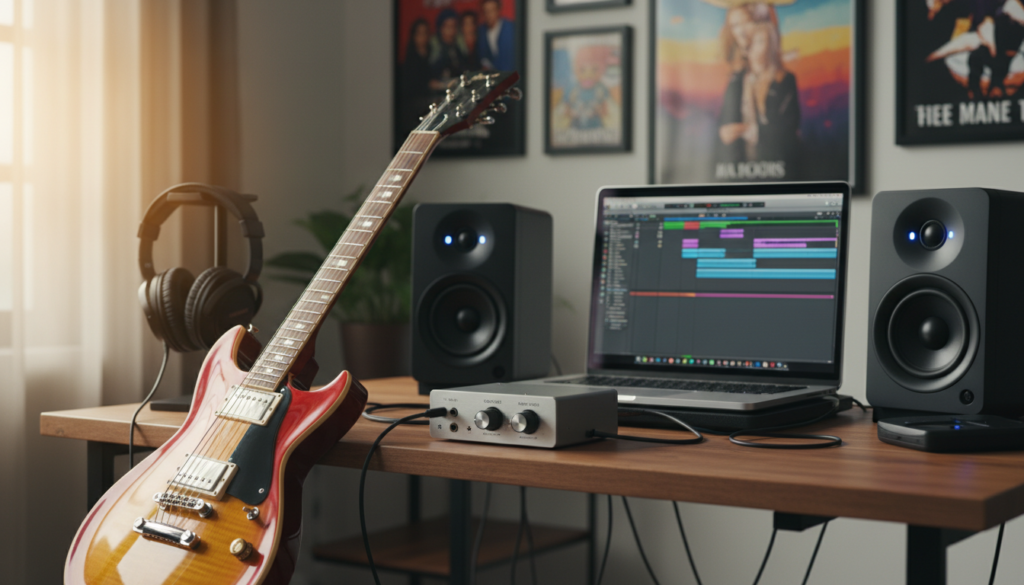
Key Takeaways for Quick Setup
- Essential Gear: You need an Audio Interface (like a Focusrite Scarlett), a 1/4″ instrument cable, and a pair of powered computer speakers or headphones.
- The “Software” Bridge: To get a “real” guitar sound, you must use Amp Simulators (VSTs) like Neural DSP, AmpliTube, or Guitar Rig.
- Latency is the Enemy: Always install ASIO drivers (on Windows) to prevent the delay between hitting a string and hearing the sound.
- Avoid Adapters: Using a 1/4″ to 3.5mm adapter directly into a PC’s mic port usually results in terrible sound quality, high noise, and potential hardware damage.
Understanding the Signal Path: How It Works
When I first started recording at home, I thought I could just buy a cheap adapter and plug my Fender Stratocaster into the “Line In” port on my motherboard. The result was a muddy, quiet mess that sounded nothing like a guitar.
The reason can electric guitar be played through computer speakers is a “yes” with conditions is due to impedance. A guitar produces a high-impedance (Hi-Z) signal, while a computer’s standard audio jack expects a low-impedance signal.
An Audio Interface acts as the translator. It takes that raw electricity from your pickups, boosts it with a preamp, and turns it into data. From there, your computer speakers—which are “active” (meaning they have their own built-in amplifiers)—reproduce the processed signal.
Why You Shouldn’t Plug Directly Into Your Sound Card
While you can technically find a way to plug in directly, we strongly advise against it for several professional reasons:
- Impedance Mismatch: As mentioned, your guitar signal is weak. Without a dedicated preamp in an interface, the sound will be thin and lifeless.
- Latency Issues: Standard Windows or Mac sound drivers aren’t built for real-time instrument monitoring. You will experience a “delay” that makes playing in time impossible.
- Risk of Damage: Computer mic ports are designed for tiny voltages. The output of some high-output guitar pickups can technically “clip” or strain consumer-grade sound cards.
- Static and Noise: Internal computer sound cards are surrounded by electronic interference from the CPU and GPU. This creates a constant “hum” or “hiss” in your speakers.
Required Hardware for Your Guitar-to-PC Setup
To get a professional-grade sound, you need to invest in a few specific pieces of gear. We have tested dozens of configurations, and the following list represents the industry standard for home setups.
The Audio Interface
This is the most critical component. It replaces your computer’s internal sound card.
- Top Recommendation: Focusrite Scarlett 2i2 or PreSonus AudioBox.
- Budget Option: Behringer U-Phoria UM2.
- Why: These devices have a dedicated “Inst” (Instrument) button that matches the impedance of your guitar.
High-Quality Cables
Don’t use the cheap cable that came in a “starter pack.” A shielded Mogami or Ernie Ball cable will significantly reduce the radio frequency interference coming through your speakers.
Powered Computer Speakers
Your speakers must be “Active.” This means they plug into a wall outlet for power. Most desktop speakers (like Logitech or Bose) are active, but for the best guitar tone, we recommend Studio Monitors like the PreSonus Eris 3.5.
Step-by-Step Guide: Setting Up Your Guitar with Computer Speakers
If you are wondering exactly how can you have a guitar play through computer speakers, follow these steps in order.
Step 1: Connect the Audio Interface
Connect your interface to your computer via USB. On Windows, you must go to the manufacturer’s website and download the ASIO Drivers. Without these drivers, your computer won’t be able to process the audio fast enough for real-time playing.
Step 2: Plug in Your Guitar
Insert your 1/4″ instrument cable into the “Input 1” jack of the interface. Ensure the “Inst” or “Hi-Z” button is engaged. Turn the “Gain” knob up until the light flashes green when you strum hard, but stays away from red (clipping).
Step 3: Connect the Speakers
You have two ways to do this:
- Method A (Preferred): Connect your speakers directly to the “Monitor Outs” on the back of the interface using RCA or TRS cables.
- Method B (Workaround): If your speakers only have a 3.5mm jack, use a “Y-cable” (2x 1/4″ to 1/8″ female) to connect them to the interface’s headphone output.
Step 4: Open Your Software
You need a DAW (Digital Audio Workstation) like Ableton Live, Reaper, or GarageBand. Within the software settings, select your Audio Interface as the “Input” and “Output” device.
Step 5: Load an Amp Simulator
A raw guitar signal sounds “plinky” and thin. You need an Amp Sim to make it sound like a Marshall or a Fender amp.
- Free Options: Neural Amp Modeler (NAM) or AmpliTube Custom Shop.
- Paid Options: Neural DSP Archetype series for high-end boutique tones.
Comparing Audio Setup Options
The following table summarizes the different ways you can route your guitar through computer speakers and the expected quality of each.
| Setup Method | Quality Level | Cost | Latency (Delay) | Pros/Cons |
|---|---|---|---|---|
| Interface + Studio Monitors | Professional | $200 – $500 | Near Zero | Best tone; accurate for recording. |
| Interface + Desktop Speakers | Good | $100 – $200 | Near Zero | Great for practice; convenient. |
| 1/4″ to 3.5mm Adapter | Poor | $5 – $10 | Very High | Lots of noise; potential for lag. |
| Multi-FX Pedal via USB | Great | $150 – $400 | Low | Portable; built-in effects. |
Optimizing Your Tone and Reducing Latency
Even with the right gear, your experience of can electric guitar be played through computer speakers depends on your software settings.
Buffer Size: This is the most important setting in your DAW.
- A lower buffer size (64 or 128 samples) reduces delay but puts more stress on your CPU.
- A higher buffer size (512+ samples) is better for mixing but will make your guitar feel “slow” when playing.
- Expert Tip: I always set my buffer to 128 samples when playing live. It’s the “sweet spot” where my ears can’t detect any delay.
Sample Rate: Set this to 44.1 kHz or 48 kHz. Going higher (like 96 kHz) won’t necessarily make your practice session sound better and will only tax your computer’s processor.
Safety and Speaker Longevity
Can you blow your computer speakers with an electric guitar? Yes, if you aren’t careful.
Guitar signals have high “transients” (loud peaks). Unlike a recorded song on Spotify that is compressed and leveled, a live guitar can jump in volume suddenly. Always start with your Interface Master Volume at zero and slowly turn it up. If you hear your computer speakers “farting” or distorting on low notes, you are pushing them too hard.
Frequently Asked Questions
Can I play guitar through my laptop speakers?
Yes, follow the same steps using an audio interface. However, laptop speakers are very small and won’t produce the low-end frequencies of a guitar amp. It is always better to use external speakers or headphones.
Do I need an amp if I use an audio interface?
No. The Amp Simulator software acts as your amplifier. It simulates the tubes, speakers, and microphones of a traditional rig. This allows you to play through your computer speakers without needing a bulky physical amp.
Why is there a delay when I play my guitar through my PC?
This is caused by Latency. Your computer takes time to convert the analog signal to digital, process it through your software, and send it back to the speakers. Using a dedicated Audio Interface with ASIO drivers is the only way to reduce this delay to an unnoticeable level.
Can I use a guitar pedal with my computer setup?
Yes! You can plug your guitar into your pedals, and then plug the output of the final pedal into the Audio Interface. Just be careful with the gain levels to ensure the signal doesn’t “clip” the interface input.









