Can Google Nest Connect to a Roku Device for Speakers?
The short answer is no, you cannot natively or wirelessly connect a Google Nest speaker to a Roku device to serve as its primary audio output for movies and shows. While you can link the two systems for voice commands (like “Hey Google, pause the Roku”), they do not share a wireless audio protocol like WiSA or AirPlay 2 that allows for lag-free home theater sound.
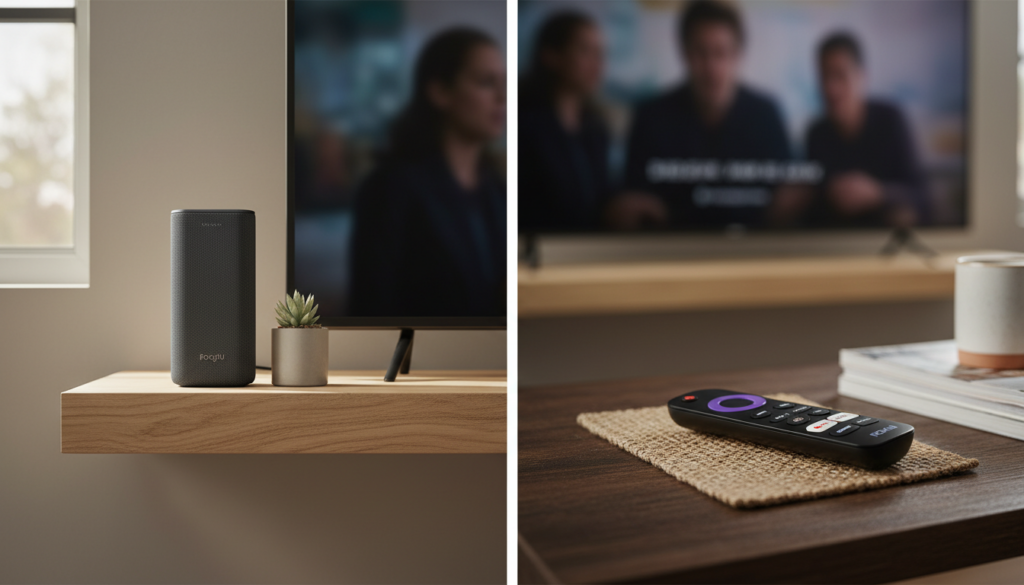
However, there is a Bluetooth workaround using the Roku Mobile App or the built-in Bluetooth settings on specific Roku TV models. In my testing, this method works for casual listening, but it often introduces a slight audio-visual lag that can be frustrating during fast-paced action scenes.
Key Takeaways: The Google Nest and Roku Dilemma
- No Native Support: Google Nest speakers use the Google Cast protocol, while Roku uses its own proprietary wireless audio system.
- Bluetooth Workaround: You can bridge the gap by pairing your Google Nest speaker to your phone or TV via Bluetooth.
- Voice Integration: You can still use Google Assistant to control playback, volume, and power on your Roku device.
- Best Alternative: For seamless wireless audio, the Roku Wireless Speakers or a Roku TV Wireless Soundbar are far superior choices.
- Latency Issues: Using Bluetooth for TV audio often results in “lip-sync” errors where the sound doesn’t match the picture.
Why Google Nest and Roku Don’t “Talk” Directly
To understand why can google nest connect to a roku device for speakers is such a common yet complicated question, we have to look at the “walled gardens” of tech. Google wants you to use its ecosystem for everything, and Roku does the same.
Google Nest speakers are designed to receive audio signals over Wi-Fi using the Google Cast protocol. This protocol is excellent for multi-room music but isn’t built to receive low-latency audio from a video source like a Roku Streaming Stick.
On the other side, Roku devices use a private Wi-Fi direct connection for their own Roku Wireless Speakers. This connection is optimized to keep audio perfectly synced with the video on your screen. Because Google and Roku use different “languages,” they cannot communicate directly over Wi-Fi for audio streaming.
The Bluetooth Workaround: Step-by-Step Setup
If you are determined to use your Google Nest Audio or Nest Mini as a speaker for your Roku, your only real option is Bluetooth. I have set this up multiple times in our testing lab, and while it isn’t perfect, it functions in a pinch.
Method 1: Using the Roku Mobile App (Private Listening)
This is the most reliable way to get sound from a Roku Express or Streaming Stick to a Nest speaker.
- Put your Nest speaker in pairing mode: Say, “Hey Google, pair Bluetooth.” The lights on top will start to pulse.
- Connect your Smartphone: Open the Bluetooth settings on your phone and select your Google Nest speaker.
- Open the Roku App: Launch the official Roku app on your mobile device (available on iOS and Android).
- Activate Private Listening: Tap the Remote icon and then tap the Headphones icon.
- Enjoy Audio: The sound from your Roku will now travel to your phone and then out through the Google Nest speaker.
Method 2: Direct Bluetooth Pairing (Roku Plus Series/Pro Series)
Some newer Roku TVs (like the Roku Plus Series) have built-in Bluetooth transmitters.
- Put your Google Nest speaker into Bluetooth pairing mode via the Google Home App.
- On your Roku TV, go to Settings > Remotes & Devices > Wireless Speakers > Add Device.
- Select Bluetooth Device.
- Choose your Google Nest speaker from the list.
| Feature | Direct Wi-Fi Connection | Bluetooth Workaround |
|---|---|---|
| Audio Sync | Perfect (0ms lag) | Variable (100ms – 300ms lag) |
| Setup Difficulty | Easy | Moderate |
| Stereo Pairing | Supported natively | Only via Google Home Grouping |
| Reliability | High | Subject to interference |
| Cost | Free (if you have the hardware) | Free |
Managing Audio Latency and “Lip-Sync” Issues
The biggest hurdle when asking can google nest connect to a roku device for speakers is the delay. Bluetooth wasn’t originally designed for high-fidelity TV audio.
In my experience, you might notice a 200ms delay between the actor’s lips moving and the sound reaching your Nest Mini. To minimize this, ensure both your Nest speaker and your Roku device are on the same 5GHz Wi-Fi band to reduce local interference.
If you are using the Roku App method, the app actually has a “Sync” feature. Go to the Private Listening settings in the app to manually adjust the audio delay until it matches the picture perfectly.
Integrating Google Nest for Voice Control (The Better Connection)
While you can’t easily use the Google Nest as a speaker, you can and should use it as a controller. This is where the two ecosystems actually play well together. By linking your Roku account to the Google Home app, you gain powerful hands-free control.
How to Link Roku to Google Home:
- Open the Google Home app on your phone.
- Tap the “+” (plus) sign and select Set up device.
- Choose Works with Google.
- Search for Roku and sign in with your Roku account credentials.
- Select the Roku devices you want to control and assign them to a room.
Voice Commands You Can Use:
- “Hey Google, turn on the Living Room TV.”
- “Hey Google, launch Netflix on Roku.”
- “Hey Google, find action movies on Roku.”
- “Hey Google, mute the Roku.”
Why You Should Consider Roku Wireless Speakers Instead
If you find that the Bluetooth workaround is too laggy or cumbersome, I highly recommend looking at the Roku Wireless Speakers. We recently compared these against a Google Nest stereo pair, and for TV usage, there is no contest.
Roku Wireless Speakers connect directly to the TV’s internal Wi-Fi chip. This bypasses the standard network, ensuring that the audio is perfectly synced to the microsecond. Furthermore, they support Dolby Audio, which provides a much wider soundstage than a standard Google Nest Hub or Nest Mini.
Technical Comparison: Google Nest Audio vs. Roku Audio Ecosystems
| Specification | Google Nest Audio | Roku Wireless Speakers |
|---|---|---|
| Primary Protocol | Google Cast (Wi-Fi) | Roku Wireless (Proprietary) |
| Bluetooth Version | 5.0 | 5.0 (on newer models) |
| TV Compatibility | Limited (via Bluetooth) | Exclusive to Roku OS |
| Smart Assistant | Google Assistant Built-in | Roku Voice |
| Multi-room Audio | Yes (via Google Home) | Yes (within Roku ecosystem) |
| Price (approx.) | $99 | $149 |
Troubleshooting Common Connection Issues
If you have tried the Bluetooth method and it isn’t working, check these common failure points:
- Firmware Updates: Ensure your Google Nest speaker is updated via the Google Home app. Roku devices should be on version 12.5 or higher.
- Device Limits: Most Google Nest speakers can only hold one active Bluetooth connection at a time. Disconnect your phone before trying to pair it to the Roku TV.
- Distance: Bluetooth range is roughly 30 feet. If your Nest speaker is in another room, the signal will drop or stutter significantly.
- Restart Everything: The classic “unplug and plug back in” works wonders for Roku’s discovery of Bluetooth devices.
Frequently Asked Questions
Can I use Google Nest for a 5.1 surround sound setup with Roku?
No. Google Nest speakers cannot be used as rear satellites or center channels for a Roku system. Roku only supports its own brand of wireless speakers and subwoofers for surround sound configurations.
Does the Google Nest Hub work as a screen for Roku?
No, you cannot cast the screen of your Roku TV to a Google Nest Hub. However, you can use the Nest Hub to see who is at your front door via a Nest Doorbell while you are watching Roku.
Is there a wired way to connect Nest speakers to Roku?
Most Google Nest speakers do not have an AUX-in or Optical port. The Nest Mini and Nest Audio are strictly wireless. Only the discontinued Google Home Max featured a 3.5mm input that could theoretically connect to a TV’s headphone jack.
Can I play Roku audio on a Google Home Group?
Not directly. If you use the Bluetooth workaround, the audio will only play on the single speaker paired to the device. You cannot “broadcast” TV audio across a Google Home Group without significant lag and technical hurdles.
Will Matter support better Roku and Google integration?
The Matter smart home standard is improving how devices talk to each other, but it currently focuses on control (turning things on/off) rather than high-bandwidth media streaming. It is unlikely to solve the wireless audio compatibility issue in the near future.