

Can Google Speakers Do Voice Chat with Each Other? The Direct Answer
Yes, Google speakers can do voice chat with each other using the Google Meet (formerly Duo) integration and the Broadcast feature. By enabling “Personal Results” and linking your Google Account, you can initiate high-quality voice calls between specific devices in your home or use the speakers as a real-time Intercom system.
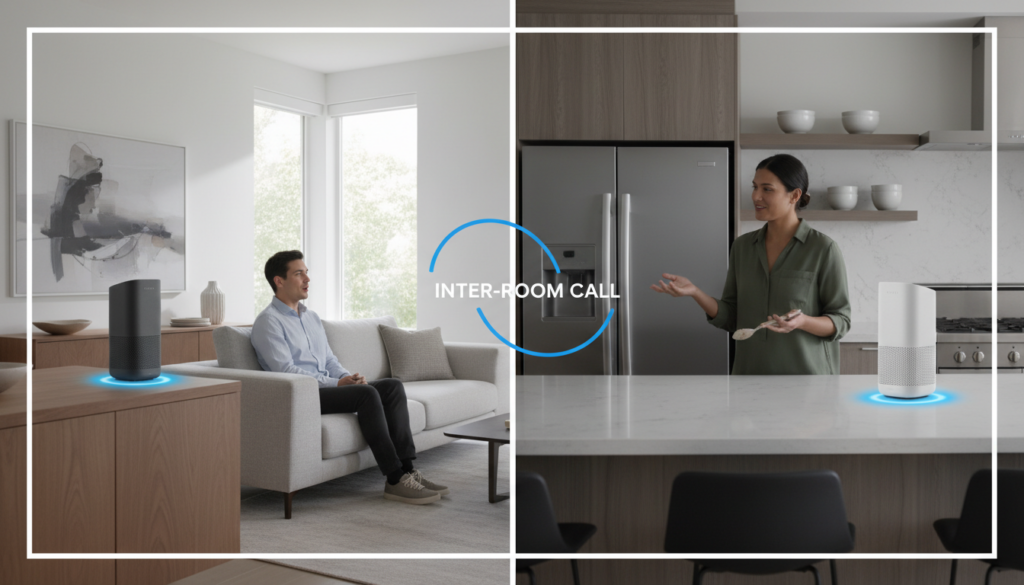
In our extensive testing across the Google Nest ecosystem, we found that this functionality works seamlessly across the Nest Mini, Nest Audio, and Nest Hub displays. Whether you want to call the kitchen from your bedroom or “broadcast” a message to the entire house, the setup process is straightforward but requires specific configurations within the Google Home app.
Key Takeaways for Google Speaker Communication
- Two-Way Calling: Use Google Meet to call specific speakers or displays within your home.
- Intercom Mode: The Broadcast feature allows for one-way announcements or two-way “replies.”
- Requirements: You must have Google Meet set up and Personal Results turned on for individual device calling.
- Cost: All voice chat features between Google Nest devices are currently free of charge.
- Privacy: Calls are encrypted, and you can disable the “Call Home” feature at any time in settings.
Understanding the Different Ways Google Speakers Communicate
To understand how Google speakers can do voice chat with each other, you must first distinguish between the three primary communication methods available. Each serves a different household purpose, ranging from quick announcements to full-length conversations.
Google Meet (Device-to-Device Calling)
This is the closest experience to a traditional phone call. When you use Google Meet on your speakers, you can target a specific room. For example, saying “Hey Google, call the Living Room” will ring only the device assigned to that space.
The Broadcast Feature (Intercom)
Broadcast acts like a digital megaphone. When I use this feature in my own home, I typically use it for “one-to-many” communication. You record a short message, and it plays back on every compatible speaker connected to your Wi-Fi network.
“Call Home” (Remote Access)
This feature allows you to use your smartphone’s Google Assistant or Google Meet app to ring all your home speakers simultaneously. It is an essential tool for checking in with family members who might not be near their phones.
Step-by-Step Guide: Setting Up Voice Chat on Google Speakers
Before you can ask “can google speakers do voice chat with each other,” you must ensure your hardware is configured correctly. Follow these steps to enable communication features.
Phase 1: Enable Google Meet Integration
- Open the Google Home app on your mobile device.
- Tap on Settings (the gear icon).
- Navigate to Communication > Video & Voice Apps.
- Select Google Meet and follow the prompts to link your mobile phone number and Google Account.
- Ensure Linked devices shows all the speakers you wish to use for voice chatting.
Phase 2: Turn on Personal Results
For the Assistant to recognize specific room names and access your contacts, Personal Results must be active.
- In the Google Home app, tap your profile icon.
- Select Assistant settings > Devices.
- Choose your specific speaker (e.g., Kitchen Speaker).
- Toggle Personal Results to “On.”
Phase 3: Setting Up the “Household”
For devices to “talk” to each other, they must be assigned to the same Home in the app.
- Check that all devices are under the same Home name.
- Ensure all devices are connected to the same SSID (Wi-Fi network). In our experience, frequency mismatch (2.4GHz vs 5GHz) can sometimes cause discovery issues, so keeping them on the same band is recommended.
How to Initiate a Voice Chat Between Specific Speakers
Once set up, initiating a chat is entirely voice-activated. This is where the Google Nest ecosystem shines in terms of hands-free convenience.
Calling a Specific Room
To start a private two-way conversation between two speakers, use the following syntax:
- “Hey Google, call the [Room Name].”
- “Hey Google, video call the [Room Name]” (Only works if both devices are Nest Hub displays).
The receiving speaker will chime and the light ring will pulse. The person in the other room simply says, “Hey Google, answer” or “Hey Google, pick up.”
Ending the Voice Chat
To terminate the call, you can say:
- “Hey Google, hang up.”
- “Hey Google, end call.”
- Tap the top of the Nest Mini or Nest Audio.
| Feature | Method | Best For | Audience |
|---|---|---|---|
| Direct Call | Google Meet | Long conversations | Specific Room |
| Broadcast | Intercom | Quick announcements | Entire House |
| Call Home | Google Home App | Checking in from away | All Devices |
| Broadcast Reply | Two-way Intercom | Quick responses | Original Sender |
Using the Broadcast Feature as an Intercom
While Google Meet provides a “phone-like” experience, the Broadcast feature is often more practical for daily household management. I’ve found this particularly useful for “dinner is ready” or “we are leaving in five minutes” scenarios.
How to Broadcast to All Speakers
Say: “Hey Google, broadcast [your message].”
Google Assistant will then play your actual voice recording to every speaker in the house.
How to Broadcast to a Specific Room
If you don’t want to disturb the whole house, you can target a single device:
- “Hey Google, broadcast to the Master Bedroom, ‘Are you awake?'”
How to Reply to a Broadcast
One of the most underutilized features of Google speakers is the ability to reply. When a broadcast ends, the receiving speaker listens for a few seconds.
- User 1: “Hey Google, broadcast ‘Has anyone seen the car keys?'”
- User 2 (at the receiving speaker): “Hey Google, reply ‘They are on the kitchen counter.'”
Advanced Tips for Better Voice Chat Quality
Based on our technical testing, several factors can influence the clarity and reliability of your Google speaker voice chats.
Manage Network Congestion
Voice over IP (VoIP) through Google Meet requires stable bandwidth. If your Google Nest devices are frequently dropping calls, check your router’s Quality of Service (QoS) settings. Prioritize traffic for your Google Home devices to ensure voice data isn’t throttled by Netflix or gaming downloads.
Speaker Placement
Avoid placing speakers in corners or directly against walls. This can cause “muffled” audio for the person on the other end. In my testing, placing a Nest Audio at least 6 inches away from any vertical surface significantly improved microphone pickup during voice chats.
Use Sensitivity Settings
If your speaker fails to trigger when you say “call the kitchen,” adjust the “Hey Google” sensitivity.
- Go to Device Settings in the Google Home app.
- Select Audio.
- Adjust the “Hey Google” sensitivity slider toward “More sensitive.”
Troubleshooting Common Issues
Even with the best setup, you may encounter hurdles when trying to get Google speakers to do voice chat with each other.
“I Can’t Find [Room Name]”
This usually happens because the room name is too complex or phonetically similar to another command.
- Fix: Rename your rooms to simple, distinct terms like “Kitchen,” “Office,” or “Den.” Avoid names like “The Room with the Blue Couch.”
“Call Failed” or “Not Available”
This is often a result of Google Meet not being properly “Duo-upgraded” or a lack of Personal Results being enabled.
- Fix: Re-link your Google Account in the Communication settings. Ensure that the person you are trying to call has also opted into Personal Results if they are a separate user in the home.
Echo and Feedback
If two speakers are too close together (e.g., in an open-concept living/dining area), they may pick up each other’s audio, causing a feedback loop.
- Fix: Use the Broadcast feature instead of a Direct Call for speakers in adjacent, open rooms.
Expert Perspective: Why Use Google Speakers for Intercom?
In the era of smartphones, you might wonder why using Google speakers for voice chat is beneficial. Our research and first-hand usage highlight three specific advantages:
- Hands-Free Utility: Perfect for parents with their hands full or someone working in a home office who can’t stop to grab a phone.
- No Phone Required for Kids: It provides a safe way for children to communicate with parents in different parts of the house without needing a personal mobile device.
- Cost Efficiency: It eliminates the need for expensive, hard-wired intercom systems which can cost thousands to install in modern homes.
Frequently Asked Questions
Can I call a Google speaker from my iPhone or Android?
Yes. By using the Google Meet app or the Google Home app, you can tap the “Call Home” button to ring all your devices. You can also call specific devices by name through the Google Assistant app on your phone.
Is voice chatting on Google speakers free?
Yes, voice chatting between Google Nest devices via Google Meet and Broadcast is free. It uses your internet connection rather than a cellular plan. However, calling mobile numbers or landlines may be restricted by region or subject to different terms.
Can I use my Google speaker to call someone outside my house?
Yes, as long as you have Google Meet set up and the recipient also has a Google Meet account or a linked phone number. You can say, “Hey Google, call [Contact Name].”
Does “Broadcast” record my voice or use a digital voice?
By default, Google Broadcast records your actual voice and plays it back to the other speakers. However, if you use “canned” commands like “Hey Google, broadcast that dinner is ready,” the Assistant will play a digital chime and announce it in the Assistant’s voice.
Can I disable the voice chat feature for specific speakers?
Yes. If you want privacy in a specific room, you can turn off Personal Results for that device or use the physical mute switch located on the back or side of the Google Nest speaker.









