

Why You Can Hear Hard Drive Through Speakers
If you can hear hard drive through speakers, it is typically caused by Electromagnetic Interference (EMI) or a Ground Loop within your PC’s electrical system. To fix this, you must isolate your audio signal from the hard drive’s electrical noise by using an External DAC, shielded cables, or a ground loop isolator.
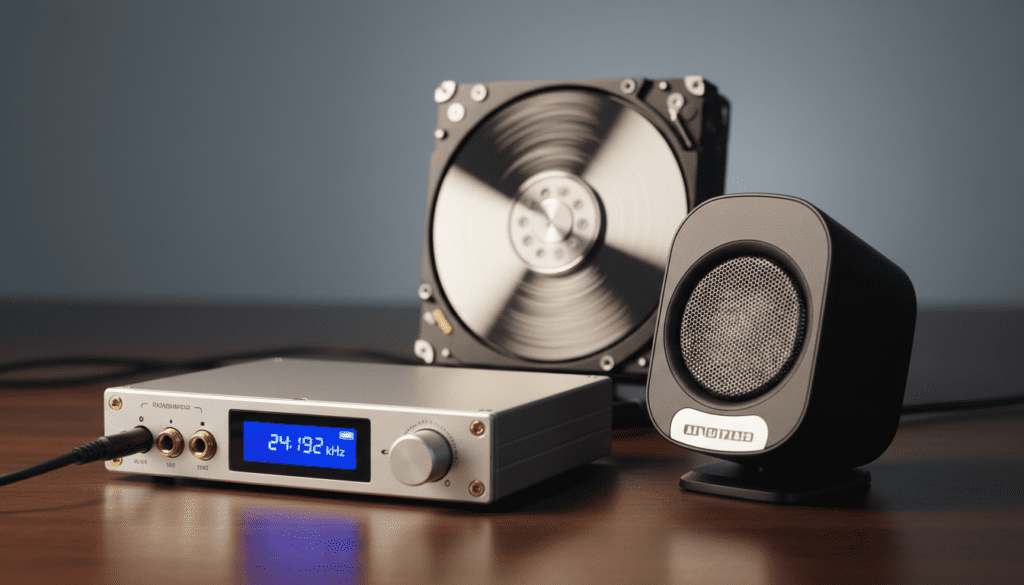
Hard drives are mechanical devices with spinning platters and moving actuator arms that draw varying amounts of current. This fluctuating power draw creates electrical “chatter” that can leak into unshielded audio components, especially if your motherboard’s onboard audio lacks proper isolation.
TL;DR: Quick Fixes for HDD Speaker Noise
- Move Audio Cables: Ensure your speaker wires are not draped over your PC case or power supplies.
- Use an External DAC: Moving the digital-to-analog conversion outside the PC case eliminates 95% of interference.
- Ground Loop Isolator: A $10–$15 plug-in device can instantly kill the low-frequency hum.
- Switch USB Ports: Try plugging your speakers or audio interface into a USB 2.0 port instead of USB 3.0 to reduce high-frequency bus noise.
- Update BIOS: Sometimes power management settings (C-States) contribute to the electrical whine.
Identifying the Source of the Noise
Before we dive into the fixes, we need to confirm that the sound is indeed electrical interference. I have spent years diagnosing studio setups, and usually, HDD-related noise follows a specific pattern.
If the noise sounds like high-pitched whirring, clicking, or “digital chirping” that syncs up with the activity light on your PC case, you are experiencing EMI. This happens because the SATA power cables and the drive’s motor generate magnetic fields that induce a current in nearby audio traces.
Common Symptoms of Audio Interference
- High-pitched Whine: Often occurs when the hard drive is under heavy load (like moving large files).
- Rhythmic Ticking: Matches the seek head movement of the Mechanical HDD.
- Constant Hum: Usually indicates a Ground Loop where the PC and speakers are at different electrical potentials.
- Static during Mouse Movement: Often overlaps with HDD noise, indicating poor Motherboard Shielding.
Step 1: Isolate Your Cable Management
In my experience, the simplest fix is often the most overlooked. If your speaker cables are bundled together with your Power Supply (PSU) cables or SATA cables, they act as antennas for noise.
We recommend “air-gapping” your signal cables. Try to keep your 3.5mm or RCA audio cables at least six inches away from any power cables. If they must cross, ensure they do so at a 90-degree angle to minimize the induction of noise.
The “Shielding” Test
Try this quick test: Unplug your speakers from the PC but leave them powered on. If the noise disappears, the interference is coming from the Internal PC Circuitry. If the noise stays, the interference is likely coming from the Power Outlet or the speaker’s own internal amplifier.
Step 2: Use an External DAC (Digital-to-Analog Converter)
If you can hear hard drive through speakers, the most effective professional solution is to bypass your motherboard’s internal sound card entirely. Internal sound chips sit on a “noisy” PCB shared with CPUs, GPUs, and hard drives.
By using an External USB DAC or an Audio Interface (like a Focusrite Scarlett or Schiit Modi), the conversion from digital data to an audible signal happens outside the chaotic electrical environment of your PC case.
| Solution Type | Effectiveness | Cost | Ease of Install |
|---|---|---|---|
| External USB DAC | 95% – Excellent | $50 – $200 | Very Easy (Plug & Play) |
| Ground Loop Isolator | 70% – Good for Hum | $10 – $15 | Instant |
| Shielded RCA Cables | 40% – Moderate | $20 – $40 | Easy |
| Ferrite Beads | 20% – Low | $5 – $10 | Clip-on |
Step 3: Install a Ground Loop Isolator
If the noise sounds more like a low-end 60Hz hum accompanied by HDD clicking, you likely have a ground loop. This happens when your speakers and your PC are plugged into different outlets, creating a loop where electricity flows through your audio cables.
I suggest buying a 3.5mm Ground Loop Isolator. This is a small transformer that physically breaks the electrical connection between the PC and the speakers while allowing the audio signal to pass through via induction. It is a “silver bullet” for laptop users who hear noise when their charger is plugged in.
Step 4: Adjust BIOS and Power Settings
Sometimes, the noise isn’t just physical; it’s a result of how the Windows OS and BIOS manage power. Modern CPUs and Hard Drives use “C-States” to save power, which causes rapid fluctuations in voltage.
To reduce this noise via software:
- Enter your BIOS/UEFI settings during startup.
- Navigate to Advanced CPU Settings.
- Disable C-States or Enhanced Halt (C1E).
- In Windows, go to Power Options and select High Performance. This prevents the hardware from constantly “throttling” its power draw, which often smoothens out the electrical whine.
Step 5: Relocate Your Hard Drive
If you have a large PC case, try moving your mechanical hard drive to a bay further away from the Motherboard’s Audio Traces (usually located at the bottom-left of the board).
We have found that moving a drive just four inches can significantly drop the EMI (Electromagnetic Interference) picked up by the front-panel audio headers. Speaking of which, avoid using the Front Panel Headphone Jack if possible; the unshielded wires running through the case act as massive magnets for HDD noise.
Hardware Upgrades to Consider
If you’ve tried the steps above and still can hear hard drive through speakers, it might be time for a hardware refresh. Older HDDs are significantly noisier than modern units.
Transition to SSDs
The most nuclear (and effective) option is to replace your mechanical HDD with a Solid State Drive (SSD). Because SSDs have no moving parts and draw significantly less peak power, they do not produce the mechanical vibrations or the intense magnetic fields that cause speaker “chatter.”
Quality Power Supplies
A “Tier A” Power Supply (PSU) from brands like EVGA, Corsair, or Seasonic has better Ripple Suppression. This means the power delivered to your components is “cleaner,” reducing the amount of electrical noise that can bleed into your audio signal.
Advanced Fix: Ferrite Beads
For those on a strict budget, Ferrite Beads (those little plastic cylinders you see on some laptop chargers) can help. You can buy clip-on Ferrite cores and snap them onto your speaker cables and your hard drive’s power cables. They work by absorbing high-frequency noise and dissipating it as a tiny amount of heat, preventing the noise from reaching your speakers.
Expert Perspective: Why Professional Studios Avoid HDDs
In my years of setting up home studios, we never place mechanical drives in the same room as the monitors. If we must use them, they are housed in External NAS units connected via Ethernet. The reason is simple: audio signals are incredibly sensitive. Even the best Balanced XLR cables can struggle with the “dirty” electricity generated by a 7,200 RPM hard drive.
FAQ: Frequently Asked Questions
Q: Can a failing hard drive cause more speaker noise?
A: Yes. If a hard drive’s motor is failing or the heads are performing constant “retries,” the power draw becomes erratic. This increased electrical stress often manifests as louder, more frequent popping or whining in your speakers.
Q: Why do I only hear the noise when I move my mouse or load a game?
A: This is usually GPU/CPU Coil Whine rather than HDD noise. However, the fix is the same: an External DAC is the most reliable way to isolate your audio from the internal “noise floor” of your computer.
Q: Will buying expensive “Audiophile” cables fix this?
A: Not necessarily. While better shielding helps, a “fancy” cable won’t stop a ground loop. Focus on an External DAC or a Ground Loop Isolator first, as these address the root cause of the interference rather than just trying to hide it.
Q: Is the noise damaging my speakers?
A: In most cases, no. EMI and ground loops are annoying but lack the power to blow a speaker driver. However, the constant “clicking” can be hard on your ears and ruin your listening experience or professional audio work.









