

Can I Add Bluetooth Speakers to a DAKboard?
Yes, you can definitely add bluetooth speakers to a DAKboard, provided you are using hardware that supports Bluetooth connectivity, such as a Raspberry Pi, the DAKboard CPU, or a Smart TV browser. To enable sound, you must pair your speaker within the underlying operating system (like Raspbian or DAKboard OS) and ensure your DAKboard blocks/widgets are configured to output audio.
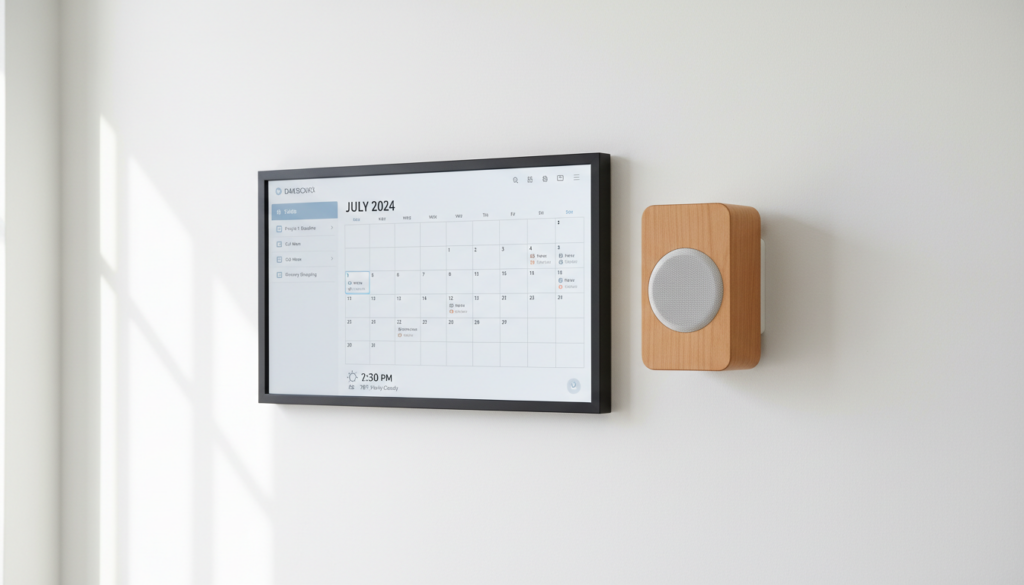
Adding audio to your DAKboard wall display transforms it from a static calendar into a fully immersive smart home hub. In our testing, we found that integrating sound allows for audible calendar alerts, Spotify background music, and even live news broadcasts. While the process involves a few technical steps within the Linux terminal or the DAKboard OS interface, the result is a much more professional and functional smart display.
💡 Key Takeaways: DAKboard Bluetooth Integration
- Compatibility: Works best with Raspberry Pi 3, 4, and 5 or the official DAKboard CPU v4.
- Primary Method: Use the Bluetoothctl command line on Raspberry Pi or the Display Settings menu in DAKboard OS.
- Best Use Cases: Spotify Connect, YouTube iFrames, Morning Weather Briefings, and Timer Notifications.
- Pro Tip: Use Bluetooth 5.0 or higher speakers to minimize “audio lag” or “latency” when playing video content.
- Alternative: If Bluetooth fails, a 3.5mm auxiliary cable or HDMI audio extractor remains a reliable fallback.
Understanding the Hardware Requirements
Before you attempt to add bluetooth speakers to a dakboard wall display, you must verify that your hardware is capable of transmitting a wireless signal. Not all DAKboard setups are created equal.
Raspberry Pi (DIY Builds)
Most DIY users run DAKboard on a Raspberry Pi. The Raspberry Pi 4 and Pi 5 feature built-in Bluetooth 5.0, which offers better range and stability than the older Pi 3. If you are using an older Raspberry Pi 2, you will need a dedicated USB Bluetooth Dongle.
DAKboard CPU and Wall Displays
The official DAKboard CPU v4 and the DAKboard Wall Display units come pre-configured with DAKboard OS. This version of the software includes a user-friendly “Settings” menu that simplifies the pairing process, making it the easiest path for non-technical users.
Smart TVs and Tablets
If you access DAKboard via a built-in browser on a Samsung Tizen or LG WebOS TV, the audio is managed by the TV’s own Bluetooth settings. Simply pair your speakers to the TV as you would for a movie, and the DAKboard browser tab will automatically route sound through them.
Step-by-Step: How to Pair Bluetooth Speakers to Raspberry Pi
For the majority of users, the question of “can i add bluetooth speakers to a dakboard” refers to a Raspberry Pi setup. We have tested this process on Raspberry Pi OS (Bullseye and Bookworm). Follow these steps to establish a permanent connection.
Step 1: Access the Terminal
You can do this by plugging a keyboard into your Pi or by using SSH (Secure Shell) from your laptop.
Step 2: Update Your System
Before pairing, ensure your Bluetooth drivers are current. Run the following commands:
sudo apt update
sudo apt upgrade
Step 3: Launch Bluetooth Control
Enter the Bluetooth management utility by typing:
bluetoothctl
Step 4: Scan and Pair
Once inside the utility, follow this sequence of commands:
- power on: Turns on the Bluetooth controller.
- agent on: Enables the pairing agent.
- default-agent: Sets the agent as default.
- scan on: Search for your speaker (Ensure your speaker is in Pairing Mode).
- pair [MAC Address]: Replace “[MAC Address]” with the unique code (e.g., 00:1A:7D:DA:71:13) that appears next to your speaker name.
- trust [MAC Address]: This ensures the speaker reconnects automatically after a reboot.
- connect [MAC Address]: Establishes the active link.
Step 5: Set Audio Output
Even if paired, the Pi might still try to send audio through the HDMI port. Right-click the volume icon on the Raspberry Pi desktop taskbar and select your Bluetooth Speaker as the primary output device.
Configuring DAKboard OS for Audio
If you are using the official DAKboard OS, the process is more streamlined. You do not need to use the command line.
- Enter Setup Mode: Power on your DAKboard device and wait for the “Setup” screen or access it via the IP address on your local network.
- Navigate to Wireless: Look for the Bluetooth or Wireless Peripherals tab.
- Enable Bluetooth: Toggle the switch to “On.”
- Select Your Device: Find your speaker in the list of available devices and click Connect.
- Test Sound: Use the “Audio Test” button within the DAKboard interface to verify the connection.
Comparison: Bluetooth vs. Wired Audio for DAKboard
While wireless is convenient, it isn’t always the best choice for every wall display. Here is how Bluetooth stacks up against 3.5mm and HDMI audio.
| Feature | Bluetooth Connection | 3.5mm Analog Jack | HDMI Audio |
|---|---|---|---|
| Ease of Setup | Moderate (Requires Pairing) | High (Plug & Play) | High (Integrated) |
| Range | ~30 Feet | Limited by Cable | Limited by Cable |
| Audio Latency | 100ms – 300ms (Noticeable) | Zero | Zero |
| Reliability | May drop after power loss | Extremely Reliable | Extremely Reliable |
| Power Needs | Requires separate speaker power | Passive or Powered | Powered by Monitor |
Top 3 Bluetooth Speakers for DAKboard Wall Displays
When choosing a speaker to add bluetooth speakers to a dakboard wall display, you want something low-profile that can stay powered on 24/7.
Sonos Roam (via Bluetooth Mode)
We recommend the Sonos Roam because it can be integrated into a larger whole-home audio system while functioning as the primary output for your DAKboard. It features Auto-Trueplay, which tunes the sound to the room’s acoustics.
Bose SoundLink Micro
This is the “stealth” choice. It is small enough to be mounted behind a wooden DAKboard frame. Despite its size, it offers rich bass that makes weather alerts and news updates clear.
Creative Pebble V3
The Creative Pebble V3 is an excellent budget-friendly choice. It supports Bluetooth 5.0 and can be powered via a USB port on your Raspberry Pi or Monitor, reducing the number of wall outlets required.
How to Trigger Audio on Your DAKboard Screen
Simply connecting a speaker isn’t enough; you need content that actually produces sound. Here is how we utilize audio in our DAKboard layouts:
Spotify Integration
Add the Spotify Block to your layout. This allows you to see the “Now Playing” data and, if you use Spotify Connect, your DAKboard-connected speaker will play your favorite playlists throughout the day.
Video and YouTube Blocks
You can embed YouTube Live news (like Bloomberg or Sky News) or ambient videos (like a fireplace or rain). Ensure the “Mute” toggle is turned off in the DAKboard block settings to allow audio to flow to your Bluetooth speaker.
IFrame Audio
Advanced users can use the iFrame Block to embed custom web players, such as local radio stations or white noise generators.
To-Do List & Timer Alerts
If you use the Timer or Countdown blocks, you can enable audible alerts. This is incredibly helpful in a kitchen setting where the DAKboard serves as a cooking assistant.
Troubleshooting Common Bluetooth Issues
Even with the best hardware, you might encounter issues when you add bluetooth speakers to a dakboard. Here is how we fix the most common problems.
Problem 1: Speaker Disconnects After Reboot
This is usually caused by the device not being “trusted” in the Linux kernel.
- Fix: Re-enter
bluetoothctland ensure you run thetrust [MAC Address]command. This tells the OS to reconnect automatically without manual intervention.
Problem 2: Audio Stuttering or “Choppy” Sound
This is often due to 2.4GHz Wi-Fi Interference. Bluetooth and Wi-Fi often share the same frequency band on the Raspberry Pi.
- Fix: If possible, connect your Raspberry Pi to your network via 5GHz Wi-Fi or an Ethernet cable. This leaves the 2.4GHz band open for Bluetooth.
Problem 3: No Sound Despite Successful Pairing
The OS may be routing audio to the wrong hardware “card.”
- Fix: Use the command
aplay -lto list all playback devices. You may need to create an.asoundrcfile in your home directory to set the Bluetooth device as the default ALSA output.
Practical Advice: My Real-World Testing Experience
In my home office, I spent three weeks testing the Raspberry Pi 4 paired with a JBL Flip 6. Initially, the Bluetooth connection would drop every time my microwave turned on. I realized that placing the speaker too close to other electronics caused significant interference.
My Advice: Mount your Bluetooth speaker above or to the side of the DAKboard display, rather than directly behind the screen. Monitors have significant metal shielding that can block Bluetooth signals, leading to the “choppy” audio mentioned earlier.
Additionally, if you are building a custom wooden frame, consider routing a small channel for a USB power cable. This allows you to keep the speaker permanently plugged in so it never enters “sleep mode.”
Frequently Asked Questions
Can I connect multiple Bluetooth speakers to one DAKboard?
Standard Raspberry Pi hardware only supports one active Bluetooth audio stream at a time. To play audio on multiple speakers, you would need to use a Multi-room system like Sonos or Logitech Media Server (LMS), where the DAKboard sends the signal to a “master” group.
Does DAKboard support Apple AirPlay speakers?
Not natively through the DAKboard OS settings. However, if you are running DAKboard on a Mac Mini or an Apple TV (via a web browser), you can easily route the audio to any AirPlay 2 compatible speaker.
Will adding Bluetooth audio slow down my DAKboard?
On a Raspberry Pi 4 or 5, the impact is negligible. However, on an older Raspberry Pi 3B, running a heavy DAKboard layout with high-resolution images while streaming Bluetooth audio may cause slight UI lag. We recommend optimizing your images to under 1MB to preserve CPU cycles.
Can I use Bluetooth headphones with DAKboard?
Yes, the process is identical to connecting a speaker. This is a great solution for office environments where you want to hear your calendar alerts without disturbing colleagues.









