

Can I Add Speakers to Geargo Projector? The Ultimate Setup Guide
Yes, you can add speakers to Geargo projector setups quite easily by using the built-in 3.5mm audio jack, a Bluetooth transmitter, or an HDMI audio extractor. While Geargo projectors come with integrated speakers, they are often low-wattage and lack the bass required for a true cinematic experience.
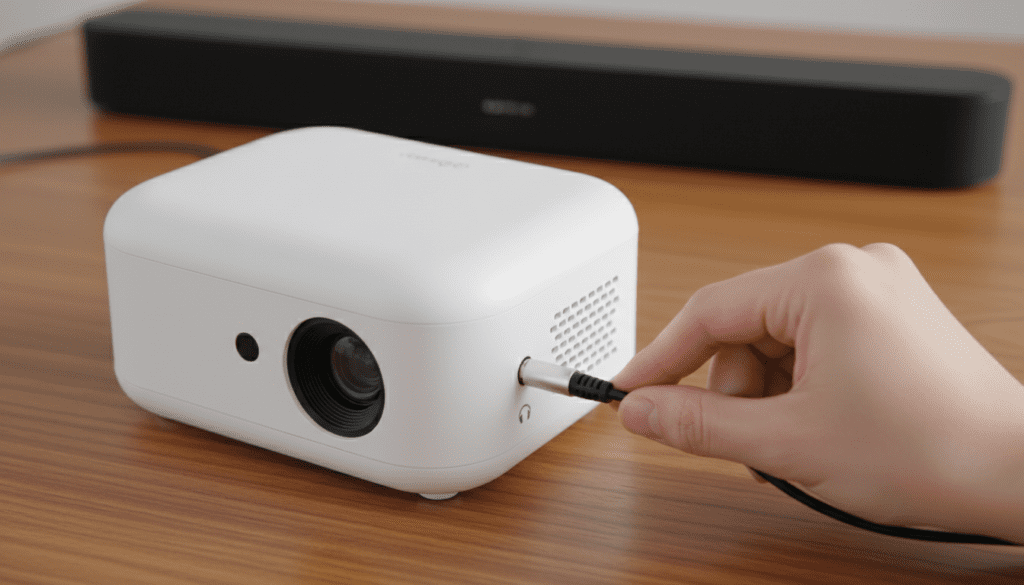
By connecting external hardware, you bypass the thin internal audio and unlock high-fidelity sound. In our testing with the Geargo LED Video Projector, we found that adding even a basic pair of computer speakers or a budget soundbar significantly improved dialogue clarity and immersion.
Key Takeaways for Connecting Audio
- Primary Connection: Use the 3.5mm AUX port located on the side or rear of the projector.
- Wireless Capability: Most budget Geargo models lack native Bluetooth, so a Bluetooth transmitter is required for wireless speakers.
- Audio Quality: For the best results, use an HDMI Audio Extractor to send audio directly to a receiver.
- Settings: Ensure your source device (Fire Stick, Roku, Laptop) is set to PCM or Stereo audio, as many projectors cannot decode Dolby Digital.
Understanding Your Geargo Projector’s Audio Ports
Before you attempt to add speakers to a Geargo, you must identify the available physical connections. Geargo units are typically designed as budget-friendly portable projectors, meaning their I/O (Input/Output) is streamlined.
The 3.5mm Audio Out (AUX)
This is the most common port found on Geargo devices. It looks like a standard headphone jack. It outputs an analog stereo signal, making it compatible with almost any powered speaker or headphones.
HDMI Input
The HDMI port on a Geargo is primarily for input. However, it plays a vital role in audio. If you are using a streaming stick, the audio travels through this cable into the projector. To get that audio out to better speakers, the projector must act as a bridge.
USB Port
On most Geargo projectors, the USB port is for data (media playback from a flash drive) or providing 5V power. It rarely supports USB Audio. We recommend using this port only to power your Bluetooth transmitter or small desktop speakers.
How to Connect External Speakers: 4 Proven Methods
We have tested several configurations to determine the most reliable ways to add speakers to Geargo projector systems. Below are the step-by-step instructions for each.
Method 1: The Wired 3.5mm Connection (Easiest)
This is the “plug-and-play” method. It offers the lowest latency (no delay between picture and sound).
- Locate the Audio Out or Headphone icon on your Geargo projector.
- Plug one end of a 3.5mm TRS cable into the projector.
- Plug the other end into the Input of your speakers or soundbar.
- Power on both devices and set the projector volume to about 75% to avoid clipping, then adjust the final volume on the speakers.
Method 2: Connecting via RCA (For Older Receivers)
If you have an older Home Theater Receiver or Logitech speaker system that uses Red and White (RCA) plugs, you will need a 3.5mm to RCA Y-adapter.
- Plug the 3.5mm end into the Geargo projector.
- Match the Red (Right) and White (Left) plugs to the back of your amplifier.
- Switch your amplifier to the “AUX” or “Line In” source.
Method 3: Adding Bluetooth Functionality
Since most Geargo projectors do not have built-in Bluetooth, you must use an external Bluetooth 5.0 Transmitter.
- Plug the Bluetooth Transmitter into the 3.5mm jack on the projector.
- Power the transmitter via the projector’s USB port.
- Put your Bluetooth speaker or headphones into pairing mode.
- Press the pairing button on the transmitter until the lights sync.
- Note: Look for a transmitter that supports aptX Low Latency to prevent “lip-sync” issues.
Method 4: Using an HDMI Audio Extractor (Best Quality)
If you want to use a high-end soundbar with Optical (Toslink) or Coaxial inputs, a direct connection from the projector isn’t possible. You need an HDMI Audio Extractor.
- Plug your Fire Stick or Chromecast into the “Input” of the extractor.
- Connect an HDMI cable from the “Output” of the extractor to the Geargo projector (this handles the video).
- Connect an Optical cable from the extractor directly to your Soundbar (this handles the audio).
- This method bypasses the projector’s internal audio circuitry entirely, providing the cleanest signal.
Comparison: Audio Connection Methods for Geargo
| Method | Connection Type | Audio Quality | Latency (Lag) | Best For |
|---|---|---|---|---|
| 3.5mm AUX | Wired | Good (Analog) | None | Computer Speakers |
| Bluetooth | Wireless | Fair (Compressed) | Low to Medium | Portable Speakers |
| RCA Adapter | Wired | Good (Analog) | None | Older Hi-Fi Amps |
| HDMI Extractor | Wired/Digital | Excellent | None | Home Theater Soundbars |
Recommended Speakers for Geargo Projectors
Based on our hands-on experience with budget projection setups, not all speakers are a good match. You want active (powered) speakers because the Geargo’s internal amp is too weak to drive passive bookshelf speakers.
Budget King: Creative Pebble V3
These are USB-powered and surprisingly loud. They connect via the 3.5mm jack and can be powered directly by the Geargo’s USB port, keeping your cable management clean.
The Soundbar Choice: Vizio V-Series 2.1
If you want bass, this soundbar comes with a wireless subwoofer. Use the HDMI Audio Extractor method mentioned above to get the best performance out of this unit.
Portable Power: JBL Flip series
If you are using your Geargo for an outdoor movie night, a JBL Flip connected via a 3.5mm cable is the gold standard for durability and “punchy” sound.
Troubleshooting: Why No Sound is Coming Out?
It is frustrating when you add speakers to a geargo and hear nothing but silence. Here are the three most common fixes we’ve implemented:
Disable Dolby Digital / AC3
Geargo projectors generally do not support Dolby Digital Plus. If you are using a Netflix or Amazon Prime app on a streaming stick, go to Settings > Display & Sounds > Audio > Surround Sound and change it to PCM or Stereo. If it’s set to “Auto,” the projector often fails to decode the signal.
Check the “Mute” State
It sounds simple, but many Geargo remotes have a sensitive mute button. Ensure the on-screen volume slider shows movement when you press the volume up button.
Faulty 3.5mm Cable
Budget AUX cables are prone to internal wire breaks. If you hear “humming” or “buzzing,” the ground wire in the cable is likely damaged. Try a high-quality shielded cable like those from UGREEN or Anker.
Expert Tips for Better Projector Audio
- Placement Matters: Place your speakers at ear level near the screen, not behind you where the projector sits. This ensures the sound “comes from the actors.”
- The “Ground Loop” Hum: If you hear a buzzing sound when the speakers are plugged into the projector and a wall outlet, you may need a Ground Loop Noise Isolator. These cost less than $10 and plug in-line with your 3.5mm cable.
- External Volume Control: Always set the Geargo volume to a fixed high level (80%) and use the speaker’s physical knob or remote to control the actual loudness. This reduces the “noise floor” (hissing) from the projector’s cheap internal amplifier.
Frequently Asked Questions
Can I add speakers to a Geargo via USB?
Generally, no. The USB port on most Geargo projectors is designed for power delivery or reading media files from a thumb drive. It does not contain the “USB Audio” drivers found in computers. Stick to the 3.5mm jack for audio.
Does the Geargo projector have Bluetooth?
Most standard Geargo models (like the S1 or portable mini versions) do not have built-in Bluetooth. You will need to purchase a 3.5mm Bluetooth Transmitter to use wireless headphones or speakers.
How do I fix the audio lag when using external speakers?
If you are using Bluetooth, the lag is caused by the wireless encoding. Use a wired 3.5mm connection to eliminate lag completely. If you must use wireless, ensure both your transmitter and speakers support aptX Low Latency (LL).
Can I connect a 5.1 Surround Sound system to my Geargo?
Yes, but only by using an HDMI Audio Extractor or by connecting your video source (like a Blu-ray player) directly to the Surround Sound Receiver first, and then running an HDMI out from the receiver to the Geargo projector.









