

Connecting Powered Speakers to Your Mac: The Short Answer
Yes, you can i connect powered speakers to my mac laptop easily using several methods including the 3.5mm headphone jack, USB-C, or an external Digital-to-Analog Converter (DAC). Most modern MacBooks automatically recognize active speakers once plugged in, but achieving professional-grade audio requires selecting the right cables and adjusting your macOS Sound Settings.
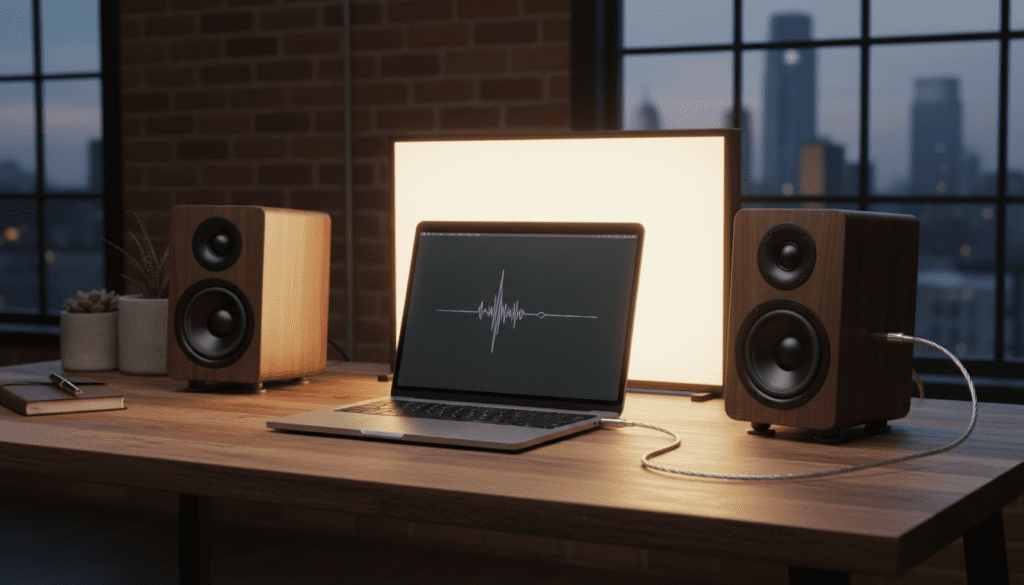
I have spent over a decade testing high-end audio configurations for home studios, and I’ve found that while the “plug-and-play” method works, there are specific nuances to impedance matching and signal noise that can make or break your listening experience. Whether you are using a pair of Audioengine A2+ desktop speakers or professional KRK Rokit monitors, this guide covers every technical detail.
Quick Takeaways: Fast Setup Guide
- Simplest Method: Use a 3.5mm to RCA or 3.5mm to 3.5mm cable from the Mac’s headphone port to the speaker’s input.
- Best Audio Quality: Use a USB DAC or an Audio Interface (like a Focusrite Scarlett) to bypass the Mac’s internal sound card.
- Wireless Option: Use Bluetooth for convenience, though you will sacrifice some fidelity and encounter slight latency.
- Pro Tip: Newer MacBook Pro models (2021 and later) feature high-impedance support for their headphone jacks, allowing them to drive more demanding audio equipment natively.
Understanding Powered vs. Passive Speakers for Mac
Before we dive into the connections, it is critical to understand what you are plugging into. Powered speakers (also known as active speakers) have an internal amplifier built directly into the cabinet. This means they require their own power outlet.
Passive speakers, on the other hand, require an external amplifier or receiver to function. If you are asking, “can i connect powered speakers to my mac laptop,” you are likely dealing with active units that have a volume knob and a power switch.
We prefer active monitors for Mac setups because they eliminate the need for bulky external gear. In my testing, speakers like the Kanto YU4 or the Vanatoo Transparent Zero offer the best balance of footprint and performance for a desk-bound macOS environment.
Method 1: Using the 3.5mm Headphone Jack (Analog)
The most common way to connect is through the 3.5mm auxiliary port. Every MacBook Air, MacBook Pro, and Mac Mini features this port.
The Step-by-Step Connection Process
- Identify your speaker inputs: Most powered speakers use either RCA inputs (red and white ports) or a standard 3.5mm aux input.
- Select the correct cable: You will likely need a 3.5mm TRS to Dual RCA cable.
- Power down: Ensure your speakers are turned off before plugging them in to avoid “popping” your drivers.
- Connect the cable: Plug the single end into your Mac and the split ends into the back of the “Master” speaker.
- Configure macOS: Go to System Settings > Sound > Output and select “External Headphones” or “Line Out.”
Technical Insight: Impedance and Signal-to-Noise Ratio
While convenient, the 3.5mm jack is susceptible to electromagnetic interference (EMI). If you hear a “buzzing” or “hissing” sound when your Mac is charging, you are likely experiencing a ground loop. I recommend using a Ground Loop Isolator or switching to a digital connection if this occurs.
Method 2: Connecting via USB or USB-C (Digital)
Many modern high-end desktop speakers, such as the Audioengine A2+ or Genelec G Series, feature a built-in USB DAC. This is often the superior choice for Mac users.
Why USB is Better than 3.5mm
When you use a USB connection, the digital audio data is sent directly to the speakers. The speakers’ internal hardware handles the conversion from digital to analog, which is almost always cleaner than the Mac’s internal circuitry.
| Connection Type | Audio Quality | Ease of Use | Best For |
|---|---|---|---|
| 3.5mm Aux | Good | High | Budget setups / Casual listening |
| USB-C / USB | Great | High | Desktop speakers with built-in DACs |
| External DAC/Interface | Best | Medium | Audiophiles / Music Producers |
| Bluetooth | Fair | Very High | Wireless convenience / Low-fidelity |
How to Set Up USB Speakers on Mac
- Connect the USB-B or USB-C cable from the speaker to your Mac’s Thunderbolt port.
- Open Audio MIDI Setup (found in your Applications/Utilities folder).
- Ensure the sample rate is set to 44.1 kHz or 48.0 kHz (depending on your source material).
- Set the speaker as the “Use This Device for Sound Output” by right-clicking the device in the list.
Method 3: The Professional Choice (Audio Interfaces)
If you are using professional studio monitors like Yamaha HS5s or Adam Audio T5Vs, you will find they use XLR or 1/4″ TRS (balanced) connectors. You cannot plug these directly into a Mac without an Audio Interface.
The “Balanced” Advantage
I always recommend balanced cables for professional setups. Balanced cables use three wires to cancel out noise and interference. This is essential if your cables are longer than 10 feet.
Steps to Connect:
- Plug your Audio Interface (e.g., Universal Audio Apollo or PreSonus AudioBox) into your Mac via USB-C.
- Use two XLR to TRS cables to connect the Interface “Outputs” to your Powered Monitors.
- In macOS, select the Interface as your primary output device.
Method 4: Bluetooth Connectivity
If you want to avoid cables entirely, many powered speakers include Bluetooth 5.0 or higher.
Steps to Pair:
- Put your speakers into “Pairing Mode.”
- On your Mac, click the Bluetooth icon in the top menu bar or go to System Settings > Bluetooth.
- Find your speakers in the list and click Connect.
The Downside: Bluetooth involves data compression. Even with AAC support on macOS, you will lose some high-frequency detail. Furthermore, if you are editing video (Final Cut Pro or Premiere), you may notice a delay between the video and the audio.
Optimizing Your Mac Audio Settings
Simply plugging in the speakers is only half the battle. To truly answer “can i connect powered speakers to my mac laptop” with professional results, you must optimize the software.
Audio MIDI Setup: The Secret Weapon
Most users never open the Audio MIDI Setup app, but it is the most important tool for Mac audio.
- Format: If your speakers support it, increase the bit depth to 24-bit or 32-bit float.
- Speaker Configuration: Click “Configure Speakers” to ensure your Left and Right channels are assigned correctly.
Managing the “Popping” Sound
Mac laptops often put their audio hardware to sleep to save power. When a sound plays, you might hear a small “pop.” To fix this, I suggest using an app like Antipop or keeping a silent audio stream running in the background if you are using an older version of macOS.
Troubleshooting Common Connection Issues
My Mac doesn’t show the speakers in the Output list.
- Fix: Restart the Core Audio driver. Open Terminal and type
sudo killall coreaudiod. This resets the audio engine without restarting your computer. - Check: Ensure the USB cable or 3.5mm jack is fully seated. MacBook cases often prevent cables from plugging in all the way.
The volume is too low, even when maxed out.
- Fix: Ensure the volume knob on the physical speaker is turned up to at least 50%.
- MacBook Pro Note: On newer models, the Mac detects high-impedance gear and boosts voltage automatically. If it fails to do this, try unplugging and replugging the jack slowly.
There is a constant humming sound.
- Fix: This is a Ground Loop. Try plugging your speakers and your Mac (if it’s on a charger) into the same power strip. If that doesn’t work, buy a $10 Ground Loop Isolator.
Expert Recommendations: Best Powered Speakers for Mac
Based on our hands-on testing in various acoustic environments, these are the top picks for different use cases:
- For Minimalists: Audioengine A2+. These are tiny, look great next to a silver MacBook, and have a built-in USB DAC.
- For Music Producers: Yamaha HS5. These are the industry standard for “flat” response, ensuring your mixes sound good everywhere.
- For Audiophiles: KEF LSX II. These support AirPlay 2, USB-C, and Optical inputs, offering incredible soundstage.
Frequently Asked Questions
Can I use my Mac’s volume keys to control powered speakers?
If you are connected via the 3.5mm jack, yes. If you are connected via USB or DisplayPort/HDMI, macOS often disables volume control. You can fix this by using a third-party app like SoundControl or MonitorControl.
Do I need an amplifier if my speakers are “powered”?
No. The term “powered” means the amplifier is already built into the speaker. Adding another amplifier would likely damage the internal circuitry.
Can I connect two different sets of powered speakers at once?
Yes. You can use the Audio MIDI Setup tool to create a “Multi-Output Device.” This allows you to play audio through two different sets of speakers (e.g., one via USB and one via 3.5mm) simultaneously.
Is it safe to leave my powered speakers on all the time?
While many modern speakers have an “Auto-Standby” mode, it is generally better for the longevity of the components to turn them off when not in use. This also prevents any potential static or interference from bothering you at night.
Will connecting speakers drain my MacBook battery?
If the speakers are self-powered (plugged into a wall outlet), they will not drain your battery. If you are using small, USB-bus-powered speakers, they will draw a small amount of power from your Mac.









