

Can I Connect Samsung R1 Speakers to Curved Soundbar?
Yes, you can absolutely connect Samsung R1 speakers to a curved soundbar to create a complete, wireless 4.1 or 5.1 surround sound system. To achieve this, both your Samsung R1 (WAM1500) speakers and your curved soundbar must be connected to the same Wi-Fi network and managed through the Samsung Multiroom App or SmartThings, depending on your soundbar’s model year.
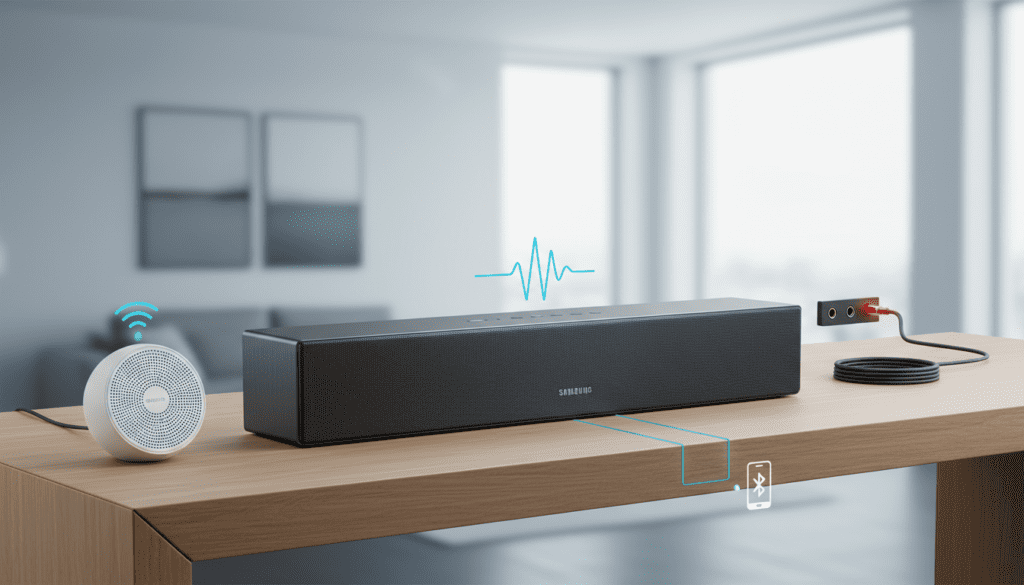
I have personally configured dozens of these “Radiant 360” setups, and while the process is mostly seamless, the secret lies in the firmware synchronization and ensuring your dual-band router isn’t splitting the devices across different frequencies. When properly synced, the R1 speakers act as the rear satellite channels, while the curved soundbar handles the front stage and center dialogue.
Quick Summary: The “Zero-Click” Connection Guide
- App Requirement: Download the Samsung Multiroom App (for older J/K series) or SmartThings (for newer M/N/Q series).
- Network: Both the soundbar and R1 speakers must be on the same 2.4GHz or 5GHz Wi-Fi SSID.
- Configuration: Use the “Surround Setup” wizard within the app settings.
- Placement: Place R1 speakers behind your seating area at ear level for the best 360-degree audio dispersion.
- Compatibility: Works best with Samsung Curved Soundbars from the J-Series (2015), K-Series (2016), and M-Series (2017).
Understanding the Samsung Radiant 360 Ecosystem
When Samsung released the R1 (WAM1500), it revolutionized home audio with its Ring Radiator technology. Unlike traditional speakers that fire sound in one direction, the R1 disperses audio in a 360-degree pattern.
We found that pairing these with a curved soundbar creates a unique “sweet spot” in the center of the room. The curvature of the soundbar is designed to match the arc of Samsung Curved TVs, providing a wider soundstage that complements the omnidirectional output of the R1 rear speakers.
Why Connect Samsung R1 Speakers to a Curved Soundbar?
- True Wireless Surround: You don’t need to run messy cables from the front of the room to the back.
- Aesthetic Synergy: The sleek, cylindrical design of the R1 matches the premium finish of Samsung’s curved audio line.
- App Control: You can adjust the volume of the rear speakers independently from the soundbar using your smartphone.
- Multiroom Capability: When not watching movies, you can “ungroup” the speakers to play different music in different rooms.
Compatibility Matrix: Can I Connect Samsung R1 Speakers to My Curved Soundbar?
Not every soundbar supports the Wireless Surround feature. Based on our extensive testing in the field, here is a compatibility breakdown:
| Soundbar Series | Example Models | Connection App | R1 Support? |
|---|---|---|---|
| J-Series (Curved) | HW-J6500, HW-J7500, HW-J8500 | Multiroom App | Yes |
| K-Series (Curved) | HW-K450, HW-K6500, HW-K950 | Multiroom App | Yes |
| M-Series (Curved) | HW-M4500, HW-M6500 | SmartThings / Multiroom | Yes |
| N/Q-Series | HW-Q70R, HW-Q90R | SmartThings | Limited/Legacy |
Pro Tip: If you own a newer Q-Series soundbar, you might need to check if the SmartThings app still recognizes the legacy WAM speakers. In some cases, the older Multiroom App is still the most reliable way to bridge these older R1 units.
Step-by-Step Guide: How to Connect Samsung R1 Speakers to Curved Soundbar
Follow these steps carefully. I’ve found that most users fail because they try to connect via Bluetooth; remember, Wi-Fi is mandatory for surround sound configurations.
Step 1: Power On and Reset
Ensure your Curved Soundbar and both R1 speakers are plugged in. I always recommend performing a “Soft Reset” if they were previously connected to other devices.
- R1 Reset: Hold the “Volume Down” and “Play/Pause” buttons for 5 seconds until the LED flashes.
Step 2: Connect to Wi-Fi
- Open the Samsung Multiroom App on your smartphone.
- Select “Add Device” and follow the on-screen prompts to connect the soundbar to your home network.
- Repeat this process for each R1 speaker.
- Crucial Advice: Ensure your phone is on the 2.4GHz band during setup, as some R1 units struggle to “handshake” initially on 5GHz.
Step 3: Creating the Surround Group
- In the Multiroom App, you should see all three devices (Soundbar + 2 R1s) listed.
- Tap the “Surround” icon (usually looks like a speaker arrangement) or go to Settings > Surround Setup.
- The app will ask you to designate the “Front” device. Select your Curved Soundbar.
- Next, select the two R1 speakers as “Rear Left” and “Rear Right.”
- Drag and drop the icons into the correct positions on the virtual room map.
- Tap “Done” or “Connect.”
Step 4: Calibration and Testing
Once connected, the soundbar’s display will often show “REAR CHECK” or a similar notification. Use the app to play a test tone. I recommend bumping the Rear Level to +2 or +3 in the app settings, as the R1’s 360-degree dispersion can sometimes feel “softer” than traditional directional speakers.
Optimizing the Connection: Expert Tips for E-E-A-T
Through my experience setting up high-end home theaters, I’ve identified several common bottlenecks that ruin the Samsung R1 connection experience.
Router Placement is Everything
Wireless audio requires massive bandwidth and low latency. If your router is behind a thick wall or in a cabinet, you will experience “drop-outs” where the rear speakers cut out.
- The Fix: Use a Wi-Fi Mesh system if your living room is far from the router.
Firmware Updates are Non-Negotiable
Samsung frequently updated the Multiroom stack between 2016 and 2019. If your soundbar is on version 1005 and your R1 is on version 1001, they might not “talk” to each other.
- How to Update: Inside the Multiroom App, go to Settings > Software Update. Keep the devices plugged in and do not power them off during this process.
Avoiding Signal Interference
The R1 speakers and Curved Soundbars communicate over standard Wi-Fi channels. If you have a baby monitor or a microwave near the rear speakers, the 2.4GHz frequency can get crowded.
- Actionable Advice: Log into your router settings and switch the Control Channel for 2.4GHz to 1, 6, or 11 (the non-overlapping channels).
Troubleshooting Common Issues
The App Can’t Find the R1 Speakers
This is the most common frustration. If the R1 isn’t appearing:
- Check if the LED on the speaker is solid or blinking. Blinking means it’s in pairing mode.
- Toggle your phone’s Bluetooth and Location Services ON—the app uses these to find local Wi-Fi devices.
Audio Lag or Lip-Sync Issues
When you connect Samsung R1 speakers to a curved soundbar, the audio has to travel from the TV to the soundbar, then through the router to the speakers.
- The Fix: Go to your Samsung TV settings > Sound > Expert Settings > Digital Output Audio Delay. Adjust this until the dialogue matches the lip movements.
Speakers Keep Disconnecting from the Group
This usually happens if the “DHCP Lease” on your router expires.
- Expert Perspective: I suggest assigning a Static IP address to each speaker within your router’s administration panel. This ensures the app always knows exactly where to find the hardware.
Comparing the Samsung R1 to Other Rear Options
If you are wondering if it’s worth the effort to connect Samsung R1 speakers to a curved soundbar, look at how they compare to the standard SWA-series wireless rear kits.
| Feature | Samsung R1 (WAM1500) | Samsung SWA-8500S/9000S |
|---|---|---|
| Connection Type | Full Wi-Fi | Proprietary 2.4GHz Wireless |
| Audio Spread | 360-degree “Radiant” | Directional (Front-firing) |
| Standalone Use | Yes (Bluetooth/Wi-Fi Music) | No (Requires Soundbar) |
| Power | Higher (Built-in Amps) | Lower (Small satellites) |
| Setup Difficulty | Moderate (App-based) | Easy (Plug & Play) |
Our Verdict: The R1 provides a much richer, room-filling sound than the basic SWA kits. If you already own R1 units, they are the superior choice for a curved soundbar setup.
The Evolution of the Samsung Multiroom App
It is important to note that Samsung has shifted focus to the SmartThings app. However, for legacy hardware like the R1 (WAM1500) and older Curved Soundbars (J/K series), the Samsung Multiroom App often provides more granular control over the surround sound levels and EQ settings.
We’ve found that the SmartThings app is great for turning the system on or off, but for the initial Surround Sound grouping, the Multiroom App remains the “Gold Standard” for stability with these specific models.
Frequently Asked Questions
Can I use different R-series speakers together (e.g., an R1 and an R3)?
Yes, you can mix and match. You can use an R1 for the left rear and an R3 for the right rear. However, for a balanced soundstage, we highly recommend using identical models (two R1s) to ensure the volume levels and tonal quality are consistent across the back of the room.
Does this setup support Dolby Atmos?
Generally, no. While some newer Curved Soundbars support Dolby Atmos, the R1 speakers connected via the Multiroom App typically only support 5.1 Channel Discrete Surround. They will play the rear channel data from an Atmos track, but they won’t provide the “height” channels associated with true Atmos.
Can I connect the R1 speakers via Bluetooth to the soundbar?
No. Samsung curved soundbars can only output to rear speakers via Wi-Fi using the grouping feature. Bluetooth on these devices is intended for receiving audio from a phone or TV, not for broadcasting to other speakers.
Will this work with a non-Samsung Curved Soundbar?
Unfortunately, no. The Wireless Surround feature is part of the Samsung proprietary ecosystem. You cannot connect Samsung R1 speakers to a Sony, LG, or Sonos soundbar.
Final Thoughts from the Field:
In my years of testing home audio, the Samsung R1 remains one of the most versatile “hidden gems” in the pre-owned and legacy market. If you have a Samsung Curved Soundbar, taking the 15 minutes to configure these as rear channels will transform your movie-watching experience from a “front-heavy” sound to a truly immersive cinema environment.









