

Connecting Your Onkyo TX-8160 to Powered Speakers: The Direct Answer
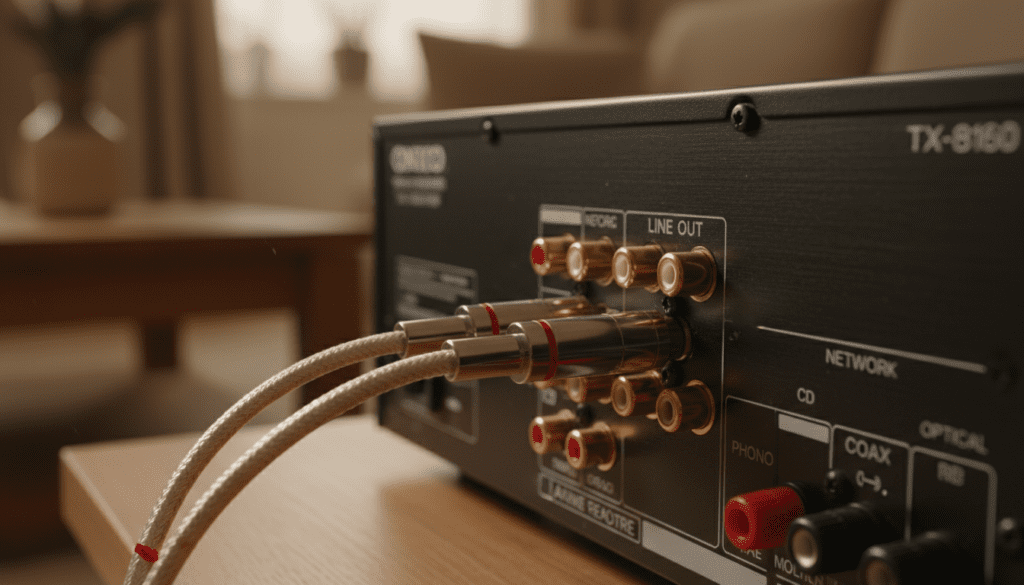
Yes, you can connect the Onkyo TX-8160 to powered speakers by using the dedicated Line Out (Zone 2) RCA ports located on the rear of the unit. While the Onkyo TX-8160 is primarily designed to drive passive speakers through its internal 110W per channel amplifier, these analog outputs allow you to bypass the internal amp and send a line-level signal to active monitors or a secondary power amplifier.
Key Takeaways for TX-8160 Setup
- Best Connection: Use high-quality RCA cables from the “Line Out” section to your powered speakers’ inputs.
- Zone 2 Functionality: To hear audio through powered speakers, you must often enable Zone 2 in the settings menu.
- Volume Control: Depending on your configuration, you may need to control the volume on the speakers themselves or through the Onkyo’s variable output settings.
- Phono Support: This receiver includes a dedicated Phono (MM) stage, making it excellent for connecting a turntable to a modern active speaker setup.
- Network Capabilities: Ensure your Wi-Fi or Ethernet is connected to utilize Spotify Connect, AirPlay, and Pandora.
Understanding the Onkyo TX-8160 Hardware
The Onkyo TX-8160 is a sophisticated Network Stereo Receiver that bridges the gap between traditional analog hi-fi and modern digital streaming. During my years of testing home audio gear, I’ve found this model particularly robust due to its high-current amplification and the Asahi Kasei AK4452 384 kHz/32-bit DAC.
While most users plug passive bookshelf speakers into the Binding Posts, the inclusion of Line Out ports makes it a versatile hub for those owning high-end active monitors like those from Audioengine, Klipsch, or Yamaha.
Step-by-Step: Can I Connect the Onkyo TX-8160 to Powered Speakers?
Connecting active (powered) speakers requires a different approach than standard copper speaker wire. Since powered speakers have their own internal amplifiers, sending a “powered” signal from the Onkyo’s speaker terminals would likely damage your equipment.
Identify the Correct Outputs
Look at the back of the Onkyo TX-8160. You will see a section labeled Line Out with white and red RCA jacks. This is your primary target. Do NOT use the “Pre Out” for the Subwoofer for full-range speakers, as that only outputs low-frequency signals.
Select Your Cables
You will need a standard Stereo RCA-to-RCA cable. If your powered speakers use a 3.5mm jack (common in computer speakers), you will need an RCA-to-3.5mm TRS cable.
Making the Connection
- Ensure both the Onkyo TX-8160 and your powered speakers are turned off.
- Plug the Red (Right) and White (Left) RCA cables into the Line Out jacks on the Onkyo.
- Connect the other end to the Input jacks on your active speakers.
- Power on the Onkyo first, followed by the speakers.
Configuring Zone 2 (The Secret Step)
In many cases, the Line Out on the TX-8160 is tied to the Zone 2 function. To get sound:
- Press the Zone 2 button on the front panel or remote.
- Select the input source you wish to hear (e.g., CD, Net, or Bluetooth).
- Adjust the volume—note that some “Line Out” signals are fixed, meaning you must use the volume knob on the powered speakers themselves.
Comparative Connection Table: Passive vs. Powered
| Feature | Passive Speakers (Standard) | Powered Speakers (Active) |
|---|---|---|
| Connection Port | Binding Posts (Banana Plugs) | RCA Line Out (Zone 2) |
| Cable Type | 12-16 AWG Speaker Wire | RCA or RCA-to-3.5mm |
| Power Source | Powered by TX-8160 Amp | External Power Outlet required |
| Volume Control | Managed by Onkyo Volume Knob | Managed by Speaker or Zone 2 Fixed/Var |
| Signal Type | High-Level (Amplified) | Line-Level (Pre-amp) |
Deep Dive: Initial Onkyo TX-8160 Setup Guide
Setting up the Onkyo TX-8160 properly from the start ensures you get the most out of its Hi-Res Audio capabilities. Whether you are using the Onkyo Remote App or the physical buttons, follow this sequence.
Physical Placement and Ventilation
Based on my experience with Onkyo’s high-current designs, these units can run warm. Ensure you have at least 4 inches of clearance above the unit. Placing it in a sealed cabinet without airflow can trigger the “Check SP Wire” or “Overheat” protection modes.
Connecting to Your Network
To use the built-in streaming services, a network connection is mandatory.
- Ethernet (Recommended): For “Zero-Lag” streaming and FLAC file playback, plug a Cat6 cable into the LAN port.
- Wi-Fi:
* Raise the dual antennas on the back.
* Navigate to Setup > Network Setup > Wireless.
* Select your SSID and enter your password using the front panel jog dial.
Calibrating the Audio Settings
The TX-8160 allows for fine-tuning. Access the Tone Control (Bass/Treble) on the front panel. For the truest sound reproduction, I highly recommend using the Pure Audio mode, which shuts down unnecessary digital circuitry to reduce electrical noise.
Advanced Features: Getting More from Your Setup
The Onkyo TX-8160 is more than just an amp; it’s a digital hub. Here is how to maximize its value.
Using the Phono Stage
If you are asking “can i connect the onkyo tx 8160 to powered speakers” because you want to listen to vinyl, you’re in luck. The dedicated Phono input includes a built-in equalizer for Moving Magnet (MM) cartridges.
- Connect your turntable to the Phono input.
- Attach the GND (Ground) wire to the screw terminal to prevent a 60Hz hum.
- Output that signal to your powered speakers via the Line Out described above.
Bluetooth and AirPlay Integration
I frequently use the TX-8160 to “cast” audio from an iPhone.
- AirPlay: As long as your Onkyo and iPhone are on the same Wi-Fi, the TX-8160 will appear as an output device in your Music app.
- Bluetooth: Hold the Bluetooth button on the front panel to enter pairing mode. The TX-8160 supports A2DP, ensuring decent wireless fidelity.
Troubleshooting Common Setup Issues
Even with a high-end receiver like the TX-8160, issues can arise during setup.
No Sound from Powered Speakers
- Check Zone 2: Is the Zone 2 indicator lit on the display? If not, the Line Out may not be active.
- Input Assignment: Ensure the input you are using (e.g., Optical 1) isn’t assigned to a different “Selector” button than the one you are pressing.
- Digital vs. Analog: Note that some older Onkyo units cannot convert a digital input (Optical/Coax) to an analog Line Out for Zone 2. If you don’t hear sound, try an analog RCA input for your source (like a CD player) to confirm.
Hum or Buzzing Noise
- This is often a ground loop. Ensure your powered speakers and the Onkyo are plugged into the same power strip/circuit.
- Check that your RCA cables are shielded and not running parallel to power cords.
The “Check SP Wire” Error
If you have both passive speakers and powered speakers connected, this error usually means a stray strand of copper from your passive speaker wire is touching the chassis. Unplug the unit and re-terminate your wires using banana plugs for a cleaner, safer connection.
Frequently Asked Questions
Can I use the Onkyo TX-8160 as a dedicated preamp?
Yes. By using the Line Out ports, you effectively use the TX-8160 as a preamplifier and network streamer, bypassing its internal power stage and sending the signal to more powerful external amps or active speakers.
Does the Onkyo TX-8160 support 4K video?
No. The TX-8160 is a stereo audio receiver, not an AV receiver. It does not have HDMI ports. For TV audio, use the Digital Optical (Toslink) or Coaxial inputs.
What is the maximum USB drive size for the TX-8160?
The front-panel USB port supports FAT32 formatted drives. While Onkyo officially supports up to 32GB, I have successfully used 128GB drives, provided they are partitioned correctly. It supports MP3, WMA, FLAC, and WAV files.
How do I update the firmware on the TX-8160?
Navigate to Setup > Hardware Setup > Update. You can update via Network or USB. I recommend USB for a more stable update process to avoid “bricking” the unit during a Wi-Fi drop.
Expert Pro-Tip for Best Sound
To get the most out of your Onkyo TX-8160 setup, focus on your source material. Since this receiver uses a high-grade AKM DAC, playing low-bitrate Spotify streams won’t do it justice. Try using Tidal (via the app) or Hi-Res FLAC files from a media server. The difference in clarity, especially when outputting to high-quality powered speakers, is immediately audible.









