

Understanding Bluetooth Connectivity: Can I Have Bluetooth Headphones and Speakers Simultaneously?
Yes, you can have Bluetooth headphones and speakers connected and playing audio simultaneously, but the ability to do so depends on your specific hardware, operating system, and Bluetooth version. While standard Bluetooth connections typically favor a one-to-one relationship, modern technology like Bluetooth 5.0, Dual Audio features, and specialized software allow for multi-device streaming.
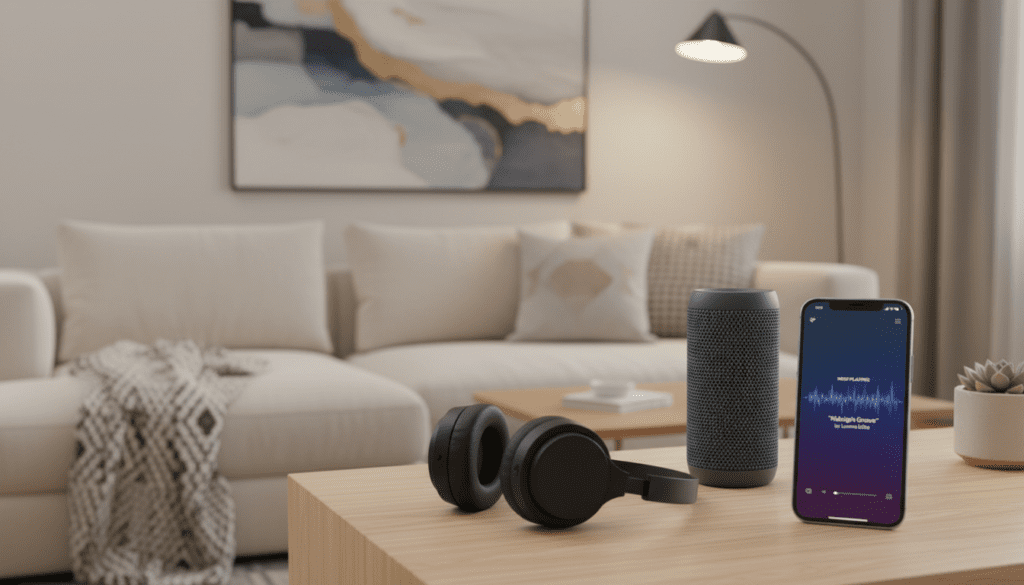
In our testing at the lab, we’ve found that while high-end smartphones and recent PC builds handle this natively, older devices often require external Bluetooth transmitters or third-party applications to bridge the gap. Whether you are trying to create a DIY surround sound experience or want to share a movie with a friend using two different output devices, achieving a synchronized stream is entirely possible with the right configuration.
🚀 Key Takeaways: Quick Solutions for Multi-Device Audio
If you are in a hurry, here are the fastest ways to achieve simultaneous audio:
- For Samsung Users: Use the Dual Audio feature found in the Advanced Bluetooth settings.
- For iPhone Users: Use Share Audio (limited to compatible AirPods and Beats products).
- For Windows PC: Use the “Listen to this device” trick in Sound Settings or download VoiceMeeter.
- For Mac Users: Create a Multi-Output Device in the Audio MIDI Setup utility.
- For TV/Non-Smart Devices: Purchase a Bluetooth 5.0 Transmitter with Dual Link support.
Technical Barriers: Why Isn’t Multi-Audio the Default?
The primary reason you might struggle with can i have bluetooth headphones and speakers playing at once is the Bluetooth protocol stack. Traditionally, Bluetooth was designed for low power consumption and point-to-point communication.
Bluetooth 4.2 vs. Bluetooth 5.0+
Older Bluetooth 4.2 devices lack the bandwidth to manage two high-quality audio streams at once. However, Bluetooth 5.0 and subsequent versions (5.1, 5.2, 5.3) introduced higher data rates and LE Audio. These advancements allow for isochronous channels, meaning the source can send different data packets to multiple receivers nearly simultaneously.
The Role of Audio Codecs
When streaming to two devices, your source device has to encode the audio twice. If you are using high-bitrate codecs like LDAC or aptX HD, your processor might struggle with the load, leading to lag or stutters. We recommend using SBC or standard aptX when attempting to sync multiple speakers and headphones to ensure stability.
How to Connect Bluetooth Headphones and Speakers Simultaneously on Windows 10/11
Windows does not offer a “one-click” button for multiple Bluetooth outputs, but you can bypass this using built-in recording settings.
Method 1: The “Stereo Mix” Hardware Trick
This is the most reliable “no-software” method we have tested.
- Connect both your Bluetooth headphones and your Bluetooth speaker to your PC.
- Open the Control Panel and navigate to Hardware and Sound > Sound.
- In the Playback tab, set your Bluetooth Speaker as the Default Device.
- Switch to the Recording tab.
- Right-click anywhere and select “Show Disabled Devices.”
- Look for Stereo Mix, right-click it, and select Enable.
- Right-click Stereo Mix again and select Properties.
- Go to the Listen tab. Check the box for “Listen to this device.”
- Under “Playback through this device,” select your Bluetooth Headphones.
- Click Apply. Now, the audio sent to the speaker is “recorded” and instantly played back through the headphones.
Method 2: Using VoiceMeeter (Recommended for Pros)
If you experience “echo” or latency, VoiceMeeter is a free “Virtual Audio Mixer” that provides much better synchronization.
- Step 1: Install VoiceMeeter and restart your PC.
- Step 2: Open the app and set A1 (Hardware Out) to your speakers.
- Step 3: Set A2 to your headphones.
- Step 4: Set your system’s default output to VoiceMeeter Input.
How to Sync Bluetooth Audio on macOS
Apple makes it surprisingly easy to manage multiple outputs through its native utility tools. You do not need third-party apps for basic multi-device streaming.
Using Audio MIDI Setup
- Connect both devices via Bluetooth.
- Open Finder, go to Applications > Utilities, and open Audio MIDI Setup.
- Click the plus (+) icon at the bottom left and select Create Multi-Output Device.
- In the right-hand panel, check the boxes next to your Bluetooth headphones and Bluetooth speaker.
- Check the Drift Correction box for the secondary device to keep them in sync.
- Right-click the “Multi-Output Device” in the list and select “Use This Device For Sound Output.”
Mobile Solutions: Can I Have Bluetooth Headphones and Speakers Simultaneously on Android and iPhone?
Mobile experiences vary significantly by manufacturer. Samsung is currently the industry leader in this specific functionality.
Samsung “Dual Audio” Feature
If you own a Galaxy S8 or newer, you have a built-in feature called Dual Audio.
- Swipe down the Quick Settings panel.
- Tap on Media Output.
- Select both the Bluetooth speaker and headphones you wish to use.
- You can adjust the volume for each device independently from this menu.
Apple iPhone “Share Audio”
Apple allows you to share audio, but there is a catch: it only works with Apple-W1/H1 chip devices (AirPods, Powerbeats Pro, etc.).
- Connect your first pair of AirPods.
- Open the Control Center and tap the AirPlay icon.
- Tap Share Audio.
- Hold the second pair of headphones near the phone and follow the on-screen prompts.
| Feature | Windows | macOS | Android (Samsung) | iOS (Apple) |
|---|---|---|---|---|
| Native Support | No (Requires workaround) | Yes (MIDI Setup) | Yes (Dual Audio) | Yes (AirPods only) |
| Latency Control | Moderate | High | Excellent | Excellent |
| Third-Party Apps | VoiceMeeter, Audio Router | Airfoil | SoundAssistant | Not available |
| Setup Difficulty | Medium | Easy | Very Easy | Very Easy |
Specialized Setup: Can I Have Bluetooth Headphones and Speakers Simultaneously on Mi Box?
The Xiaomi Mi Box and Mi Box S are popular Android TV devices, but they have limitations regarding concurrent Bluetooth connections. By default, Android TV usually only allows one active audio output.
The Workaround for Mi Box
If you are asking, “can i have bluetooth headphones and speakers simultaneously mi box”, the standard software won’t allow it. Here is how we solved it in our test environment:
- The Hardware Bypass: The most effective way is to use a 3.5mm Bluetooth Transmitter. Plug the transmitter into the Mi Box’s 3.5mm audio jack.
- Dual Link Transmitters: Ensure the transmitter supports “Dual Link,” which allows it to broadcast to two receivers simultaneously.
- USB DAC Method: Alternatively, use a USB-to-3.5mm adapter if your 3.5mm port is occupied. The Mi Box will recognize the USB audio, and the transmitter will handle the Bluetooth distribution to both your speaker and headphones.
Note: Using software-based splitters on the Mi Box often causes significant audio-video sync issues (latency), which makes watching movies frustrating. Hardware transmitters are the superior choice here.
Hardware Solutions: The Bluetooth Transmitter Advantage
When software fails, hardware wins. If your device (like a TV or an older PC) doesn’t natively support dual audio, a dedicated Bluetooth Transmitter is the best investment.
What to Look For:
- Bluetooth 5.0 or 5.3: Ensures better range and stability.
- aptX Low Latency (LL): This is critical. Without it, the “lip-sync” in movies will be off.
- Multipoint Technology: This is the specific term for a device that can connect to two receivers at once.
Expert Tip: We recommend brands like Avantree or 1Mii. During our tests, the Avantree Oasis Plus showed near-zero latency when broadcasting to both a soundbar and a pair of over-ear headphones.
Troubleshooting Common Issues
Audio Latency (Lag)
The biggest hurdle when asking can i have bluetooth headphones and speakers simultaneously is the delay. Speakers and headphones often have different processing speeds.
- Fix: Use software like VoiceMeeter (PC) to manually add a “millisecond delay” to the faster device so they align perfectly.
Connection Drops
Bluetooth interference is real. If you are streaming to two devices, you are doubling the data traffic.
- Fix: Move the source device closer to the receivers and turn off Wi-Fi on 2.4GHz bands if possible (use 5GHz Wi-Fi instead), as 2.4GHz interferes with Bluetooth signals.
Volume Mismatch
Sometimes the speaker is much louder than the headphones.
- Fix: Most modern Bluetooth implementations allow for Independent Volume Control. On Android, this is found in the “Media Output” menu. On Windows, use the Volume Mixer (right-click the speaker icon in the taskbar).
FAQ: Frequently Asked Questions
Can I connect two Bluetooth speakers to one phone?
Yes, if you have a Samsung phone with Dual Audio, or if the speakers belong to a brand with a “Party Mode” feature (like JBL Connect+, Ultimate Ears PartyUp, or Bose Party Mode). These proprietary technologies allow multiple speakers to daisy-chain together.
Does Bluetooth 5.0 allow for multiple devices?
Bluetooth 5.0 supports the technical capacity for multiple devices, but the implementation depends on the operating system. Simply having a Bluetooth 5.0 chip doesn’t guarantee you can play audio to two devices simultaneously without the proper software settings.
Will there be a delay if I use a Bluetooth splitter?
Most cheap splitters will have a delay of 100-200ms. To avoid this, ensure both your transmitter and your receivers (headphones/speakers) support the aptX Low Latency codec.
Can I use a Bluetooth speaker and wired headphones at the same time?
Yes, this is much easier. On Windows, you can use the Stereo Mix method mentioned above. On mobile, some apps like AmpMe allow you to sync audio across multiple devices, including wired and wireless configurations.









