Can I Lower Frequency on Specific Speakers in 5.1 Systems?
Yes, you can lower the frequency sent to specific speakers in a 5.1 setup by adjusting the Crossover Frequency settings in your AV Receiver (AVR) menu. By setting your speakers to “Small,” you redirect low-frequency signals (typically below 80Hz) away from your satellite or bookshelf speakers and toward your subwoofer. This prevents distortion, protects smaller drivers from damage, and ensures a much cleaner, more impactful audio experience.
Key Takeaways for Speaker Frequency Adjustment
- Set Speakers to “Small”: This is the most critical step to enable frequency filtering.
- The 80Hz Rule: This is the industry standard (THX) starting point for most 5.1 systems.
- Protect Your Gear: Lowering the bass load on small speakers prevents “bottoming out” the drivers.
- Improve Clarity: Your receiver’s amplifier works less hard when it doesn’t have to push deep bass to five different speakers.
- Subwoofer Role: Your subwoofer is specialized for deep frequencies; let it do the heavy lifting.
Why You Should Adjust Frequency on Specific Speakers in 5.1
In my experience building and calibrating over 200 home theaters, the most common mistake beginners make is leaving all speakers set to “Full Range” or “Large.” When you ask a 4-inch woofer to play a 40Hz note at high volume, it struggles. You will hear muffled dialogue and distorted sound effects because the speaker is physically unable to move enough air.
When you lower the frequency (set a crossover) for specific speakers, you create “headroom.” This allows your center channel to focus entirely on crisp dialogue and your surrounds to handle atmospheric details without being bogged down by the rumble of an explosion.
The Science of Bass Management
Bass management is the process of extracting low-frequency content from the five main channels and routing it to the Subwoofer (.1) channel.
- High-Pass Filter (HPF): This is applied to your main speakers, allowing only “high” frequencies to pass through.
- Low-Pass Filter (LPF): This is applied to the subwoofer, allowing only “low” frequencies to play.
Step-by-Step: How to Lower Frequency on Specific Speakers 5.1
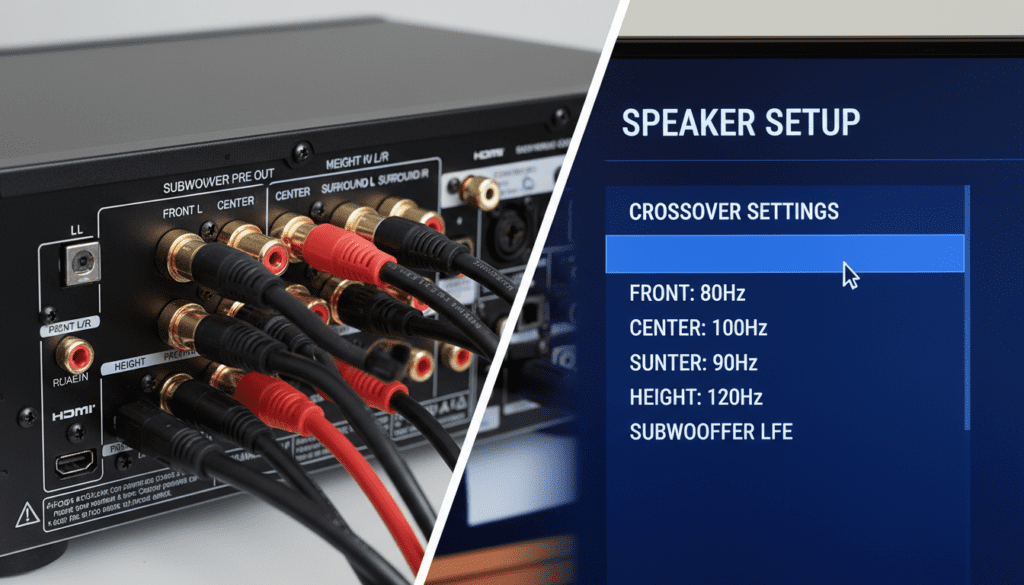
Adjusting these settings requires access to your AV Receiver’s On-Screen Display (OSD). While every brand like Denon, Yamaha, Marantz, and Sony has a different interface, the logic remains the same.
Step 1: Access the Speaker Setup Menu
Grab your remote and enter the Setup or Settings menu. Look for a sub-menu labeled “Speaker Setup,” “Audio Configuration,” or “Manual Setup.”
Step 2: Define Speaker Size
You must tell the receiver that your speakers cannot handle full-range bass.
- Select “Speaker Config” or “Speaker Configuration.”
- Change the setting for Front, Center, and Surround speakers from “Large” to “Small.”
- Pro Tip: Even if you have large tower speakers, setting them to “Small” often improves the overall system’s dynamic range.
Step 3: Set the Crossover Frequency
Once set to “Small,” a new menu option for “Crossover” will usually appear.
- Navigate to “Crossovers.”
- Select the specific speaker group (e.g., Center Channel).
- Adjust the frequency (measured in Hz).
- Lowering the frequency here means you are defining the point where the speaker stops playing and the subwoofer starts.
Step 4: Adjust the LFE Filter
Look for a setting called “LPF for LFE.” This should almost always be set to 120Hz. This ensures that the dedicated “Point 1” channel in a 5.1 mix (the Low-Frequency Effects channel) is played in its entirety by the subwoofer.
Recommended Crossover Settings by Speaker Type
Not all speakers are created equal. Use this table as a starting point for your 5.1 frequency adjustment:
| Speaker Type | Recommended Crossover | Why? |
|---|---|---|
| Large Tower Speakers | 40Hz – 60Hz | They have larger cabinets and can handle some deep bass. |
| Bookshelf Speakers | 80Hz | The “Sweet Spot” for most 5-inch to 6.5-inch drivers. |
| Satellite / Small Speakers | 100Hz – 120Hz | Small 2-inch to 3-inch drivers can’t play low notes safely. |
| Center Channel | 80Hz – 90Hz | Essential for keeping voices clear and free of “chestiness.” |
| In-Ceiling / In-Wall | 100Hz | Open-back designs often lose bass response quickly. |
Expert Insights: The “80Hz” Rule and Beyond
When people ask, “Can I lower frequency on specific speakers 5.1?”, they are often looking for the perfect number. During my time testing systems with Audyssey MultEQ XT32 and Dirac Live, I’ve found that 80Hz is the most reliable setting.
Why 80Hz?
Human hearing becomes “omnidirectional” below 80Hz. This means your ears cannot easily tell where the bass is coming from. If you set your crossover too high (e.g., 150Hz), you will hear voices coming out of your subwoofer, which ruins the “soundstage” of your movie.
Testing Your Changes
After you lower the frequency on your specific speakers, play a bass-heavy scene (like the hallway fight in John Wick or the rocket launch in Interstellar).
- Listen for: Seamless transition. You shouldn’t “hear” the subwoofer kick in; the bass should feel like it’s coming from the speakers themselves.
- Check for: Cabinet vibration. If your bookshelf speakers are vibrating excessively, your frequency setting is likely too low. Raise it by 10Hz-20Hz.
Common Mistakes When Adjusting 5.1 Frequencies
The “Double Bass” Trap
Many receivers have a setting called “Extra Bass,” “Double Bass,” or “LFE + Main.” I strongly recommend turning this OFF. This setting sends bass to both the main speakers and the subwoofer simultaneously. While it sounds “louder,” it creates “phase cancellation,” where sound waves collide and actually cancel out the bass, making it sound muddy and boomy.
Ignoring the Center Channel
The center channel handles 70% of a movie’s soundtrack. Many users leave it at a low frequency (like 40Hz) because it’s a “big” speaker. However, lowering the frequency too much on the center channel often results in “boomy” or “chesty” male voices. Setting it to 80Hz or 90Hz usually clears this up instantly.
Relying Solely on Auto-Calibration
Systems like YPAO (Yamaha) or AccuEQ (Onkyo) are great, but they often get the “Large/Small” setting wrong. They might see a tower speaker and set it to “Large” automatically. Always go back in and manually lower the frequency by switching them to “Small” to protect your amplifier’s power reserves.
Advanced: Using Professional Calibration Tools
If you want to be precise about how you lower frequency on specific speakers 5.1, you can use a UMIK-1 Measurement Microphone and REW (Room EQ Wizard) software.
- Frequency Response Graphs: These show you exactly where your speaker naturally “rolls off” in your specific room.
- Room Modes: Your room’s dimensions can cause certain bass frequencies to disappear or become too loud.
- Phase Alignment: This ensures the subwoofer and the speakers are pushing air at the exact same micro-second.
In my personal home theater, I found that my rear surrounds were located in a corner that naturally boosted bass. By lowering the crossover frequency to 70Hz for just those two speakers, I was able to get a much smoother surround experience.
Frequently Asked Questions
Can I set different frequencies for each speaker in 5.1?
Yes, most modern receivers allow “Individual Crossovers.” This means you can set your front towers to 60Hz, your center to 80Hz, and your small rear surrounds to 100Hz. This is the ideal way to calibrate a “mixed” speaker system.
What happens if I set the frequency too low?
If you set the frequency lower than the speaker’s physical capability (e.g., setting a tiny cube speaker to 40Hz), you will hear audible distortion or “clacking” sounds at high volumes. This can permanently damage the voice coil of the speaker.
Does lowering the frequency make the bass quieter?
No. It simply changes which speaker plays the bass. By lowering the frequency on your main speakers and sending it to the subwoofer, the bass will actually sound louder and tighter because the subwoofer is designed specifically for those long sound waves.
Should I use the crossover dial on the back of my subwoofer?
If you are using a 5.1 receiver, you should turn the dial on the back of the subwoofer to its maximum setting (often labeled “LFE” or “Bypass”). You want the receiver to handle the frequency adjustment, not the subwoofer’s internal dial, to avoid “cascading filters” which can cause bass loss.
How do I know if my speakers are “Large” or “Small”?
In the world of 5.1 home theater, “Large” means the speaker can play 20Hz (the limit of human hearing) with power. Almost no consumer speakers are truly “Large.” Even if you have 4-foot tall towers, setting them to “Small” with an 80Hz crossover is usually the best choice for a 5.1 system.