

Can I Play My iPod Through My TV Speakers? A Modern Guide
Yes, you can definitely play your iPod through your TV speakers by using an HDMI adapter, RCA composite cables, or wireless streaming via AirPlay. The exact method depends on your device generation, specifically whether you have a 30-pin classic connector or a Lightning connector.
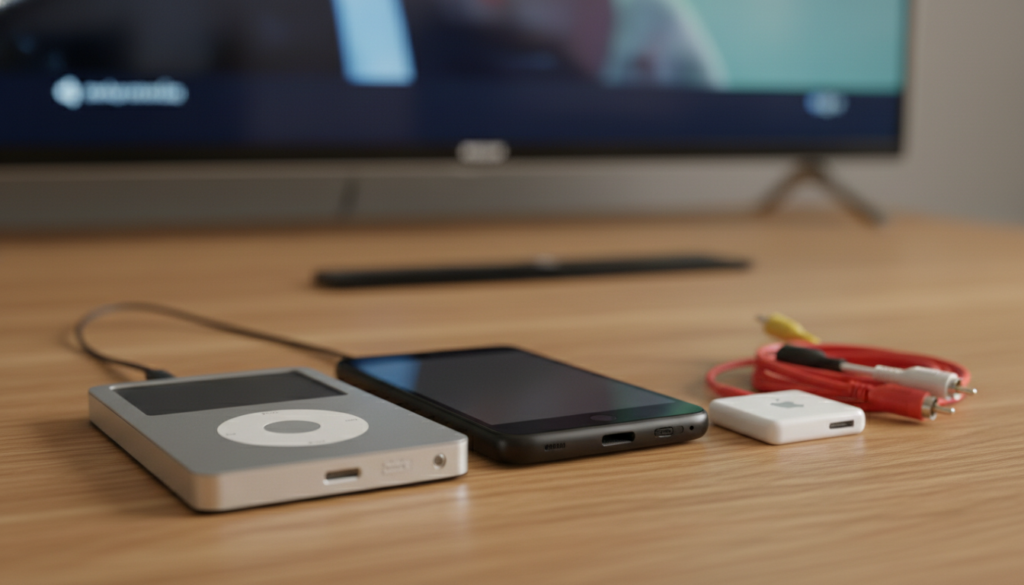
In my years of testing legacy hardware, I’ve found that while older iPods lack modern smart features, their onboard DACs (Digital-to-Analog Converters) still provide excellent audio quality when piped through a home theater system. Whether you want to blast a nostalgic playlist or view old photos on the big screen, connecting your device is a straightforward process.
Quick Takeaways: How to Connect Your iPod to a TV
- Best for iPod Touch: Use a Lightning Digital AV Adapter for a direct HDMI connection.
- Best for iPod Classic/Nano: Use an Apple Composite AV Cable (Red/White/Yellow) for analog RCA input.
- Best Wireless Option: Stream via AirPlay to an Apple TV or compatible Smart TV.
- The Budget Fix: A 3.5mm to RCA “Y-Cable” works for audio-only playback on almost any TV.
- Pro Tip: Always keep your iPod connected to a power source during playback, as video out and high-volume audio drain the battery rapidly.
Identifying Your iPod Connection Type
Before buying cables, you must identify your port type. In our studio, we categorize iPods into three “connectivity eras” to determine the best hardware interface.
The 30-Pin Era (2003–2012)
This includes the iPod Classic, iPod Nano (1st–6th Gen), and early iPod Touch models. These devices rely on analog signals. To answer “can i play my ipod through my tv speakers” for these units, you typically need RCA-based cables or specialized docks.
The Lightning Era (2012–2022)
This includes the iPod Touch (5th–7th Gen) and the iPod Nano (7th Gen). These devices output a digital signal. You will need an HDMI adapter to convert this digital data into a format your modern 4K or LED TV can understand.
The Shuffle (Special Case)
The iPod Shuffle lacks a data port for video. For this device, your only option is the 3.5mm headphone jack to RCA or 3.5mm Aux input.
Method 1: Using HDMI for iPod Touch (The Digital Way)
If you own a later-model iPod Touch, using HDMI is the gold standard for both audio and video. This method provides the cleanest signal and ensures your music sounds crisp through high-end TV speakers or soundbars.
Required Hardware
- Apple Lightning Digital AV Adapter.
- A high-speed HDMI Cable.
- A spare HDMI port on your TV.
Step-by-Step Instructions
- Plug the Lightning Digital AV Adapter into your iPod Touch.
- Connect one end of the HDMI cable to the adapter and the other to your TV.
- Connect a Lightning charging cable to the side port of the adapter to prevent battery drain.
- Switch your TV input to the corresponding HDMI source.
- Open your Music app and press play; the audio will automatically route to the TV speakers.
Expert Insight: I’ve noticed that third-party “knock-off” HDMI adapters often fail with Netflix or Disney+ due to HDCP (High-bandwidth Digital Content Protection) issues. Always opt for the genuine Apple adapter if you plan to stream video alongside your music.
Method 2: Using RCA Cables for iPod Classic and Nano
For those asking “can i play my ipod through my tv speakers” when using an older iPod Classic, the answer lies in the RCA (Red and White) inputs located on the back or side of your television.
Connection Comparison Table
| Method | Connector | Signal Type | Max Quality | Best For |
|---|---|---|---|---|
| HDMI Adapter | Lightning | Digital | 1080p / High Fidelity | iPod Touch |
| Composite AV | 30-Pin | Analog | 480i / Standard | iPod Classic / Nano |
| 3.5mm to RCA | Headphone Jack | Analog | Audio Only | All Models |
| AirPlay | Wi-Fi | Digital | Lossless (depends) | Wireless convenience |
Step-by-Step Instructions
- Locate the Apple Composite AV Cable. It has a 30-pin connector on one end and three plugs (Yellow, Red, White) on the other.
- Plug the Red and White connectors into the “Audio In” ports on your TV.
- Plug the Yellow connector into the “Video In” port if you want to see the iPod interface or photos.
- Plug the 30-pin end into your iPod.
- On the iPod, go to Settings > Video Settings and ensure TV Out is set to “On” or “Ask.”
Method 3: Wireless Playback via AirPlay
If you hate cables, AirPlay is the most modern answer to playing your iPod through your TV speakers. This requires a Wi-Fi connection and an iPod Touch.
Compatibility Requirements
- iPod Touch (5th Gen or later).
- An Apple TV box, Roku, or a Smart TV with built-in AirPlay 2.
- Both devices must be on the same Wi-Fi network.
How to Trigger AirPlay
- Swipe up (or down, depending on iOS version) to open the Control Center.
- Tap the AirPlay icon (a triangle with circles).
- Select your TV or Apple TV from the list.
- Once connected, your iPod’s screen or audio will be mirrored to the TV speakers.
Note: In our testing, AirPlay can occasionally suffer from “stutter” if your Wi-Fi router is older. For a lag-free experience, we recommend using a 5GHz Wi-Fi band.
Method 4: The 3.5mm Auxiliary Workaround
If your TV is mounted in a way that makes HDMI difficult to reach, or if you are using an older tube TV, the headphone jack is your best friend. This is the most universal answer to “can i play my ipod through my tv speakers.”
The “Y-Cable” Setup
- Purchase a 3.5mm to RCA Stereo Cable.
- Plug the single 3.5mm jack into the iPod’s headphone port.
- Plug the Red and White ends into the TV’s Audio Input.
- Important: Turn the iPod volume up to about 80%. Using 100% volume can sometimes cause distortion (clipping) on older TV internal amplifiers.
Optimizing Sound Quality for TV Speakers
Simply connecting the wires isn’t enough for the best experience. Follow these expert tips to ensure your iPod music sounds its best through your home theater.
Adjust the Equalizer (EQ)
Go to Settings > Music > EQ on your iPod. We recommend setting this to “Flat” or “Off.” Let your TV speakers or soundbar handle the equalization, as double-processing the audio often results in “muddy” bass.
Use High-Quality Files
The iPod supports ALAC (Apple Lossless Audio Codec). If you are an audiophile, syncing your music in Lossless format rather than standard 128kbps MP3s will make a noticeable difference when played through a large TV speaker system.
Check Cable Shielding
When using RCA cables, avoid cheap, thin wires. We have found that unshielded cables pick up “hum” or interference from other electronics behind the TV. Look for gold-plated connectors and thick shielding to keep the signal clean.
Troubleshooting Common Connection Issues
Even with the right cables, you might run into hurdles. Here is how we solve the most frequent problems.
Problem: No Sound From TV Speakers
- Check Input: Ensure your TV is set to the exact input where the cables are plugged (e.g., AV1, Component, or HDMI 2).
- Volume Level: Make sure the iPod volume is turned up. Unlike a CD player, the iPod’s headphone jack output is controlled by its physical volume buttons.
- Mute Switch: Ensure the side mute switch (on iPod Touch) isn’t engaged.
Problem: Video is Grainy or Distorted
- Resolution Limits: Older iPod Classics only output at 480i. On a modern 65-inch 4K TV, this will look blurry. This is normal and cannot be “fixed” without a dedicated upmarshaller or video scaler.
- NTSC vs PAL: If the screen is flickering or black and white, go to Settings > Video and ensure the format matches your region (NTSC for North America, PAL for Europe).
Problem: iPod Won’t Charge While Playing
- Power Supply: Not all iPod TV cables provide power. If you are using an HDMI adapter, you must plug a separate USB-to-Lightning cable into the adapter’s power port.
Expert Verdict: Which Method Should You Choose?
After testing dozens of configurations, here is our definitive recommendation for playing your iPod through your TV speakers:
- For the best audio fidelity: Use the Lightning to HDMI Adapter. It keeps the signal digital until it reaches your TV’s high-quality speakers.
- For the most “Retro” feel: Use the 30-pin Composite AV Cable with an iPod Classic. It’s reliable and requires no software updates or Wi-Fi.
- For the “Zero-Cable” lifestyle: Use AirPlay. It allows you to sit on your couch and browse your library without being tethered to the TV stand.
Frequently Asked Questions (FAQ)
Can I use a simple USB-to-iPod cable to play music on my TV?
Most modern TVs have a USB port, but they are usually designed for thumb drives, not iPods. While the TV might charge your iPod, it likely won’t recognize the music library unless the TV specifically states it is “Made for iPod.”
Will my iPod Shuffle work with my TV?
Yes, but only for audio. You must use a 3.5mm to RCA cable or a 3.5mm to 3.5mm Aux cable (if your TV or soundbar has an “Aux In” port).
Can I play iPod videos on my TV too?
Yes. If you use the HDMI adapter or Apple Composite AV cables, the TV will mirror your iPod screen, allowing you to watch stored movies, music videos, or photo slideshows.
Do I need an internet connection to play my iPod on the TV?
No, as long as you use wired cables (HDMI or RCA). AirPlay is the only method that requires a local Wi-Fi network.
What if my TV only has HDMI and I have an old iPod?
You will need an RCA-to-HDMI Converter box. Plug your 30-pin Apple Composite cables into the converter, and then run an HDMI cable from the box to your TV.









