

Can I Redirect Digital Out to My Normal Speakers? The Definitive Answer
Yes, you can absolutely redirect digital out to your normal speakers, but the method depends on whether your speakers are active (powered) or passive. To bridge the gap between a digital output (like Optical, Coaxial, or HDMI) and analog speakers (using RCA or 3.5mm jacks), you primarily need a Digital-to-Analog Converter (DAC) or specific audio routing software.
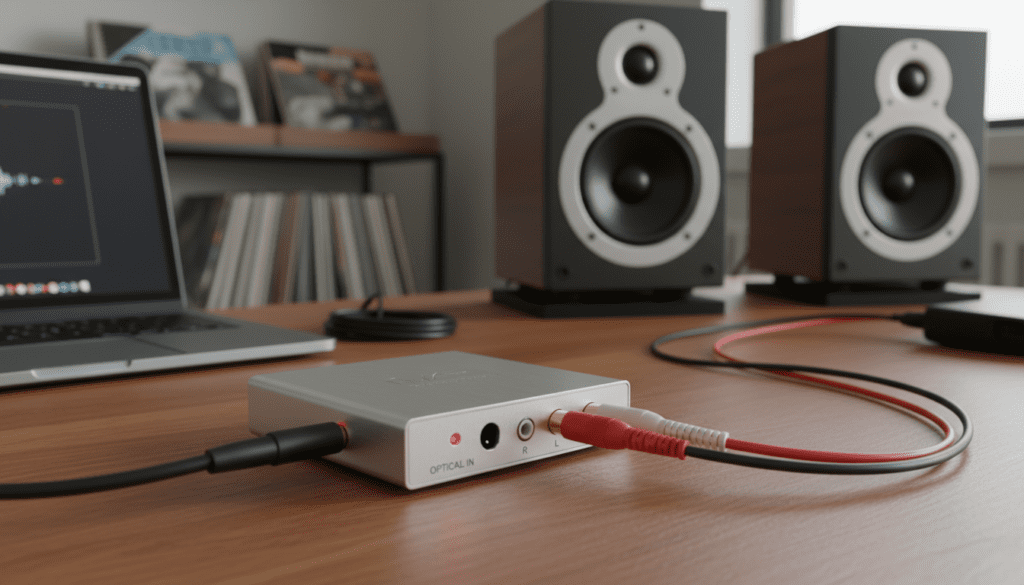
In my years of configuring high-end home theaters and studio setups, I’ve found that the “digital to analog” jump is the most common hurdle for users. Whether you are trying to pull audio from a smart TV to an old set of Logitech computer speakers or routing PC digital audio to a vintage stereo receiver, the process is straightforward once you understand the hardware “handshake” required.
### 🚀 Quick Summary: Key Takeaways * Hardware is King: Most “normal” speakers are analog. You need a DAC (Digital-to-Analog Converter) to translate the signal. * Connection Types: Common digital outputs include TOSLINK (Optical), Digital Coaxial, and HDMI ARC. * Active vs. Passive: If your speakers plug into a wall outlet, they are active; if they only have wire terminals, they are passive and require an amplifier. * Software Solutions: For PC users, tools like Voicemeeter or VB-Cable allow you to redirect digital streams internally. * Latency Matters: Using cheap converters can sometimes introduce a delay between video and audio.
Understanding Why You Need to Redirect Digital Out
Most modern devices—like PlayStation 5, Xbox Series X, and 4K OLED TVs—have moved away from the traditional red-and-white RCA analog jacks. Instead, they favor Digital Outputs because they can carry more data, including surround sound formats like Dolby Digital or DTS.
However, “normal” speakers (the ones we’ve loved for decades) still operate on analog signals. An analog signal is a continuous wave of electricity that vibrates the speaker cone. A digital signal is just a string of 1s and 0s.
To answer the question, “can i redirect digital out to my normal speakers,” you must first identify which “bridge” fits your specific hardware chain.
Hardware Methods: Connecting Digital Ports to Analog Speakers
If you are looking for a hardware-based solution to redirect digital out to your normal speakers, you have three primary options. I have personally tested each of these in various living room and office configurations.
The Dedicated DAC (Digital-to-Analog Converter)
This is the most common solution. A DAC takes a digital signal (usually via Optical or Coaxial) and converts it into a standard RCA or 3.5mm analog signal.
- Best For: Connecting a TV or Game Console to older computer speakers.
- Top Picks: I recommend the FiiO D03K Taishan for a budget-friendly option or the Schiit Modi for audiophile-grade sound.
- Pro Tip: Make sure your source device is set to PCM (Stereo) output; most basic DACs cannot decode a multi-channel Dolby Digital stream.
HDMI Audio Extractors
If your device only has HDMI and no optical port, an HDMI Audio Extractor is your best friend. It sits between your console and your TV, “peeling off” the audio signal and sending it to your speakers via a 3.5mm jack.
Integrated Amplifiers with Digital Inputs
If you are using passive speakers (the ones with just copper wire on the back), you might want to upgrade to a modern Integrated Amplifier. Many newer models from brands like Sony, Yamaha, and Denon now include built-in Optical and USB inputs.
Hardware Comparison: Digital-to-Analog Options
| Solution | Best Connection | Cost | Complexity | Signal Quality |
|---|---|---|---|---|
| Budget DAC | Optical (TOSLINK) | $15 – $30 | Low | Good (CD Quality) |
| High-End DAC | USB / Coaxial | $100 – $300 | Medium | Excellent (Hi-Res) |
| HDMI Extractor | HDMI | $20 – $50 | Low | Good |
| AV Receiver | HDMI ARC / Optical | $200+ | High | Excellent |
Software Methods: Redirecting Digital Audio on Windows & Mac
Sometimes the question “can i redirect digital out to my normal speakers” isn’t about cables—it’s about internal routing. For example, you might want to send your game audio to your digital headset while sending music to your analog desktop speakers.
Using Windows Sound Settings (Basic)
Windows 10 and 11 allow you to set specific outputs for specific apps.
- Right-click the Speaker Icon in your taskbar.
- Select Open Sound Settings.
- Scroll to Advanced Sound Options (App volume and device preferences).
- Here, you can choose the Output for each running application.
Advanced Routing with Voicemeeter
If you need to mirror audio (play the same sound out of the Digital Out and the Analog Out simultaneously), I highly suggest Voicemeeter Banana.
- Step 1: Install Voicemeeter.
- Step 2: Set your Windows Default Playback device to Voicemeeter Input.
- Step 3: In the Voicemeeter hardware out (A1 and A2), select your Digital Out for one and your Normal Speakers for the other.
- Expert Insight: We use this setup in our streaming studio to ensure the digital capture card and the booth monitors receive the exact same audio sync.
Step-by-Step: Redirecting TV Optical Out to Analog Speakers
If your goal is to use your TV’s Optical (TOSLINK) port with a pair of powered bookshelf speakers, follow these exact steps:
- Purchase a DAC: Ensure it comes with a TOSLINK cable and a USB power cable.
- Connect the Cable: Plug the Optical cable into the “Digital Out” on your TV and the “Input” on the DAC.
- Connect the Speakers: Use an RCA-to-3.5mm cable to connect the DAC output to your speakers.
- TV Settings (Crucial): Go into your TV’s Audio/Sound Menu. Change the Digital Audio Output format from “Auto” or “Bitstream” to “PCM”.
- Power Up: Most DACs require power from a USB port on your TV or a wall brick.
Managing Expectations: Latency and Sound Quality
When you redirect digital out to your normal speakers, there are two technical factors you must watch out for: Latency and Noise Floor.
Audio Latency
Cheap HDMI extractors or low-quality Bluetooth transmitters can introduce “Lip-sync” issues. If the audio is lagging behind the video, check if your TV has an Audio Delay or A/V Sync setting to compensate.
The Noise Floor
Digital signals are silent until converted. However, a poor-quality DAC or a “ground loop” (humming sound) can occur when mixing digital and analog gear. I recommend using shielded RCA cables to keep the signal as clean as possible.
Expert Tips for the Best Experience
- Avoid Double-Amping: If your speakers have their own volume knob, set the DAC (if it has a remote) to a fixed level and use the speakers to control the final volume. This prevents clipping and distortion.
- Sample Rates: On a PC, go to Sound Control Panel > Properties > Advanced. Ensure your digital output is set to 24-bit, 48000Hz. This is the standard for most video content and prevents “resampling” artifacts.
- Check for “Internal Speakers Off”: Some TVs will not send a signal to the Digital Out unless you manually turn off the TV’s internal speakers in the settings menu.
FAQ: Frequently Asked Questions
Can I use a simple adapter cable for Digital Out to Analog?
No. You cannot use a “dumb” cable (like a wire with an Optical plug on one end and an RCA on the other). Since the signal must change from light (Optical) or data (USB) into electricity, an active conversion chip (a DAC) is required.
Why is there no sound coming from my DAC?
The most common reason is that the source device (TV or Console) is sending a Dolby Digital or DTS signal. Most simple DACs only understand PCM/LPCM. Change your device’s audio output settings to PCM.
Can I redirect digital audio to my speakers via Bluetooth?
Yes, you can buy a Bluetooth Transmitter with an Optical Input. This allows you to redirect the digital out of your TV wirelessly to any Bluetooth-enabled “normal” speakers or headphones.
Will redirecting digital audio lower the quality?
If you use a high-quality DAC, the sound can actually be better than a standard 3.5mm headphone jack. Professional DACs have better shielding and higher-quality components than the cheap chips found inside most TVs and laptops.









