

Can I Use Desktop Speakers with a Radio? The Direct Answer
Yes, you can use desktop speakers with a radio, provided the radio has a 3.5mm headphone jack or RCA output ports. By using a standard auxiliary cable or a Y-adapter, you can bypass the tiny, built-in speaker of your radio and enjoy the superior frequency response and stereo separation of your computer speakers.
Connecting these two devices is a simple “plug-and-play” process for most modern setups. Whether you are using a portable FM/AM pocket radio or a high-end shortwave receiver, the goal is to transmit the analog audio signal from the radio’s output into the active (powered) input of your desktop speakers.
TL;DR: Quick Guide to Connecting Radio to Speakers
- Check Outputs: Look for a “Phones” or “Line Out” jack on your radio.
- Check Inputs: Most desktop speakers use a 3.5mm (1/8″) jack or RCA (Red/White) inputs.
- The Cable: Use a 3.5mm-to-3.5mm male cable for most modern setups.
- Power: Ensure your desktop speakers are plugged into a wall outlet, as they must be Active Speakers.
- Volume Control: Set the radio volume to about 50-70% and use the speaker’s volume knob to control the final output to prevent distortion.
Why You Should Upgrade Your Radio’s Sound
Most standalone radios, especially portable or vintage models, come equipped with small, low-wattage internal speakers. These drivers often lack bass response and produce a “tinny” sound that causes ear fatigue during long listening sessions.
By integrating desktop speakers, you introduce several technical benefits:
- Stereo Imaging: Most radios process signals in mono through their internal speaker; using dual desktop speakers provides a wider soundstage.
- Increased Dynamic Range: Desktop speakers like the Audioengine A2+ or Logitech Z407 have dedicated tweeters and woofers to handle different frequencies.
- Amplification: Since most desktop speakers are Active (Powered), they provide their own amplification, meaning your radio doesn’t have to work as hard to push high volumes.
Hardware Requirements: What You Need to Get Started
Before attempting the connection, I recommend auditing your current gear. In my experience testing various Bose and Creative speaker sets, the connection method depends entirely on the Input/Output (I/O) layout.
Common Connection Cables
| Cable Type | Use Case | Connection Quality |
|---|---|---|
| 3.5mm to 3.5mm (Aux) | Connecting a headphone jack to a standard PC speaker input. | Standard |
| 3.5mm to RCA (Y-Cable) | Connecting a radio to speakers with Red/White inputs. | High (Better Shielding) |
| 1/4″ to 3.5mm Adapter | Used for professional or vintage shortwave radios. | Professional |
| Bluetooth Transmitter | Making a non-Bluetooth radio work with wireless speakers. | Convenient (Slight Latency) |
Identifying “Active” vs. “Passive” Speakers
It is critical to understand that you cannot connect a radio directly to passive speakers (speakers without a power cord). Passive speakers require an external Integrated Amplifier or Receiver to boost the signal.
Most desktop speakers are Active, meaning they have a built-in amplifier and plug into a wall outlet. These are perfect for direct connection to a radio.
Step-by-Step Guide: How to Connect Desktop Speakers to a Radio
Follow these steps to ensure a clean signal and to protect your hardware from signal clipping or electrical pops.
Step 1: Locate the Audio Output on the Radio
Search for a jack labeled “Headphones,” “Phones,” “Line Out,” or “Rec Out.”
- Headphone Jack: This signal is variable, meaning the radio’s volume knob affects the loudness.
- Line Out: This is a fixed signal, which is generally cleaner and preferred for external speakers.
Step 2: Choose Your Cable
If your radio has a small headphone jack and your speakers have a “Line In” or “Aux” port, use a 3.5mm male-to-male cable. If your speakers are high-end (like Edifier R1280Ts), they likely use RCA inputs. In this case, you will need a 3.5mm-to-RCA adapter cable.
Step 3: Power Down Both Devices
To avoid a sudden “thump” that can damage speaker drivers, ensure both the radio and the speakers are turned off before plugging them in.
Step 4: Make the Connection
Plug one end of the cable into the Radio’s Output and the other into the Speaker’s Input. Ensure the plugs are seated firmly; a loose connection is the primary cause of 60Hz hum or buzzing.
Step 5: Calibrate the Volume Levels
- Turn the Desktop Speaker volume all the way down.
- Turn on the Radio and set its volume to approximately 60%.
- Slowly turn up the Speaker volume until you reach a comfortable listening level.
- If you hear distortion, lower the radio’s volume and increase the speaker’s volume.
Advanced Scenarios: Connecting to Different Radio Types
Not all radios are created equal. Depending on the age and type of your device, you might need a specialized approach.
Portable and Pocket Radios
Portable radios (like the Sangean DT-400W) are designed for headphones. These have very low power output. When connecting these to desktop speakers, you may find the signal is “quiet.”
Expert Tip: Use a shielded auxiliary cable to prevent the cable from acting as an antenna and introducing static into your FM reception.
Vintage Tabletop Radios
If you are using a vintage tube radio or a 1970s receiver, it may have RCA Tape Outs on the back. These are ideal because they provide a “Line Level” signal that bypasses the old, aging internal amplifier of the radio, giving your desktop speakers a pure, uncolored signal.
Shortwave (DX) Receivers
Shortwave enthusiasts often use desktop speakers to better hear weak signals. I recommend using speakers with a built-in EQ or a Treble/Bass adjustment. Increasing the treble can help clarify human speech (SSB) in high-noise environments.
Troubleshooting Common Issues
When asking “can i use desktop speakers with a radio,” users often encounter three main technical hurdles. Here is how we solve them in the field.
Dealing with “The Hum” (Ground Loops)
If you hear a persistent low-frequency buzz, you likely have a ground loop. This happens when the radio and the speakers are plugged into different power strips or have different ground potentials.
- Solution: Plug both the radio and the speakers into the same high-quality surge protector.
- Alternative: Purchase a Ground Loop Noise Isolator. This small device sits between the radio and the speakers and breaks the electrical path while letting audio through.
Static and Interference
Radios are sensitive to Electromagnetic Interference (EMI). Desktop speakers, especially those with unshielded power bricks, can interfere with AM/FM reception.
- Fix: Move the speakers at least 2-3 feet away from the radio’s antenna.
- Fix: Use Ferrite Beads (small clip-on magnets) on your speaker power cables to suppress high-frequency noise.
Signal Clipping and Distortion
If the audio sounds “crunchy” or distorted even at low volumes, your radio is likely sending too “hot” of a signal.
- Fix: Lower the volume on the Radio to 40% and use the Desktop Speakers to provide the actual loudness. This ensures the radio’s internal amp isn’t clipping.
Optimizing the Setup for Different Uses
| Use Case | Recommended Speaker Feature | Why? |
|---|---|---|
| Talk Radio/Podcasts | Mid-range focus / Clear Voice mode | Enhances vocal clarity. |
| Music (FM Stereo) | Subwoofer output | Provides the deep bass the radio lacks. |
| Shortwave Listening | Physical Bass/Treble knobs | Allows for manual noise filtering. |
| Bedside Listening | Remote Control | Allows you to adjust volume from a distance. |
The Role of Digital-to-Analog Converters (DACs)
While most radio connections are strictly analog, some modern “Internet Radios” or SDR (Software Defined Radios) connect to a PC. In these cases, your desktop speakers are likely already connected to your computer’s sound card.
If you are using a high-end desktop speaker set like the Kanto YU6, you can use the Optical (Toslink) input if your radio supports digital output. This provides the cleanest possible signal by avoiding the radio’s internal (and often cheap) analog-to-digital conversion.
Frequently Asked Questions (FAQ)
Will using desktop speakers drain my radio’s battery faster?
If the radio is portable and running on batteries, using the headphone jack actually saves battery life. Driving an internal speaker requires more power than sending a low-level signal to self-powered desktop speakers.
Can I use Bluetooth speakers with an old radio?
Yes, but you will need a Bluetooth Transmitter. Plug the transmitter into the radio’s headphone jack, pair it with your Bluetooth desktop speakers, and you can enjoy the audio wirelessly. Note that this may introduce a slight delay (latency).
Is it safe to leave the radio and speakers connected 24/7?
It is generally safe, but I recommend using a master power switch. Leaving the internal amplifiers of desktop speakers on constantly can lead to heat buildup and shortened component life over several years.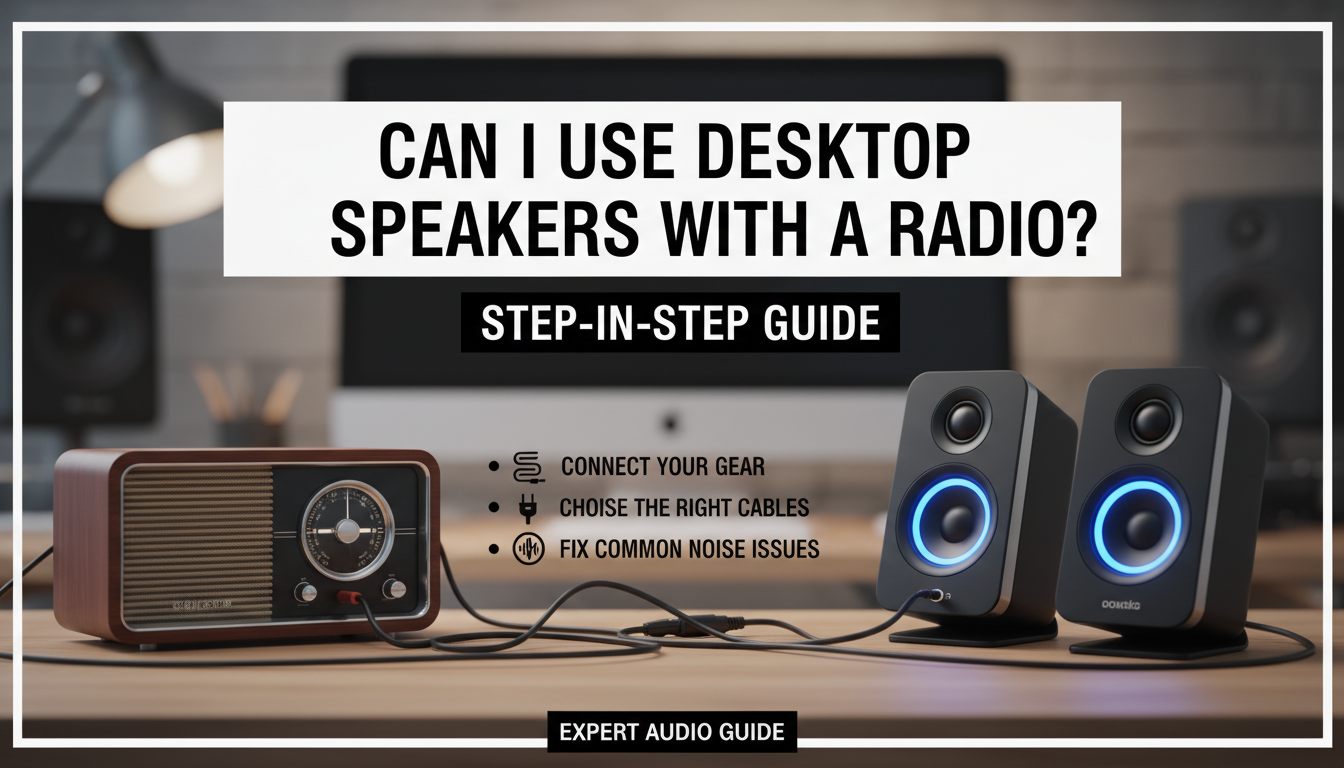
My radio only has one speaker (Mono). Will sound come out of both desktop speakers?
If you use a standard stereo 3.5mm cable, most desktop speakers will automatically play the mono signal through both the left and right channels. If it only plays out of one, you may need a Mono-to-Stereo adapter.
Can I damage my radio by plugging in speakers?
No. The input impedance of active desktop speakers is very high (usually around 10k ohms), which is very “easy” for a radio to drive. It is much safer for the radio than driving a low-impedance internal speaker at high volumes.









