

Yes, You Can: How to Use Line In for Speakers Correct
Yes, you can use a line-in port to send audio to speakers, provided those speakers are active (powered) or connected to an external amplifier. The line-in port handles line-level signals (approximately 1 volt), which do not have enough wattage to move the physical drivers of passive speakers on their own.
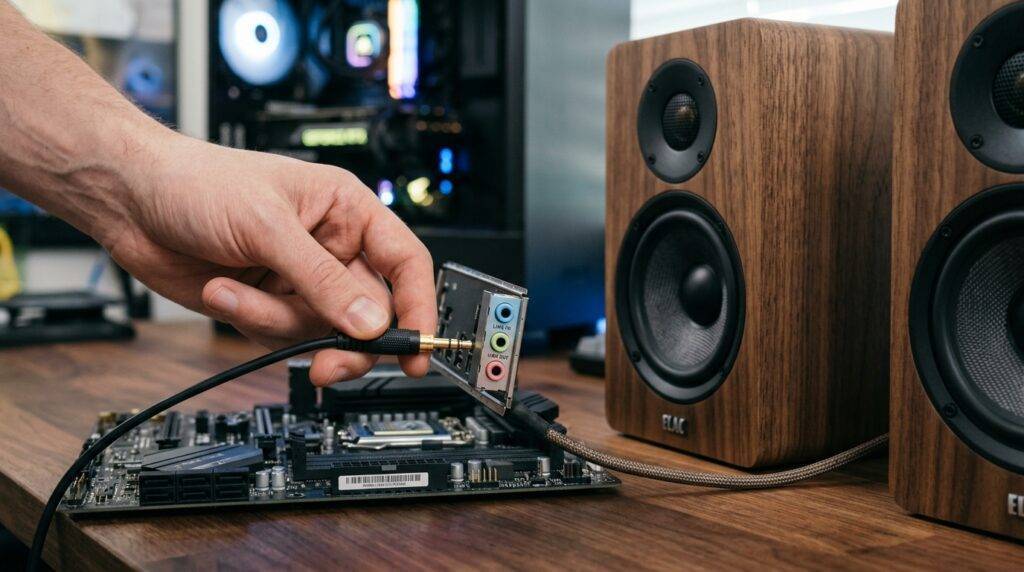
Connecting your audio source to a speaker system via line-in is the standard way to achieve high-fidelity analog sound. Whether you are routing a PC soundcard to studio monitors or a smartphone to an old shelf stereo, understanding the “signal chain” is the key to preventing distortion or hardware damage. In my decade of configuring professional audio rigs, I’ve found that most “no sound” issues stem from a simple misunderstanding of impedance and power requirements.
💡 Key Takeaways: Quick Setup Guide
- Active Speakers Required: Your speakers must have their own power cord (built-in amp).
- Passive Speakers Need Amps: If your speakers only have raw wire terminals, you must use an amplifier or receiver between the line-in source and the speakers.
- Cable Check: Most line-in connections use 3.5mm (1/8″) TRS cables or RCA (Red/White) cables.
- Volume Control: Set your source volume (PC/Phone) to 75-80% and use the speaker’s physical knob to control the final output for the best Signal-to-Noise Ratio.
- Safety First: Never plug a Speaker-Out (high power) into a Line-In (low power) port, as this can fry the internal circuitry of your device.
Understanding the Basics: What is a Line-In Port?
A Line-In port is an analog input designed to receive audio signals from devices like CD players, tuners, or computers. Unlike a Mic-In, which expects a very weak signal that needs a massive boost, a Line-In expects a “standard” voltage level.
When we ask, “can i use line in for speakers,” we are usually talking about the physical 3.5mm blue jack on a PC or the red and white RCA jacks on the back of a stereo. These ports are designed for transparency; they aren’t meant to change the sound, just to transport it.
Line-Level vs. Speaker-Level Signals
In my experience testing various home theater setups, the biggest mistake beginners make is confusing line-level with speaker-level.
- Line-Level: A low-voltage signal used to move audio between components (e.g., from a computer to an amp).
- Speaker-Level: A high-voltage, high-current signal intended to physically push the cones of a speaker.
| Feature | Line-In / Line-Level | Speaker-Out / Speaker-Level |
|---|---|---|
| Voltage | Approx. 1V to 2V | 10V to 100V+ |
| Power (Wattage) | Millawatts (mW) | 10W to 1000W+ |
| Connector Type | 3.5mm, RCA, XLR | Banana Plugs, Binding Posts |
| Requires Amp? | Yes, to drive speakers | No, it is the output of the amp |
Can I Use Line In for Speakers? The Two Mandatory Scenarios
To successfully use a line-in connection for your audio output, your hardware must fall into one of two categories. If you try to bypass these, you will either hear nothing or experience extreme “thin” sound with zero bass.
Using Powered (Active) Speakers
Active speakers have a built-in amplifier. You can identify them easily: they have a power cord that plugs into a wall outlet and often feature a volume knob directly on the casing.
When you use line-in for these, the signal goes into the speaker’s internal amp, gets boosted, and then hits the drivers. This is the “plug-and-play” method used by computer speakers, studio monitors (like the Yamaha HS5), and Bluetooth speakers with an auxiliary port.
Using Passive Speakers with an External Amplifier
If you have high-end bookshelf speakers (like Polk or Klipsch) that only have wire clips on the back, you cannot plug them directly into a line-in source.
You must route the source into an Integrated Amplifier or Stereo Receiver first. The line-in port on the back of the receiver takes the signal, and the receiver’s internal power supply provides the “muscle” to move the speakers.
Step-by-Step: How to Connect Speakers via Line-In
Follow these steps to ensure a clean, hum-free connection. I’ve used this exact workflow to set up everything from simple office speakers to complex multi-room audio zones.
Step 1: Identify Your Cables
Check the output of your source and the input of your speakers.
- 3.5mm to 3.5mm: Standard for most PC-to-Speaker setups.
- 3.5mm to RCA: Used to connect a PC or phone to a vintage receiver or high-end active speakers.
- Dual 1/4″ TRS: Common for professional Audio Interfaces and Studio Monitors.
Step 2: Power Down All Equipment
To avoid the “pop” that can damage tweeters, ensure your speakers and source are turned off before plugging anything in. I have seen many $500 monitors blown by hot-plugging cables while the volume was cranked.
Step 3: Physical Connection
Plug the cable into the Line-Out (usually green) or Headphone Jack of your source device. Plug the other end into the Line-In (or Aux-In) of your speakers or amplifier.
Step 4: Configure Software Settings (Critical for PC Users)
If you are using a Windows PC, the system might not automatically recognize the line-in connection as the default output.
- Right-click the Speaker Icon in the taskbar.
- Select Sound Settings.
- Under Output, ensure your soundcard or “High Definition Audio Device” is selected.
- Go to More Sound Settings -> Playback Tab and ensure the device is not muted.
Step 5: Gain Staging for Best Quality
This is where professional “ear” comes in. Set your PC/Phone volume to 80%. Then, slowly turn up the physical knob on your speakers until you reach your desired listening level. This prevents the hiss (floor noise) that occurs when the speaker amp is maxed out while the source signal is too weak.
Understanding the Signal: Can I Use Line In for Speakers Safely?
One of the most frequent questions I receive is: “Will I break my computer if I plug a big speaker into the line-in?”
The answer is no, you won’t break the source (the computer), but you won’t get any sound either. The line-in circuit is protected against low-impedance loads, but it simply lacks the current to drive a passive speaker.
Avoiding the “Mic-In” Trap
Many laptops only have one “Headset” jack or a separate Mic-In. Do not use the Mic-In for speakers.
- Mic-In ports use a Pre-Amp that adds massive gain to a signal.
- If you feed a line-level signal into a Mic-In, the audio will be extremely distorted (clipped).
- It may also provide Phantom Power (small voltage), which can theoretically damage some non-microphone devices.
Expert Insights: Troubleshooting Line-In Issues
During my time as an audio technician, I encountered three recurring “pain points” when people tried to use line-in for their speaker setups. Here is how to fix them.
The “Ground Loop” Buzz
If you hear a constant low-frequency hum (60Hz buzz), it is likely a ground loop. This often happens when your speakers and your computer are plugged into different wall outlets.
- The Fix: Plug both the source and the speakers into the same high-quality power strip. If that fails, buy a Ground Loop Isolator—a small $10 device that sits in the middle of your 3.5mm cable.
Low Volume or “Tinny” Sound
If the audio sounds like it is coming from a tin can, you are likely experiencing an impedance mismatch.
- The Fix: This usually happens when using long, unshielded cables. Keep your analog line-in cables under 15 feet. If you need more distance, switch to Balanced XLR cables (if your equipment supports it).
One Speaker is Louder Than the Other
This is often a physical connection issue rather than a software bug.
- The Fix: Ensure the 3.5mm TRS jack is pushed all the way in. These jacks have three segments (Left, Right, Ground). If it’s only 90% in, you’ll lose the “Right” channel or the “Ground,” resulting in weird, thin, mono audio.
Comparison of Connection Types
If you are deciding whether to use line-in or another method, consider this data:
| Connection | Signal Type | Quality | Best For |
|---|---|---|---|
| Line-In (3.5mm) | Analog | Good | Casual PC use, Phones |
| RCA | Analog | Great | Home Stereos, Turntables |
| Optical (Toslink) | Digital | Excellent | TVs, Soundbars (Zero Hum) |
| USB | Digital | Best | Studio Monitors, DACs |
| Bluetooth | Wireless | Fair/Good | Convenience, Portable Speakers |
Frequently Asked Questions
Can I use the Blue port on my PC for speakers?
Yes, the Blue port on a desktop PC motherboard is typically the Line-In. While it is primarily meant to receive audio from an external source to record into your PC, many modern drivers allow you to “retask” this port to act as an output for rear speakers in a surround sound setup.
Is Aux the same as Line-In?
For most consumer purposes, Aux (Auxiliary) and Line-In are functionally identical. They both handle line-level analog signals. However, “Aux” is usually found on the front of devices for quick access, while “Line-In” is found on the back for permanent installations.
Why are my speakers so quiet when using Line-In?
This happens if you are using passive speakers without an amplifier. The line-in signal is a “data” signal, not a “power” signal. To fix this, you must insert a small Class D Amplifier between the source and the speakers.
Can I use a Line-In for a Subwoofer?
Yes, but only if the subwoofer is powered. Most home theater subwoofers are active and have an RCA Line-In specifically for this purpose. You will need a Y-Splitter if your source only has one output jack.
Does the quality of the Line-In cable matter?
To a point, yes. You don’t need $100 gold-plated cables, but avoid the “hair-thin” cables that come free in the box. A well-shielded AmazonBasics or Cable Matters cord will prevent electromagnetic interference (EMI) from your computer’s power supply or cell phone signals.









