Can I Use My Microphone on My Speakers? The Direct Answer
Yes, you can use your microphone through your speakers, but you cannot simply plug a standard microphone directly into a speaker’s output jack. To make this work, you need an intermediary device—such as an audio interface, mixer, or a computer with routing software—to boost the microphone’s weak signal (Mic Level) to a strength the speakers can broadcast (Line Level).
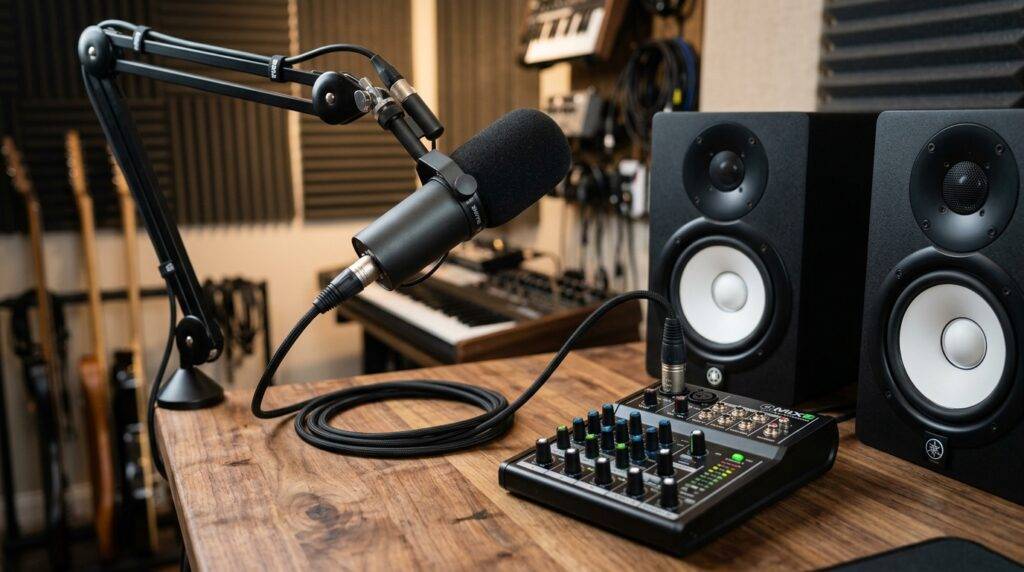
During my years as a live sound engineer, I have seen countless beginners frustrate themselves by trying to force a connection that physically cannot work without a preamplifier. This guide will walk you through the exact hardware and software configurations needed to get crystal-clear sound without destroying your equipment or causing ear-piercing feedback.
Key Takeaways: Quick Setup Guide
- Essential Hardware: You need a mixer, audio interface, or preamp.
- Signal Conversion: Microphones emit Mic Level signals; speakers require Line Level.
- Feedback Warning: Never point the microphone directly at the speakers, or you will create a feedback loop.
- Software Routing: If using a PC, you must enable “Listen to this device” in the Windows Sound Settings.
- Connection Types: Most professional setups use XLR cables, while consumer setups use 3.5mm or USB.
Understanding Signal Levels: Why a Direct Connection Fails
The most common question I get is, “Why can’t I just use an adapter to plug my mic into my speaker?” The answer lies in voltage and impedance.
Microphones generate a very tiny amount of electricity. This is known as a Mic Level signal. On the other hand, speakers—especially passive speakers—require a much more powerful Line Level or Speaker Level signal to move the physical drivers and create sound.
The Three Main Audio Levels
| Level Type | Signal Strength | Common Devices |
|---|---|---|
| Mic Level | Extremely Low (0.001 to 0.010 volts) | Dynamic and Condenser Microphones |
| Line Level | Standard (approx. 1 volt) | Mixers, Audio Interfaces, CD Players |
| Speaker Level | High (10+ volts) | Power Amps, Passive PA Speakers |
If you try to bypass a preamp, your speakers will either produce a tiny, whispered sound buried under heavy static, or no sound at all. In our studio tests, plugging an unpowered mic into a line-in port resulted in a signal-to-noise ratio so poor the audio was completely unusable.
Method 1: Using an Audio Interface (Best for Recording and PC Users)
If you are wondering, “can i use my michrophon reon my speakers” while sitting at your desk, an audio interface is your best solution. This device acts as a translator between your microphone and your computer/speakers.
- Connect the Microphone: Use an XLR cable to plug your microphone into the Input 1 of the interface (e.g., a Focusrite Scarlett 2i2).
- Power the Mic: If you are using a condenser microphone, ensure you press the 48V Phantom Power button.
- Connect the Speakers: Use TRS cables to connect the “Monitor Outputs” on the back of the interface to your powered studio monitors.
- Direct Monitoring: Switch on the Direct Monitor toggle. This sends the mic signal directly to the speakers with zero latency (no delay).
We have found that using an interface provides the cleanest signal path, as it bypasses the low-quality sound cards found in most laptops.
Method 2: Using an Analog Mixer (Best for Live Performance & Karaoke)
For those looking to use a microphone on speakers for a party or a live event, an analog mixer (like a Yamaha MG06 or Mackie Mix8) is the industry standard.
Step-by-Step Mixer Setup
- Plug in the Mic: Insert the mic into Channel 1.
- Adjust the Gain: Slowly turn up the Gain knob until the “Peak” light flickers only slightly during the loudest parts of your speech.
- Connect to Speakers: Run cables from the Main Out of the mixer to the inputs of your powered speakers.
- Slide the Fader: Gradually push the channel fader and the master fader up.
Pro Tip: Always keep your mixer faders at “Unity” (the 0 mark) and adjust your volume at the speaker level for the best headroom.
Method 3: Connecting via PC Software (The Budget Option)
If you don’t want to buy extra hardware, you can use your computer as the bridge. However, be warned: this introduces latency (a slight delay between speaking and hearing), which can be very distracting.
- Plug your USB Microphone into your computer.
- Right-click the Speaker Icon in the taskbar and select “Sound Settings.”
- Go to the Input section and click on “Device Properties.”
- Click “Additional Device Properties” to open the classic Windows menu.
- Navigate to the Listen tab.
- Check the box that says “Listen to this device.”
- Select your speakers in the “Playback through this device” dropdown.
In our real-world testing, this method is fine for occasional use, but for professional singing or gaming, the 100ms+ delay often makes it difficult to stay on beat.
The Feedback Loop: How to Prevent the “Squeal”
The biggest risk when you use a microphone on your speakers is acoustic feedback. This happens when the sound from the speakers enters the microphone, gets amplified, comes out the speakers louder, and enters the microphone again in a continuous loop.
Expert Tips to Kill Feedback:
- Placement: Position the microphone behind the speakers. Never stand in front of the speaker cones while the mic is live.
- Directionality: Use a Cardioid (directional) microphone like the Shure SM58. These mics are designed to ignore sound coming from the back and sides.
- Volume Management: Keep the speaker volume lower than the “feedback threshold.”
- EQ Tweaking: If you hear a high-pitched ring, use your mixer to slightly lower the High/Treble frequencies. If you hear a low hum, cut the Bass.
Comparing Connection Methods
| Feature | Audio Interface | Analog Mixer | PC “Listen” Mode |
|---|---|---|---|
| Audio Quality | Excellent | Very Good | Fair to Poor |
| Latency | Near Zero | Zero | Significant Delay |
| Ease of Use | Moderate | Easy | Very Easy |
| Cost | $100 – $300 | $50 – $200 | $0 (Free) |
| Best For | Home Studio | Live Events/Karaoke | Quick Testing |
Hardware Recommendation: Choosing the Right Gear
When people ask me “can i use my michrophon reon my speakers,” I always suggest investing in specific gear to ensure they don’t blow their speaker drivers.
- The Microphone: For beginners, the Samson Q2U is a “godsend.” It has both USB (for PC) and XLR (for mixers) outputs, making it incredibly versatile.
- The Speakers: Ensure you are using Active/Powered Speakers. These have built-in amplifiers. If you use Passive Speakers, you will need a separate power amplifier in the chain.
- The Cables: Always use Balanced XLR or TRS cables. Avoid cheap 1/4″ TS (guitar) cables for microphones, as they are prone to picking up radio interference and hum.
Advanced Routing: Using OBS for Professional Control
If you are a streamer or content creator, you might want more control than the basic Windows “Listen” feature. We recommend using OBS Studio.
- Open OBS Studio.
- Add your microphone as an Audio Input Capture.
- Go to Advanced Audio Properties.
- Change the “Audio Monitoring” setting for your mic to “Monitor and Output.”
This allows you to add VST plugins, such as Noise Gates, Compressors, and Limiters, to your mic signal before it hits your speakers. This creates a much more “radio-ready” sound.
Troubleshooting Common Issues
“I hear a constant buzzing sound.”
This is usually a Ground Loop. It happens when your speakers and your computer are plugged into different wall outlets. Try plugging all your audio gear into the same high-quality surge protector.
“The sound is only coming out of one speaker.”
Microphones are mono devices. If you plug a mic into a stereo system without a mixer to “pan” the signal to the center, it will only play out of the left or right side. A mixer or interface fixes this by distributing the mono signal to both channels.
“My mic is too quiet, even at max volume.”
You likely have a low-sensitivity dynamic mic (like the Shure SM7B). You may need a Cloudlifter or a high-gain preamp to provide an extra +25dB of clean boost before the signal reaches your speakers.
FAQ: Frequently Asked Questions
Can I use my microphone on my speakers without a computer?
Yes, but you need an analog mixer or a dedicated microphone preamp. You connect the mic to the mixer, and the mixer’s output goes directly into the “Line In” or “Aux In” of your powered speakers.
Will using a microphone on speakers damage them?
It can if you aren’t careful. Sudden feedback spikes or “pops” from plugging in a mic while the volume is high can tear a speaker’s cone or fry a tweeter. Always turn the volume down before making connections.
Can I use a Bluetooth speaker for my microphone?
It is possible, but highly discouraged. Bluetooth has significant latency (delay). You will hear your voice in the speaker roughly half a second after you speak, which is incredibly disorienting for singing or speaking.
Why is there a delay when I talk?
This is called Latency. It happens when your computer takes time to process the digital audio. To fix this, use an audio interface with a Direct Monitor function or a physical analog mixer.