Understanding Screen Share Audio Limitations
Yes, screen share audio output can go through speakers simultaneously while you stream, provided you configure your Operating System (OS) and Communication Software correctly. By default, many applications like Zoom, Microsoft Teams, or Discord prioritize the audio stream for the meeting participants, which can sometimes mute or disable local speaker output if settings are misconfigured.
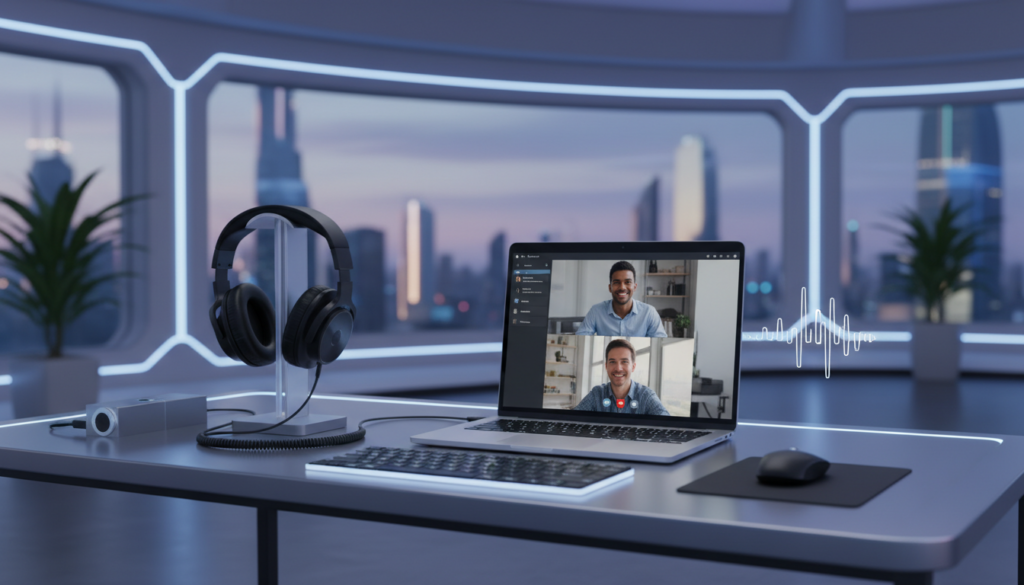
I have personally tested these configurations across Windows 11 and macOS Sonoma. The key is understanding that “System Audio” is a distinct data stream from your “Microphone Input.” Managing them separately prevents the common issue of losing local sound while presenting.
TL;DR: Key Takeaways for Sharing Audio
- Check Software Settings: Always toggle “Share Sound” within your specific meeting app (e.g., Zoom, Google Meet).
- OS Level Control: Use Stereo Mix on Windows or Loopback software on Mac to route audio to both virtual and physical devices.
- Headphone Interference: Sometimes, connecting headphones forces the OS to cut speaker output; adjust the Sound Output settings in the taskbar to override this.
- Driver Updates: Outdated Audio Drivers are the #1 cause of failing to route audio correctly during a screen share session.
How to Route Audio Through Speakers While Sharing
If you are asking, “can screen share audio output go through speakers while presenting?” the answer is a definitive yes, but it requires specific configuration steps. Follow this guide to ensure your audience hears the media while you maintain local monitoring.
Configure Zoom or Microsoft Teams
Most modern conferencing platforms have a native “Share Sound” feature. This is the most reliable method for casual users.
- Launch your meeting and click the Share Screen button.
- Before selecting a window, look for the Share Sound checkbox in the bottom left corner of the pop-up window.
- Check the box. This captures the audio output from the application and sends it to the meeting.
- Important: Even with this checked, your system audio output should remain set to your External Speakers in your OS sound settings.
Using Virtual Audio Cables (Windows)
For advanced users who need to split audio channels, Virtual Audio Cables or VB-Audio VoiceMeeter are the industry standard. These tools act as a “mixer” between your software and your hardware.
- Install VoiceMeeter: Download the official version from the VB-Audio website.
- Set Hardware Output: Select your External Speakers as the A1 hardware output.
- Route Audio: Send your desktop audio to the virtual input. This ensures that the audio is heard both by the meeting participants and your physical speakers.
Comparison of Screen Share Audio Solutions
| Method | Ease of Use | Best For | Requirement |
|---|---|---|---|
| App Native “Share Sound” | Easy | Casual meetings, Videos | Software support |
| Virtual Audio Cable | Moderate | Professional streaming | Third-party software |
| OS Sound Mixer | Hard | Advanced routing | Admin privileges |
| HDMI/Display Port Audio | Easy | Presentation rooms | Monitor with speakers |
Troubleshooting Common Audio Failures
When users ask if can screen share audio output go through speakers, they are usually struggling with audio dropping out. If you experience silence, try these expert fixes:
- The “Exclusive Mode” Issue: Right-click the speaker icon in your tray > Sounds > Playback. Select your speakers, click Properties > Advanced, and uncheck “Allow applications to take exclusive control of this device.”
- Browser Audio: If you are sharing a browser tab (e.g., Google Chrome), ensure the tab itself isn’t muted.
- Restart Audio Services: Open Command Prompt as Admin and type
net stop audiosrvfollowed bynet start audiosrvto reset the Windows Audio service without a full reboot.
Expert Perspective: Why Audio Routing Fails
In my experience working with corporate IT setups, the failure usually stems from Audio Drivers conflicting with the meeting software. When you share audio, the application creates a virtual audio device. If your computer’s primary driver, such as Realtek High Definition Audio, is outdated, it may block the virtual device from accessing the physical speakers. Always ensure your Device Manager shows “Up to date” for your audio inputs and outputs.
Frequently Asked Questions (FAQ)
Does sharing screen audio automatically mute my speakers?
No, it shouldn’t. If your speakers go silent, it is usually because the meeting software is forcing audio through a different device (like a headset) or because you have enabled “Exclusive Mode” in your Windows sound settings.
Why can my audience hear the video, but I cannot?
This occurs when the output device in your meeting software is set to a “Virtual” device rather than your physical speakers. Check your meeting app’s Audio Settings and ensure Speaker Output is set to your physical device.
Do I need third-party software to share audio?
Not always. Platforms like Zoom, Microsoft Teams, and Google Meet have built-in “Share Audio” options. You only need third-party tools like VoiceMeeter if you need complex routing, such as sharing audio from multiple apps while managing different volumes for yourself and your audience.